
Sales points and sales sources
Two Settings sections that extend the daily report: several shops and sales through delivery platforms.
Last updated:
Where to find it
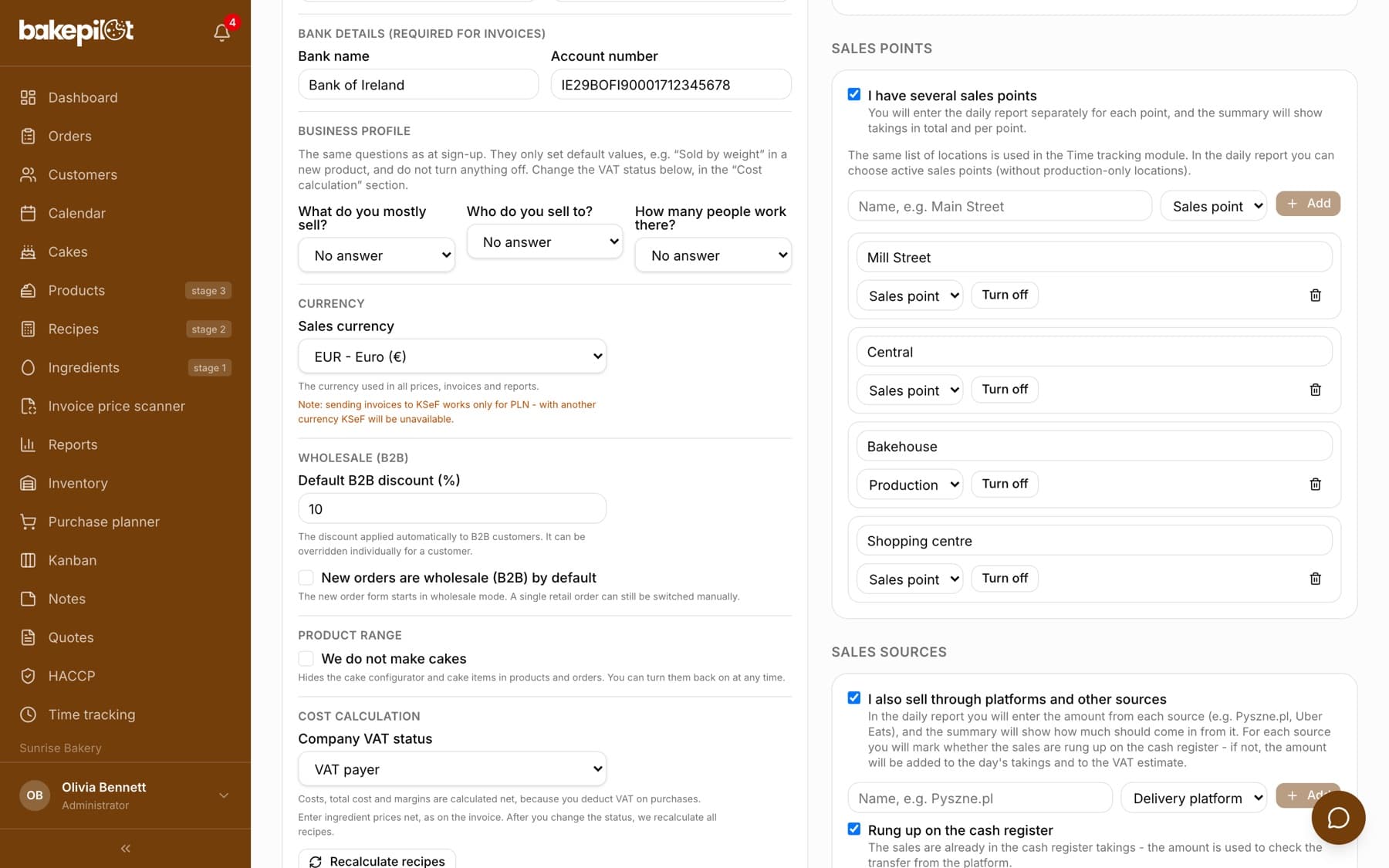
In Settings, the Administrator has two sections: “Sales points” and “Sales sources” (other roles don't see them). Each has its own switch. As long as both are off, the daily report works as before.
- “I have several sales points” - a separate daily report for each point and takings broken down by point
- “I also sell through platforms and other sources” - a field in the daily report for the amount from each source, e.g. Pyszne.pl, Uber Eats
- The list of points is the same list of locations as in the Time tracking module - you add a point once and it works in both places
- Point type: “Sales point”, “Production” or “Other” - a point of the “Production” type does not appear in the daily report
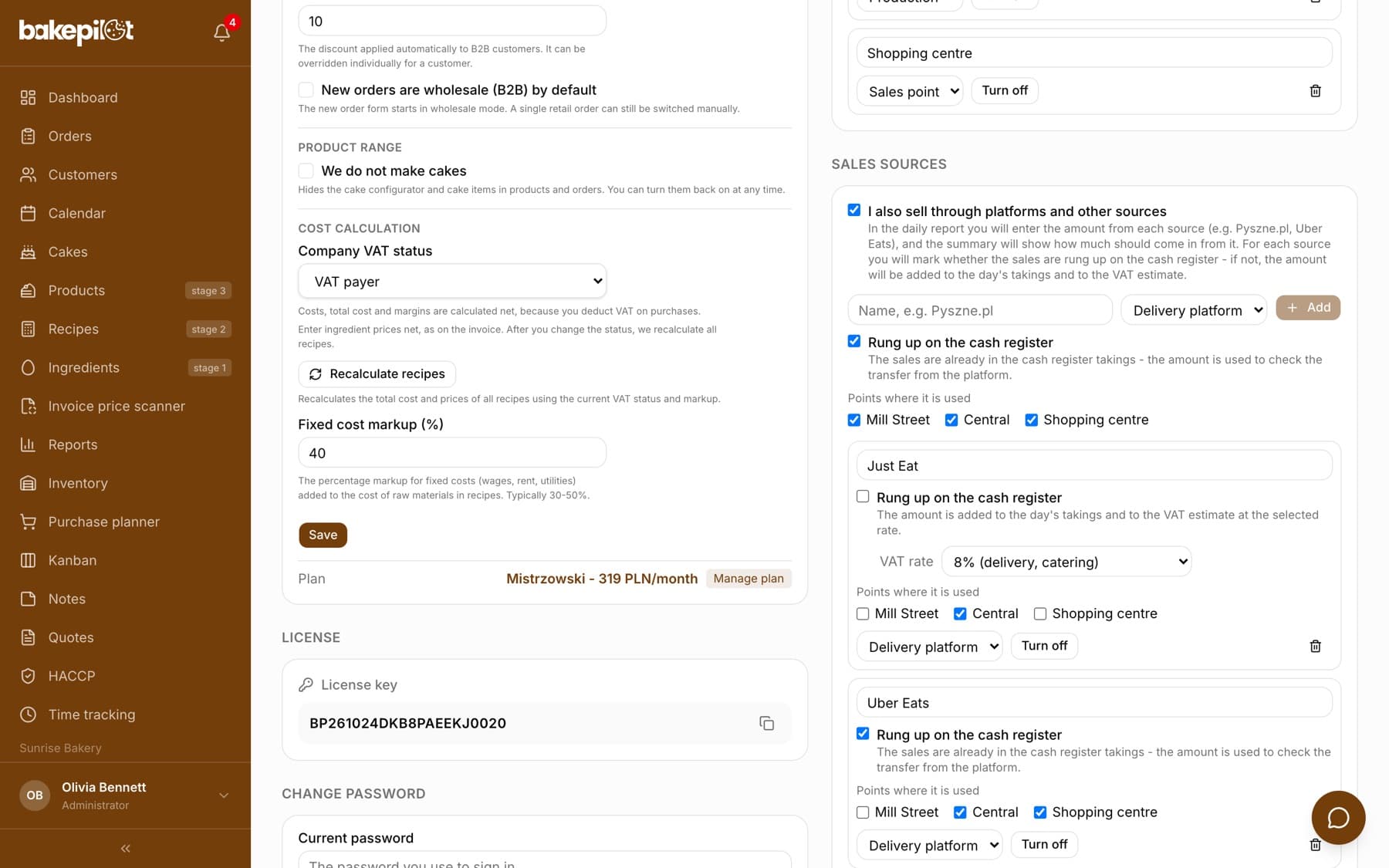
- Source type: “Delivery platform”, “Card terminal” or “Other”; when points are on, you also choose the points where the source is used
- “Rung up on the cash register” for each source (ticked by default) - the sales are already in the cash register takings, and the amount is used to check the transfer from the platform
- When you untick it, you choose the “VAT rate”: “5% (takeaway)”, “8% (delivery, catering)”, “23%” or “0%” - the amount is added to the day's takings and to the VAT estimate as off-register sales
Tip: Orders from delivery platforms should usually be rung up on the cash register (with a receipt). If you are unsure how to account for such sales, ask your accounting office.
Rules for an off-register source
Unticking “Rung up on the cash register” means the amount from this source increases the day's takings. To make sure the same sales are not counted twice or in several points at once, the app enforces two rules.
- A source of the “Card terminal” type stays on the register - instead of the checkbox it shows the sentence “The card terminal is already in the cash register takings - its amount is used to check the payout from the operator and is not added to the takings”
- When points are on, an off-register source must be used in exactly one point; otherwise saving ends with the message “An off-register channel must be assigned to exactly one sales point - otherwise its amount is counted in every point's report”
- You tick the source's points in the “Points where it is used” section and confirm with the “Save points” button
- A source that already has amounts in reports can be turned off but not deleted: “This channel has amounts in reports - you can turn it off instead of deleting it”
Tip: The switch applies from the moment you change it onwards. Amounts entered earlier keep the setting from the day they were saved, so changing it does not recalculate closed months or the VAT estimate retroactively.
What next
How to enter reports for points and how to read the summary is described in the article “Sales points in the daily report”. Amounts from platforms, off-register sales and splitting cash register payouts are described in “Sales sources and cash register payouts”. Employees' hours broken down by the same points are in the Time tracking module - that is also where, in the employee form, you assign them “Employee locations” for which they enter today's takings.
Frequently asked questions
Will turning off points delete saved reports?
No. Reports saved with a point stay in the database together with the point. After you turn the switch off, the daily report simply returns to the layout without the point field.
I added a location in Time tracking. Do I have to add it again?
No. It is one list, so a location from Time tracking is immediately on the list of points in Settings. Just check its type - points of the “Sales point” and “Other” types go into the daily report.