
Production from a recipe: weighing, stages and rescue after overpouring
The “Start production” button: you enter how much you want to make (pieces, kilograms, portions, batches or the amount of one ingredient), tick off ingredients as you weigh them, and if you add too much, the app scales up the whole production.
Last updated:
Where the button is
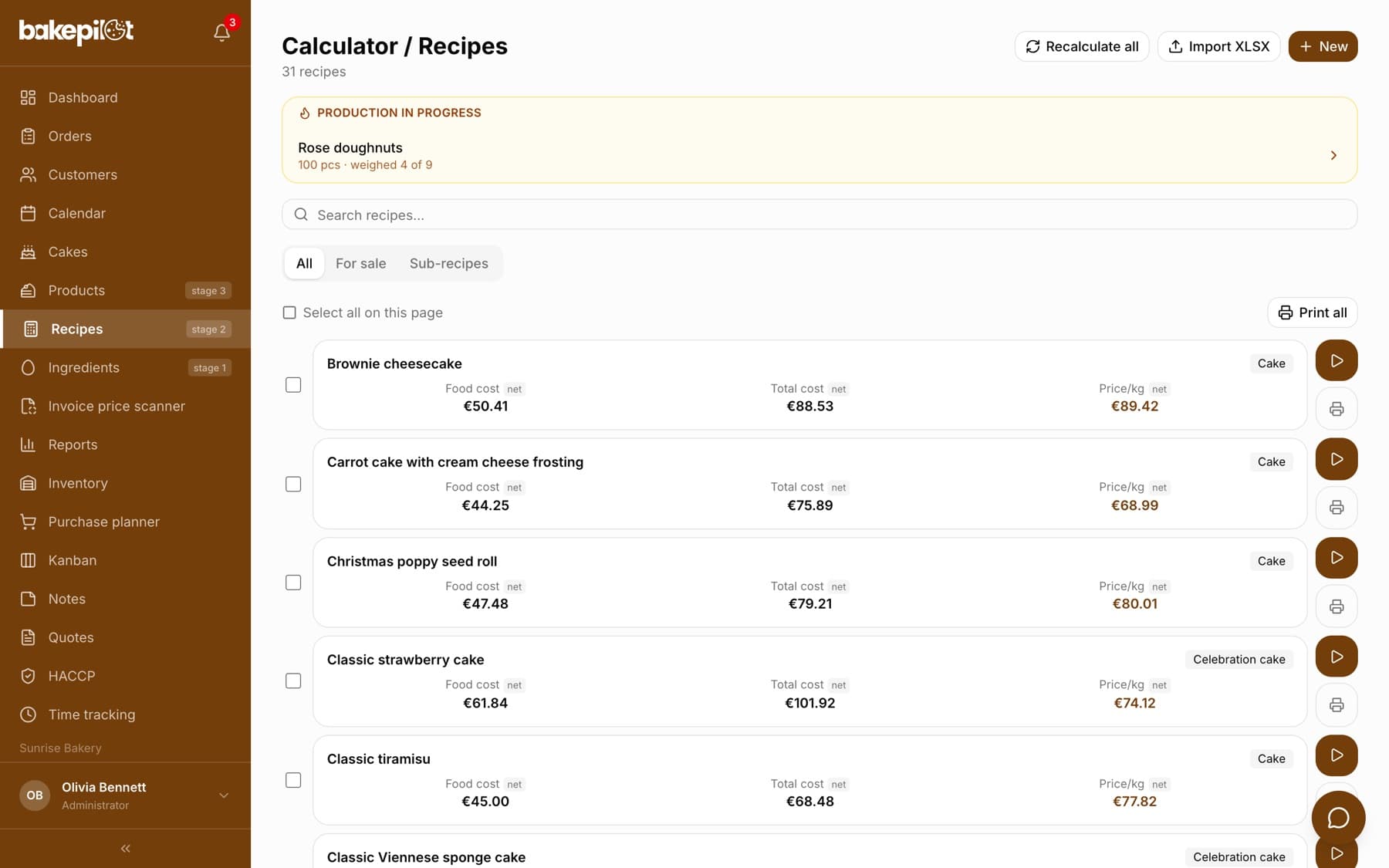
Production from a recipe is part of the Mistrzowski (Master) plan. On the recipe card the first button is “Start production”. The same button (a “play” arrow icon) is next to every item on the recipe list, beside the printer icon - you don't need to open the card. If a production of that recipe is already running, the button opens it instead of starting a second one. Above the recipe list you see the “Production in progress” bar with the weighing progress.
- Recipe card → “Start production”
- Recipe list → the “play” icon next to an item
- The “Production in progress” bar above the recipe list - one click back to weighing
You enter how much you want to make
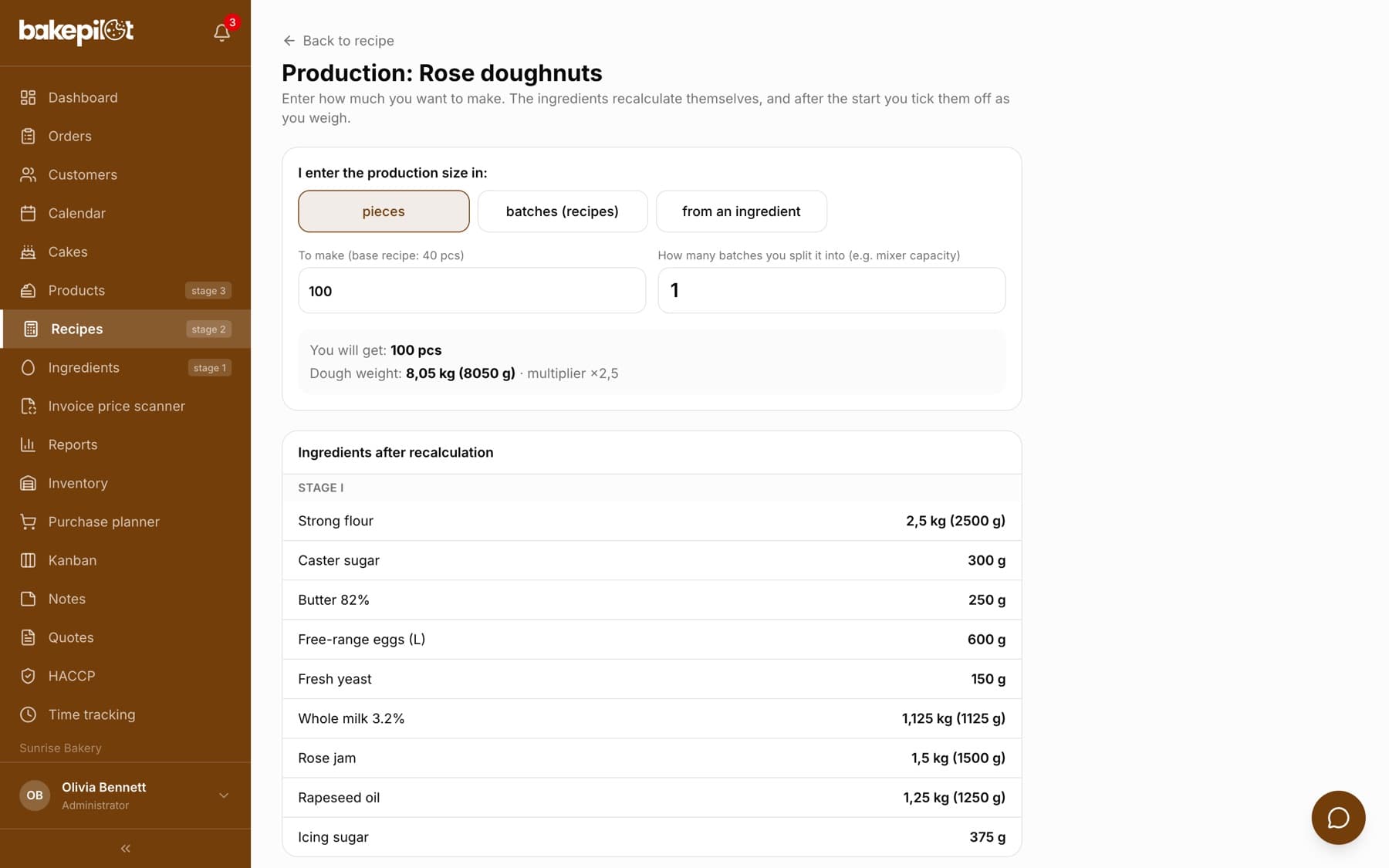
On the start screen you choose how to enter the size: in the recipe's unit (pieces, kilograms or trays - whatever is set in “The batch yields”), in portions, in batches (1 batch = the base recipe) or “from an ingredient”. The last mode is for situations like “I have 4.5 kg of flour, make as much as possible”: you choose the ingredient, enter the amount, and the rest of the recipe is scaled proportionally. The “How many batches you split it into (e.g. mixer capacity)” field splits the dough weight into portions to fit your mixer (e.g. 2 × 5 kg). Below you see a preview of the scaled ingredients, grouped into stages.
- Click “Start production”
- Choose how to enter the size: “pieces” / “kilograms” / “trays”, “portions”, “batches (recipes)” or “from an ingredient”
- Enter the amount (with “from an ingredient”, first choose the ingredient from the list)
- Optionally set “How many batches you split it into”
- Check the “Ingredients after recalculation” preview and click “START”
Tip: The tiles depend on the recipe: “portions” is only shown for a recipe with a number of portions set. If the recipe has no yield (no number of pieces or batch weight), only “batches” and “from an ingredient” are available - fill in “The batch yields” in the recipe edit form to count in pieces and kilograms.
Weighing: stages, weighed amounts and ticking off
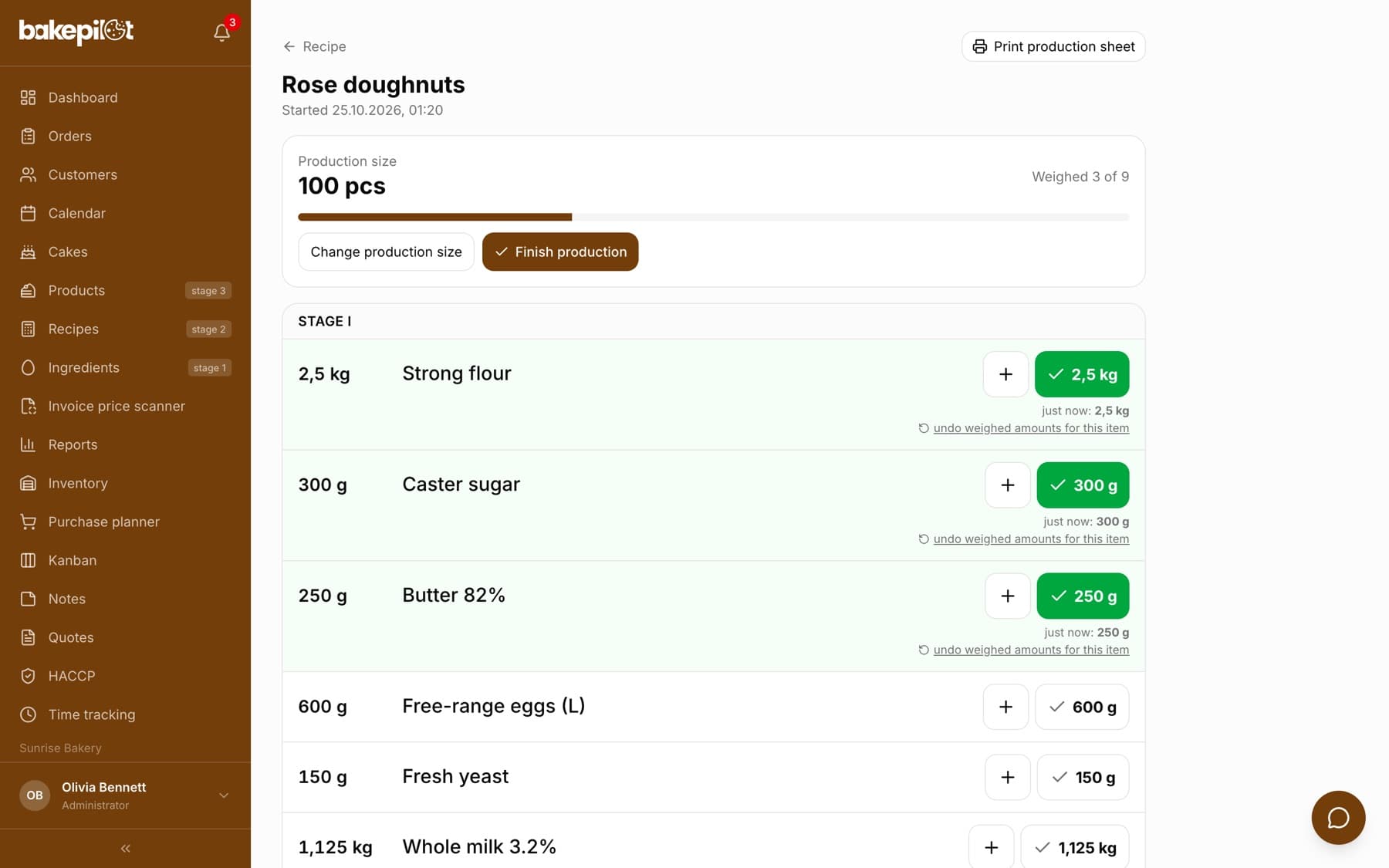
After the start, weighing mode opens with large rows that are easy to use on a tablet and a touchscreen. Ingredients are grouped into stages (“Stage I”, “Stage II”…) - you set the stage next to an ingredient in the recipe edit form (the “S1, S2…” field). In each row you see the target amount, the name and two buttons: “+” adds a weighed amount (you enter how much you actually added - you can do this several times), and the tick with the amount means “Weighed as planned” and closes the line. Below the row you see the history of weighed amounts (“3 min ago: 200 g”). You undo a mistake with the “undo weighed amounts for this item” button.
- Green row - weighed; yellow - partly weighed (shows how much is missing); pink - too much
- “+” - a top-up with the amount you enter; tick - ticks off the whole target
- “Change production size” during production - you enter a new multiplier and the ingredients are recalculated
- The progress bar “Weighed 3 of 9” at the top
You added too much: scale up production
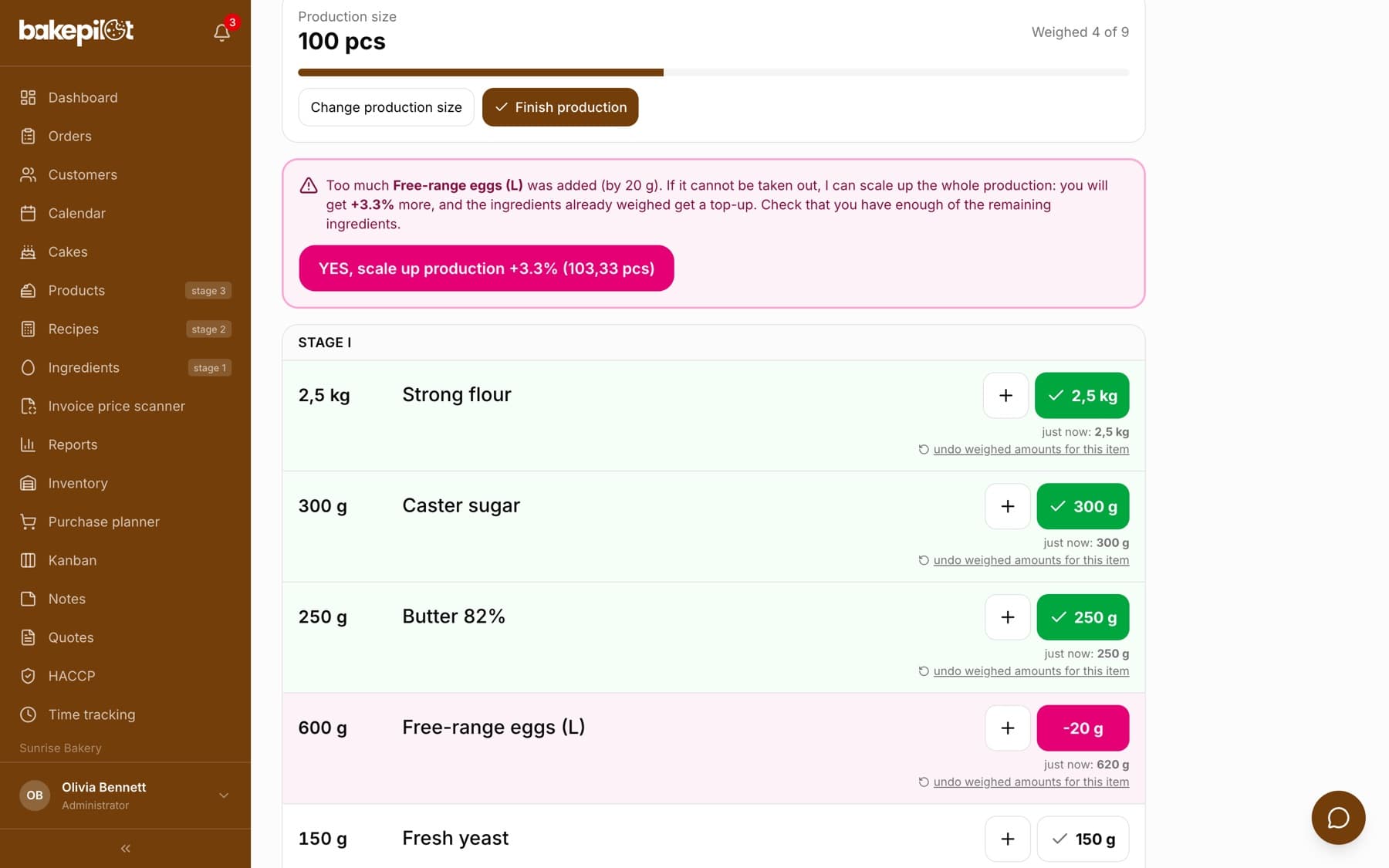
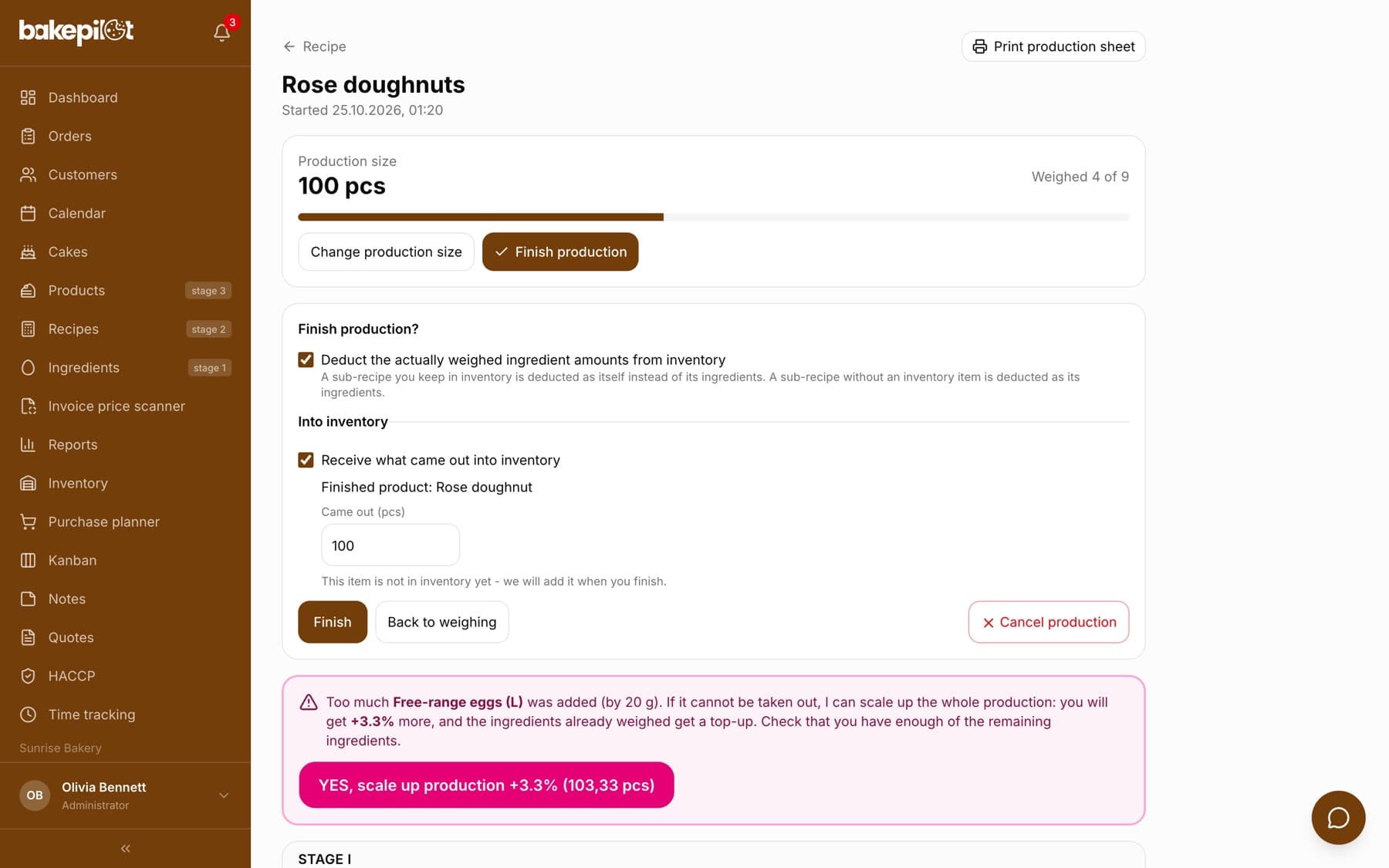
When the sum of weighed amounts exceeds the target (e.g. target 550 g, 570 g added), the row turns pink with the surplus “-20 g”, and a message appears above the list: “Too much … was added (by 20 g). If it cannot be taken out, I can scale up the whole production: you will get +3.6% more, and the ingredients already weighed get a top-up”. Clicking “YES, scale up production +3.6%” (with the new yield in brackets, e.g. “103,64 pcs”) recalculates all ingredients so that the overpoured amount becomes the target. Ingredients not yet weighed get new, larger targets, and those already weighed show how much to top up. The production is saved at the cost of a slightly larger batch.
Tip: A surplus of up to half a percent of the target (at least 1 g) does not count as overpouring - a scale cannot tell that difference anyway.
Photo of the finished product and production method
On the recipe card you can add a photo of what the finished product should look like (“Add a photo of the finished product”, JPG/PNG/WEBP up to 5 MB, one per recipe). In the recipe edit form there is a “Production method (recipe steps)” field - steps, temperatures, times. Both are shown in weighing mode in the “What it should look like and how to make it” section, and the method is also included on the recipe printout.
- Photo: recipe card, visible only to your bakery
- Method: recipe edit form → “Production method (recipe steps)”
- In weighing mode the section can be collapsed so that it does not hide the ingredient list
Finishing and inventory
“Finish production” opens the “Finish production?” panel below the button. The option “Deduct the actually weighed ingredient amounts from inventory”, ticked by default, deducts from stock what was actually weighed (not the theoretical amounts). A sub-recipe that has an inventory item is deducted as a sub-recipe (in the weighed amount), and a sub-recipe without an item is deducted as its ingredients. Ingredients kept in inventory in non-weight units (pieces, liters) are not deducted. “Back to weighing” closes the panel without changes, and “Cancel production” keeps the weighed amounts in the history but does not count the production and deducts nothing.
- Inventory deduction only after finishing and only of the real weighed amounts
- On the Mistrzowski (Master) plan the panel also has an “Into inventory” section: “Receive what came out into inventory” adds the finished product or sub-recipe to stock in the amount from the “Came out” field - details in the article on finished goods and sub-recipes in inventory
- The ingredient deduction, the product receipt and closing the production are saved together - a second click on “Finish” does not deduct anything twice
- If there was less in stock than was used, the item goes down to zero and the message names it
- A finished production stays visible, but nothing can be ticked off in it any more
Frequently asked questions
Can I run two productions of the same recipe at once?
No. One recipe has one production running at a time - the button takes you back to it. Finish or cancel it to start another one. Different recipes can be produced in parallel.
Does a second person see the ticks made on the tablet?
Yes. The production status is saved in BakePilot, not in the browser - after a refresh or on another device you see the same weighed amounts.
Does it work with a scale?
For now, amounts are entered manually. Integration with a scale (a scale connected to the computer at the workstation) is planned.