
Attendance and hours by location
When you have several shops, or a workshop and a shop: attendance filtered by location and working hours broken down by location in the payroll summary.
Last updated:
Where locations come from
Locations are the entries from the “Settings” tab in the Time tracking module (“Locations”). The same list is in the app Settings, in the “Sales points” section, so staff hours and takings from daily reports refer to the same places. If you have no locations, attendance and payroll look the same as before.
- A clock-in goes to the location of the shift in the schedule
- Without a shift in the schedule - to the location of the kiosk where the employee clocked in, and as a last resort to their “Default location”
- A clock-in added manually gets the location of the scheduled shift for that day, and when there is no shift or it has no location - the employee's “Default location”
- The “Employee locations” in their form do not change how hours are assigned - they only define for which locations the employee enters today's takings in Reports
Attendance list with a location filter
The “Attendance” tab has a “Location” filter with the options “All”, the location names and “No location”. The filter shows clock-ins and shifts from the selected location - an employee who works in two places appears in each of them with their hours. Each clock-in shows the name of the location.
Tip: Absences (leave, sick leave) are assigned to the employee's default location, because they have no place of their own.
Hours by location in the payroll summary
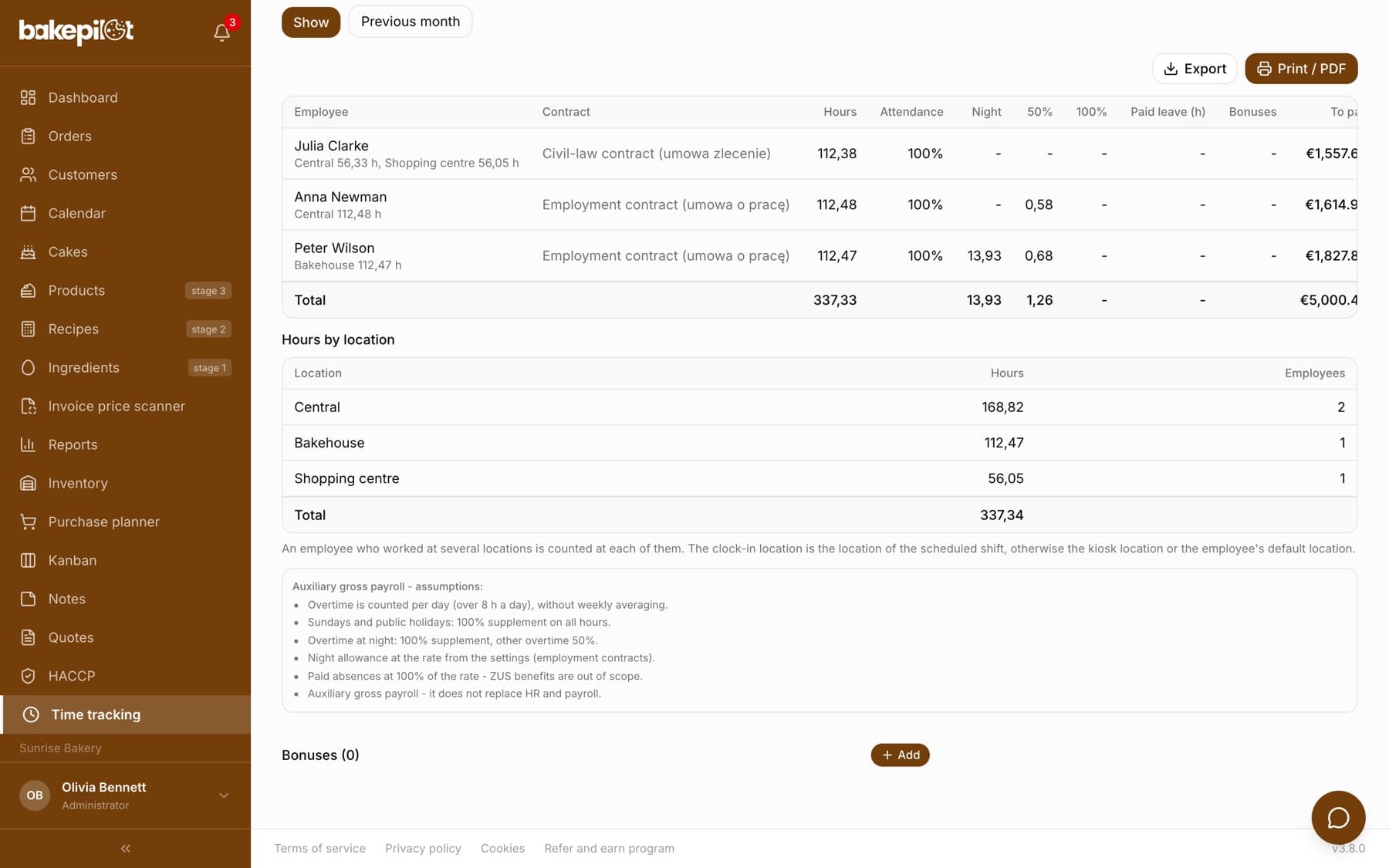
On the “Payroll” tab, under the employee's name you can see how many hours they worked at each location. Below the table there is a separate “Hours by location” table with the columns “Location”, “Hours” and “Employees” and a “Total” row. Both are also on the “Print / PDF” printout, and the CSV and Excel export has an “Hours - location name” column for each location.
- Hours are calculated the same way as hours worked in the payroll summary - with the same clock-in and schedule rules
- An employee working at several locations counts in the “Employees” column for each of them
- The “Default location” filter above the table narrows the list of employees by their default location
Frequently asked questions
An employee works in the workshop in the morning and in the shop in the afternoon. How do I settle that?
Give them two shifts in the schedule with different locations. The clock-ins go to the locations of those shifts, and the payroll summary shows their hours separately for the workshop and for the shop.
What does “No location” mean?
These are clock-ins that could not be assigned to any location - e.g. from before locations were added, or from an employee without a default location clocking in from their own account without a shift in the schedule.