
Employee assigned to branches
Each employee has their own account, and you decide in which branches (points) they work: all of them, one or several.
Last updated:
Role and branches are two different things
The role (Salesperson, Baker, a custom role) says what an employee can do in the app. The branches say in which points. A branch is the same location as in the “Sales points” section and in the Time tracking module, so you don't create anything twice. For example, a shop manager gets a role with the right to daily reports and one branch - her shop.
- The feature is part of the Mistrzowski (Master) plan
- It works when “I have several sales points” is ticked in Settings
- Branches are set by the account owner (Administrator); the Administrator always has access to all branches
- An employee without any assignment has access to all branches - just as before this feature was turned on
How to assign branches
You set the assignment for each employee on the list in the “Employees” section.
- Go to Settings and scroll to the “Employees” section.
- Below the employee's name and role there is a line “Branches: …” - click “Change”.
- Choose “All branches” or “Selected branches” and tick one or more branches.
- Click “Save”. The message “Employee's branches saved” appears, and the line shows the names of the selected branches.
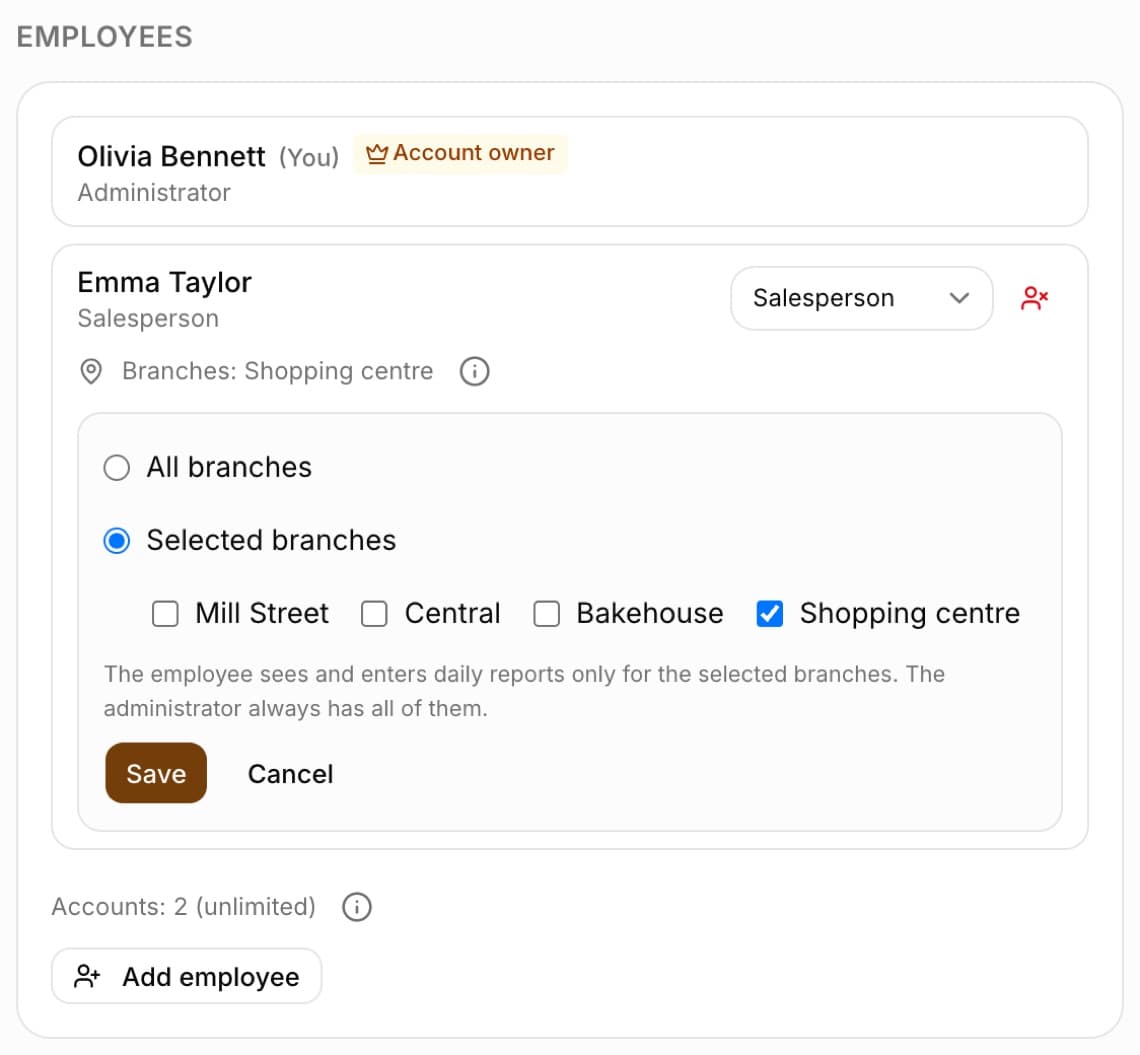
Tip: If the employee has a card in the Time tracking module, below the list you will see their points from that module (e.g. “In Time tracking: Centralna”) and a “Set the same” button that copies them with one click. The information icon next to the “Branches: …” line reminds you of the difference between “All branches” and “Selected branches”.
What the assignment changes
Assigning branches narrows down daily reports, orders and inventory:
- The employee sees daily reports only from the assigned branches
- They can save and correct the daily report only for their branches; on the “Today's takings” screen they can choose only their own points, and for another point saving ends with the message “You are not assigned to this sales point - ask the administrator to assign you”
- The assignment in Settings takes precedence over the “Employee locations” from the Time tracking module; an employee without an assignment enters takings as before, according to Time tracking
- They see only the orders of their branches - on the list, the board, in the calendar, on the dashboard, on the customer card and in printouts; they will not see or open from a link the orders of other branches or orders without a branch, and a new order gets their branch - details in the article “Branch orders”
- A manager of several shops and the production team, who need to see the orders of the whole company, get “All branches” - they see everything with the “Branch” filter
- The Inventory module opens their branch warehouse; they can only browse the main warehouse - details in the article “Branch warehouse”
Frequently asked questions
I can't see the “Branches” field next to employees. Why?
The field is visible to the Administrator in the Mistrzowski (Master) plan when “I have several sales points” is ticked in the “Sales points” section. The Administrator themselves has no such field, because they always have all branches.
Can I delete a branch that employees are assigned to?
No - you can turn such a branch off. Deleting it would turn a “one branch” assignment into access to all branches. First change the employees' branches or turn the branch off.
What happens after changing to a lower plan?
The assignments stay saved but stop narrowing access - employees see all branches again. After returning to the Mistrzowski plan they start working again.