
Standing orders
A template per customer per day of the week - the system generates repeat orders by itself.
Last updated:
What it is for
If a customer orders the same thing every Monday and a different set every Tuesday - exactly like a spreadsheet with a tab for each day of the week - you no longer have to enter these orders by hand. You save them once as standing orders, and the system creates regular orders from them automatically, every night, two days in advance. One template corresponds to one day of the week; a customer with deliveries on Monday and Thursday simply has two templates.
- Template = customer + day of the week + time + items
- Automatic generation, two days in advance
- A generated order has the “Confirmed” status right away
- The template label tells apart pickup points of the same customer
How to set up a standing order
You create a template from an existing order of this customer. A customer saved in the database is required - for an order without a linked customer the button does not appear. The customer, items, quantities, wholesale mode and payment method go into the template.
- Open the customer's order and click “Save as standing”
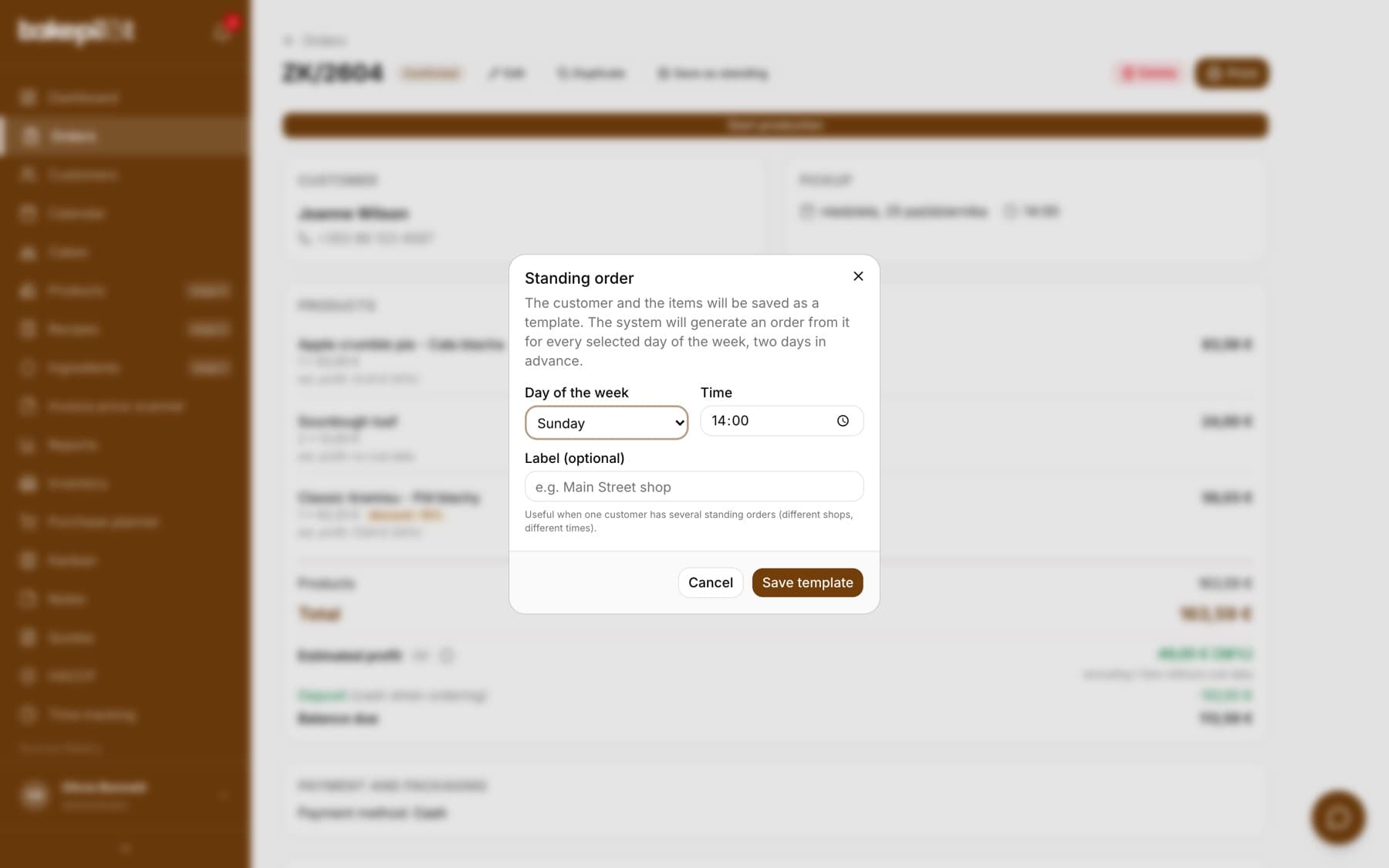
- In the “Standing order” window choose “Day of the week” and “Time” (we suggest the ones from the order)
- Optionally enter “Label (optional)”, e.g. “Main Street shop”, when the customer has several standing orders
- Click “Save template” - you go to the list of standing orders
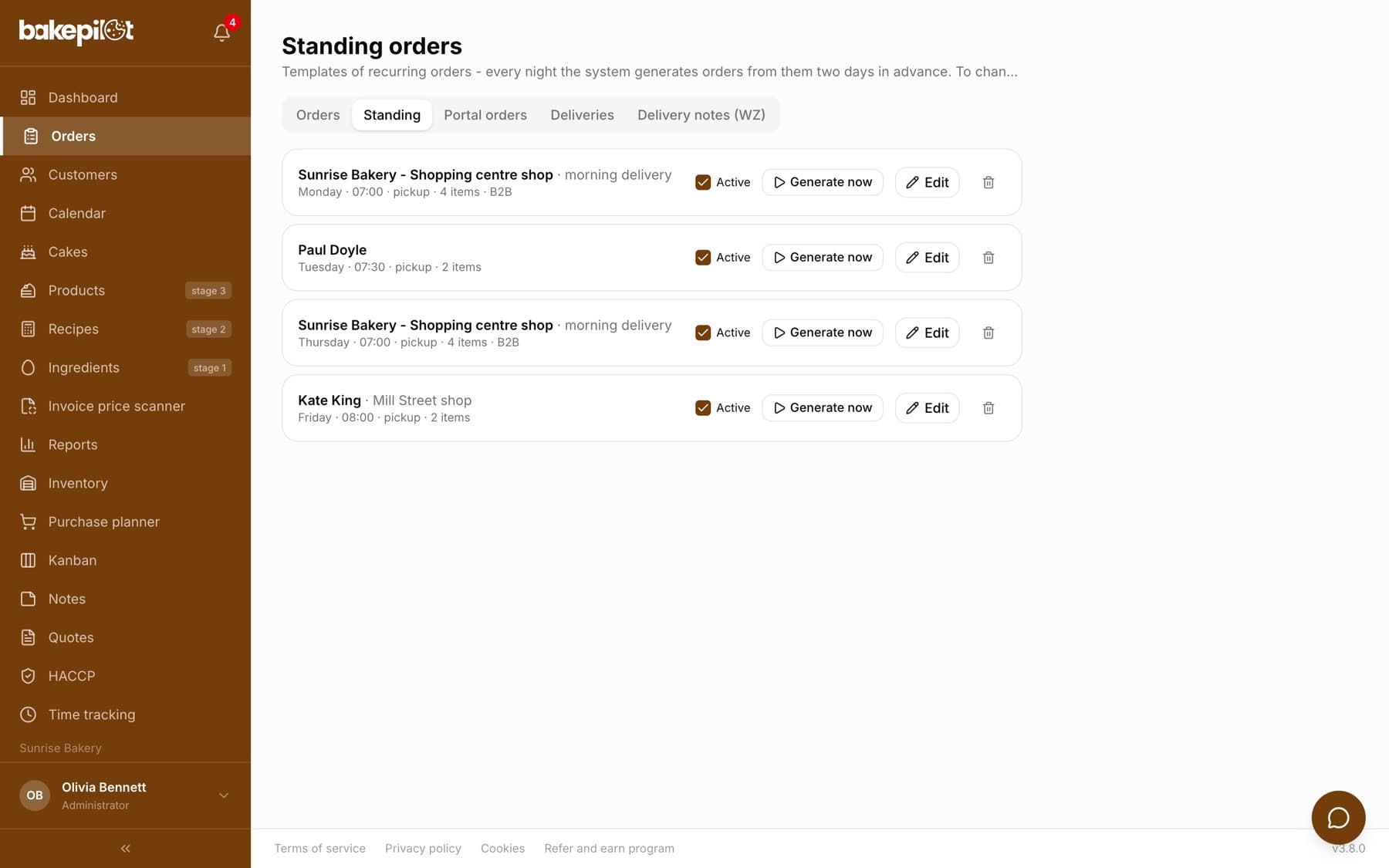
Tip: You will find the list of all templates in the “Standing” tab in Orders.
Prices: live from the price list or frozen
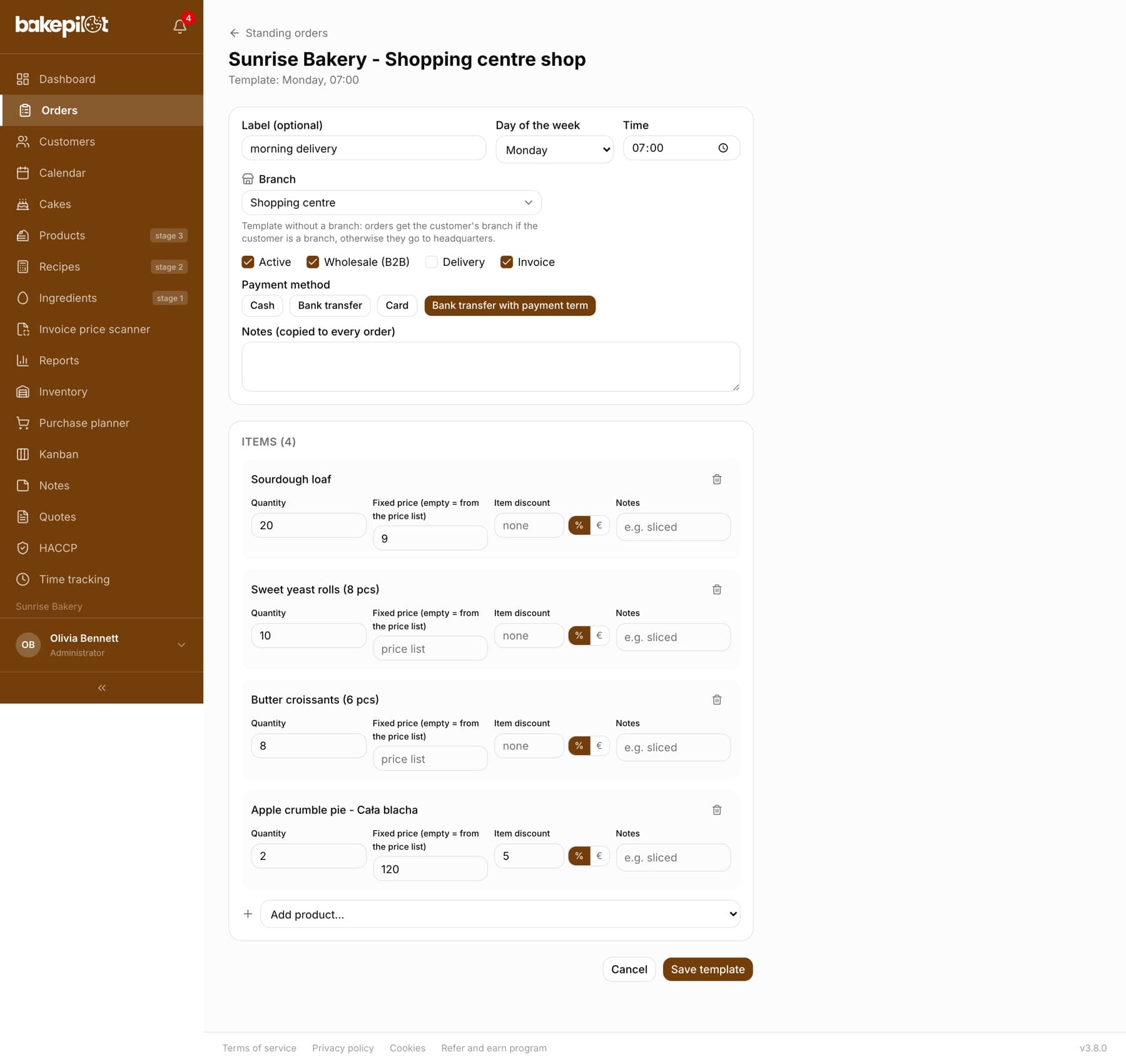
By default every template item is priced at generation time according to the current price list - just like in the order form: for a wholesale template first the product's “B2B price”, then the retail price minus the discount. A price increase in the price list goes into the following orders by itself. If you have a negotiated rate with the customer, enter it in the price field in the template editor (an empty field shows the hint “price list”) - it will be immune to price list changes. Items outside the catalog get a fixed price automatically, from the source order.
- Empty price field (“price list”) = the current price list at every generation
- Entered price = a negotiated rate, independent of the price list
- Items outside the catalog have a price frozen automatically
Daily work with templates
You adjust a single day (e.g. the customer wants less bread tomorrow) on the generated order - the template stays untouched and next week it generates the full set again. While the customer is on holiday, untick “Active” on the template; when they are back, tick it again. “Generate now” creates the order for the next date without waiting for the night - handy right after setting up a template. On a public holiday you simply cancel the generated order. “Edit” opens the template editor: label, day, time, “Active”, “Wholesale (B2B)”, “Delivery”, “Invoice”, delivery address, payment method, notes, items with a fixed price and item discount, and in the Mistrzowski (Master) plan with several sales points also “Branch”. A template without a branch produces orders with the customer's branch when the customer is a branch, and otherwise head office orders. “Save as standing” carries the order's branch over to the template.
- Adjust a day on the generated order, the template stays unchanged
- The “Active” field pauses generation (customer on holiday)
- “Generate now” - an order for the next date straight away
- “Edit” - items, fixed prices, day, time, delivery address and notes
- The bin icon deletes the template after confirmation - orders generated earlier stay
Frequently asked questions
When exactly does the generated order appear?
At night, two days before the date - you will see an order for Wednesday by early Monday morning at the latest. You can also always use “Generate now”.
I deleted a template - what happens to the generated orders?
They stay. Deleting a template only stops future generation - the app reminds you of this in the confirmation window.
Can I change the items of a template?
Yes - “Edit” on the template lets you change items, quantities, fixed prices, the day, time and notes. You save the changes with the “Save template” button.