
Daily report
Closing the day: cash register, card terminal, number of customers, cash reconciliation and VAT breakdown.
Last updated:
What the Reports module contains
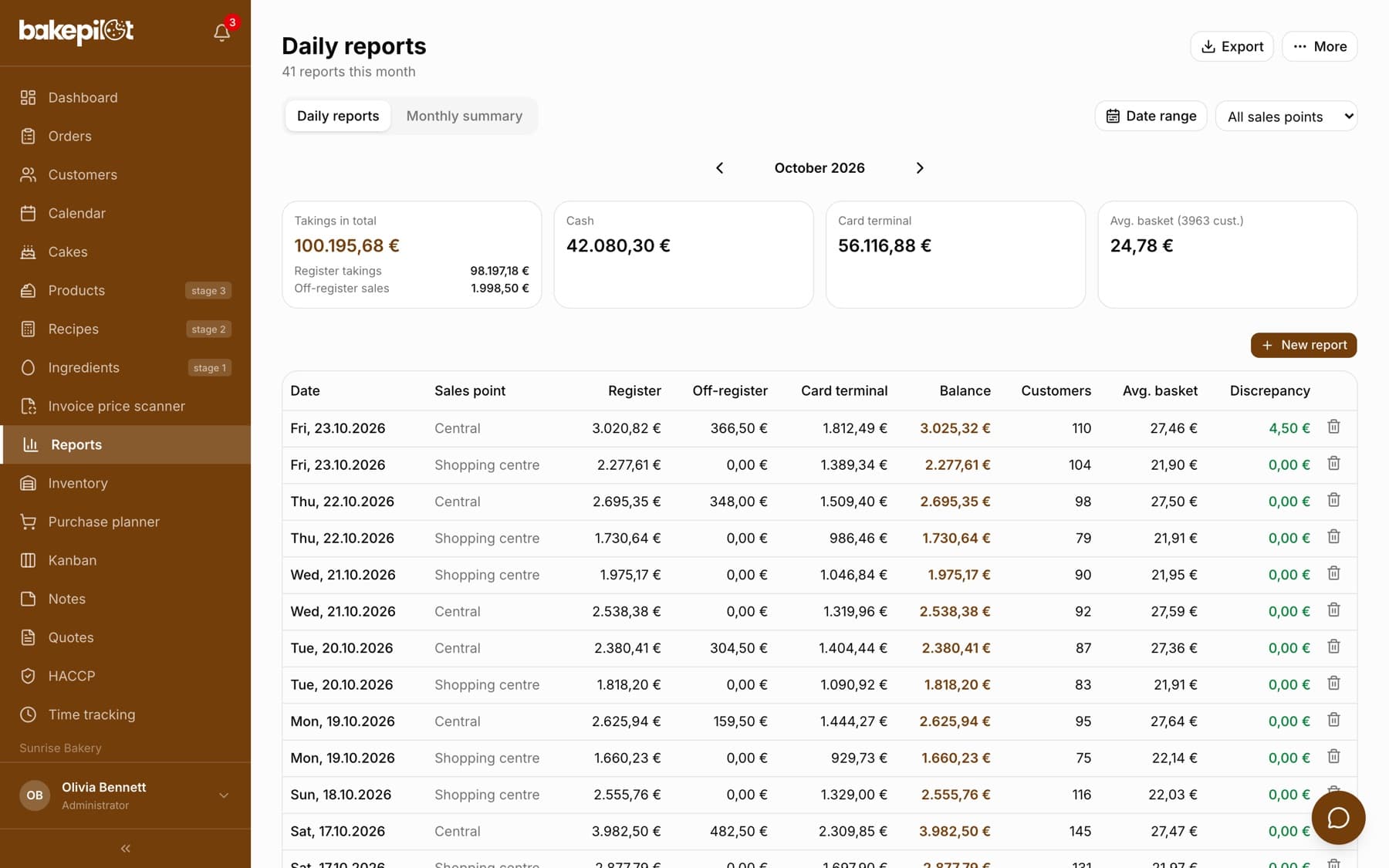
The “Reports” module stores one report for each day of sales. At the top of the “Daily reports” tab you see the month summary: “Total takings”, “Cash”, “Card terminal” and “Avg. basket” with the number of customers, and below it a table of days. Total takings is the amount from the fiscal cash register, which already includes card payments, so cash is the register amount minus the card terminal.
- Table columns: “Date”, “Register”, “Card terminal”, “Balance”, “Customers”, “Avg. basket”, “Discrepancy”; with sales points turned on, “Sales point” is added, and with off-register sales, “Off-register”
- Balance = card terminal + set aside + left in the register + taken out + coins, which is what we compare with the fiscal cash register
- Avg. basket = register / number of customers
- The arrows next to the month name switch between months
Adding a report
You add a report with the “New report” button. In the “New daily report” window you enter the amounts from the cash register and the cash reconciliation, and the “Summary (auto)” section immediately shows the day's balance, the total of banknotes, the average basket and the discrepancy. Clicking a row in the table opens the same window for editing, and the trash icon (clicked twice) deletes the report.
- Click “New report” and set the “Report date”
- Enter “Cash register” (the full takings from the register report) and “Card terminal” (the part paid by card)
- Enter the “Number of customers”, usually the number of receipts
- Fill in the cash reconciliation: “Set aside”, “Left in the register”, “Taken out”, “Coins”
- Check the “Discrepancy” in the summary, add “Notes” and click “Add report”
Tip: Discrepancy = (set aside + left in the register + coins + taken out) - cash from the register. Card terminal payments are not part of the reconciliation, because cards do not go into the drawer. A value close to zero means the register balance matches the sales.
Correcting and deleting a report
You can fix a mistake in a report without deleting it: click the day's row in the table and the “Edit report” window opens with the amounts filled in. Change what you need and click “Save changes”; the month summary recalculates by itself. You delete a report with the trash icon at the end of the row: the first click highlights the trash icon in red and shows the hint “Click again to delete”, and the second click (within 3 seconds) deletes the report.
- Click the day's row in the reports table
- In the “Edit report” window, correct the amounts and click “Save changes”
- To delete a report, click the trash icon in its row twice
- By default, the administrator and the salesperson can edit, and the administrator can delete
- Deleting a report also deletes its sales channel amounts and the cash taken out of the register
- A deleted report disappears from the month summary and from the VAT estimate in the Finance module
Breakdown of takings by VAT rate (optional)
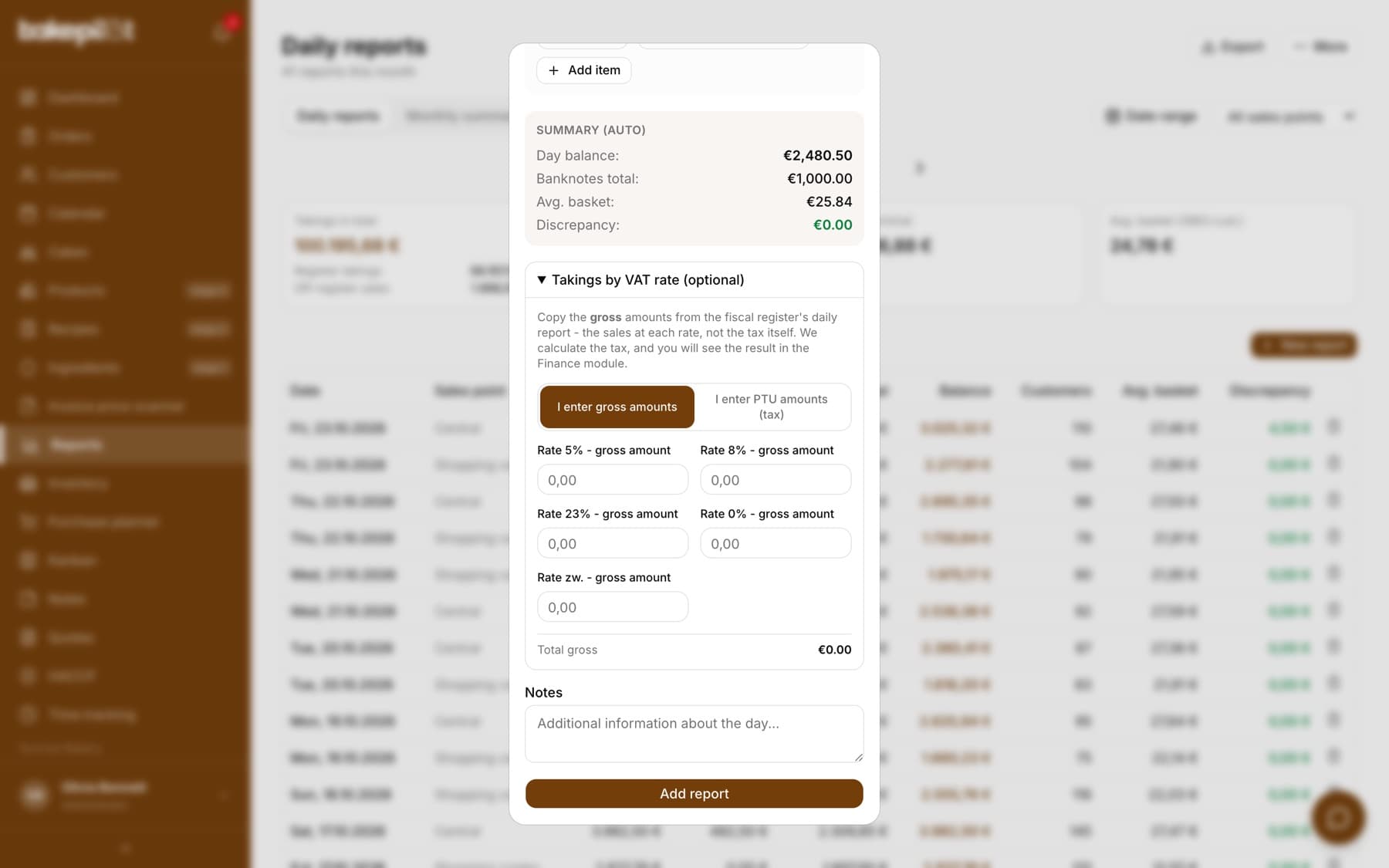
At the bottom of the report window there is a collapsed section, “Takings by VAT rate (optional)”. You copy into it the amounts from the fiscal register's report, split by the 5%, 8%, 23%, 0% and exempt (zw.) rates. The switch above the fields sets what you enter: “I enter gross amounts” (sales at the given rate) or “I enter PTU amounts (tax)”. PTU is the VAT amount printed on Polish fiscal register reports, and registers print both variants. The section does not block saving, but it lets the Finance module calculate a VAT estimate from receipt sales.
- The section is collapsed by default, so it does not make the daily close longer
- The field label tells you what to enter: “Rate 8% - gross amount” or “Rate 8% - PTU amount”
- The total is shown below the fields as “Total gross” or “Total tax”
- An empty field means “not entered” and shows up in Finance as a gap; zero means the rate did not occur that day
- When the gross breakdown is much lower than the register takings, the app warns that you may have entered the tax instead of the sales
Tip: Months before you started using the app do not require going back to every day. You fill them in all at once in the Finance module with a single amount from the register's monthly report.
Monthly summary
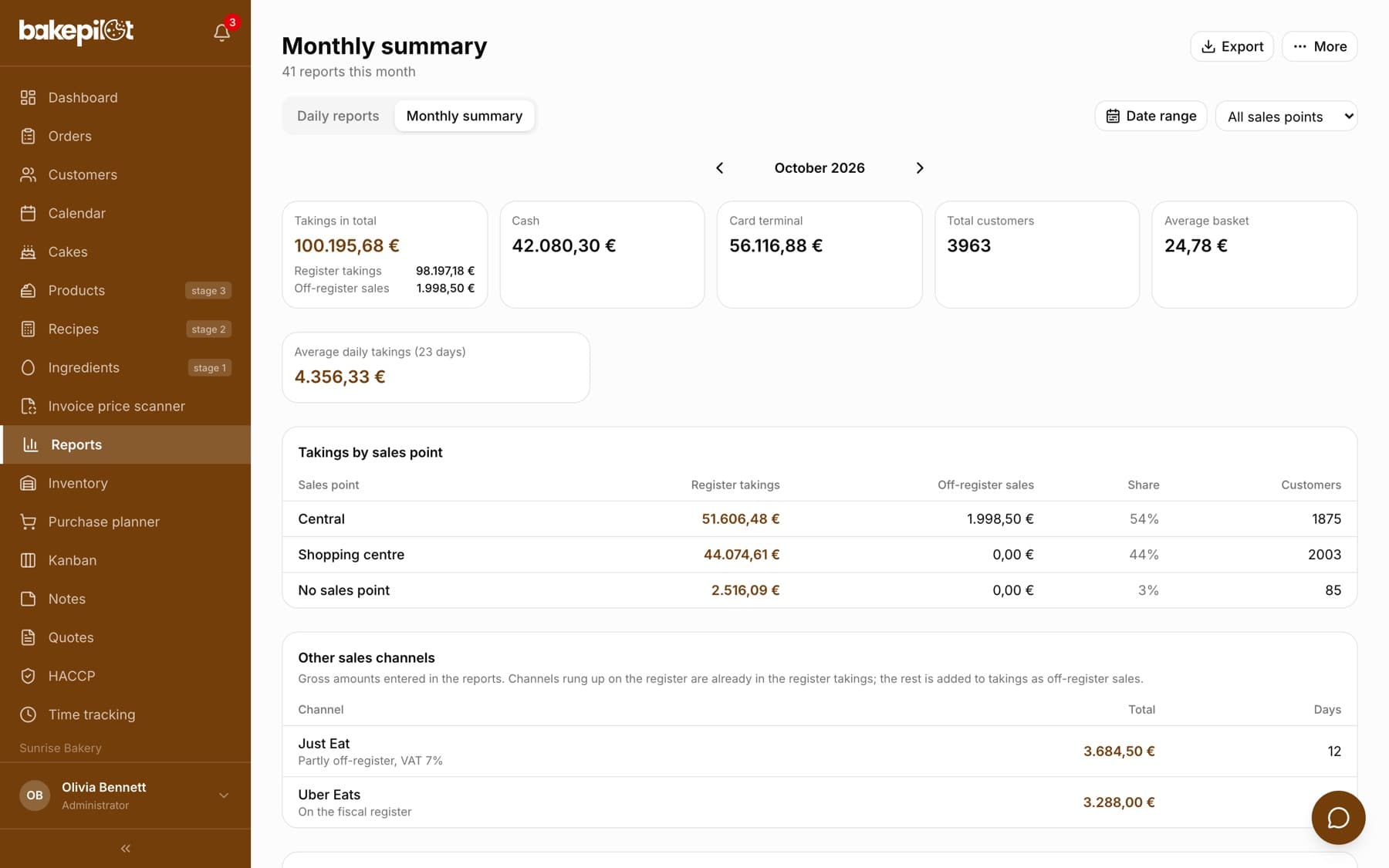
The “Monthly summary” tab shows the same month as a summary: the “Total takings”, “Cash”, “Card terminal”, “Total customers”, “Average basket” and “Average daily takings” cards, the “Daily takings” chart and the “Daily breakdown” with the takings, number of customers, average basket and discrepancy for each day.
- A bar chart of takings day by day
- Average daily takings calculated from the days that have a report
- The daily breakdown in the same order as the chart
Date range and export
By default you see the full month, but the “Date range” button lets you set any “From” - “To” range, e.g. a market week or two months at once. The “Export” button saves the currently visible reports to a CSV or XLSX file, which is handy for sending to your accountant or for further analysis in a spreadsheet.
- “Date range”, your own from-to range instead of the whole month
- “Export”, with the columns Date, Register, Card terminal, Customers, Balance, Avg. basket, Discrepancy
- Formats: CSV and XLSX
Tip: Compare the physical cash in the register with the cash reconciliation at the end of the day. A recurring discrepancy usually means a mistake in recording cash taken out of the register.
Several sales points, delivery platforms and cash taken out
You can extend the daily report with three things, each independently. Until you turn them on, the report looks exactly as described above.
- Several shops or stalls: a separate report for each sales point and takings split by sales point, described in the article “Sales points in the daily report”
- Sales through Pyszne.pl, Uber Eats and similar: amounts from these channels next to the register takings, with off-register sales added to the day's takings, described in the article “Sales channels and cash taken out of the register”
- Money taken out of the register: next to the “Taken out” field, the “Itemise” button lets you enter each withdrawal with a reason
- The salesperson enters the takings themselves without seeing other days, described in the article “Takings entered by staff”
Related articles
Sales points in the daily report
Reports
Sales channels and cash taken out of the register
Reports
Takings entered by staff
Reports
Importing daily reports from Excel (XLSX)
Reports
Splitting takings by VAT rate
Finance
VAT estimate - introduction
Finance
Sales statistics
Analytics
Break-even point
Finance
Printing and exporting orders
Orders