
Price lists for wholesale customers
Separate price lists (e.g. C11 for shops, C24 for schools), prices with a valid-from date, copying a price list, assigning it to a customer, a price list as the customer's assortment, customer discounts on groups and products, percentage price changes and time-limited promotions.
Last updated:
Why use a price list
When you sell the same bread to a shop at a different price than to a school, a percentage discount is no longer enough. A price list is a list of product prices for a group of customers. You create it in Products with the “Price lists” button next to “Menu”, enter the prices and assign it to a customer in their customer record. From then on, orders, standing orders and public API orders for that customer take the price from the price list, and a badge such as “Price list C11 from 01.09” appears under the order item. Price lists are available in the Profesjonalny (Professional) plan; the administrator, salesperson and accountant can see them, and the administrator edits them (the “Price lists” permissions in the role matrix).
- A price list has a code (e.g. “C11”) and a name - the code is shown next to the customer and on the order item
- Every price list is either gross or net - you choose this once, when you create it
- A customer without a price list keeps the prices as before: the product B2B price or the price minus the discount
- Prices are in the organization's currency; changing the currency in Settings does not convert price lists
Creating a price list
In Products, click “Price lists” and then “New price list”. Enter the “Code” and “Name”, and in the “Prices in the price list” field choose “Gross” or “Net”. A net price list gives prices without VAT (the rate is set on each item), a gross one gives prices including VAT. The mode cannot be changed later, because item prices are already in that mode. The “Notes” field is optional.
- Go to Products, click “Price lists” and then “New price list”
- Enter the “Code” (up to 20 characters) and the “Name”
- In the “Prices in the price list” field choose “Gross” or “Net”
- Click “Create price list” - the price list card opens
Tip: The list of price lists shows the mode (gross/net), the number of items in effect today and the number of customers with that price list. Archive a price list you no longer use with the “Archive” icon - customers with that price list go back to prices without a price list, and the “Restore” icon undoes the archiving.
Items and the “valid from” date
On the price list card you can add items in two ways. “Add products” opens a window where you choose “All products” or one group (e.g. “Group: Ice cream”) - and inserts, in one click, the active products that are not yet in the price list, with catalog prices: the product B2B price, or the variant price when there is no B2B price (a product with several variants gets one row per variant). “Add item” opens a window where you search for a product by name, choose a variant (if the product has several), enter the price in the price list mode, the VAT rate and the “Valid from” date. Under the price you immediately see the other amount - net for a gross price list and vice versa.
- On the price list card click “Add products” (all or one group) or “Add item”
- In the item window search for the “Product”, choose the “Variant” (when the product has several), enter the “Price” and the “VAT rate”
- Set “Valid from” - today or a future date - and click “Save price”
- To change a price, click the pencil icon “Change price” next to the item - a new entry is created from the chosen date and the old one stays in the history
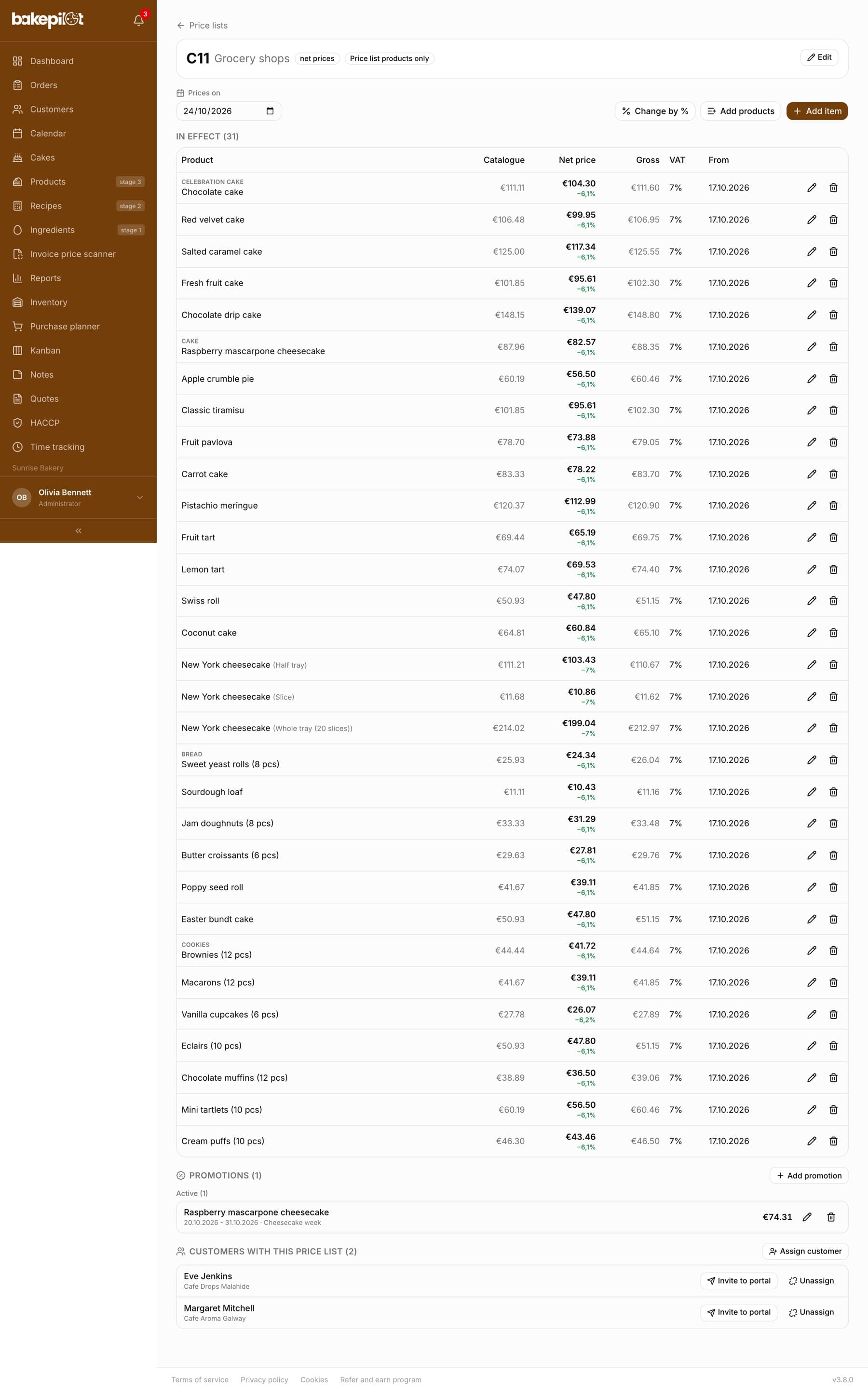
- The “In effect” section shows the prices on the day set in the “Prices on” field (today by default) - change the date to see the prices on another day
- The “Scheduled changes” section collects entries with a future date; the trash icon “Delete scheduled change” removes such an entry, entries in effect and historical entries cannot be deleted
- An order takes the price in effect on the pickup day, not on the day it was entered - an order for 10.10 placed on 2.10 gets the price from 10.10
- A product withdrawn from sale stays in the price list, crossed out
- The “Catalogue” column (on a wider screen) shows the catalog price in the price list mode - calculated the same way as for “Add products” - and under the price list price you see the difference as a percentage, e.g. “−5%” after lowering the whole price list with the “Change by %” button
Copying a price list
The quickest way to create a new price list for another group of customers is to start from an existing one: in the list of price lists click the “Copy as a new price list” icon, enter a new “Code” and “Name” and click “Copy price list”. The copy inherits the mode (gross/net) and gets the items with the prices in effect on the day of copying, with the “from” date set to that day. The history and scheduled changes of the source are not copied. Then you change only the prices that should be different.
The customer's price list and the order of pricing
You assign a price list in the customer window: with the “Wholesale (B2B)” type, a “Price list” field appears with the active price lists and the “No price list” option (or from the price list card, see the section below). For a price list that limits the assortment, the field shows “The customer orders only products from this price list.” On the customer card, next to the B2B badge, you see “Price list C11 - Shops”. When you pick such a customer from the suggestions in an order, the items are recalculated according to their price list on the pickup date.
- A price list item in effect on the pickup day takes priority over the product B2B price and over the product price
- The customer discount (individual or the organization default) is applied to the price list price in a wholesale order
- A product that is not in the price list keeps its price as before: the product B2B price or the price minus the discount - unless the price list limits the assortment (see the section below), in which case the customer cannot order that product
- A price entered manually in an order stays - the price list does not overwrite it
- Standing orders are generated with the price list for each date separately, so a scheduled price increase takes effect on its own
Tip: A net price list item gives an exact net amount on the invoice and the delivery note (WZ) created from the order - without calculating the net amount back from the gross price.
Customers with this price list
On the price list card, below the items and promotions, the “Customers with this price list” section shows who buys at this price list today. The customer's name leads to their card. From here you can also assign the price list to another customer or unassign it, without opening the customer record (Profesjonalny plan, permission to edit customers).
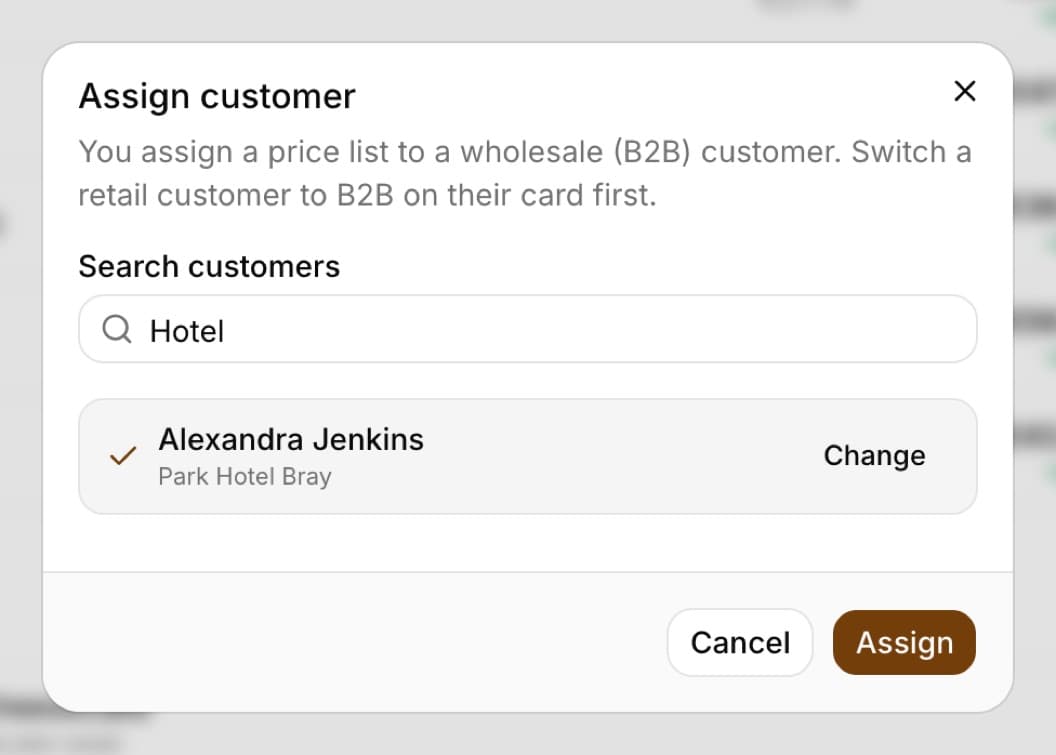
- On the price list card, in the “Customers with this price list” section, click “Assign customer”
- In the “Search customers” field type at least 2 characters of the name, company, phone or NIP (Polish tax ID) - the list shows only wholesale (B2B) customers
- Click the customer - the list disappears and the selected customer stays (the “Change” button goes back to the list) - then click “Assign”; the customer appears in the section right away
- When the customer already has another price list, the window warns you: “The customer has price list C11 - Shops - it will be replaced.” A customer has at most one price list
- Retail customers are not on the list - first change their type to “Wholesale (B2B)” on the customer card
- “Unassign” next to a customer (after confirmation) removes their price list: subsequent orders get the product B2B price or the price minus the discount, saved orders keep their amounts
- You cannot assign a new customer to an archived price list, but you can unassign the existing ones
- For a price list with “The customer sees only products from this price list” (Mistrzowski (Master) plan), there is an “Invite to portal” button next to the customer: you enter the email of a person from the customer's company and they get a link to the ordering portal - details in the article about the portal
- When such a price list has no items yet, the section warns that the customer will see an empty list in the portal
A price list as the customer's assortment
A price list can also decide what a customer can order at all. Example: the company's own branches order everything, while outside businesses order only ice cream and packaging. Create a separate price list for the outside businesses, add only those products to it and, in the price list “Edit” window, tick “The customer sees only products from this price list” (Profesjonalny plan, administrator). The price list card then shows the “Price list products only” badge.
- On the price list card click “Add products”, choose a group (e.g. “Group: Ice cream”) and click “Add products” - repeat for the next group, e.g. packaging
- Remove a product the customer should not see with the trash icon “Remove product from the price list” next to the item in effect
- Click “Edit”, tick “The customer sees only products from this price list” and click “Save changes”
- Assign the price list to customers: in the “Customers with this price list” section with the “Assign customer” button, or in their customer record (the “Price list” field)
- In an order for such a customer, the search suggests only products with a price list item in effect on the pickup day; a product with a price scheduled for later appears from that day
- A variant is available when it has its own item in the price list or when the product has an item without a variant
- When you search for a product outside the price list, the list shows “Product outside the customer's price list C11”; you can still type the name manually - items entered manually are allowed
- The “Configure cake” and “Add cake” buttons are hidden for such a customer, and products set up in the configurator are not suggested
- When you change the customer in an order, items outside their price list get a red note “Not on the customer’s price list C11”, and the order cannot be saved until you remove them
- When you edit an older order, the items that were already in it stay - only new ones are blocked
- Standing order: in the template editor, the “Add product...” list shows only products from the price list, and saving with a new item outside the price list is rejected; templates saved earlier keep generating orders
- Public API orders with a product outside the price list are rejected with code 422 and the product name
- “Remove product from the price list” deletes all prices of the product in this price list, including scheduled ones; orders already saved keep their prices
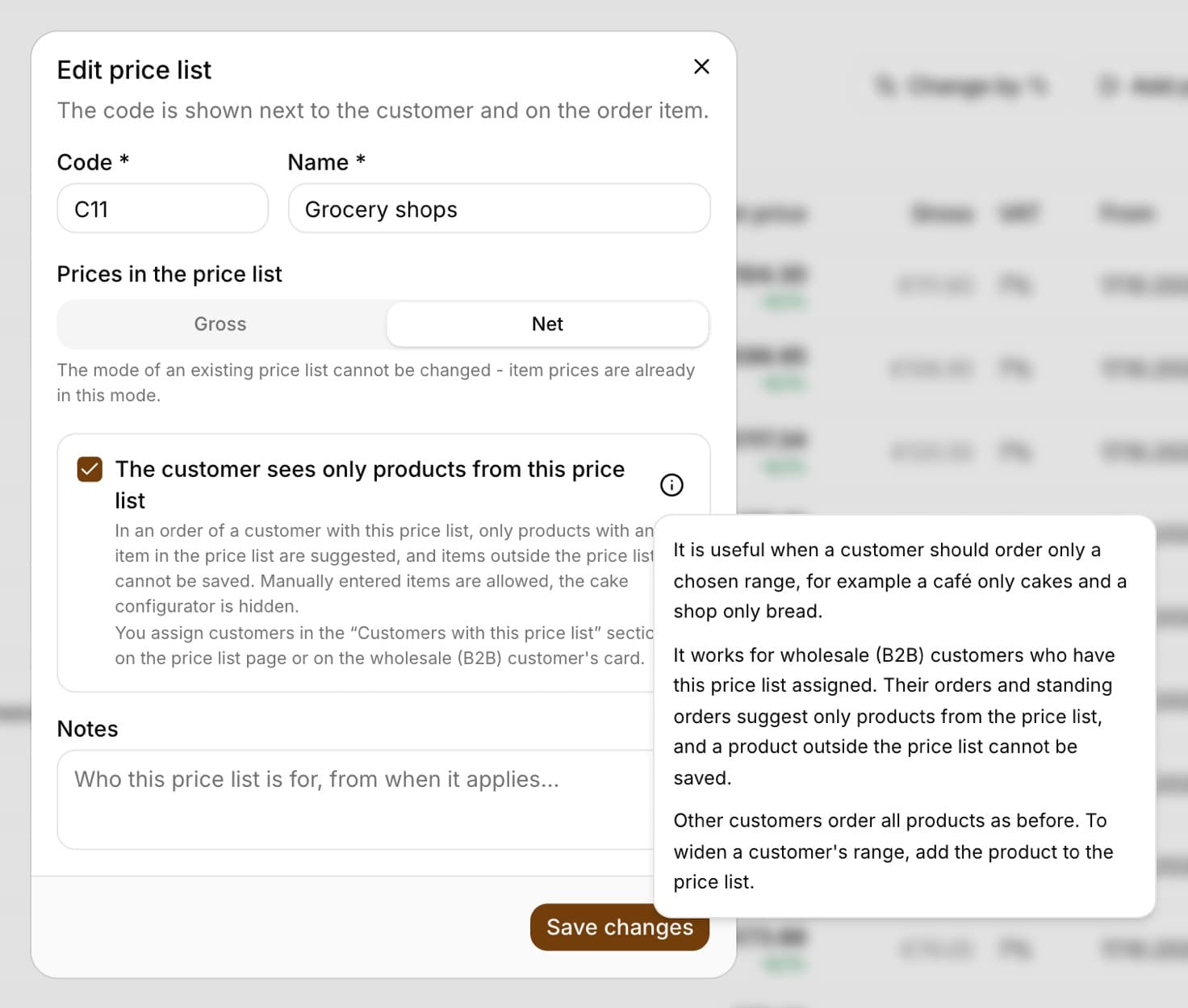
Tip: A price list without this option ticked works as before: a product outside the price list has the product B2B price or the price minus the discount. The information icon next to the option in the price list window briefly reminds you when to tick it.
Customer discounts on groups and products
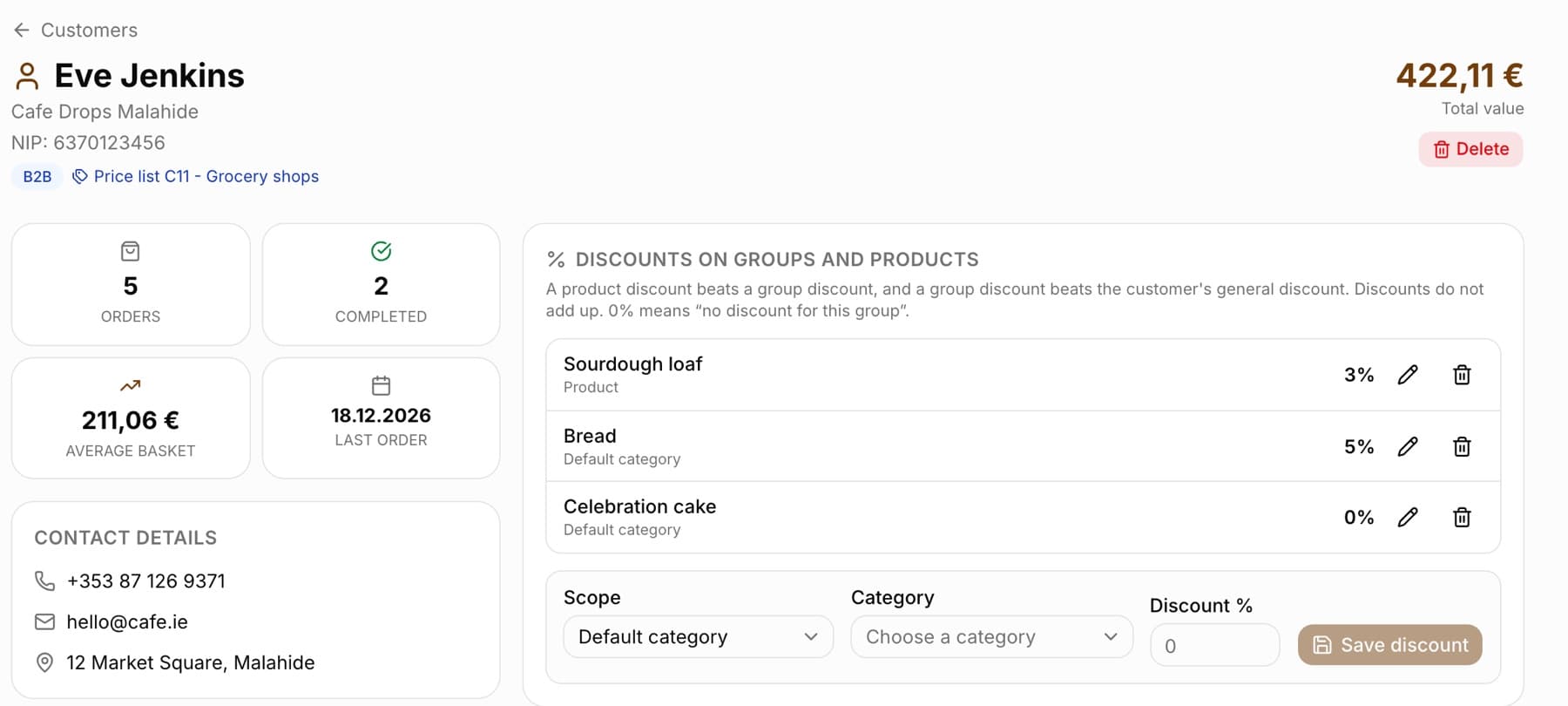
Besides the general discount, a wholesale customer can have a separate percentage for a product category, for your own category or for a single product - e.g. 5% on all bread, but 3% on kaiser rolls. You set this on the customer card, in the “Discounts on groups and products” section (visible only for a “Wholesale (B2B)” customer, in the Profesjonalny plan; edited by the administrator and the salesperson). The discount is calculated from the customer's price list price, and when the customer has no price list or the product is not in the price list, from the product or variant price.
- Open the wholesale customer's card in the Customers module
- In the “Discounts on groups and products” section choose the “Scope”: “Default category”, “Your own category” or “Product”
- Choose a category from the list or search for a product by name
- Enter the “Discount %” and click “Save discount” - the discount appears on the list right away
- A product discount wins over a group discount, and a group discount wins over the customer's general discount - discounts do not add up
- Your own category wins over the default category when a product has both
- 0% means “no discount on this group” - products from this group will not get the customer's general discount
- The pencil icon “Change discount” loads the discount into the form, and the trash icon “Delete discount” removes it
- A group discount also applies to a fixed product B2B price (the customer's general discount does not change it)
- Under the order item a badge shows the percentage (e.g. “Product price -5%”), and when you tap it, where the discount comes from, e.g. “Discount: 5% - category discount (Bread)”
Tip: A retail order never gets a discount - customer discounts work only in wholesale orders.
Changing prices by a percentage from a chosen date
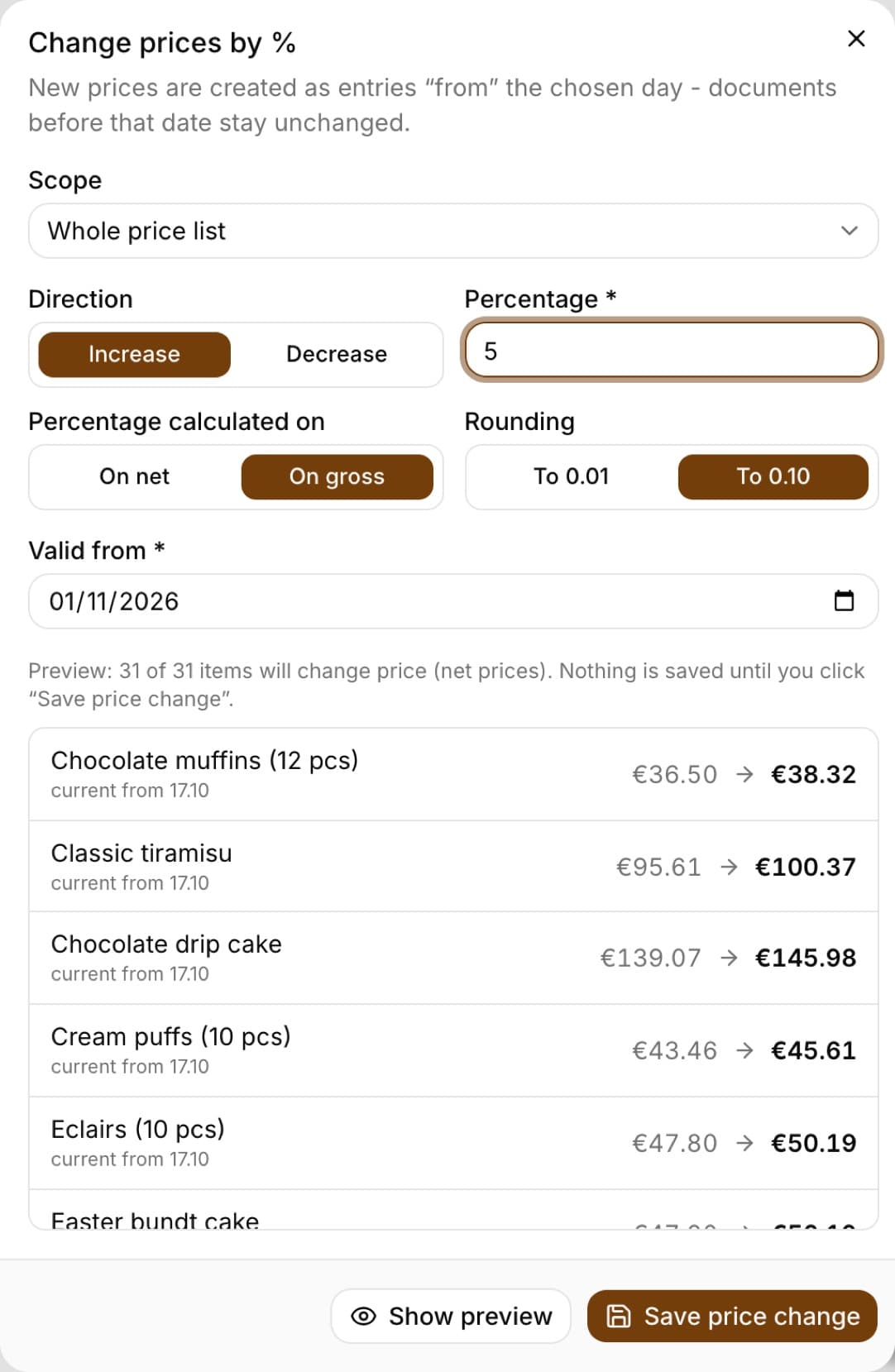
You can raise or lower the prices of a whole price list in one window: on the price list card click “Change by %” (Mistrzowski plan, administrator). The new prices are created as entries valid “from” the chosen day, so orders with an earlier pickup date keep the old prices. Before anything is saved, “Show preview” displays the list of items with the current and the new price.
- On the price list card click “Change by %”
- Choose the “Scope”: “Whole price list”, “Default category”, “Your own category” or “Product”
- Choose “Increase” or “Decrease” and enter the “Percentage”
- In the “Percentage calculated on” field choose “On net” or “On gross”, and in “Rounding” choose “To 0.01” or “To 0.10”
- Set “Valid from” (today or later) and click “Show preview”
- Check the “old price - new price” list and click “Save price change”
- The change covers the items in effect in the price list on the “from” day - it does not add products that are outside the price list
- Rounding applies to the amount the percentage is calculated on; the other amount (net or gross) is always rounded to 0.01
- Saving is a single step - either all items from the preview change or none
- Any change in the form clears the preview - you can save only what was shown in the preview
- An item that already has an entry with the same “from” date gets the new price in that entry
Time-limited promotions
A promotion is a product price in the price list for selected days, e.g. bread at 7 PLN from 10 to 20 September. You add it in the “Promotions” section of the price list card with the “Add promotion” button (Mistrzowski plan, administrator). What counts is the pickup date of the order, not the day it was entered: you can schedule a promotion for 10-20.09 on 2.09, and orders and standing orders for those days will get the promotional price.
- On the price list card, in the “Promotions” section, click “Add promotion”
- Search for the “Product” and choose the “Variant” if the product has several
- Set the “From” and “To (inclusive)” dates
- Enter the “Promotional price” (gross or net - like the whole price list) and optionally a “Label”, e.g. “Harvest festival”
- Click “Save promotion”
- The list splits promotions into “Active”, “Scheduled” and “Past”; the pencil icon edits a promotion, the trash icon deletes it
- Two promotions of the same product cannot overlap in dates - change the dates or delete the older one
- Under the order item a badge shows “Promotion: Harvest festival” (or “Promotion” when there is no label)
- The customer discount is also applied to the promotional price
- Orders already saved keep their prices after a promotion is changed or deleted
Frequently asked questions
Can I have several price lists at once?
Yes, as many as you like - e.g. “C11” for shops and “C24” for schools. Each customer has at most one price list.
What happens to the price in orders placed before a price list change?
Nothing. An order saves the price and where it came from at the moment it is saved. A price list change applies only to new orders with a pickup date from the “valid from” day.
A customer has a price list and a discount. Which comes first?
First the price list price on the pickup day, then the customer discount is taken off it (in a wholesale order). If the customer should not get a discount on price list prices, untick “Organization default discount” in their customer record and enter 0.
How do I make an outside business see only ice cream and packaging?
Create a price list for it, add the “Ice cream” and “Packaging” groups with the “Add products” button, tick “The customer sees only products from this price list” in the “Edit” window and assign the price list to the customer with the “Assign customer” button on the price list card. Other customers (e.g. your branches) order as before.
A customer has 5% on bread and 3% on kaiser rolls. How much do they get on kaiser rolls?
3%. A product discount wins over a group discount, and discounts do not add up - kaiser rolls will not get 8%.