
Wholesale (B2B)
Wholesale prices, discounts and orders for shops, cafes and other bakeries.
Last updated:
Two order modes
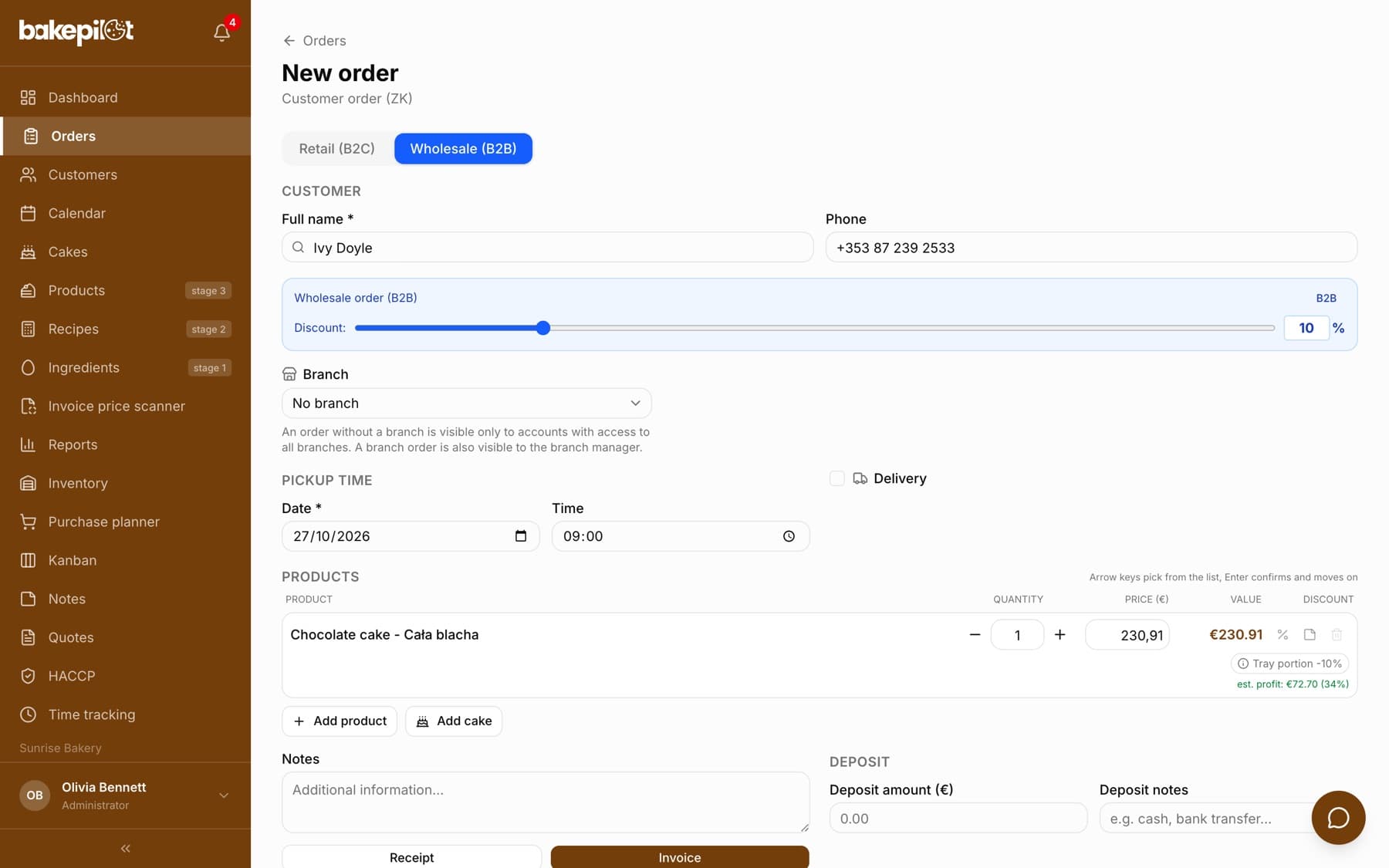
Every order is either retail or wholesale - you will find the “Retail (B2C)” / “Wholesale (B2B)” switch at the very top of the form. In wholesale mode the items are priced at wholesale prices, and a blue “Wholesale order (B2B)” bar with a discount slider appears under the form. If you mainly serve wholesale buyers, turn on the “New orders are wholesale (B2B) by default” option in Settings. For a one-off order, use the “New B2B” button on the order list.
- The “Retail (B2C)” / “Wholesale (B2B)” switch at the top of the form
- The “Discount:” slider from 0 to 50% on the blue wholesale order bar
- The “New orders are wholesale (B2B) by default” setting in Settings
- The “New B2B” button on the order list
- Switching the mode recalculates the prices of all items
Where the wholesale price comes from
You set the wholesale price in two ways, and you can combine them. First: on the product card you fill in the “B2B price” field - this amount applies in wholesale orders regardless of the discount. Second: you leave the field empty, and then the wholesale price is the retail price minus the percentage discount from the slider.
- A filled-in “B2B price” on the product takes priority over the discount
- An empty field means the retail price minus the percentage discount
- You set the “Default B2B discount (%)” in Settings, in the “Wholesale (B2B)” section
- A discount entered for a specific customer replaces the default one
Tip: A fixed B2B price is more convenient for bread, where buyers know the price list to the cent. A percentage discount works well for a wide range you do not want to price item by item.
A customer marked as wholesale
On the customer card you choose the type “Retail” or “Wholesale (B2B)”; for a wholesale customer the “Individual B2B discount (%)” field appears. When you later pick such a company in an order, BakePilot switches the form to wholesale mode by itself, applies its discount (or the default one when the individual discount is zero), recalculates the items, and if the customer has a NIP (the Polish tax ID) - sets the document to “Invoice”.
- The “Wholesale (B2B)” type on the customer card
- An “Individual B2B discount (%)” assigned to the company
- Automatic mode switch after picking the customer from the suggestions
- Automatic “Invoice” setting when the customer has a NIP
Margin control: estimated profit
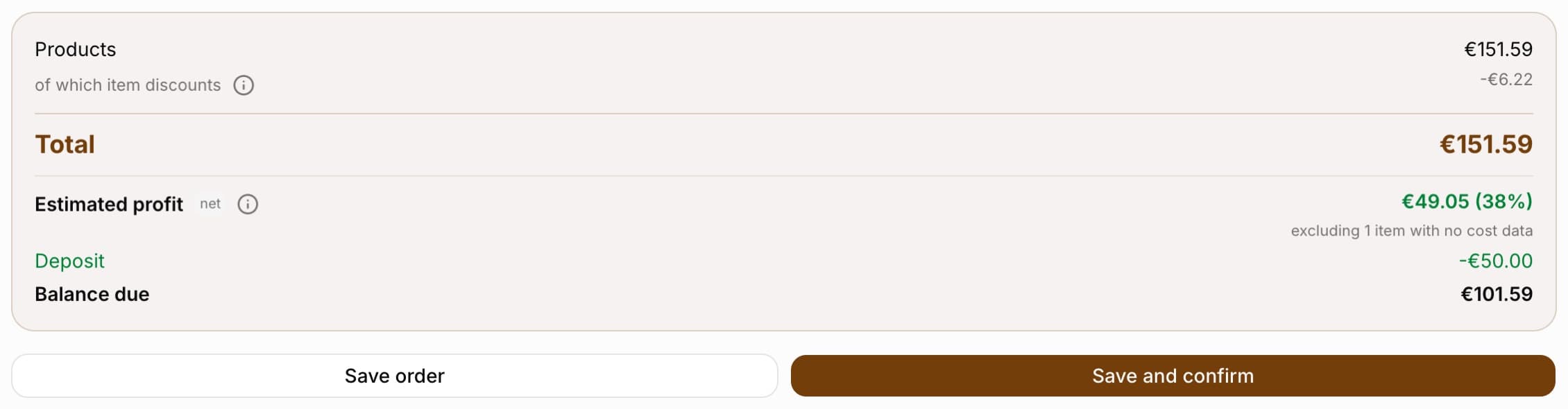
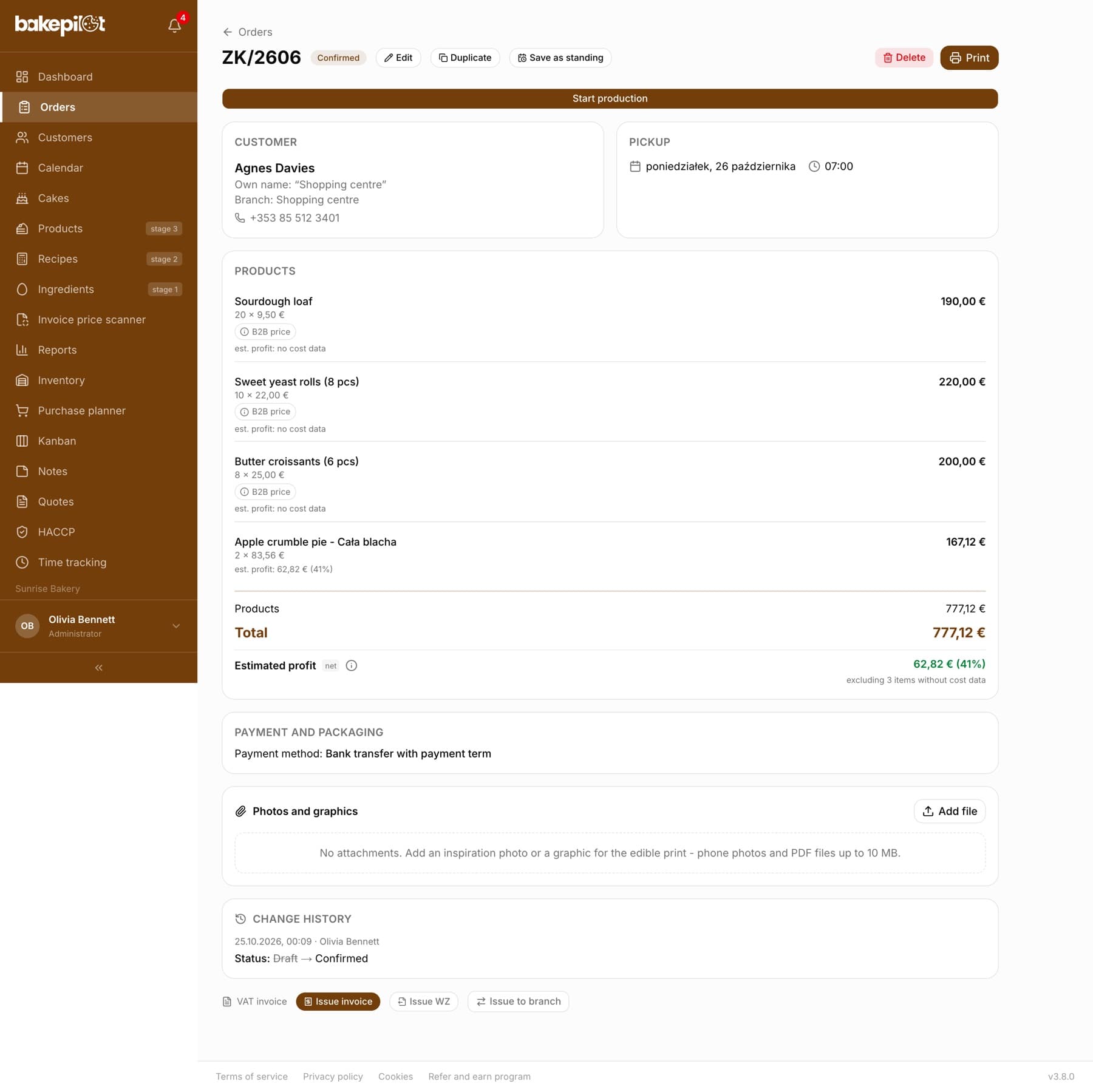
If you have the “View profit” permission (by default the Administrator; you can grant it to other roles in the permissions matrix in Settings), under every order item - retail and wholesale - you see the note “est. profit: amount (percentage)”, and in the summary the “Estimated profit” row with the margin - in the form and on the saved order card. The profit is the item value after all discounts (wholesale customer discount, price list, promotion and item discount) minus the cost of one unit from the product recipe times the quantity. The recipe cost includes ingredients, the fixed cost markup, oven and mixer electricity, packaging and other costs entered in the recipe; it does not include labor. When the company is an active VAT payer, the revenue is the net item value - the same one that would go onto an invoice from this order (price list and promotion with their own net value, a variant with its own rate, and without this data the 8% rate). So the profit is net, just like the recipe cost, and a “net” marker stands next to the amount. When the company is VAT exempt, the revenue is the full item value. You set the VAT status in Settings > Organization. The estimated profit is available in the Profesjonalny (Professional) plan and higher. A positive result is green, a negative one red - you see a sale below cost at once. An item without a cost (a product without a recipe, a cake from the configurator, a variant chosen from several, an item entered by hand, a per-piece product from a tray recipe with a number of portions - it is not known whether a piece is a slice or a whole tray) shows “no cost data” and drops out of the total, and the summary adds “excluding N items without cost data”. The product card also has the “B2B simulator - how much do you earn?” section with the “Simulate B2B discount” slider and the “B2B discount comparison - profit on the whole” table for discounts of 5, 10, 15, 20, 25 and 30 percent.
- “est. profit:” under every item with a cost from the recipe - only for a role with the “View profit” permission
- “Estimated profit” in the order summary with the percentage margin and an “i” icon explaining what goes into the cost
- A red result means a sale below the production cost
- Items without a cost are not counted as zero - they are skipped and counted separately
- “Simulate B2B discount” on the product card for discounts from 5 to 30 percent
Tip: For the profit to be real, the product must have a linked recipe with current ingredient prices and a set yield (number of pieces or weight). The cost is divided by the recipe yield, so a blueberry bun from a batch of 40 costs 1/40 of the batch, not the whole batch.
A fixed price list for buyers
You can build a fixed wholesale price list in two ways. The simpler one: fixed B2B prices on products and discounts assigned to customers - set once, they work for every following order. When different buyers should pay different prices for the same product (a different bread price for a shop and for a school), create separate price lists in the Price lists module: each with its own prices and a “valid from” date, assigned to the customer in their record. A price list item takes priority over the product's B2B price, and the customer discount is applied to the price from the price list.
- B2B price on the product + discount on the customer = a fixed price list without separate lists
- The Price lists module = a different price of the same product for different groups of buyers, with a validity date
- Works automatically for every following order and in standing orders
Price lists for wholesale buyers - how to create and assign them
Frequently asked questions
Can I make every new order wholesale from the start?
Yes - in Settings, in the “Wholesale (B2B)” section, turn on “New orders are wholesale (B2B) by default”. From then on every form starts in wholesale mode; you can still switch a single order to “Retail (B2C)” by hand.
What takes priority: the B2B price on the product or the customer discount?
The B2B price entered on the product card. The percentage discount works only when that field is empty. If the customer has a price list assigned, the price list item valid on the pickup day wins, and the customer discount is applied to it.
Can one customer have a different discount than the rest?
Yes. On the customer card untick “Organization default discount” and enter the “Individual B2B discount (%)” - it replaces the company's default discount. An entered 0 means a wholesale customer without a discount.