
Dark mode
Light, dark or matching the system - the choice is remembered by the device, so the tablet in the bakery and the office computer can use different themes.
Last updated:
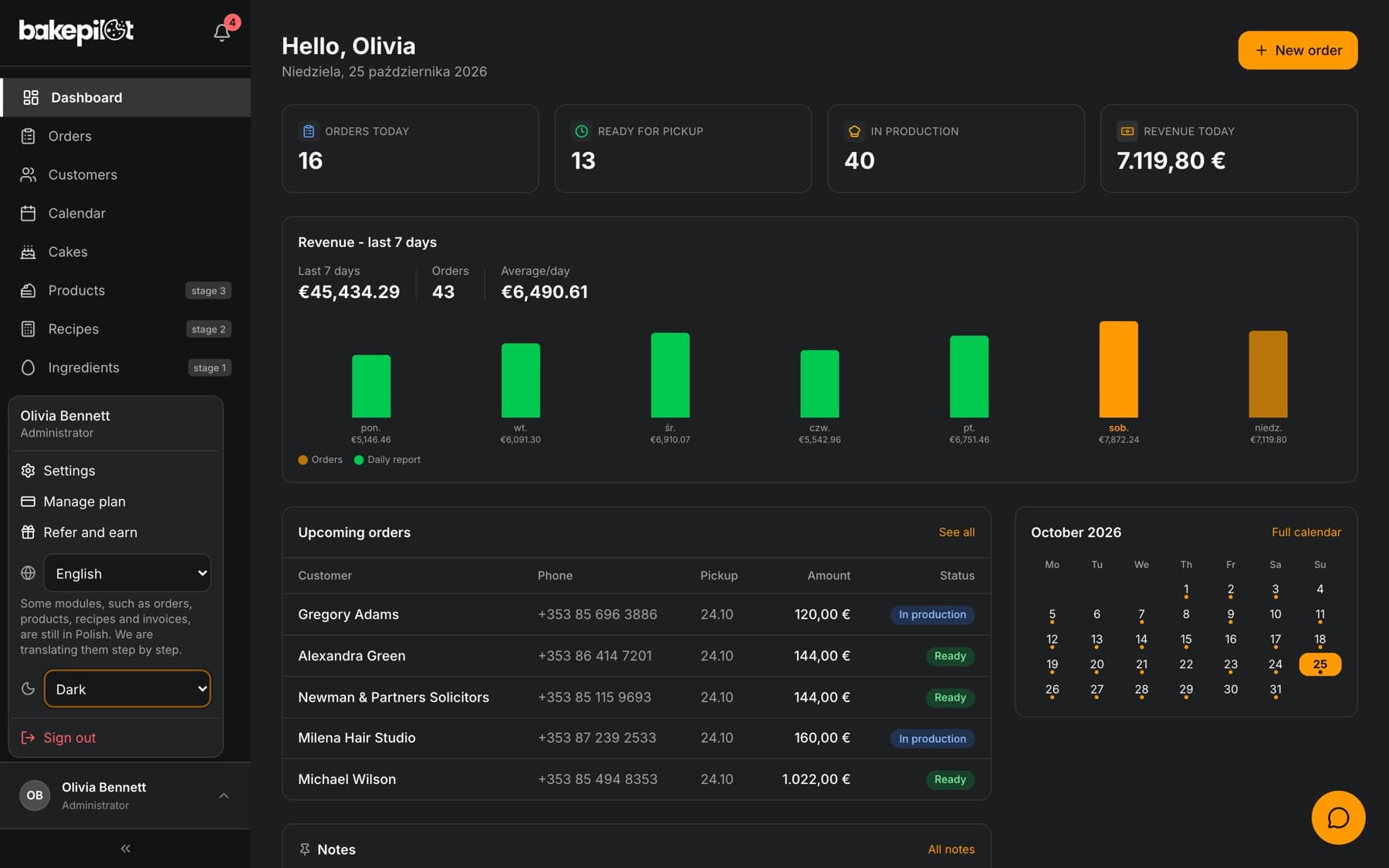
How to turn on dark mode
The switch is in the user menu, below the language choice. By default the app is light.
- Click your name at the bottom of the sidebar - on a phone, the circle with your initials in the top right corner
- In the field with the moon icon, choose “Light”, “Dark” or “Match system”
- The app changes its look immediately - without reloading the page
- “Match system” follows the theme of your phone or computer and changes along with it, e.g. in the evening
- The choice is remembered by this device and this browser. On another phone or computer you choose the theme separately, even on the same account
- Wholesale customers change the theme in the ordering portal, in the “Account” tab
What stays light
Dark mode applies to working on screen. Everything you print or send to others looks the same as before.
- Printouts: orders, the delivery list, recipes, HACCP, delivery notes (WZ), quotes and contracts
- Product labels, the menu card, and invoice printouts and PDF files
- The login, sign-up and password reset screens
- The time tracking kiosk
Frequently asked questions
I changed the theme, but on my second phone the app is still light. Why?
Each device remembers the theme separately, so one account can have a dark tablet in the bakery and a light computer in the office. On the second phone, choose the theme in the user menu.
Will dark mode change how invoices or printouts look?
No. Printouts, invoice PDF files and labels are always light, just like on paper. On screen, the invoice preview adapts to the theme.