
Sales points in the daily report
Several shops or stalls: a separate daily report for each sales point and takings split by sales point.
Last updated:
Who it is for
If you sell in several places, e.g. in the shop next to your bakery, in a second shop in the town center and at a stall in a shopping mall, each sales point has its own cash register and its own end-of-day close. Once you turn on sales points, you enter the daily report separately for each of them, and the summary shows the takings in total and split by sales point.
- One report per day per sales point; a second report for the same day and the same sales point will not be saved (“A report for this day and sales point already exists”)
- The dashboard, analytics, the break-even point and the VAT estimate in Finance add up the reports of all sales points for a given day
- The register discrepancy formula does not change; it is calculated separately for each report, that is for each cash register
How to turn on sales points
Sales points are set up by the Administrator in Settings, in the “Sales points” section. It is the same list of locations that the Time tracking module uses: a sales point added here also appears in the schedule, for employees and in kiosks, and the other way round.
- Go to Settings and in the “Sales points” section tick “I have several sales points”
- Enter the sales point name in the “Name, e.g. Main Street” field
- Choose the type: “Sales point”, “Production” or “Other”
- Click “Add” and repeat for the next sales points
- In the daily report you can choose active sales points of the “Sales point” and “Other” types. A bakehouse marked as “Production” has no takings of its own and does not appear on the list
- You change the name in the sales point's row and confirm it with the check mark button, and the type with the list next to it
- “Turn off” hides the sales point from forms, but its saved reports remain
- You can only delete a sales point that has no reports and no time tracking data; otherwise you can turn it off
Tip: Until you add the first sales point, reports are saved for the whole company, just as before.
Daily report for a sales point
Once sales points are turned on, the “New daily report” window has a “Sales point” field, and you must choose a sales point in it. The rest of the report (register, card terminal, customers and cash reconciliation) applies only to that sales point. The report list gets a “Sales point” column, and next to the “Date range” button there is a filter with the options “All sales points”, the names of all sales points (including turned-off ones and those of the “Production” type, because they may have older reports) and “No sales point” (reports saved before sales points were turned on).
- “Sales point” field, required for a new report
- Sales point filter on the report list
- Export to CSV and XLSX gets a “Sales point” column
- The “Manage sales points in Settings” link next to the filter leads straight to the list of sales points
Takings by sales point
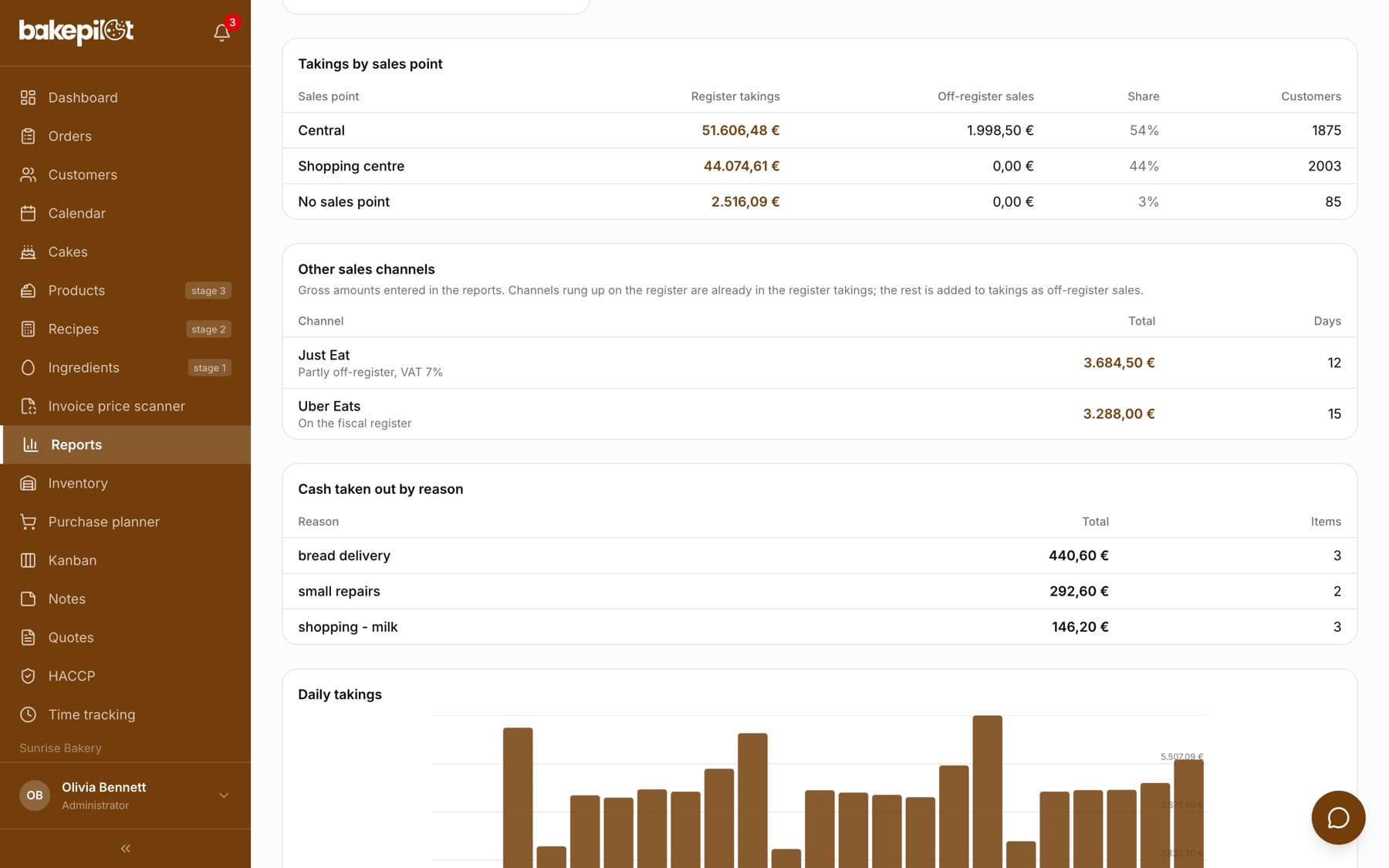
The “Monthly summary” tab has a “Takings by sales point” table with the “Sales point”, “Takings”, “Share” and “Customers” columns. The cards above it show the total of all sales points, so you can see at once how much the whole company sold and how it is split between the shops. If there are off-register sales in the period, the “Takings” column is renamed “Register takings”, and “Off-register sales” is added next to it.
Turning sales points off
When you untick “I have several sales points”, reports return to the old layout: without the sales point field, the filter and the table in the summary. Saved reports with a sales point do not disappear. They stay in the database with their assigned sales point, and when you turn sales points on again, you will see the split again.
Frequently asked questions
Can I enter two reports for the same day?
Yes, if they are for different sales points. For one sales point there is one report per day; you enter corrections in the existing report.
Are sales points the same as locations in Time tracking?
Yes, it is one shared list. That way, in Time tracking you see employees' hours split by the same sales points you enter takings for.
What about reports from before sales points were turned on?
They stay without a sales point and appear in the list filter under the “No sales point” option. They still count towards the month totals.