
Roles and permissions
Six system roles, custom roles, one Administrator (the account owner) and the permissions matrix in Settings.
Last updated:
Six roles
Each employee has one of six roles. The role decides which modules appear in the menu and which actions are available in them - e.g. a Baker sees orders and can change their status, but by default cannot create a new one. If a role's default scope doesn't suit your bakery, you change it in the permissions matrix or create a custom role.
- Administrator - full access; by default the only one who sees Cakes and Finance (you can give view access to these modules to another role in the permissions matrix)
- Salesperson - orders, customers, calendar, quotes, kanban, reports, view of recipes and products
- Baker - kanban, recipes, production from a recipe, ingredients, inventory view, HACCP, changing order status
- Warehouse worker - stock levels, ingredients, purchase planner, kanban, production from a recipe, HACCP
- Purchaser - ingredients and suppliers, purchase planner, recording purchases, inventory view, cost calculator, HACCP
- Accountant - invoices and KSeF (Poland's National e-Invoicing System), invoice price scanner, reports, revenue analytics, customers, contracts, inventory view, time tracking view and export
Tip: Not sure which role to choose? Start with Salesperson - it has access to the most frequently used modules without administrative functions.
Permissions matrix
You change the scope of each role in Settings, in the “Permissions matrix” section (visible to the Administrator). It is a table divided into modules - clicking a module name expands the list of actions, e.g. for Orders: view, create, edit, delete, change status, record a deposit, print, print deliveries, optimize the route, issue an invoice. In the column of each staff role there is a checkbox: ticked means the role has that permission. The change is saved immediately, and the employee sees the new scope after refreshing the page. A permission changed from the defaults has an orange dot.
- Columns: Adm (Administrator), Sale (Salesperson), Bak (Baker), Wh (Warehouse worker), Purch (Purchaser), Acc (Accountant)
- Rows grouped by module, each module expands separately
- The Administrator always has full access - their column cannot be changed
- Permissions with a padlock icon (dashboard, company view in Settings, own profile, support, own clock-ins in Time tracking) belong to every role and cannot be turned off
- “Restore defaults” above the table reverts all changes; “defaults” next to a role name in the legend reverts changes for that role only
- “Invoice price scanner” is a separate permission in the Invoices module - by default the Administrator and the Accountant have it. Tick it for another role if that role should upload invoices from wholesalers and update ingredient prices
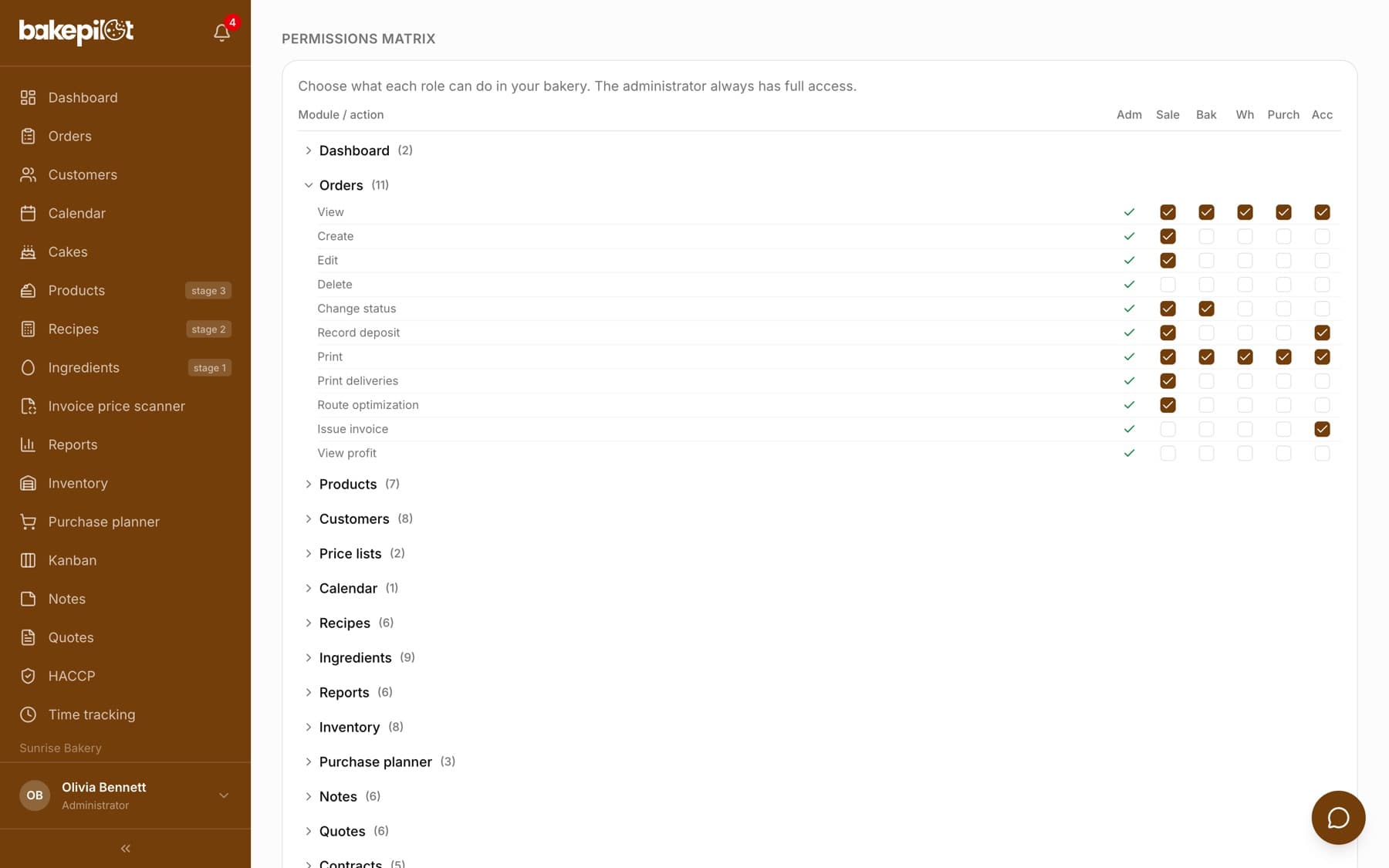
Tip: Example: in a small bakery the Baker also takes phone orders. Tick “Create” in the Orders module for them instead of giving them the Salesperson role, which would also open customers and reports to them.
Changing a role
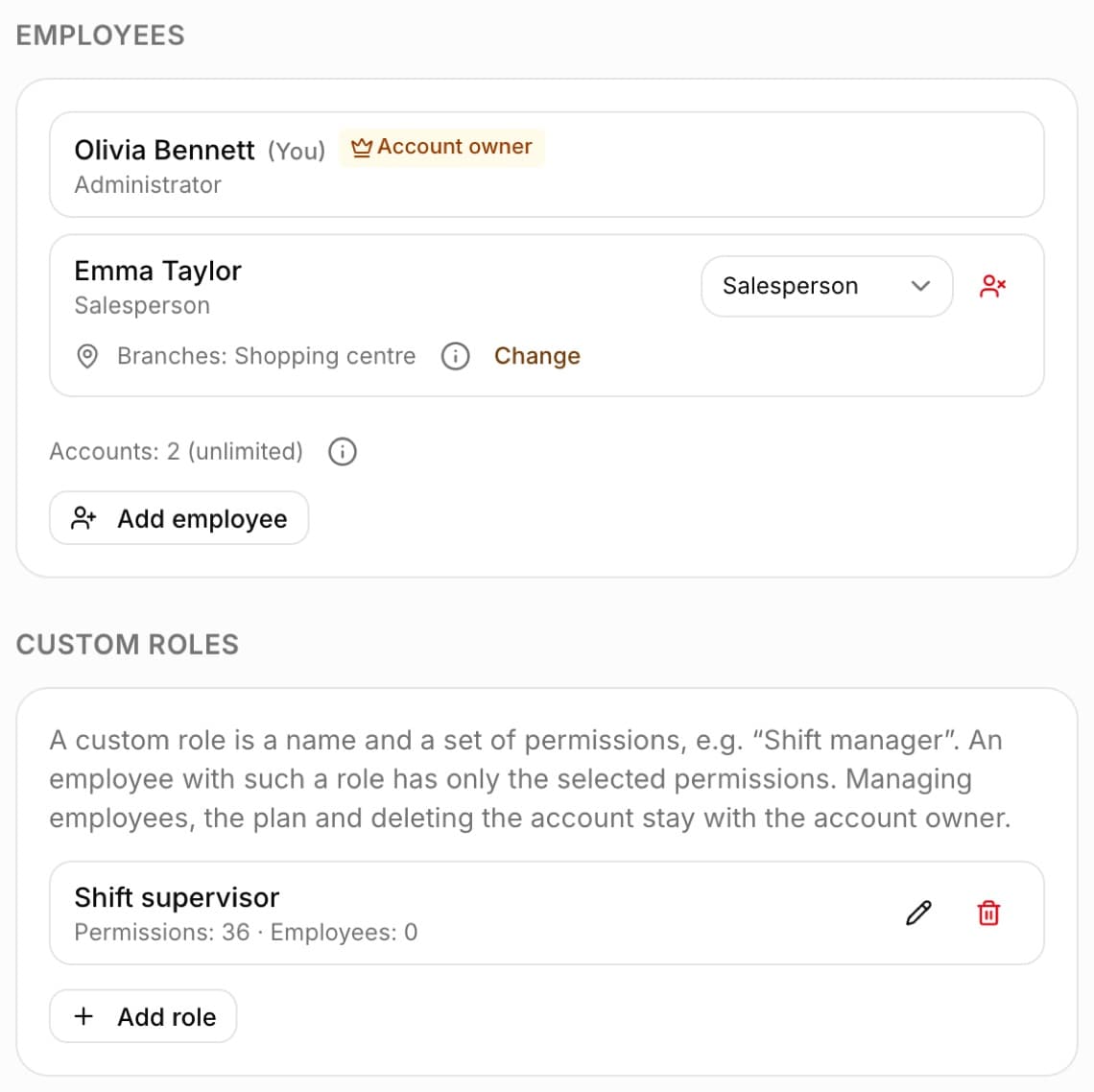
The Administrator changes a role in Settings, in the “Employees” section - using the drop-down list next to the name. The change is saved immediately, without adding the account again. The employee sees the new set of modules after refreshing the page.
- A drop-down list with the role next to each employee
- No need to log in again - refreshing the page is enough
- Instead of deleting an account, use “Deactivate” - the employee's history stays
Custom roles
When none of the roles fits an employee, the account owner creates a custom role in Settings, in the “Custom roles” section. A custom role is a name (e.g. “Shift manager”) and a set of ticked permissions. An employee with such a role has only the ticked permissions - the permissions matrix settings do not apply to them.
- Open Settings and in the “Custom roles” section click “Add role”
- Enter the “Role name”
- In the “Permissions” part, tick a whole module with the checkbox next to its name, or expand the module and tick individual actions
- Click “Save role”
- In the “Employees” section, choose the new role from the drop-down list next to the employee's name
- The list of roles shows the number of permissions and employees for each, and the icons next to it let you edit or delete it
- Permissions with a padlock icon (dashboard, company view, own profile, support, own clock-ins in Time tracking) belong to every custom role
- Managing employees, the plan and deleting the account cannot be given to any role - these are the account owner's functions
- You cannot delete a role that employees have - change their role first
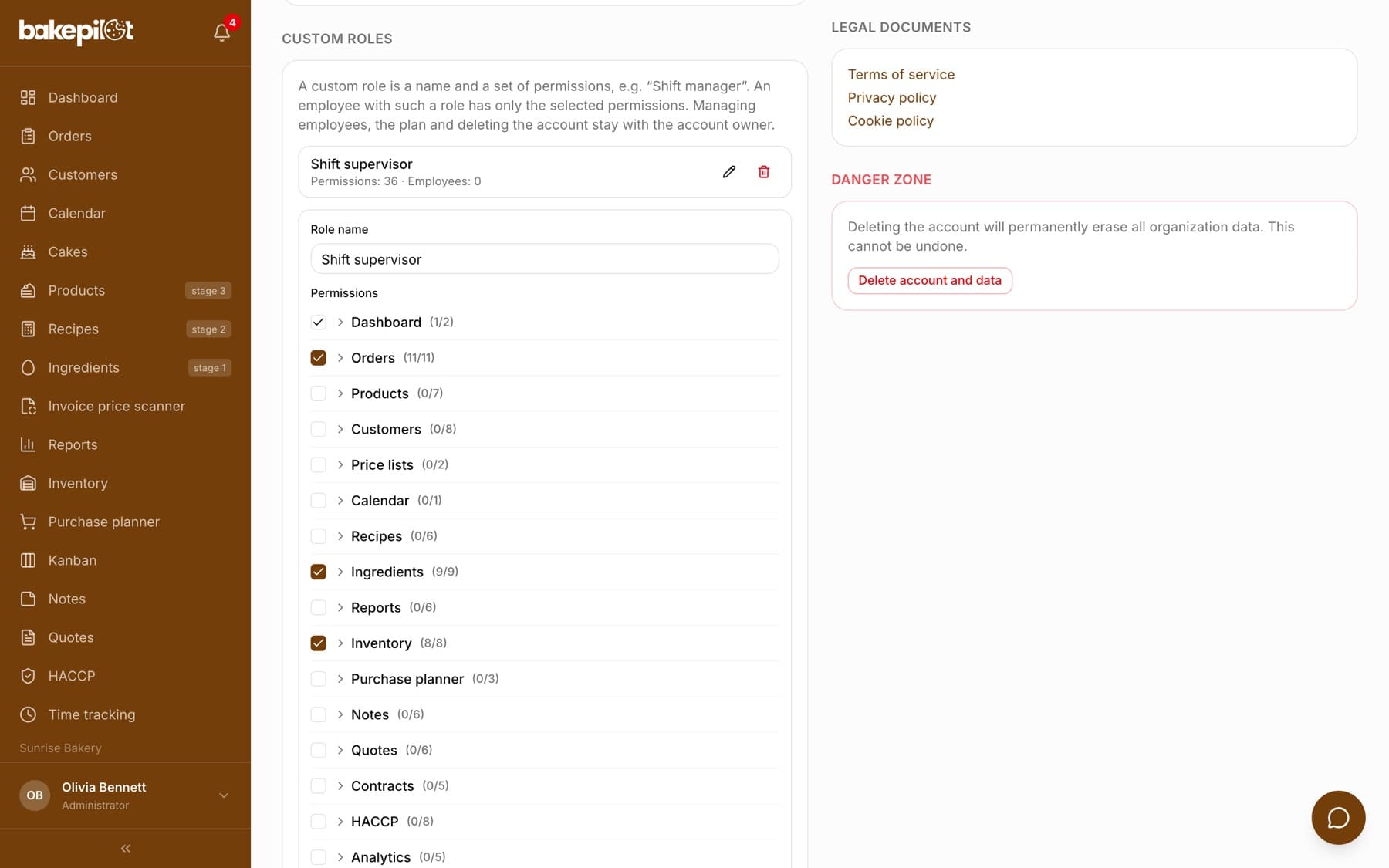
Tip: The role name is also visible in the employee's user menu, so name it the way you talk about that job in your bakery.
One Administrator - the account owner
A bakery has one Administrator - the account owner, i.e. the person who created the account. On the list of employees they are marked “Account owner”. They cannot be demoted or deactivated, and the Administrator role cannot be given to anyone else - it is not on the list of roles.
- Only the owner adds employees, changes their roles, creates custom roles and edits the permissions matrix
- If your bakery previously had several Administrators, the others received the custom role “Manager” - with all Administrator permissions except managing employees, the plan and deleting the account
- Transferring the account to another person (e.g. when selling the bakery) is done by BakePilot support - write to us through the chat in the app
Frequently asked questions
Can I create my own roles?
Yes. The account owner creates them in Settings, in the “Custom roles” section: gives the role a name and ticks the permissions. If a small change to a system role is enough, change it in the permissions matrix.
Can I limit the Administrator's permissions?
No. The Administrator is the account owner and always has full access - otherwise you could accidentally take away your own ability to manage employees and lock the bakery's account.
Can I have a second Administrator?
No. There is one Administrator - the account owner. For a person who is to run the bakery with you, create a custom role with the permissions they need (e.g. all except managing employees and the plan).
What does an employee without permissions to a module see?
The module does not appear in their menu. Inside modules, buttons for actions the role has no permission for (e.g. “Add” in Customers for a Baker) are hidden.