
Branch orders
With several sales points every order can have a branch, and a branch manager sees only the orders of her branch.
Last updated:
When this is useful
You have production and several shops, and the shop managers order goods from production. A branch is the same location as in the “Sales points” section in Settings and in the Time tracking module - you do not set anything up twice.
- Go to Settings, the “Sales points” section, and tick “I have several sales points”
- Add the points: type the name of a new point (e.g. “Galeria”) and choose its type - every point is one branch
- In Settings, in the “Employees” section, open the employee and in the “Employee's branches” field choose “Selected branches” (e.g. a shop manager) or “All branches” (e.g. a manager over the shops, production)
- From now on the order has a “Branch” field, and there is a branch filter above the order list
- The feature is available in the Mistrzowski (Master) plan
- It works when “I have several sales points” is ticked in Settings
- A branch manager is an employee assigned to one branch in Settings > Employees
- Orders from before the feature was turned on have no branch - only accounts with access to all branches see them until you assign a branch to them when editing
The “Branch” field in an order
In the new order form and when editing, under the customer details, there is a “Branch” field.
- A manager assigned to one branch has it selected right away
- An employee assigned to several branches chooses one of them - without a choice, saving ends with the message “Choose a branch”
- An account with access to all branches (e.g. the owner) can leave “No branch” - such an order is a head office order (e.g. a retail customer or an outside company) and branch managers do not see it
- The list shows the active branches you have access to; a deactivated branch stays only on orders that already have it
- When editing an order with a branch you do not have access to, you can correct the rest of the order, but you cannot move it to another branch
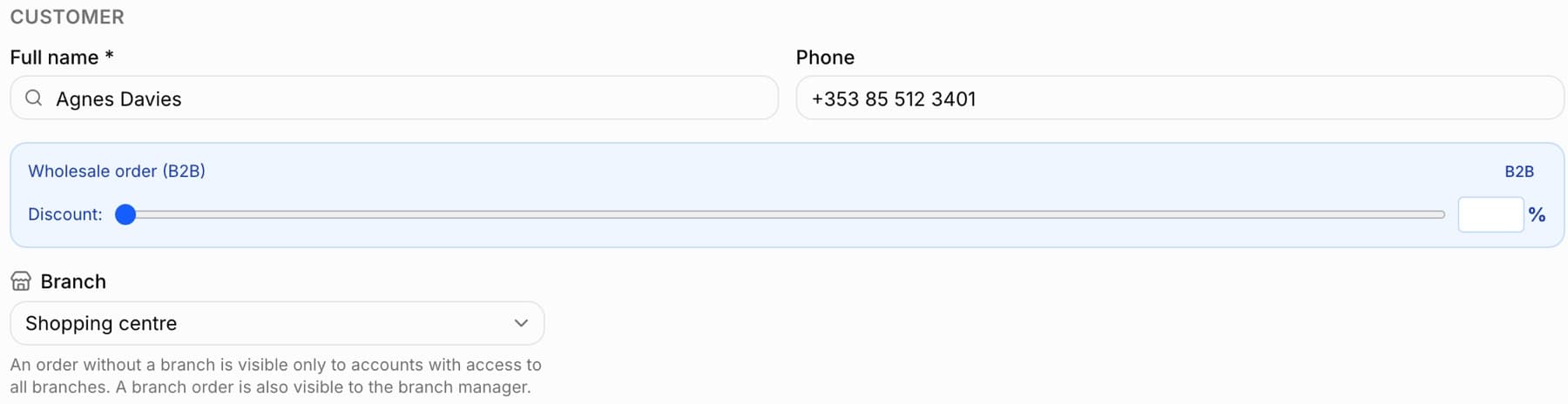
Tip: The order's branch is visible on the order card (“Branch: ...”), and changing it goes into the order's change history.
A customer that is our branch
If a branch orders as a customer (e.g. “Leska Street shop”), mark it on the customer card. An order for such a customer gets its branch automatically.
- Go to Customers and open the customer for editing.
- In the “This is our branch” field choose the branch (the default is “No, regular customer”).
- Click “Save changes”.
- A new order for this customer has its branch right away (as long as you have access to it)
- Standing orders of this customer are generated with its branch
- “Copy day” creates copies with the same branch as the original
- Do not choose a branch for an outside company, wholesaler or external shop - that is a regular customer you can assign a price list to
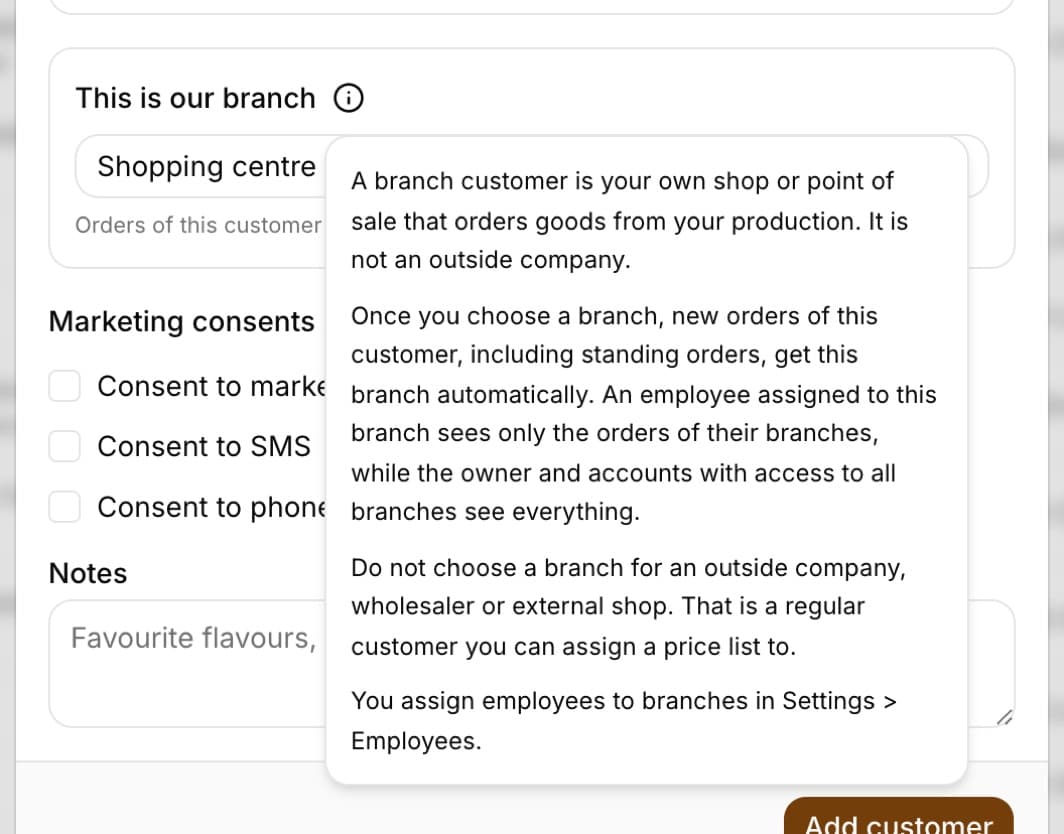
Tip: The information icon next to the “This is our branch” field explains the same in short: a branch customer is your own shop or point that orders goods from your production, and you assign employees to branches in Settings > Employees.
Who sees which orders
Which orders an employee sees is decided by the branch assignment in Settings > Employees (the article on staff assigned to branches).
- An employee assigned to selected branches (e.g. a shop manager) sees only the orders of her branches: on the order list, on the board (the “Orders” tab), in the calendar, on the dashboard, on the customer card, in printouts, in exports, in the phone calendar, in Analytics, in the purchase planner with “Load from orders”, in the product sales statistics and when issuing a delivery note (WZ) and an invoice from an order. The administrator can change role permissions in the permissions matrix in Settings
- She will not see orders of other branches or orders without a branch - there is no “All” switch, and opening such an order from a link ends on a “Not found” page
- She also cannot change the status or the deposit, or delete someone else's order; “Copy day” copies only the orders of her branches
- The owner and employees with access to all branches (e.g. a manager over the shops, production) see all orders, as before
- Standing orders are generated for the whole company - a branch account sees in the “Standing” tab only the templates of its branches and only the orders of its branches created from them
Tip: If a manager should also see the orders of other shops, set “All branches” for her in Settings > Employees - then she sees everything with the “Branch” filter.
The “Branch” filter
Above the order list, on the board (the “Orders” tab) and in the order calendar there is a row of buttons with the branches.
- An account with access to all branches has the buttons “All branches”, each active branch and “No branch”
- An employee assigned to several branches has the buttons “My branches” and her branches; with one branch there are no buttons
- An employee assigned to branches sees the note “You only see orders of your branches.” next to them
- The selected branch also applies to “Print” and to the list export
Tip: The filter only narrows the view. What an employee is not allowed to see is not shown by any button or by changing the page address.
Frequently asked questions
I do not see the “Branch” field in the order. Why?
The field is in the Mistrzowski (Master) plan, when “I have several sales points” is ticked in Settings and there is at least one active branch you have access to.
Can I delete a branch that has orders or customers?
No - you can deactivate such a branch in the “Sales points” section. Orders and customers then keep their branch.
Can orders with a branch be added through the API?
Yes. The location_id field in an order sent through the API sets the branch; if it is omitted, the order gets the branch of a customer that is a branch.