
Adding employees
How to add employees to BakePilot, give them a temporary password and assign roles.
Last updated:
Adding an employee
Employees are added by the account owner (Administrator) in Settings, in the “Employees” section. BakePilot does not send an email invitation - after you add a person, the app shows a temporary password, which you pass on to the employee yourself. At the first login, the employee has to set their own password.
- Open Settings and in the “Employees” section click “Add employee”
- Enter the employee's “Email”, “First name” and “Last name”, and optionally “Phone”
- In the “Role” field choose a role - “Salesperson” by default; the list also includes your bakery's custom roles
- Click “Add” - a box with “Temporary password for the new employee” appears
- Copy the password with the icon next to it and give it to the employee together with the address app.bakepilot.pl
- The employee logs in with their email and the temporary password. On the screen “You need to change your temporary password before you continue.” they enter the temporary password in “Current password”, then “New password” and “Repeat password”, and click “Change password”
Tip: You see the temporary password only once. If you lose it, the employee can click “Forgot your password?” on the login screen - a link to set a new password will be sent to their email address.
Available roles
BakePilot has six system roles. Each one sees in the menu only the modules it has permissions for, and the Administrator has access to everything. There is one Administrator - the account owner - so for an employee you choose one of the other five roles or a custom role that you create in the “Custom roles” section. You can review the full list of permissions for each role in Settings, in the “Permissions matrix” section.
- Administrator - the account owner, full access; you cannot give this role to an employee
- Salesperson - orders (creating, editing, changing status), customers, calendar, quotes, Kanban, reports, viewing ingredients
- Baker - Kanban, recipes, ingredients, viewing inventory, HACCP, changing order status
- Warehouse worker - stock levels, ingredients, HACCP, viewing Kanban
- Purchaser - ingredients and suppliers, recording purchases, viewing inventory
- Accountant - sales and purchase invoices, KSeF, the invoice price scanner, reports, customers, contracts, viewing inventory, viewing and exporting time tracking
Tip: Assign roles that match people's duties. A Baker will not see invoices, and an Accountant has no access to the production Kanban.
Account limit in your plan
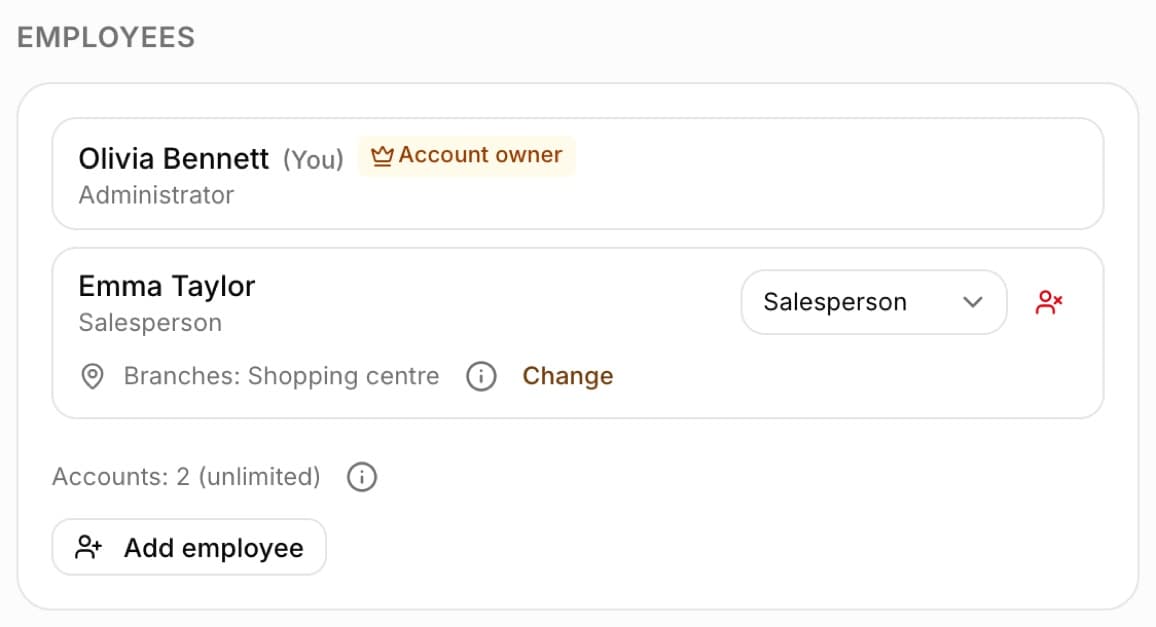
The number of active accounts depends on the plan: Podstawowy (Starter) - 2, Profesjonalny (Professional) - 5, Mistrzowski (Master) - unlimited. There is no limit during the trial. Every active login account counts toward the limit, including your owner account. Deactivated accounts do not count, and neither do Time tracking employees who only clock in on a shared tablet, without their own account. You can see the status in the “Employees” section above the add button, for example “Accounts: 3 of 5”.
- When the limit is reached, the “Add employee” button is disabled and “Account limit of the … plan reached.” appears next to it with a “See higher plans” link
- The “Activate” icon next to a deactivated employee is then disabled too - activating adds an account toward the limit
- To make room, deactivate an account that nobody uses anymore, or switch to a higher plan
- The accounts you already have keep working - even when there are more of them than the plan limit (for example after switching to a lower plan). You just cannot add another one
Tip: The information icon next to the “Accounts: …” counter reminds you what counts toward the limit and what limits the plans have.
Changing the role and deactivation
Next to each employee on the list there is a drop-down list with the role - choosing a new role saves immediately, without adding the account again. Next to it is the “Deactivate” icon: the employee loses access, but their account and history remain, and the entry on the list is grayed out. The same icon, as “Activate”, restores access.
- Changing the role - the drop-down list next to the name, takes effect immediately
- “Deactivate” - blocks logging in without deleting data
- “Activate” - restores access
- You cannot change your own account (marked “(You)”) from this list
Frequently asked questions
How many people can I add?
It depends on the plan: Podstawowy (Starter) - up to 2 active accounts, Profesjonalny (Professional) - up to 5, Mistrzowski (Master) - unlimited (also unlimited during the trial). The owner's account counts too. When you reach the limit, the app will not let you add or activate another account - deactivate unused ones or change your plan.
Will the employee get an invitation email?
No. After you add an employee, the app shows you a temporary password - you give it to the employee yourself, and they change it at their first login.
Can an employee have several roles?
No, each user has one role. If someone needs permissions from several roles, create a custom role for them in the “Custom roles” section and tick exactly what they need.