
Takings entered by staff
The salesperson closes the day and enters the takings themselves, without seeing other days or summaries. They can correct it until the end of the day, after that the Administrator does.
Last updated:
How it works
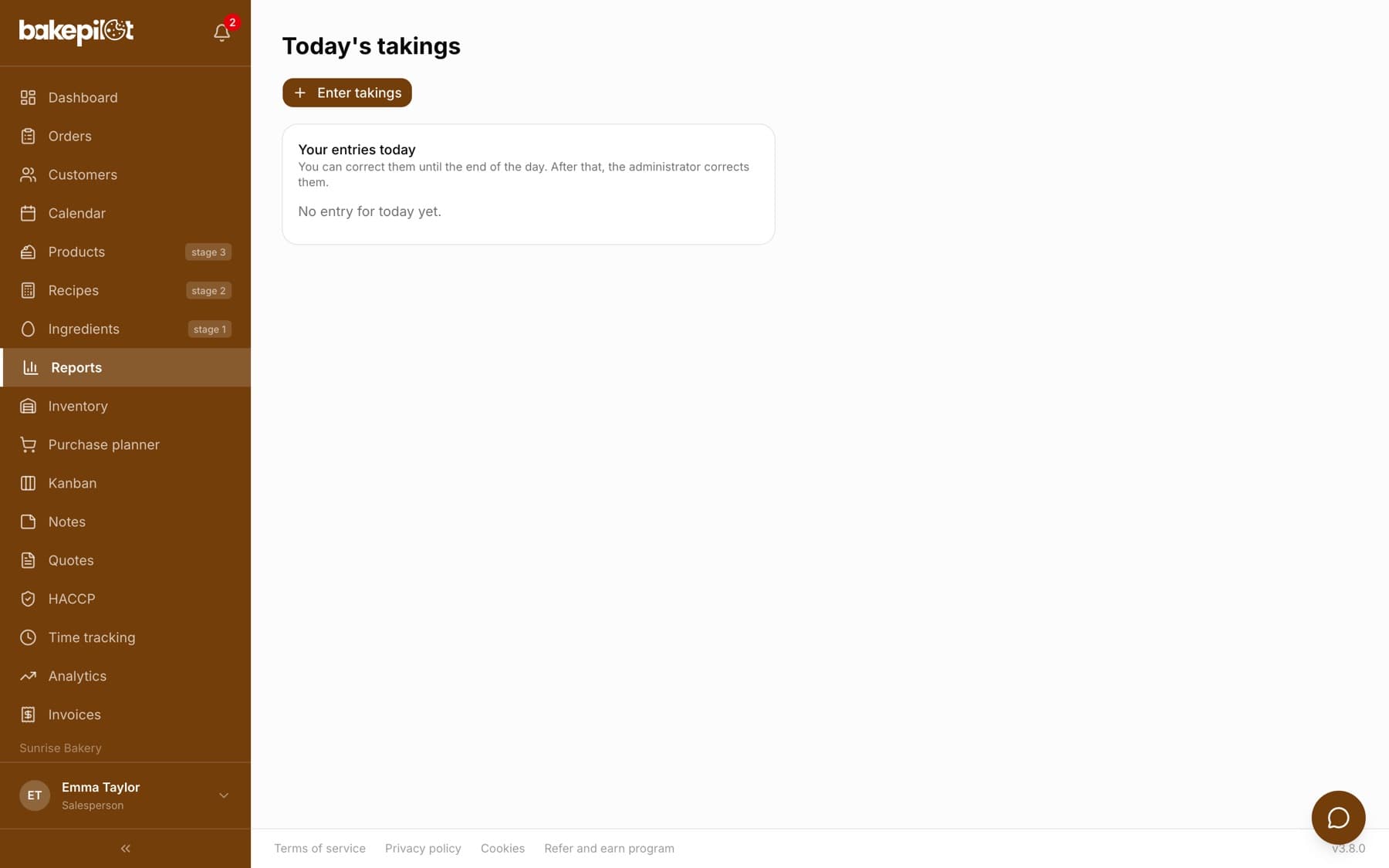
The person who closes the register can enter the daily report themselves, on the “Today's takings” screen. They see only their own entries for today: no other days, month totals or charts. The “Enter takings” button opens the same report window the Administrator uses, except that the day is set to today and cannot be changed.
- Today's report only, with the date set automatically
- The “Your entries today” list with the register, card terminal, discrepancy and the time of saving
- The “Correct” button next to an entry works until the end of the day; after that, the Administrator corrects the entry in Reports
- With sales points, the employee chooses only from their own sales points, and their “Default location” from Time tracking is suggested, as described below
- In Reports, an employee's entry shows “Entered by:” with their name, so you know whom to ask about a discrepancy
Who has this permission
Entering today's takings is a separate permission, “Enter today's takings”, in the Reports module. By default, the Administrator and the Salesperson have it. However, the Salesperson also has “View” for reports by default, so they see the whole list of days and the summaries. If you want them only to enter today's takings, remove their view permission in the permissions matrix.
- Go to Settings, the “Permissions matrix” section
- Expand the “Reports” module
- In the “Sale” column, untick “View”
- Leave “Enter today's takings” ticked
- From then on, “Reports” in the menu takes the Salesperson straight to the “Today's takings” screen
- You can set the same for another role, e.g. a Baker who closes the register in a small shop: tick “Enter today's takings” for them
- The change applies to everyone with that role
Tip: The matrix is described in detail in the article “Roles and permissions”.
Which sales points the employee enters takings for
With several sales points, an employee enters takings only for their own sales points. You assign them in the Time tracking module, in the employee form: in the “Employee locations” section you tick the sales points where they work. Their “Default location” is always one of them; it is permanently ticked and marked “(default)”. In the report window on the “Today's takings” screen, the employee sees only these sales points.
- Go to Time tracking, the “Employees” tab, and open the employee form
- In the “Employee locations” section, tick the sales points they should enter takings for
- For a manager who closes the register in different shops, tick “All locations (e.g. manager)”
- Save the employee
- All sales points are available to: the Administrator, a person with permission to manage the Time tracking module (they assign employees to sales points) and an employee with “All locations (e.g. manager)” ticked
- The “Create” or “Edit” permission for reports alone does NOT open the other sales points. The Salesperson has these by default, and they are exactly the person this rule restricts
- As before, takings for all sales points can be entered by an account not linked to an employee in Time tracking and by an employee without any sales point, e.g. when the bakery does not use the Time tracking module
- An entry for someone else's sales point will not be saved: “You are not assigned to this sales point - ask the administrator to assign you in Time tracking”
- When none of the employee's sales points is an active sales point, the screen shows: “You are not assigned to any active sales point - ask the administrator to assign you in Time tracking.”
Tip: You link an employee's account with the employee in Time tracking in the “BakePilot account (optional)” field. Without this link, the app does not know which sales points the person belongs to.
Frequently asked questions
An employee made a mistake yesterday. Who will fix it?
The Administrator, in the Reports module. Clicking the report row opens it for editing. An employee can only correct their entry on the day it applies to.
Will an employee see their colleagues' entries from the same day?
No. The “Today's takings” screen shows only their own entries.
Can an employee enter a report for yesterday?
No. The screen accepts only today's report. The Administrator fills in a missing day in Reports.