
Order statuses
The course of an order from draft to handing it over to the customer.
Last updated:
Six order statuses
An order starts as “Draft” and after confirmation goes through production to being handed over. The statuses are color-coded and visible on the list, in the details, in the calendar and on the Kanban board.
- “Draft” (gray) - the order is saved, not confirmed yet
- “Confirmed” (brown) - accepted for fulfillment, on the Kanban board in the column with the same name
- “In production” (blue) - the baker is working on the order
- “Ready” (green) - waiting for pickup or delivery
- “Handed over” (light green) - the customer has collected the order
- “Cancelled” (red) - the order has been withdrawn
Changing the status
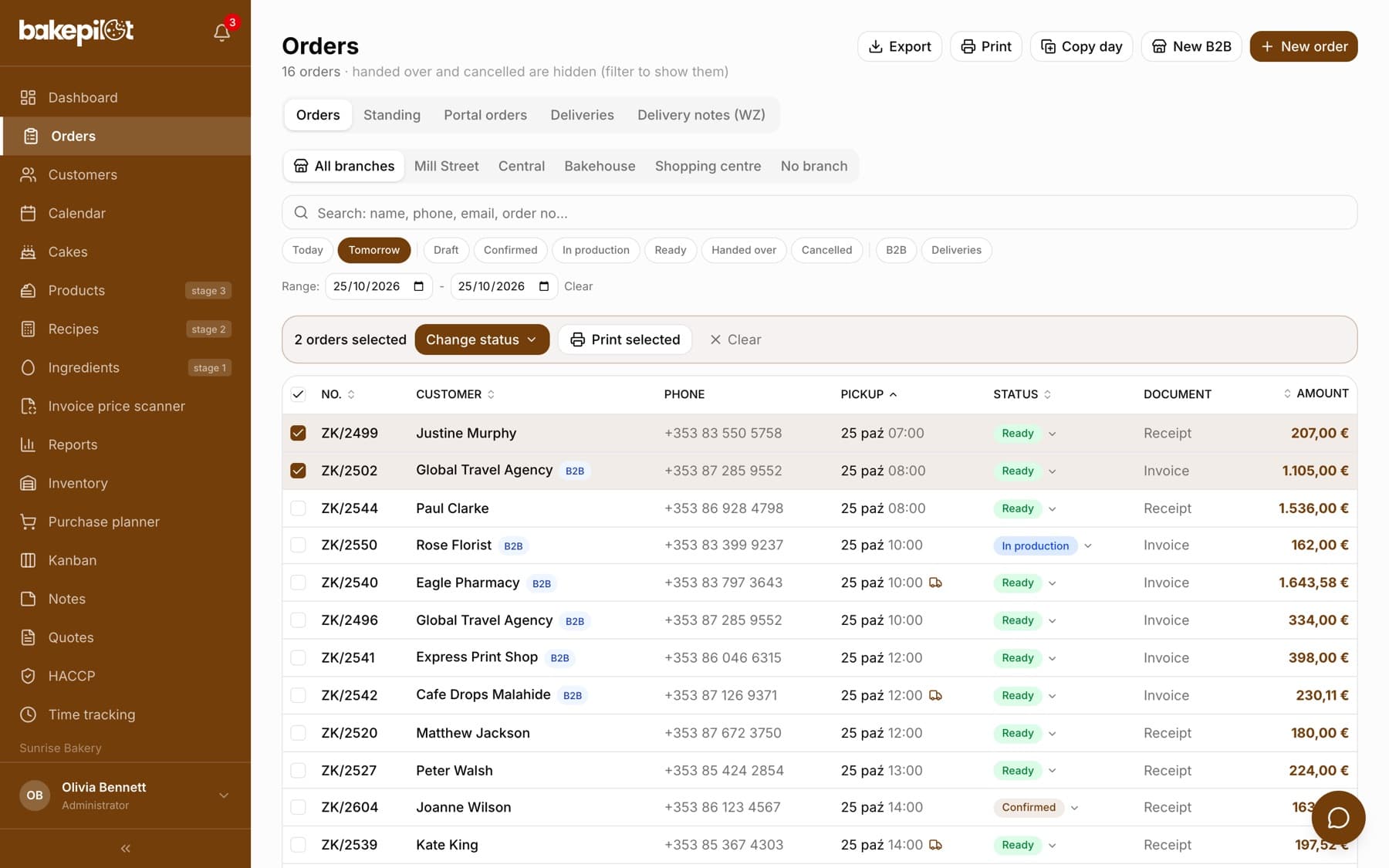
In the order details there is one large button with the next step: “Confirm”, “Start production”, “Mark as ready”, “Hand over to customer”. On the order list you click the colored status marker in the “Status” column and choose any status from the dropdown - including an earlier one if you need to go back. After saving, the message “Status: ...” appears. You change orders selected on the list in bulk with the “Change status” button in the bar above the table.
- Details - a button with the next step, “Cancel” only on a draft
- List - a dropdown on the status, any status, including going back
- Selected orders - “Change status” for many at once
- Kanban board - dragging cards or the arrows on a card
- Deliveries - a status dropdown on the delivery card
Tip: Confirming an order sends a push notification to the phones of the team members who use the mobile app. The customer does not get any message automatically - contacting them stays on your side.
Weighing before handing over
A product marked “Weighed at hand-over (price per kg)” is ordered in pieces, e.g. 2 tubs of ice cream, but paid for by weight. Before you hand over such an order, weigh the goods and enter the weight in the order details, on the “Weighing before handing over” card. After you click “Save weight”, the item is recalculated into kilograms (price per kg × weight, with the item discount), and below it you see “Ordered 2 pcs, weighed 2.35 kg”. Without the weight you cannot hand over the order or issue a delivery note (WZ) or an invoice - the weight is on the document.
- Open the order - the “Weighing before handing over” card shows how many items are waiting for their weight
- Enter the weight in kg for every item
- Click “Save weight” - the order amount is recalculated right away
- Issue the delivery note (WZ) or the invoice and click “Hand over to customer”
- Trying “Handed over” without the weight (in the details, on the list, in bulk or on the Kanban board) ends with the message “Weigh the items sold by weight first”
- An invoice from the order has the unit “kg” for weighed items, and the delivery note (WZ) the note “2 pcs, weight 2.35 kg”
- You can correct the weight until the delivery note (WZ) or the invoice is issued and the order is handed over; not after that
- A bulk “Change status” to “Handed over” will not go through when even one of the selected orders is waiting for its weight
- The finished goods inventory counts the ordered pieces (tubs) for weighed items, not kilograms

Filtering by status
Above the list there is a row of buttons: “Today” and “Tomorrow” narrow the list to the pickup date, then the six statuses (you can select several at once, e.g. “Confirmed” and “In production”), “B2B” shows only wholesale orders, and “Deliveries” only those with delivery. This filter works in every plan; the separate “Deliveries” tab with the delivery sheet and route planning requires the Profesjonalny (Professional) plan. Below there is the “Range:” field with from-to dates and “Clear”. The filters combine with search and sorting.
- Status filter - clicking a button adds the status, clicking again removes it; several can be selected
- “Today” / “Tomorrow” and a from-to “Range:” for the pickup date
- “B2B” - only wholesale orders, “Deliveries” - only with delivery
- Printing the list with the “Print” button and the export reflect the filters you set
A custom column with the number of product pieces
You can add a column to the list that shows how many pieces of a chosen product are in each order - without opening the details. The administrator goes to Settings, the “Quick order column” section, types part of the product name (e.g. “blueberry bun”) and clicks “Save”. A second, optional field is counted separately and shown in brackets: a variant in the product name (with “blueberry bun” and “deluxe” the column shows “30 (3)”) or a separate product whose name starts with that text (with “St. Martin's croissant” and “pyzimarcinek” you will see “5 (8)”). The column header shows the total number of pieces across the whole filtered list, and on a phone the total appears under the number of orders.
- Settings → “Quick order column” (administrator only)
- Part of the product name, e.g. “blueberry bun”, plus an optional second field: a variant (e.g. “deluxe”) or the name of a second product (e.g. “pyzimarcinek”)
- The total number of pieces in the column header and under the list header on a phone
- An empty field hides the column
Frequently asked questions
Can I see who changed the status and when?
Yes, from October 5, 2026. Every status change goes into the “Change history” section on the order card - with the date, time, person and the status from what to what.
Who can change statuses?
By default the administrator, the salesperson and the baker. Other roles see orders but do not change their status. The administrator can change this in the permissions matrix in Settings.