
Route planning
The “Deliveries” tab: deliveries for the day, amounts to collect, automatic route order and navigation in Google Maps.
Last updated:
The delivery list
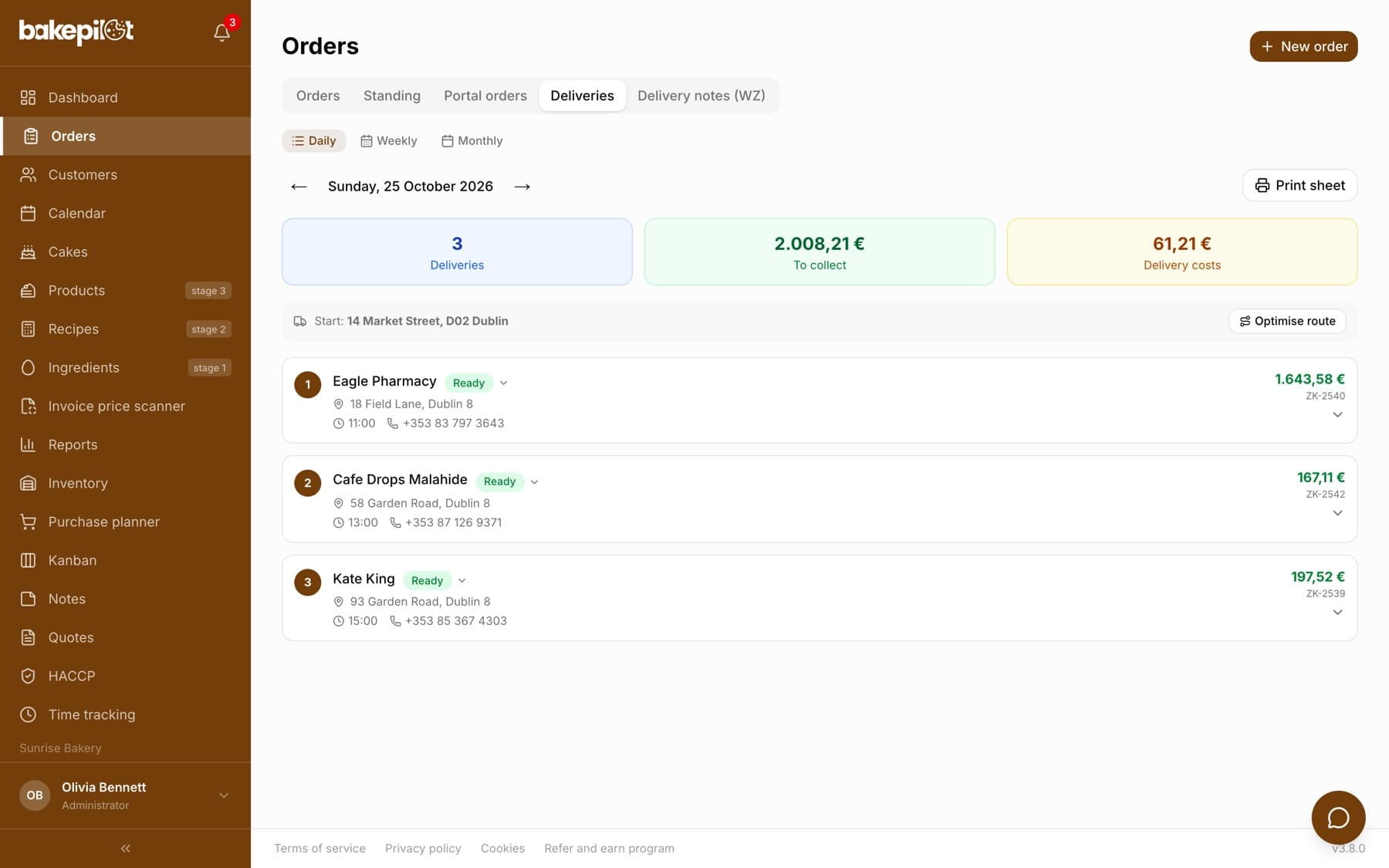
The “Deliveries” tab in the Orders module shows orders with “Delivery” ticked and a delivery address. You switch between the “Daily”, “Weekly” and “Monthly” views and change the date with the arrows. Above the list there are three tiles: “Deliveries”, “To collect” (the total of amounts minus deposits) and “Delivery costs”. Each card shows the stop number, the customer with a status badge, the address, delivery time, phone and the amount to collect, or “Paid”. Clicking a card expands the items, total, deposit, delivery cost, notes and an “Open order” link.
- “Daily” / “Weekly” / “Monthly” view; in the weekly and monthly views the cards are grouped by day
- “Deliveries”, “To collect” and “Delivery costs” tiles
- Card: stop number, customer, status, address, time, phone, amount
- Expanded card: items with quantities, deposit, notes, “Open order”
Route order
In the daily view, above the list, there is a “Start:” bar with your bakery's address (from Settings, the “Address (starting point for deliveries)” section) and - when there are at least two deliveries - an “Optimise route” button. BakePilot finds the addresses on the OpenStreetMap map, calculates the distances between the points and arranges the stops from the nearest, starting from the bakery. You will see the message “Route optimised for N addresses”, a “Route order” panel with an “S” (start) point and numbered stops, and the cards on the list get numbers matching the route. Addresses that could not be found are named in the message - correct them in the order and run the optimization again.
- “Optimise route” is available with at least two deliveries and the bakery address filled in
- Stops arranged from the nearest, starting from the bakery address
- A “Route order” panel with the starting point and stop numbers
- The icon next to each stop (“Show on map”) opens that single address in Google Maps
- The order cannot be rearranged by hand - the route is a suggestion, the driver can go a different way
Tip: Enter addresses from the suggestions in the “Delivery address” field of the order - then the map finds them without trouble. An address like “behind the church” will not be located.
The route in Google Maps and delivery statuses
After the route is arranged, “Open in Google Maps” appears next to the message - the whole route with all stops (starting at the bakery, then the addresses in the set order) opens in navigation on the driver's phone. You change the order status directly on the delivery card by clicking the status badge, without opening the details. Deliveries marked as “Handed over” move to the bottom of the list, and in the “Route order” panel their stop turns green and is crossed out - you can see right away what has been delivered. Stop numbers do not change after a status change.
- “Open in Google Maps” - all stops in navigation
- Changing the status right on the delivery card
- Handed-over deliveries drop to the bottom of the list
- Delivered stops are green and crossed out in “Route order”
Delivery time
You agree the delivery time with the customer in the order form: after ticking “Delivery”, the “Delivery address”, “Delivery time” and “Delivery cost” fields appear. The time is a single value (e.g. 15:30), not a from-to range. If another delivery that day has a time closer than 15 minutes, you will see a “Delivery time clash” warning when saving, with a suggested different time - you can change it or click “Save anyway”. The time is visible on the delivery card, on the order list and on the delivery sheet printout.
- “Delivery time” in the delivery section of the order
- A single time, no from-to range
- A clash warning for times closer than 15 minutes
- Visible on the card, on the list and on the printout
Frequently asked questions
Can I choose which deliveries go into the route?
No - the route covers all deliveries on the chosen day. If two drivers are going, each takes their own part from the “Route order” panel.
The “Optimise route” button does not appear - why?
Check two things: whether the bakery address (street, postal code, city) is filled in in Settings and whether there are at least two deliveries on the chosen day.