
Printing and exporting orders
How to print a single order, the order list, cards of selected orders and the delivery sheet, and how to export data to Excel.
Last updated:
Printing a single order
In the order details click “Print” in the top right corner. The browser's print window opens with a clean layout - the menu and buttons disappear, and what stays is the header with the number, the customer details, the pickup time, the list of items with quantities and prices, the payment method and the crates, if filled in, and the notes. In the print window you can choose “Save as PDF” instead of a printer.
- The “Print” button in the order details (Ctrl+P / Cmd+P also works)
- A print layout without the menu and buttons
- Customer details, pickup time, items with quantities, payment method, crates and notes
- “Save as PDF” instead of a printer, if you want to send the file
Tip: Notes entered under items and the general order notes are printed together with the document - production gets them without retyping.
Printing selected orders - each on a separate page
Select orders on the list (the checkboxes in the first column) and click “Print selected” in the bar that appears above the table. A print page opens on which every order is a separate card on its own page: number, customer, pickup time, items with quantities, notes, payment method and crates. Ideal when the documents go with the driver to several buyers.
- Selecting orders on the list + “Print selected”
- One order = one printed page
- The card includes items, notes, payment method and crates
- The checkbox in the header selects all orders on the page
Hiding prices on printouts
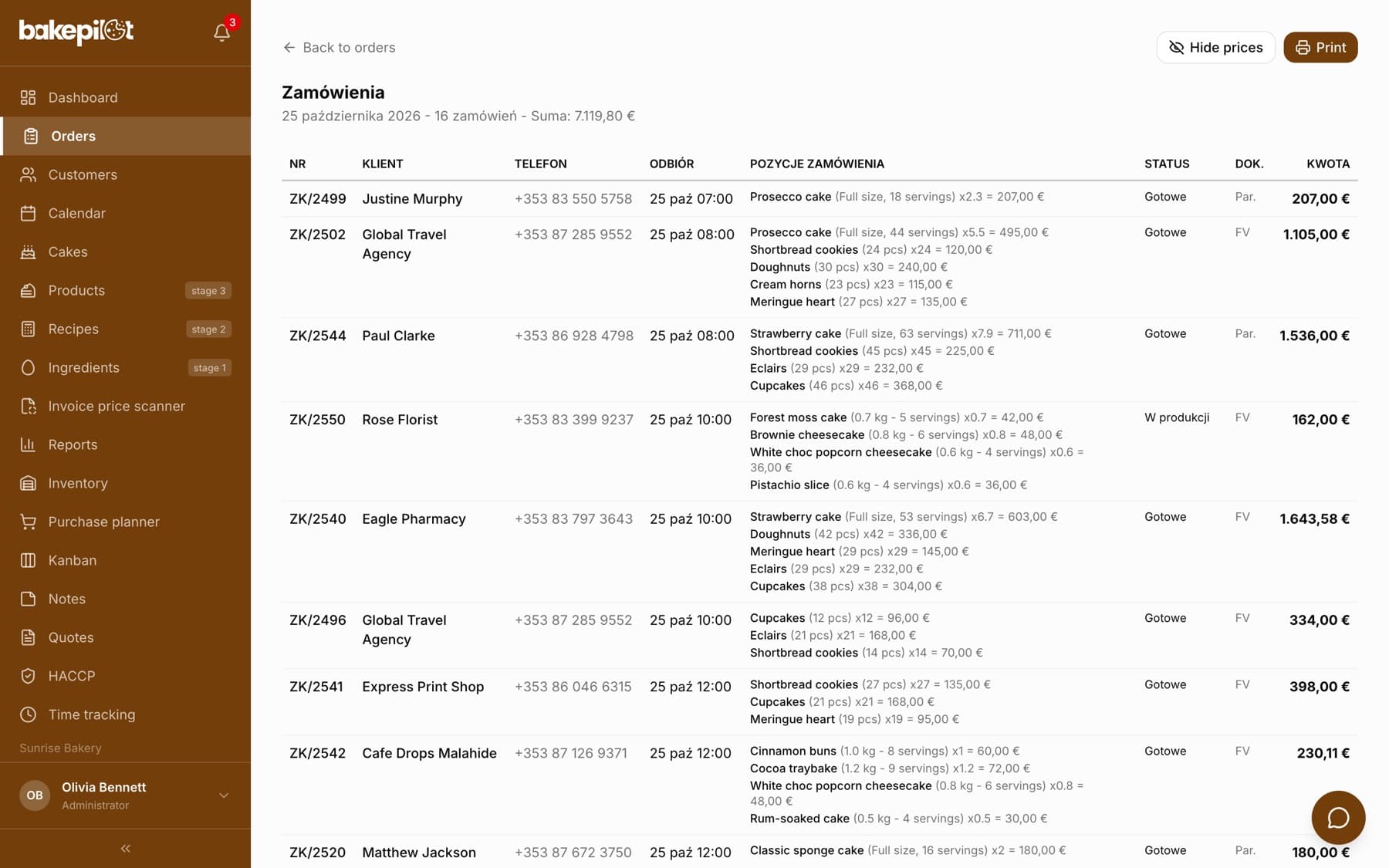
On the print page of the list and of the selected order cards, next to “Print”, there is a “Hide prices” button. After you click it, the amounts disappear from the document, and the quantities become larger and bold - the document can be read from a distance, in production or while unloading. The choice is remembered in your browser, so once hidden, prices stay hidden on the following printouts until you click “Show prices”.
- The “Hide prices” / “Show prices” button on the print page of the list and the cards
- Without prices the quantities are larger and bold
- The setting is remembered in the browser
Printing the order list
On the order list, after setting the filters (date, status, search), click “Print” in the header. A page opens with a summary in the form of a table: number, customer, phone, pickup, order items with quantities and amounts, status, document and amount, with a total at the bottom. The printout covers exactly the orders you see after filtering.
- The “Print” button in the order list header
- The printout reflects the filters you set
- A table with the items of every order and the grand total
- Without handed-over and cancelled orders by default
Delivery sheet
If you deliver orders, in the “Deliveries” tab choose a day and click “Print sheet”. Every delivery is a separate box: address, customer with phone, time, items with quantities, the amount “TO COLLECT” taking the deposit into account, notes and a place for a signature. At the top and bottom there is the number of deliveries and the total amount to collect. Details in the driver sheet article.
- “Print sheet” in the “Deliveries” tab in the daily view
- Delivery address, phone and time
- The amount to collect, taking the paid deposit into account
- The total amount to collect for the whole day
Export to CSV and Excel
The order list header has an “Export” button. After clicking it you choose the format: CSV or Excel. The file contains the orders matching the filters you set, with the columns: number, customer, phone, pickup date, amount, status, document type, delivery with address and time, currency, notes and creation date - handy when you want to make your own summary or pass the data to your accountant.
- The export covers the whole filtered set, not just the current page
- A CSV or Excel file to open in Excel and Google Sheets
- Data for your own summaries and analyses
Frequently asked questions
Where is the print button on a single order?
In the top right corner of the order details, in the same row as “Edit” and “Duplicate”. The Ctrl+P shortcut (Cmd+P on a Mac) also works.
Can I send an order to the customer by email?
There is no automatic sending of orders. In the print window choose “Save as PDF” and send the file from your own mailbox. Only quotes can be sent by email.