
Kanban board
A view of orders moving through production: status columns, a tasks tab and the production list.
Last updated:
What the production board is
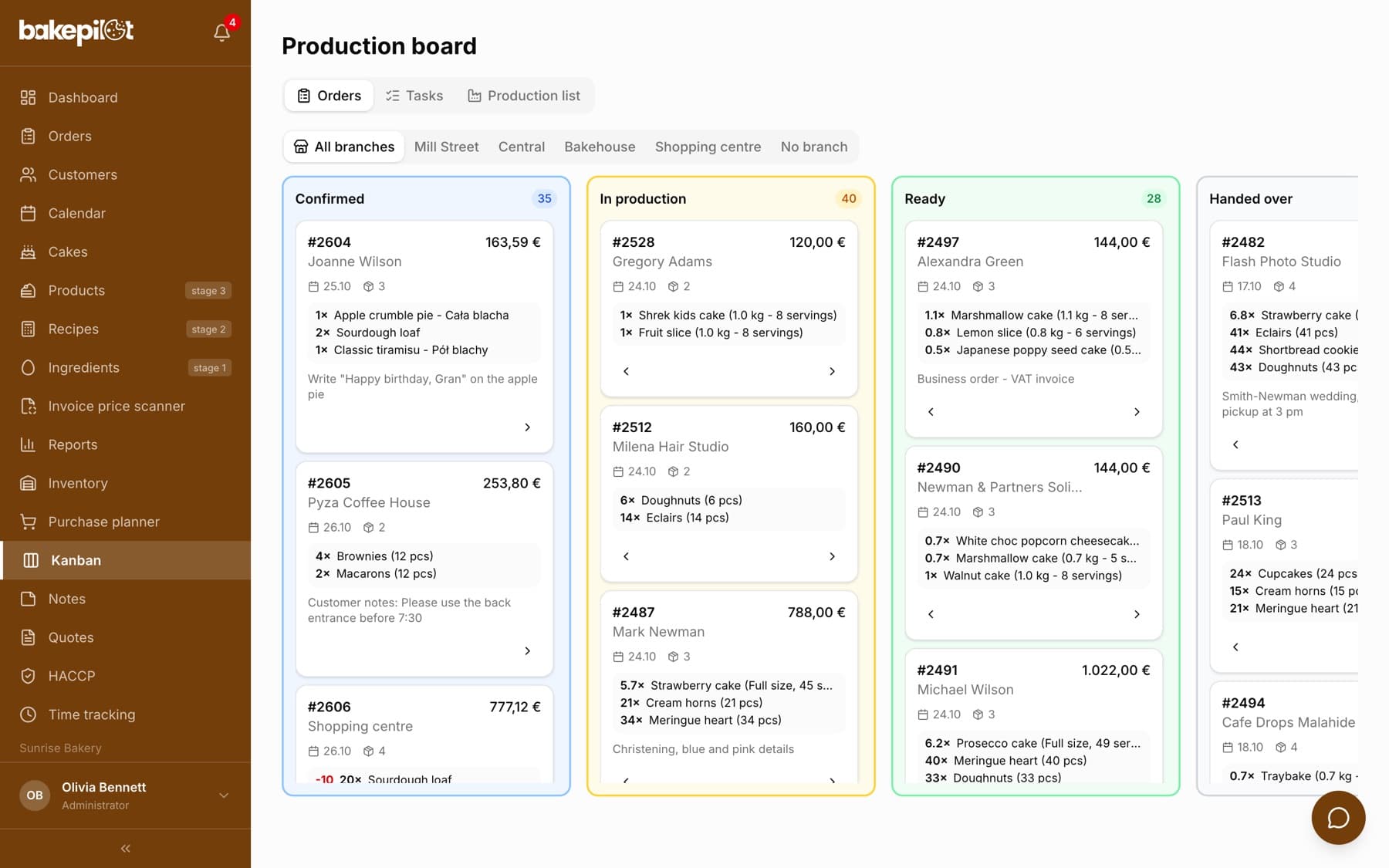
The Kanban module opens the “Production board” with three tabs: “Orders”, “Tasks” and “Production list”. The “Orders” tab shows confirmed orders as cards in four columns by status: “Confirmed”, “In production”, “Ready” and “Handed over”. The columns have the same names as the statuses on the order list: moving a card changes the order status. Instead of a filtered list you see right away where every order is - the baker sees what is left to make, the salesperson sees what can be handed over.
- Columns: “Confirmed” / “In production” / “Ready” / “Handed over”, each with an order count
- Drafts do not appear on the board - they show up after you click “Confirm”
- The “Handed over” column shows orders with a pickup date in the last 7 days (up to 50 cards) - older ones disappear from the board on their own and stay on the order list under the “Handed over” filter
- Card: number, customer, amount, pickup date, number of items and the list of items with quantities
- An empty column collapses into a narrow tab - click it to expand
The order card
The card shows the order number, customer, amount, pickup date and the first four items with quantities - production needs to know what to make, not just for whom. With more items you see “+ N more - show all”; clicking the item list opens a window with all items, item notes and the general order notes.
- Up to four items directly on the card, the rest in the details window
- Item notes (e.g. “sliced”) visible in the details window
- General order notes shortened on the card, in full in the window
- Pickup date without the time - check the time on the order list or in the calendar
Shortages to produce and “Done”
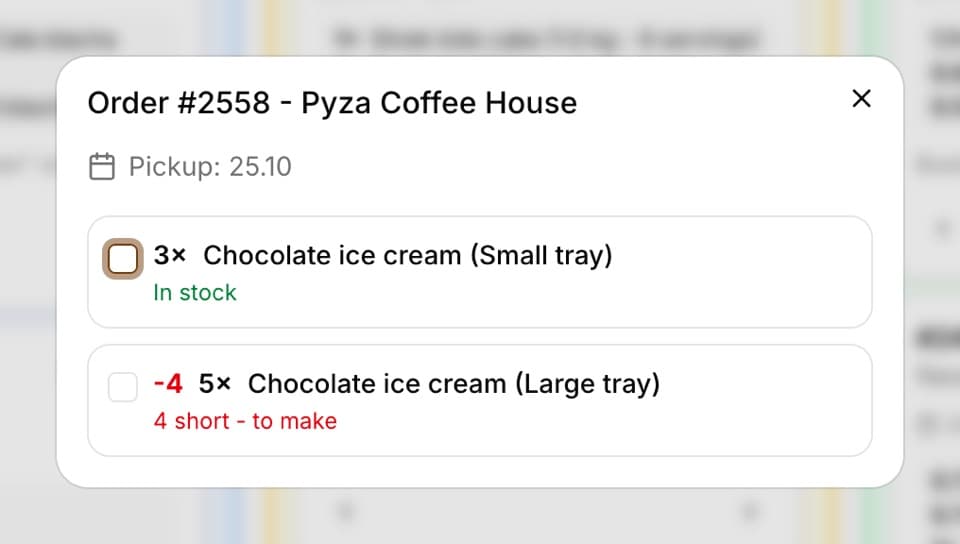
When “Issuing from orders” is turned on in Inventory, the board shows next to every order item whether the goods are in stock. A shortage is shown in red before the product name, e.g. “-1 2× Chocolate ice cream (large tub)” - someone ordered 2 and 1 is left in stock. Stock in the issuing warehouse goes first to orders with an earlier pickup, so the shortage falls on later ones. In the order window (“show all”) each item shows “N short - to make” or “In stock”, and a “Done” box to tick.
- “-N” is calculated from the issuing warehouse, for products and variants kept in that warehouse
- “Done” means: made separately for this order. The item is crossed out, has no shortage and takes no stock - neither on the board nor at “Handed over” (it is not deducted from inventory)
- The mark stays after the order is edited, as long as the item is still in the order
- Anyone allowed to change the order status can tick it (by default the administrator, salesperson and baker)
Changing the status on the board
Drag a card with the mouse from column to column - the status changes immediately and every employee sees it after refreshing. On a tablet or phone, where dragging can be awkward, use the arrows at the bottom of the card: the right one (“Next status”) moves the order to the next column, the left one (“Previous status”) moves it one column back. While you drag, collapsed columns expand on their own so you can drop the card into them.
- Dragging a card between columns
- “Next status” and “Previous status” arrows on the card
- Columns scroll separately - the headers stay in place
Tip: Keep the Kanban open on a tablet in the kitchen. The baker sees what needs to be made and moves the order to “Ready” with the arrow.
Tasks and the production list
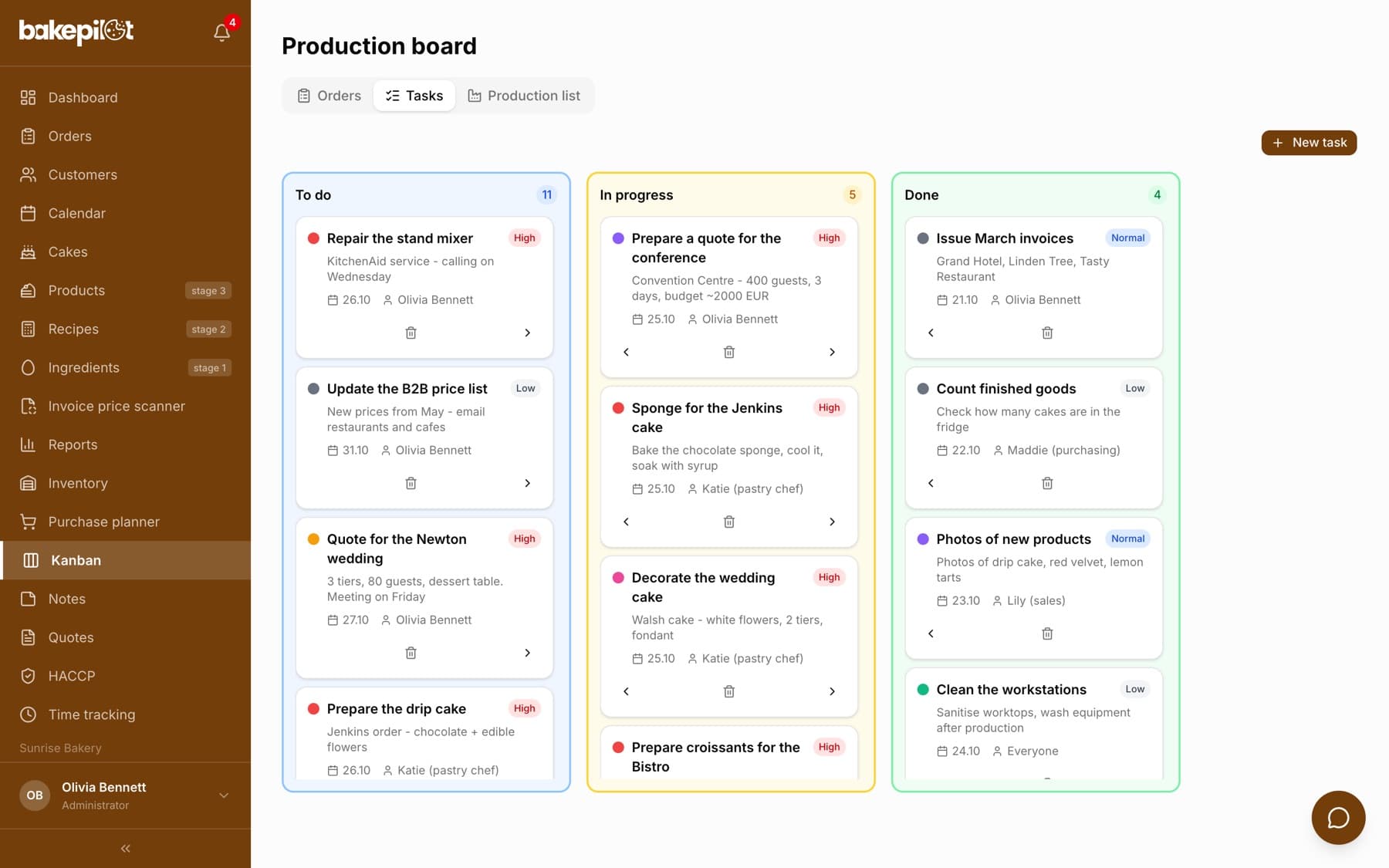
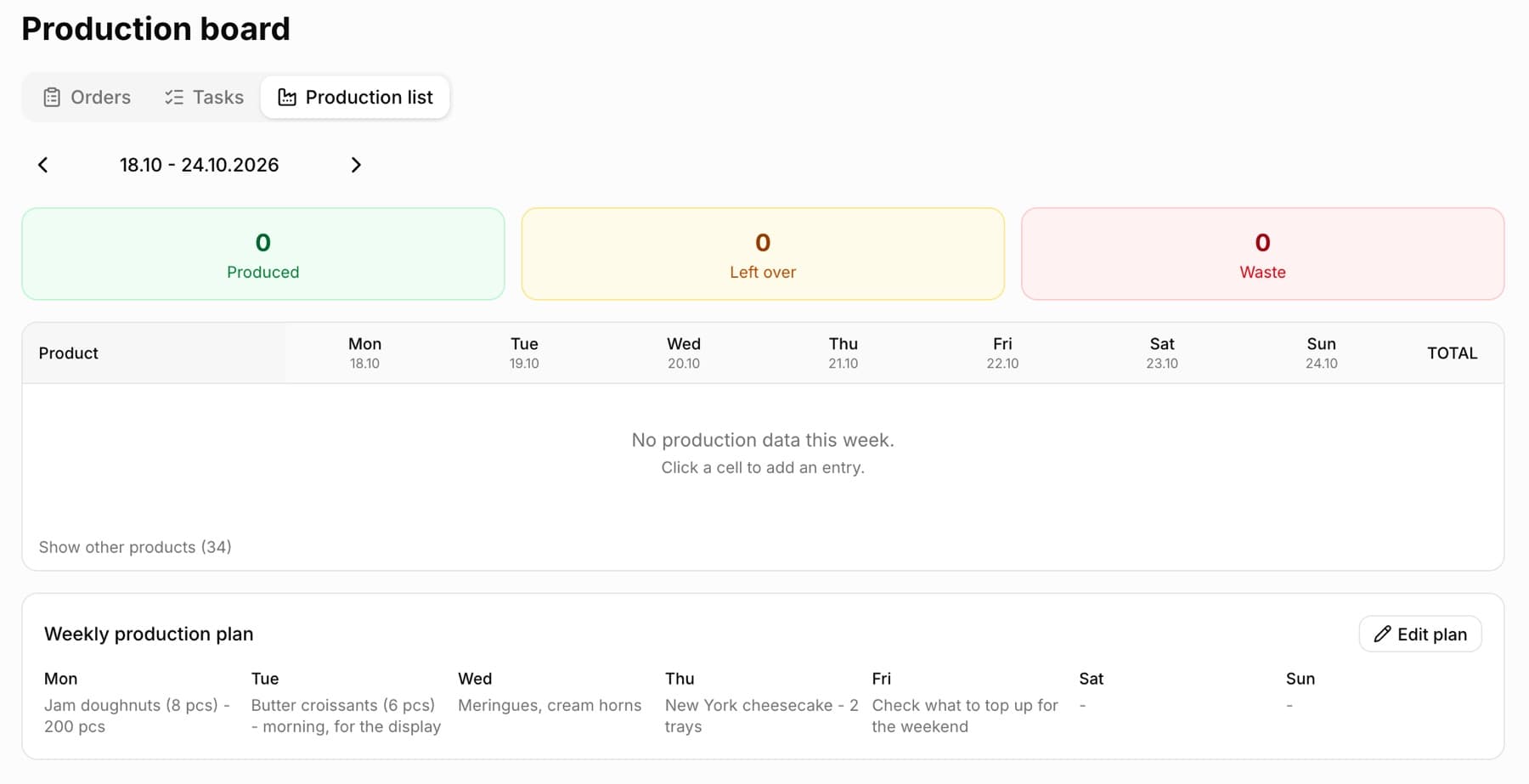
The “Tasks” tab is a separate board for things not tied to a particular order - an oven service, ordering packaging, a training session. The columns are “To do”, “In progress” and “Done”, and the “New task” button opens a window with the fields “Title”, “Description (optional)”, “Status”, “Priority” (Low / Normal / High), “Assigned to (optional)”, “Due date (optional)” and “Color”. The “Production list” tab shows a weekly table of products with “Prod.”, “Left” and “Waste” fields for each day and a waste summary.
- “Tasks” - “To do” / “In progress” / “Done” columns, available in the Profesjonalny (Professional) and Mistrzowski (Master) plans
- “Production list” - a weekly table, available in the Mistrzowski plan
- A tab outside your plan is marked with a padlock
Editing, moving and deleting tasks
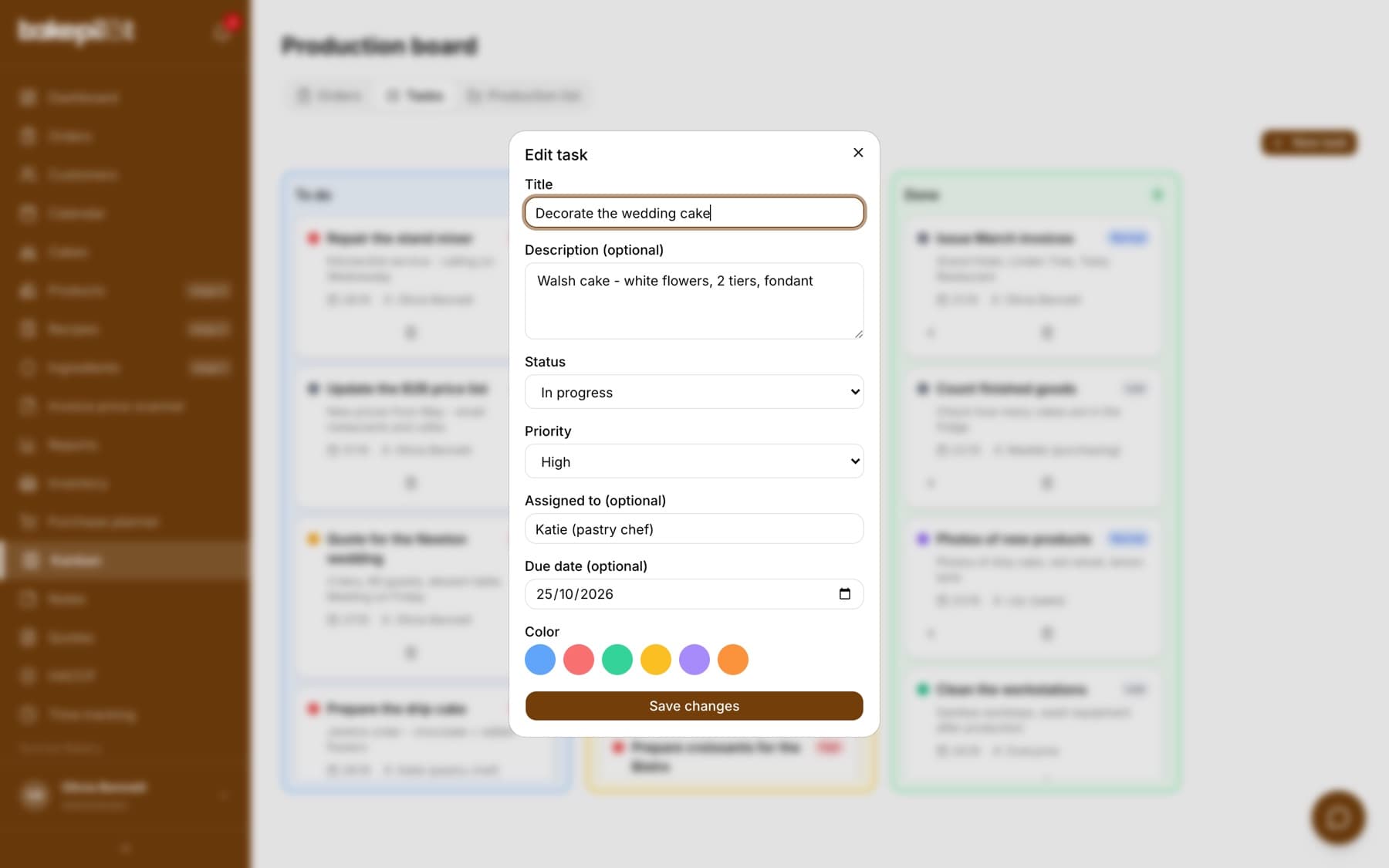
Every task on the “Tasks” board is a card with a colored dot, title, priority, the start of the description, due date and the person assigned. Clicking the card opens the “Edit task” window with the same fields as when adding. The arrows at the bottom of the card move the task one column, and the bin icon deletes it.
- Click a task card - the “Edit task” window opens
- Change the “Title”, “Description (optional)”, “Status”, “Priority”, “Assigned to (optional)”, “Due date (optional)” or “Color”
- Click “Save changes”
- To move a task without opening the window, click the “Next status” arrow (right) or “Previous status” (left) on the card
- Column order: “To do” → “In progress” → “Done”; you can also change the status with the “Status” field in the edit window
- The “Delete task” bin icon asks first - the button changes to “Delete?” - and only a second click within 3 seconds deletes the task; only a role allowed to delete tasks sees the bin (by default the Administrator), and only a role allowed to move tasks sees the arrows (Administrator and Baker)
- By default tasks are added by the Administrator, Baker and Salesperson, edited and moved by the Administrator and Baker, and deleted only by the Administrator - change this in the permissions matrix
- The “Tasks” tab is in the Profesjonalny and Mistrzowski plans
The production list and inventory
Click a product cell on a given day, type numbers into the “Prod.” (produced), “Left” (left over) and “Waste” fields and confirm with “OK”. If you track ingredient stock in Inventory, an entry in “Prod.” deducts the ingredients from the product recipe, calculated for the pieces produced. Lowering “Prod.” returns the difference to stock, and deleting the entry returns everything that entry deducted.
- Click a cell with an entry - the editor opens with the “Prod.”, “Left” and “Waste” fields
- Below the “OK” and “X” buttons, click the bin icon (“Delete entry”)
- Confirm the question “Delete this entry? Used ingredients go back to stock and the product is removed from inventory.”
- A sub-recipe that you keep in inventory as a separate item is deducted as a sub-recipe, not as its ingredients
- In the Mistrzowski plan an entry in “Prod.” also adds the product to stock if the product already has an inventory item tracked in pieces; deleting the entry removes that product
- When there was less of an ingredient than production needed, the item goes down to zero and the message says how much was missing, e.g. “Not enough in stock: Wheat flour (short 1.2 kg)”
- An ingredient tracked in pieces (e.g. eggs) is deducted using the weight of one piece from the ingredient card (e.g. 60 g/pc). An item in a unit that cannot be converted from grams (e.g. liters, or pieces without a piece weight) does not change, and the message lists it as “Skipped: Eggs (different unit)”
- When stock could not be changed, you will see “Stock could not be updated. Check the item levels manually.”
- Deleting an entry returns stock only if that entry actually deducted something - entries added before September 30, 2026 are deleted without changing inventory
- Entries are deleted by the administrator; “Waste” does not change inventory
Tip: Off by a few pieces? Correct the number in “Prod.” instead of deleting the entry - the difference goes back to stock or is deducted from it.
Weekly production plan
Below the production list there is the “Weekly production plan” panel - a standing plan of what you make on which day of the week, e.g. doughnuts on Monday, cheesecake on Thursday. The production list records what actually came out of the oven, while the plan tells the team what should be made. The plan does not depend on the week: you see the same plan for every week of the list until you change it.
- In Kanban open the “Production list” tab and click “Edit plan” below the table
- Next to the chosen day, click “Add item”
- Pick a product from the catalog, type a description (e.g. “200 pcs” or “morning, for the display”) or both - an item can have only a description if you choose “No product (description only)”
- Remove an item you do not need with the “Remove item” icon (X) next to it
- Click “Save plan” - the panel shows the new plan right away and the “Plan saved” message confirms it
- Saving replaces the whole plan: the window shows all days at once and you save them with one button
- An item without a product and without a description is skipped when saving
- In the panel an item is the product name and the description after a dash, e.g. “Viennese cheesecake - 2 trays”
- Everyone with access to the production list sees the plan; by default the Administrator and Baker change it - adjust this in the permissions matrix
- The plan is part of the production list, so it is in the Mistrzowski plan
Frequently asked questions
Why can't I see an order on the board?
Only confirmed orders go on the board. Open the order and click “Confirm” - it will appear in the “Confirmed” column.
Does dragging work on a phone?
Yes, but the arrows at the bottom of the card are more convenient. The change is the same.
How do I remove handed-over orders from the “Handed over” column?
You don't need to. The “Handed over” column shows only orders with a pickup date in the last 7 days (up to 50 cards); older ones disappear from the board on their own. The order stays in the history: you will find it on the order list by clicking the “Handed over” filter.
Does moving a card change the order status?
Yes. The board columns are order statuses and have the same names as on the order list: “Confirmed”, “In production”, “Ready” and “Handed over”. Moving a card changes the status immediately.
How can I see how many pieces I still need to make?
Turn on “Issuing from orders” in Inventory and enter your product stock. The shortage then shows in red before the product name on the board, e.g. “-2”, and the order window says “2 short - to make”.