
Creating an order
How to take a new order in BakePilot: customer, date, products, saving and editing.
Last updated:
A new order step by step
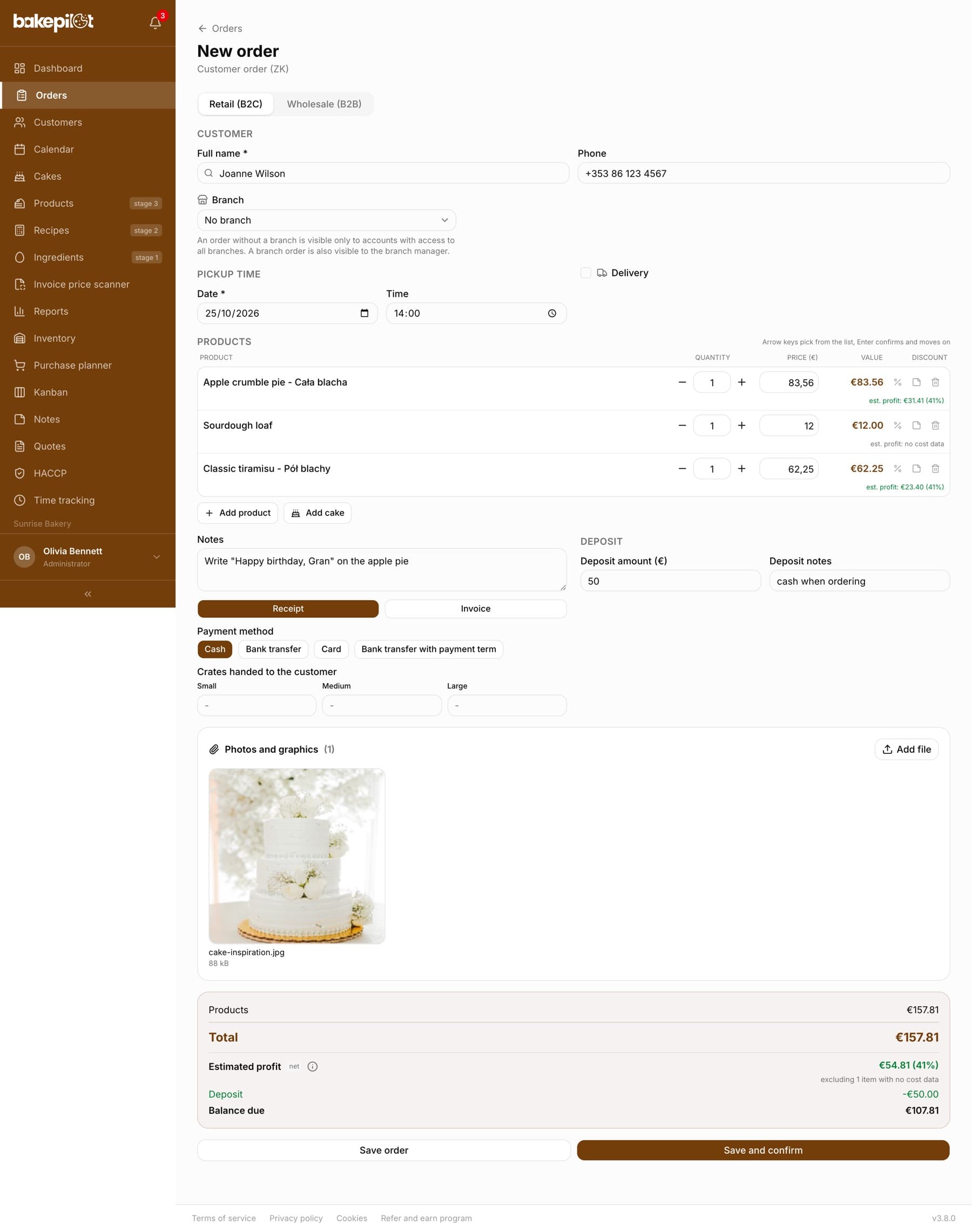
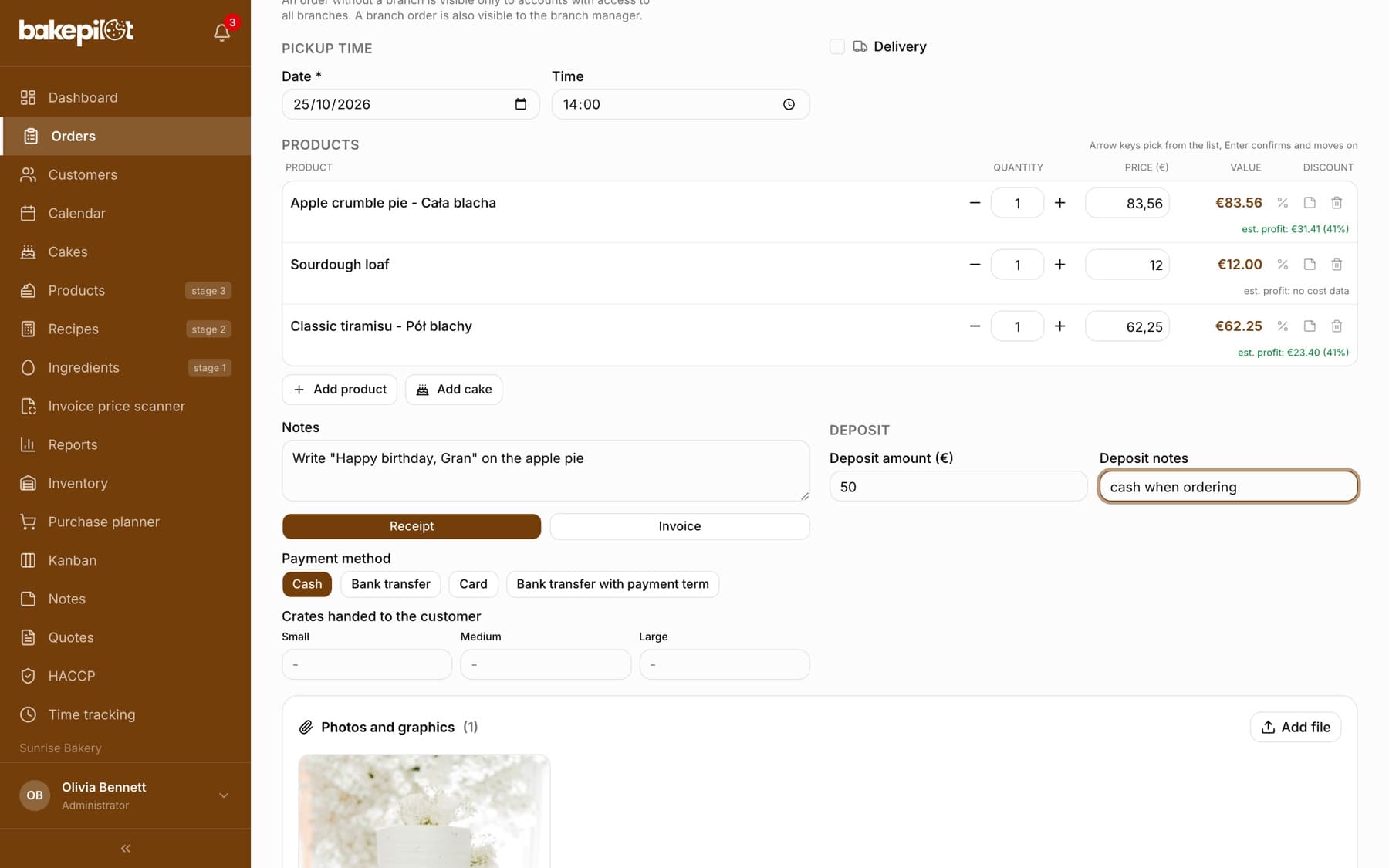
You take an order in the Orders module with the “New order” button. Orders are numbered with the ZK prefix, short for the Polish “zlecenie klienta” (customer order). The whole form fits on one screen - from the top: customer, pickup time and delivery, products, notes with the payment method, deposit and the summary. Only the customer's full name and the pickup date are required.
- Click “New order” on the order list
- In the “Customer” section type the full name - pick an existing customer from the suggestions or enter a new one's details and “Phone”
- In the “Pickup time” section set “Date” and “Time” (10:00 by default)
- If the order goes to the customer, tick “Delivery” and fill in “Delivery address”, “Delivery time” and “Delivery cost”
- In the “Products” section type a name in “Search for a product...”, pick the product and set the quantity; you add more items with “Add product”
- Fill in “Notes”, choose “Receipt” or “Invoice” (with an invoice, “Customer NIP” appears) and optionally “Payment method”
- If the customer paid a deposit, enter “Deposit amount” and “Deposit notes”
- Check the summary (“Products”, “Delivery”, “Total”, “Balance due”) and click “Save order”
Tip: For products with several sizes, a variant picker opens after you choose the product, and for cakes from the configurator there is a “Configure cake” button. We describe both in the Products category.
Choosing the customer - two ways
The “Full name” field works in two modes. When you start typing, suggestions from your customer database appear (with the phone number and a B2B mark) - click one and the form fills in the phone and NIP (the Polish tax ID) for you. If you do not pick anyone and simply type the details, a new customer is created in the database when you save the order.
- Suggestions from the database - click to pick an existing customer
- Details typed from scratch - a new customer is created automatically on save
- The phone and NIP (with an invoice) are saved together with the customer
- Picking a wholesale customer switches the order to “Wholesale (B2B)” mode
Tip: A customer calling for the first time? Type the name and phone number - after you save the order you will find them in the Customers module.
When the customer is already in the database
If you enter a phone number or NIP that already belongs to someone in the database, clicking “Save order” opens the “The customer already exists” window. You see the existing customer's name and what they were matched by (phone number or NIP), and you choose what to do.
- “Use the existing customer” - the order goes to the customer from the database, their details stay unchanged
- “Overwrite with the new details” - you update the existing customer with what you typed
- “Create as a new customer” - a deliberate duplicate, e.g. two people sharing one company phone
- “Cancel” - you go back to the form
Tip: In most cases you will choose “Use the existing customer”. “Overwrite with the new details” is handy when the customer has changed their phone number.
Products in the order
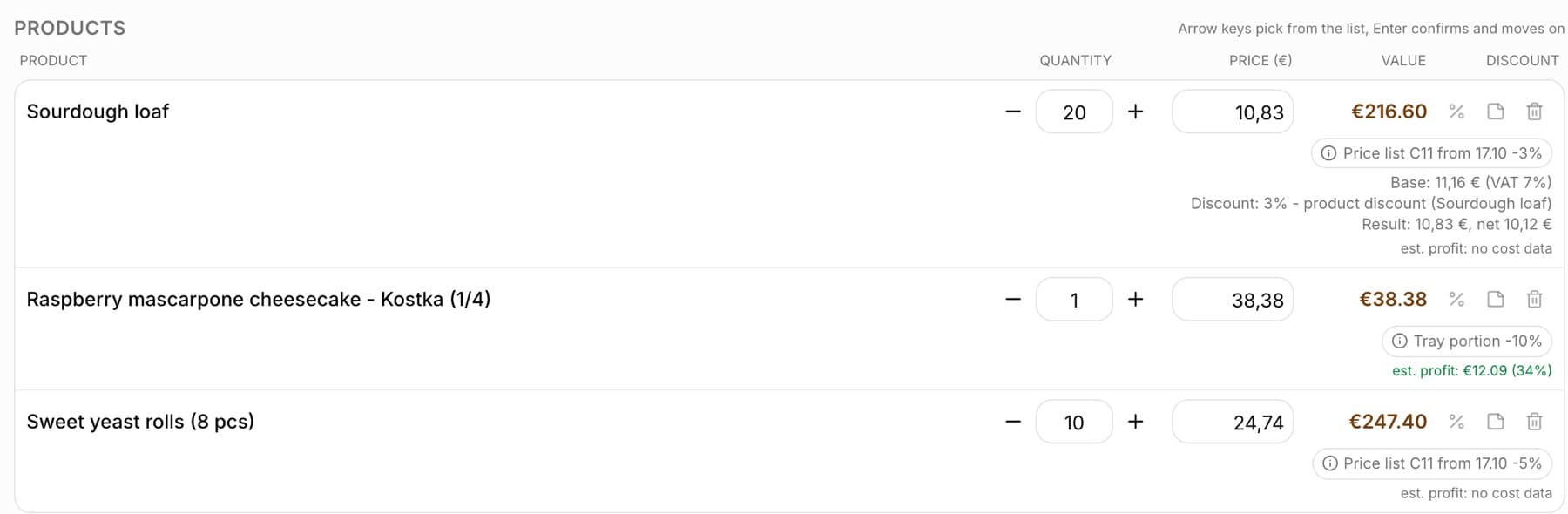
You add items from the catalog set up in the Products module. For each item you can change the quantity (minus and plus buttons or typing a number) and the price - you can overwrite the “price” field by hand, and the item value recalculates by itself. Under the price there is a small “where this price comes from” badge: “Product price”, “B2B price”, “Variant price”, “Tray portion”, “Configurator”, “Price list C11 from 01.09”, “Promotion: Harvest festival” or “Manual” (with the discount percentage, if one was applied). Tap the badge to see the breakdown: base, discount and result. An icon next to the item adds a note to that specific item (e.g. “sliced”), which goes onto the printout, the Kanban board and the delivery sheet.
- Search for a product by name in the “Search for a product...” field
- Quantity and unit price can be changed on every item
- The “where this price comes from” badge under the price - also on the saved order card
- A price typed by hand stays on save; the “Restore the catalog price” button next to the “Manual” badge goes back to the catalog price
- Item note - visible on printouts and on the Kanban board
- The “Products”, “Delivery” and “Total” amounts are calculated as you go
Tip: Changing the customer or the B2B discount recalculates all catalog items - including those with a price typed by hand, so enter a special price after you have picked the customer.
Item discount
When a retail customer orders a lot, or you want to lower the price of one item without touching the rest, use an item discount. The percent icon next to the item (tooltip “Item discount”) opens a bar with a “%” / currency symbol switch and an amount field. Below it you see “before”, “discount” and “after” as you type, and a “-10%” or “-5.00 PLN” badge appears next to the icon. The discount is calculated from the item value (quantity × price). The unit price already includes the wholesale customer discount, the price list and the promotion, so the item discount is subtracted from that value - two percentage discounts stack one after the other (10% and 10% make 19%, not 20%). It works in both retail and wholesale orders.
- The “%” / currency switch and the amount field in the “Item discount” bar
- The “before · discount · after” preview, calculated as you type
- A “-10%” or “-5.00 PLN” badge next to the item; in the summary the row “of which item discounts”
- An amount discount cannot exceed the item value and a percentage one cannot exceed 100% - the form shows an error and does not save
- The discount is visible on the order card, on the printout and in the change history (“Bread: discount”)
- The delivery note (WZ) and the invoice from the order have the discount included in the unit price (the document has no separate discount column)
- A standing order carries the item discount over to every generated order; so does “Copy day”

Tip: The item discount is available in the Profesjonalny (Professional) plan and higher. You will also find the “Item discount” field in the standing order template - on every item, next to the fixed price.
Photos and graphics on an order
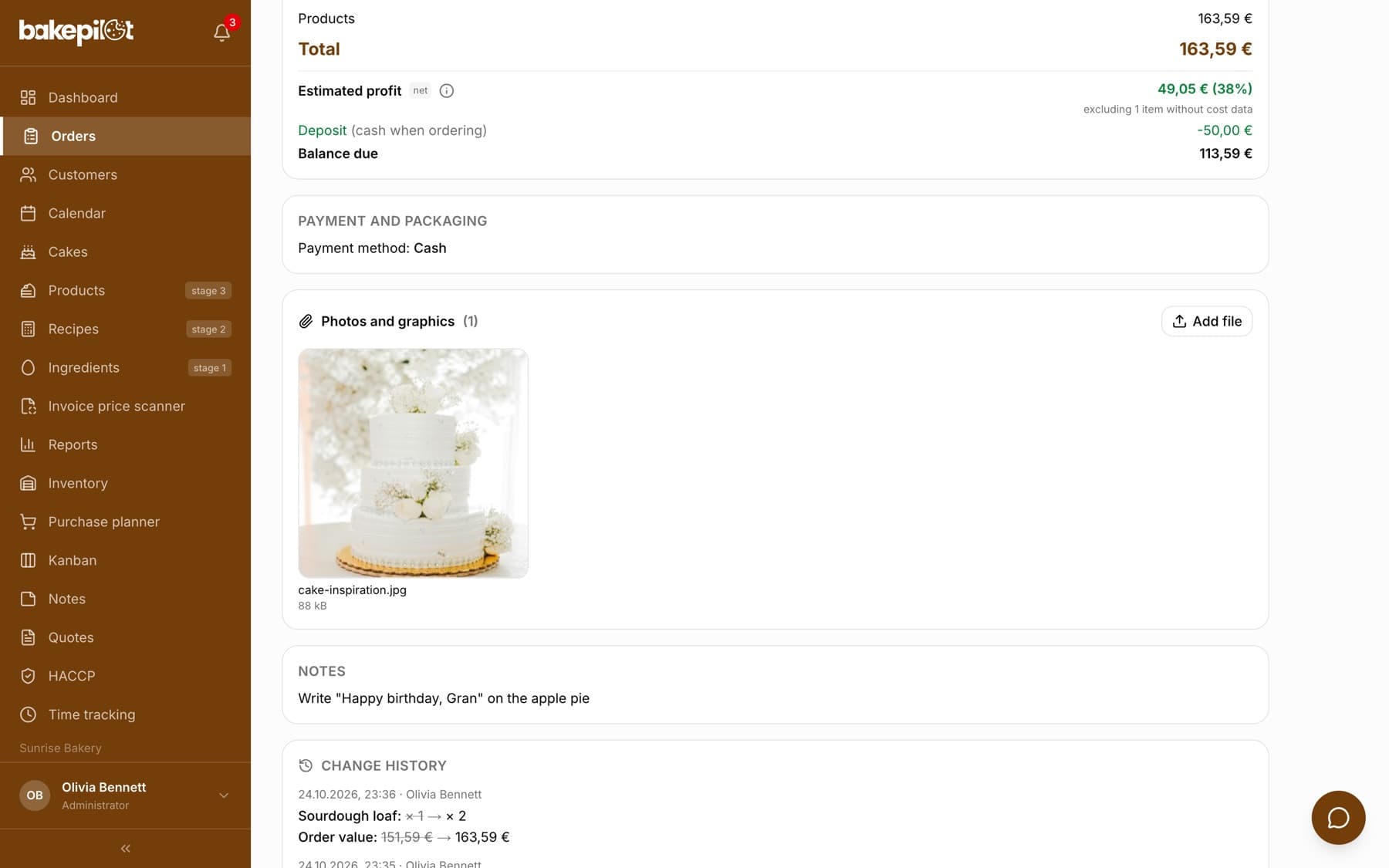
Customers send inspiration photos for a cake or graphics to print on wafer paper. You can attach them when you create the order - the new order form has a “Photos and graphics” section with an “Add file” button, and the files are saved together with the order. To an existing order you add them from its card, in the same section. The files are visible only to your bakery, and clicking a thumbnail opens them at full size.
- For a new order: in the form, in the “Photos and graphics” section, click “Add file”; the files are saved when you click “Save order”
- For an existing order: open its card and click “Add file” in the “Photos and graphics” section
- Choose a photo from your phone or a PDF file (up to 10 MB, at most 10 files per order)
- The thumbnail appears right away; the bin icon next to the thumbnail deletes the file
Tip: We support JPG, PNG, WEBP, HEIC (iPhone photos) and PDF - just right for a design to print on wafer paper. Attachments are not printed on the order card.
Saving and editing
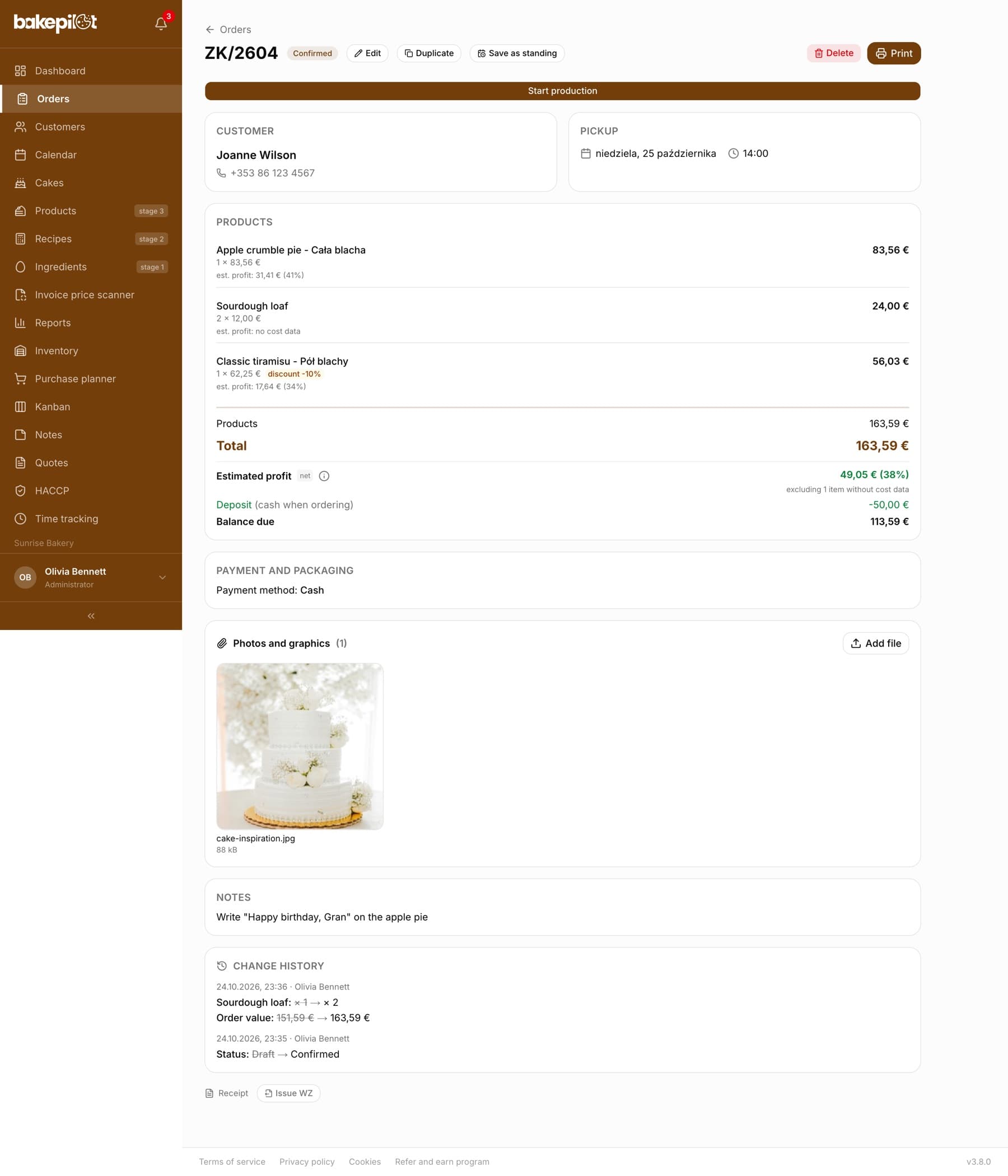
After saving, the order gets the next number (e.g. ZK/375) and the “Draft” status. In the order details you confirm it with the “Confirm” button - only a confirmed order goes onto the Kanban board and triggers a push notification for the team. You can also click “Save and confirm” right away - on a computer next to the regular save (“Save order”, or “Save changes” when editing a draft), on a phone above it. The button is visible to people with permission to change the status (by default the administrator, salesperson and baker), for a new order and when editing a draft. Enter in a form field always saves a draft and never confirms. If the confirmation fails, the order is saved as a draft, and a message asks you to confirm it in the order details with the “Confirm” button. You edit “Draft”, “Confirmed”, “In production” and “Ready” orders with the “Edit” button. For an order in production or ready, the form shows a warning, and before saving the “Confirm the order change” window with the “Yes, save changes” button. “Handed over” and “Cancelled” orders cannot be edited.
- Automatic numbering: ZK/1, ZK/2 and so on
- A new order starts as “Draft” - you confirm it in the order details with the “Confirm” button, unless you use “Save and confirm”
- “Edit” is available until the order is handed over
- Changes to an order in production need confirmation in a dialog
- Cancelling: the “Cancel” button on a draft or the “Cancelled” status from the dropdown
Tip: For deliveries, BakePilot checks whether another delivery has the same time. If it does, you will see the “Delivery time clash” message with a suggested different time - you can change it or click “Save anyway”.
Deposit from the customer
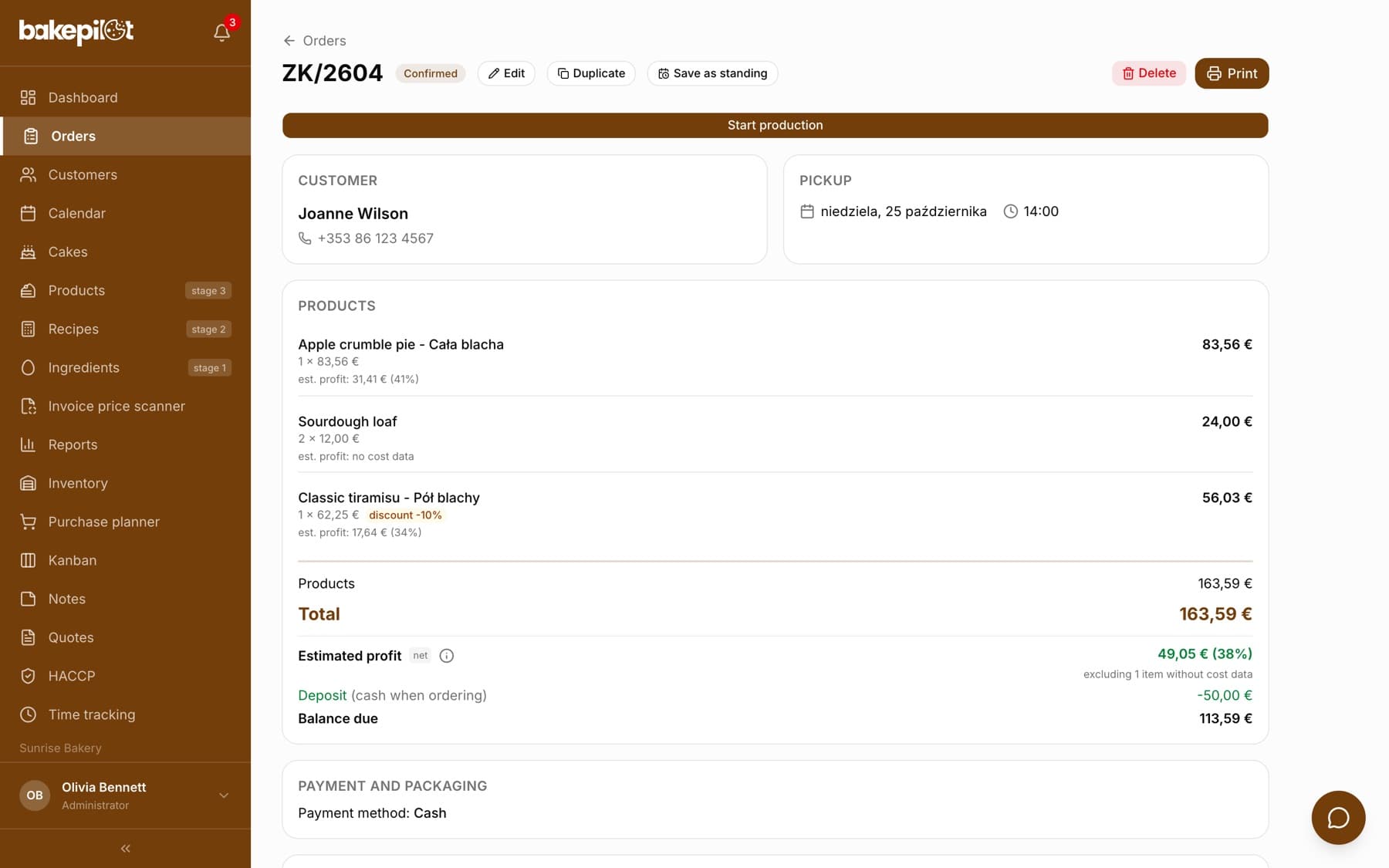
When the customer pays part of the amount in advance - typically for a custom cake - enter it in the “Deposit” section of the order form (on a computer next to the “Notes” field, on a phone below the crates). You enter “Deposit amount (PLN)” and optionally “Deposit notes”, e.g. how it was paid. The form summary immediately shows a “Deposit” row with the amount as a minus and “Balance due”, which is the rest the customer pays at pickup. You see the same later in the order details, on the delivery sheet (the “To collect” row for the driver) and in the order history on the customer card.
- Open a new order or click “Edit” on an existing one
- Scroll to the “Deposit” section below the product list
- Enter “Deposit amount (PLN)” - a comma and a dot work the same way
- In “Deposit notes” write how the customer paid (e.g. cash, bank transfer)
- Check the “Deposit” and “Balance due” rows in the summary and save the order
- “Balance due” = order value minus the deposit; it never goes below zero
- On the delivery sheet the driver sees “Deposit” and the amount “To collect” from the customer
- A change of the deposit is saved in the order's “Change history” as “Deposit”
- The deposit is a note about a payment in the order - it does not issue an advance invoice or a receipt
Paid and unpaid orders
When a customer pays on pickup or only after the event, mark it on the order. The order details have a “Not paid” card with a “Mark as paid” button - after clicking, the card shows “Paid” and the date it was marked, and the order list shows a green “Paid” badge next to the status. You undo a mistake with “Undo: not paid”. The “Not paid” button above the order list shows every order the customer has not paid for yet - also the ones already handed over.
- Open the order from the list
- On the “Not paid” card click “Mark as paid”
- On the order list click “Not paid” to see who still has to pay
- The mark is independent of the status and the deposit - an order can be “Handed over” and still not paid
- The “Not paid” filter also shows handed-over orders and skips cancelled ones
- In the “Deliveries” tab and on the delivery sheet a paid order is marked as paid instead of showing an amount to collect, and it is left out of the total to collect
- A deposit covering the whole amount does not mark the order by itself - click “Mark as paid” to remove it from “Not paid”
- Any role allowed to record deposits can mark it (by default the Administrator, Salesperson and Accountant)
- It is a payment note on the order - it does not issue a receipt or an invoice
Deleting an order
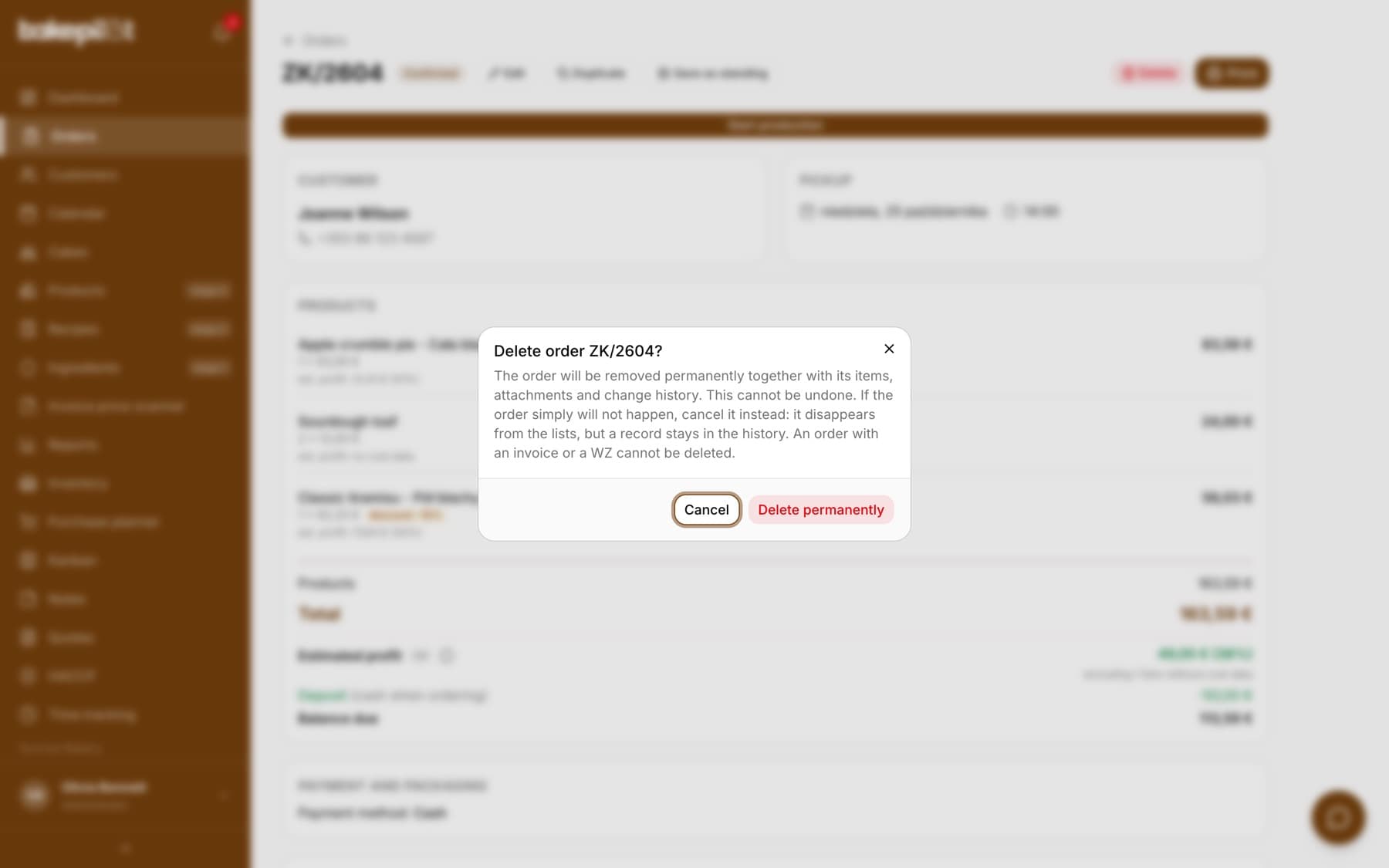
An order the customer called off is best cancelled: the “Cancelled” status hides it from the order list, and a record stays in the database together with the change history. When an order has to be deleted completely (e.g. entered twice by mistake), the order card has a “Delete” button - only a role with permission to delete orders sees it (by default the Administrator; other roles can get it in Settings, in the role permissions). A deletion cannot be undone.
- Open the order card and click “Delete” next to the print button
- Read the “Delete order ZK/...?” window - it reminds you that you can cancel instead of deleting
- Click “Delete permanently” - you go back to the order list, while “Cancel” closes the window without changes
- Together with the order, its items, attachments (including the files) and change history are removed
- Notes and calendar events linked to the order stay, only without that link
- An order with an invoice or a delivery note (WZ) cannot be deleted - these are accounting documents. Cancel such an order and fix the invoice with a correction
- A handed-over order (the “Handed over” status) cannot be deleted either - it stays in the sales history. If handing it over was a mistake, cancel the order
- An order created from a request in the ordering portal cannot be deleted - the buyer sees it in their history. Cancel it instead
- We record every deletion in the account log (who, when, the order number and the customer) - the change history disappears together with the order
- A draft created by mistake can also simply be cancelled with the “Cancel” button in the order details; you can show cancelled orders with the “Cancelled” filter on the list
Order change history
Every edit of an order and every status change is saved in the “Change history” section on the order card. Each entry shows the date, time and the person who made the change, and below it what changed from what to what - e.g. “Cream cake: round, 3 kg × 1 → round, 4 kg × 1”, “Pickup date”, “Deposit” or “Order value”. Added and removed items have separate “Item added” and “Item removed” entries. The history cannot be corrected or deleted - it only disappears together with the order.
- Item changes: variant, weight, quantity, price and cake description
- Changes of the customer, phone, pickup time, delivery, notes and deposit
- Status changes from the card, from the list and from the Kanban board
- Saving without any change does not create an entry
Tip: The history covers changes from October 5, 2026. For older orders the section shows “The order has not been changed since it was saved.” until someone changes them.
When the connection drops for a moment
If the connection to the server breaks for a moment while saving, BakePilot retries the save by itself - you will see the message “Temporary connection problem - retrying the save” with the attempt number. Do not close the page then. The order is saved only once, even if a retry was needed or the button was clicked twice. When several attempts within about a minute fail, the form stays filled in and you can retry the save with the button.
Order list and sorting
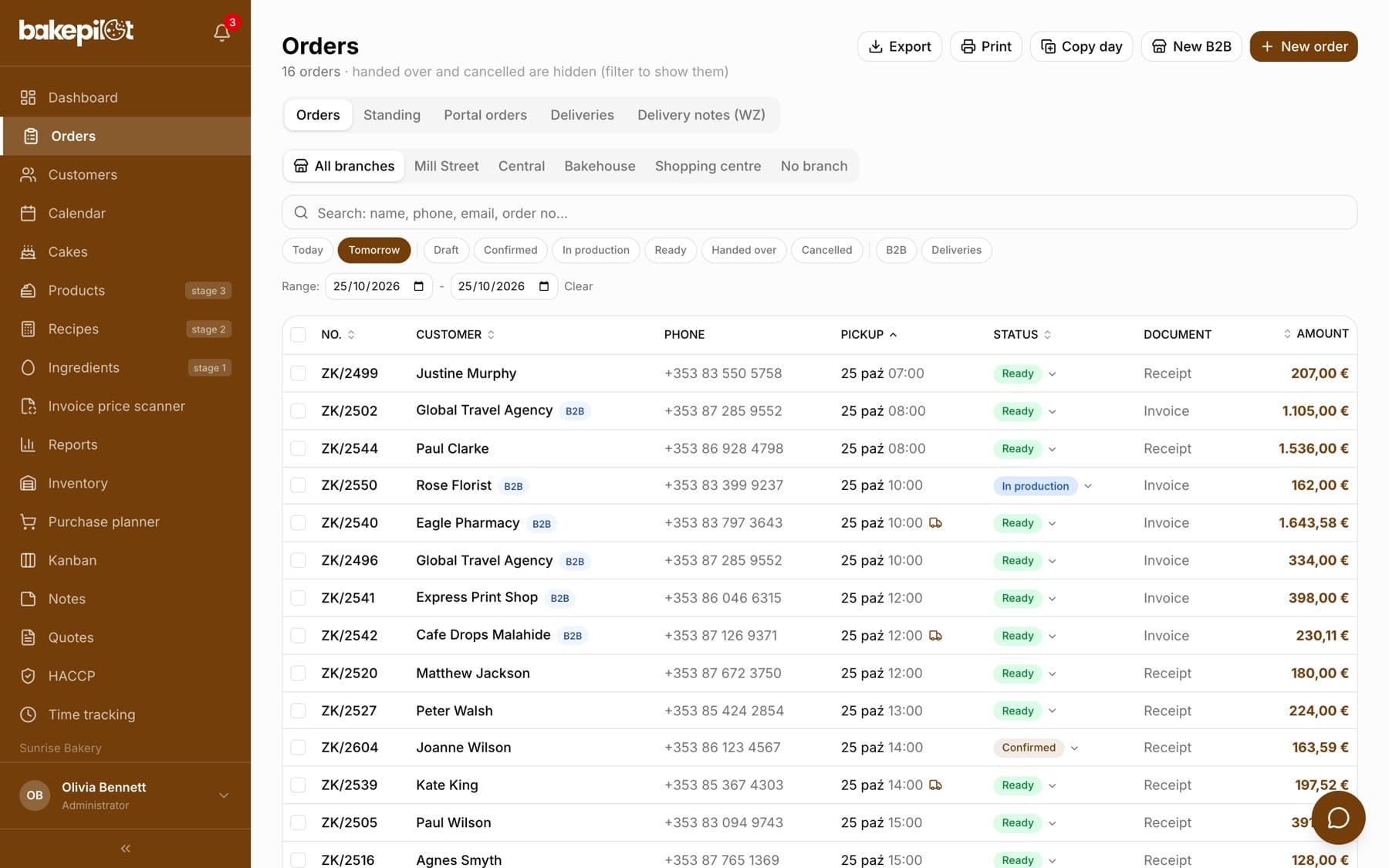
You see all orders on the list in the Orders module. You sort the list by pickup date, number, customer, amount or status - on a computer you click the column header (“No.”, “Customer”, “Pickup”, “Status”, “Amount”), on a phone you choose the criterion from the “Sort:” button. By default the list is ordered by pickup date ascending, so the nearest dates are at the top.
- Sorting: “Pickup date”, “Number”, “Customer”, “Amount”, “Status”
- Computer - clicking a column header switches between ascending and descending
- Phone - the “Sort:” button with a list of criteria
- Sorting works together with filters and search
Pagination and search
The list is split into pages so that it loads quickly even with thousands of orders. By default you see 40 items - under the table, in the “Per page:” field, you can change it to 10, 20, 40 or 100, and your choice is remembered in the browser. On a phone, instead of page numbers you have a “Load more” button. The search box “Search: name, phone, email, order no...” finds orders by customer name, phone, NIP, order number and by the email, first and last name from the customer card.
- 40 items per page by default - choose 10 / 20 / 40 / 100
- On a phone, a “Load more” button instead of page numbers
- Search by name, phone, email, NIP and order number
- “Export” in the list header saves the whole filtered set to a CSV or Excel file
- “Portal orders” (Mistrzowski (Master) plan) opens orders placed by wholesale buyers in the portal that are waiting for acceptance - described in the article on the customer ordering portal
Tip: The same pagination also works on the lists of products, customers, recipes, ingredients and invoices.
Duplicating and standing orders
For a one-off repeat, use the “Duplicate” button in the order details - it opens a new form with the customer, items and quantities, with the hint “Duplicated from ZK/... - set the pickup date”. When a customer orders the same thing every week, use “Save as standing” instead: the order becomes a template assigned to a day of the week, and the system generates orders from it every night, two days in advance. You will find the templates in the “Standing” tab in Orders. Recurring orders are part of the Mistrzowski (Master) plan.
- “Duplicate” - a one-off copy for a new date
- “Save as standing” - a template for a day of the week, generated automatically
- The “Standing” tab in Orders - a list of templates to edit and pause
Copying a whole day
When you deliver to several shops a day and Thursday looks like Tuesday, use the “Copy day” button above the order list. In the “Copy orders from day to day” window you choose “From day” and “To day” - the app immediately shows how many orders will be copied and whether there is already something on the target day. After you click “Copy”, every order from the source day (except cancelled ones) is created as a separate draft on the new day, with the same items, prices, delivery address and time. The copies have a zero deposit, and the list switches to the target day so that you can review and confirm them.
- “Copy day” - a button above the order list, from the Profesjonalny (Professional) plan
- All orders with a pickup date equal to the source day are copied, without cancelled ones
- The copies are drafts - you confirm them like regular orders, also in bulk after selecting them
Tip: Copying does not check whether there are already similar orders on the target day - if you copy twice, you will have duplicates. The window warns you how many orders that day already has.
Frequently asked questions
Can I create orders from my phone?
Yes. The form arranges itself in one column, and number fields open the numeric keyboard. On the order list on a phone you have the “Sort:” and “Load more” buttons.
Can customers place orders themselves?
No - orders are taken by a bakery employee in the panel. There is no online order form for customers today.
Who can create orders?
By default the administrator and the salesperson. The baker sees orders and changes their status, but does not create new ones. The administrator can change this in the permissions matrix in Settings.