
Delivery notes (WZ) and consolidated invoices
A goods issue note from an order and one invoice from many delivery notes at the end of the month.
Last updated:
Why a delivery note (WZ)
In wholesale, the goods travel to the customer with a goods issue document, the delivery note (WZ, from the Polish “wydanie zewnetrzne”), and the invoice comes later, often as one consolidated invoice at the end of the month. BakePilot supports exactly this flow: you issue a delivery note from an order with one click, and the app keeps track of the numbering and of which deliveries have already been invoiced.
- Delivery notes are issued from an order with the “Issue WZ” button
- WZ/{NR}/{MM}/{RRRR} numbering assigned automatically
- Statuses: “Issued”, “Invoiced”, “Cancelled”
- Items and prices are stored as they were at the moment of issue, so later editing of the order does not change the document
Issuing and printing a delivery note
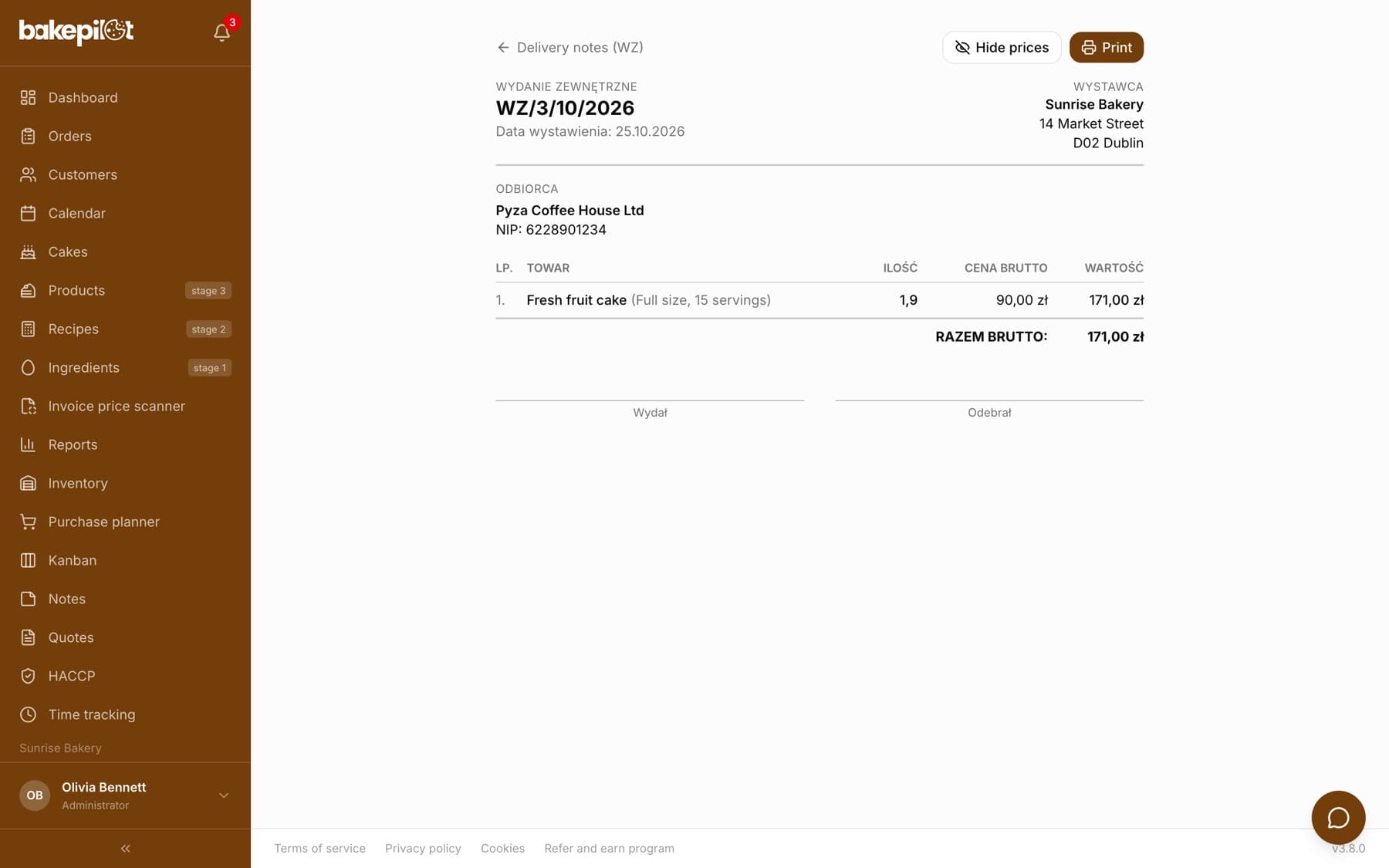
After you click “Issue WZ”, the app creates the document and immediately opens its printout. The layout is ready for signatures: number, issue date, issuer and recipient, numbered items with quantities and signature lines for the person issuing and the person receiving the goods. The “Hide prices” switch hides the price columns when the recipient should not see them.
- Open the order and click “Issue WZ”
- On the printout, click “Hide prices” if needed
- Click “Print” or choose “Save as PDF” in the print dialog
Tip: One order has at most one delivery note. When a delivery note already exists, you see its number in place of the button, and it leads to the printout. Delivery notes work from the Profesjonalny (Professional) plan; issuing a consolidated invoice from them requires the Mistrzowski (Master) plan, because invoices are part of it.
Consolidated invoice from many delivery notes
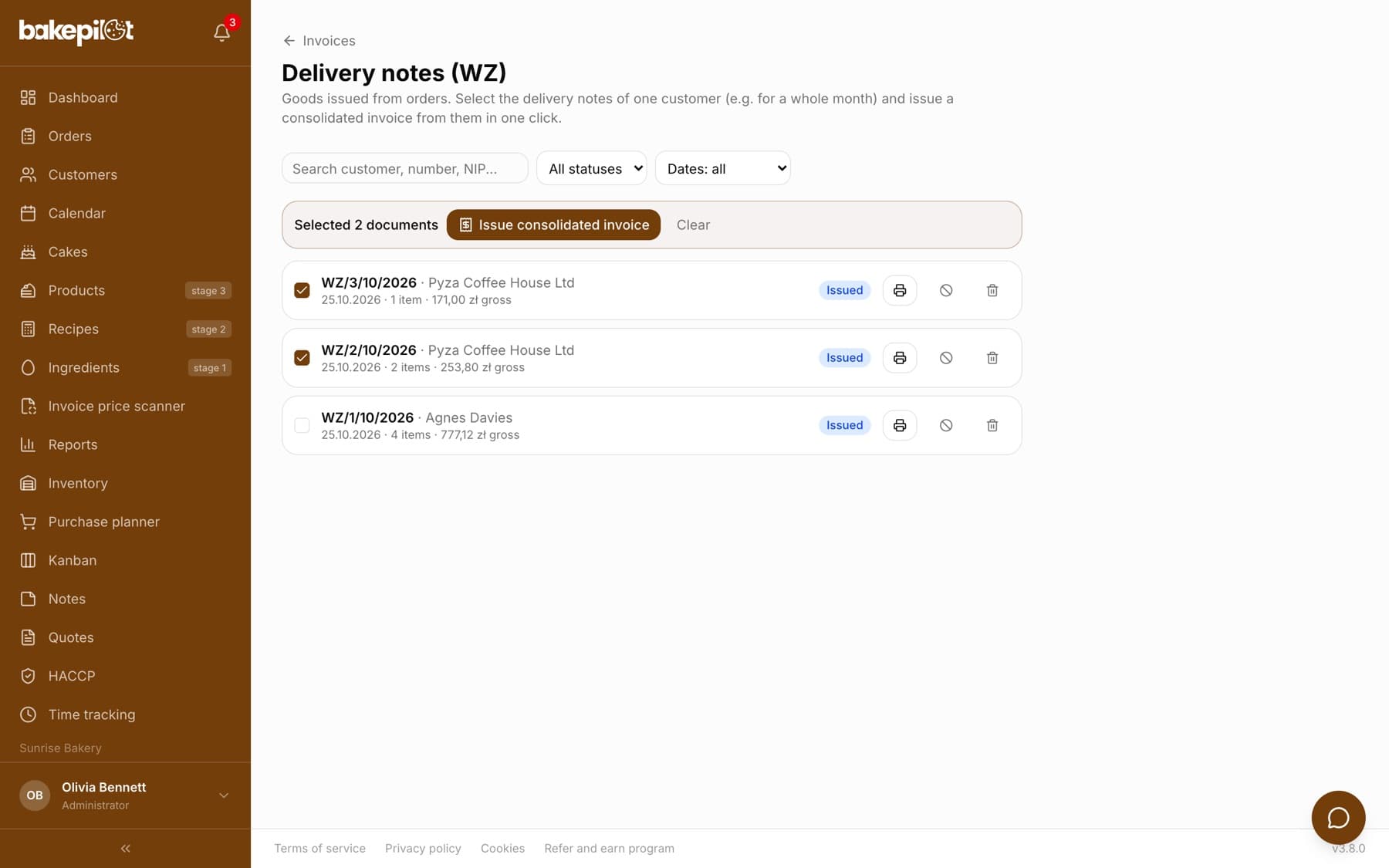
You open the “Delivery notes (WZ)” list from the “WZ” tab in the “Orders” module (next to the “Orders” and “Deliveries” tabs) or with the “WZ” button at the top of the “Invoices” module. You select the deliveries for one customer and click “Issue consolidated invoice”. The items from all selected delivery notes are merged into one list (the same products at the same price are added up), and the delivery note numbers go into the invoice notes. You see the invoice before saving it and can correct it. If the customer record has a payer assigned (e.g. a kindergarten and a municipality), the buyer on the invoice is the payer and the customer goes into the “Recipient” section, exactly as with an invoice from a single order.
- In the “Orders” module, go to the “WZ” tab, or in the “Invoices” module click “WZ”
- Narrow the list with the “Search customer, number, NIP...” search or the date filter (“This month”, “Previous month”)
- Select documents with the “Issued” status. The “Selected N documents” bar appears
- Click “Issue consolidated invoice” and check the “Consolidated invoice from WZ” form
- Click “Save invoice”. The selected delivery notes get the “Invoiced” status
Tip: The selected delivery notes must be for one customer and one currency, otherwise the app refuses and explains why. The gross amounts on the consolidated invoice match the order amounts, because the net amounts and VAT rates are calculated when the delivery note is issued.
Corrections and tidying up
A delivery note with the “Issued” status can be cancelled (the crossed-out circle icon) or deleted (the trash icon). Both actions require confirmation, and the number does not return to the pool, so the numbering has a gap. A document covered by a consolidated invoice cannot be deleted.
- Cancelling and deleting only for the “Issued” status
- Deleting leaves a gap in the numbering; the number is not reused
- An invoiced delivery note cannot be deleted; next to its number there is an “invoice” link
- You cannot change the delivery note numbering pattern in the settings; it is fixed
Frequently asked questions
Can I issue a delivery note (WZ) without an order?
Not yet. A delivery note is always created from an order. If you hand over something outside an order, first create an order with the right items.
I delivered less than was in the order. What now?
Correct the quantities in the order before issuing the delivery note, or cancel the delivery note, correct the order and issue the document again. Partial deliveries are not supported yet.