
Customer database
Adding customers, duplicate detection, search, export and transport crates.
Last updated:
Adding a customer
You add a customer in the Customers module with the “Add” button. Only the contact person's first and last name are required. For a business also enter the “Company name” - this name goes onto the invoice and the collective invoice from delivery notes (WZ) as the buyer. The other fields are optional, but the phone, email and NIP (Polish tax ID) are useful later for duplicate detection.
- In the Customers module click “Add”
- Enter the “First name” and “Last name”, and optionally the “Company name” and “Short name”
- Fill in the “Phone”, “Email”, “Address (for the invoice)” and “NIP (for invoices)”
- In the “Customer type” field choose “Retail” or “Wholesale (B2B)” - a wholesale customer gets the organization default discount, and after unticking “Organization default discount” you can enter an “Individual B2B discount (%)” (including 0%)
- Tick the “Marketing consents” the customer has given: email, SMS, phone contact
- In the “Notes” field write down preferences or allergies and click “Add customer”
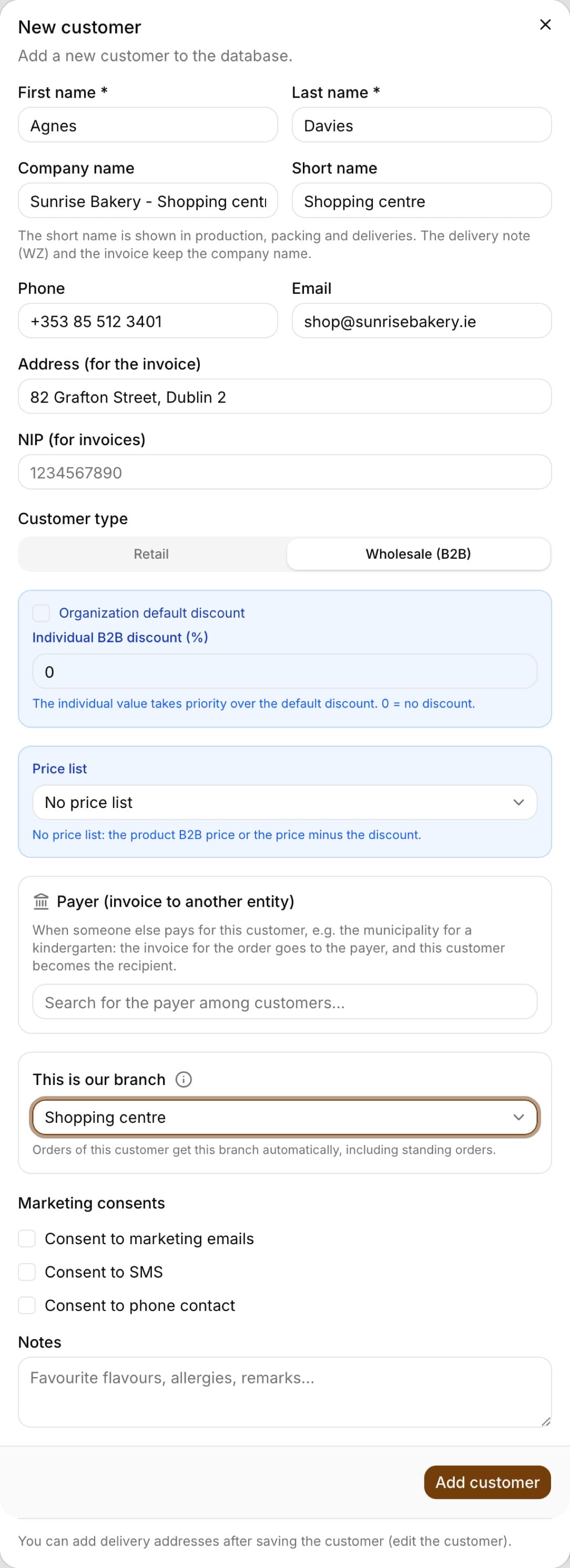
Tip: A ticked “Organization default discount” box means the customer gets the default B2B discount from Settings. When you untick it, you enter your own discount - it takes priority, and 0 means a customer with no discount.
Editing a customer
You change a customer's details from the list in the Customers module: clicking a table row (on a phone, the customer card) opens the “Edit customer” window with the same fields as when adding. You correct the phone, address, NIP, customer type, discount, price list or marketing consents and click “Save changes”. The “See more” button in this window leads to the customer card with statistics and order history.
- In the Customers module find the customer with the “Search customers...” search box
- Click the customer's row - the “Edit customer” window opens
- Correct the details and click “Save changes”
- By default the administrator and the salesperson can edit (permission to edit customers)
- Changing a customer's details does not change orders, quotes or invoices issued earlier - each document keeps the details from the moment it was issued
- The “Wholesale (B2B)” type, the discount and the price list apply from the next order
Importing customers from a CSV file
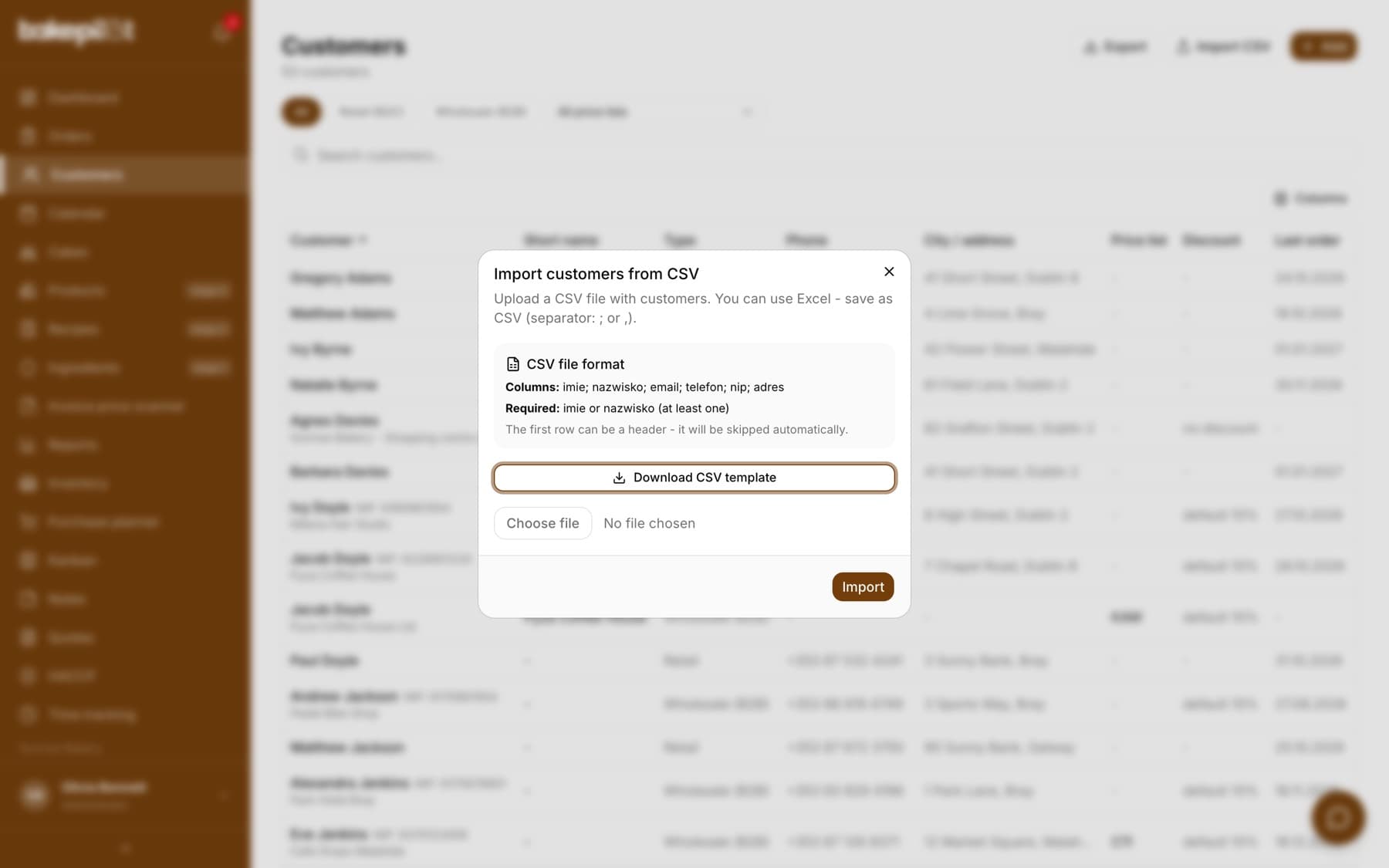
You can upload a list of customers from another program or from Excel in a single file. On the customer list click “Import CSV” - the “Import customers from CSV” window shows the required column layout and a “Download CSV template” button with a ready-made file to fill in. The columns are: imie; nazwisko; email; telefon; nip; adres (first name, last name, email, phone, NIP, address - keep the column names from the template). A first name or a last name is required (one of them is enough), and the first row can be a header - it will be skipped automatically. The separator can be a semicolon or a comma, so a file saved from Excel as CSV works right away.
- In the Customers module click “Import CSV”
- Click “Download CSV template” and fill in the file in Excel (columns: first name, last name, email, phone, NIP, address)
- Save the file as CSV, choose it in the import window and click “Import”
- Check the result: “Imported N customers!” and, if there are any, the “Errors:” list with row numbers
- Up to 5,000 rows and 5 MB in one file
- A row without a first and last name is skipped with the message “Row N: missing first and last name”
- Imported customers are retail (B2C) - you set the “Wholesale (B2B)” type, price list and discount afterwards in the “Edit customer” window
- The import does not check for duplicates - a customer who is already in the database will be added a second time; before importing, remove from the file the people you already have
- By default the administrator runs the import
Deleting a customer
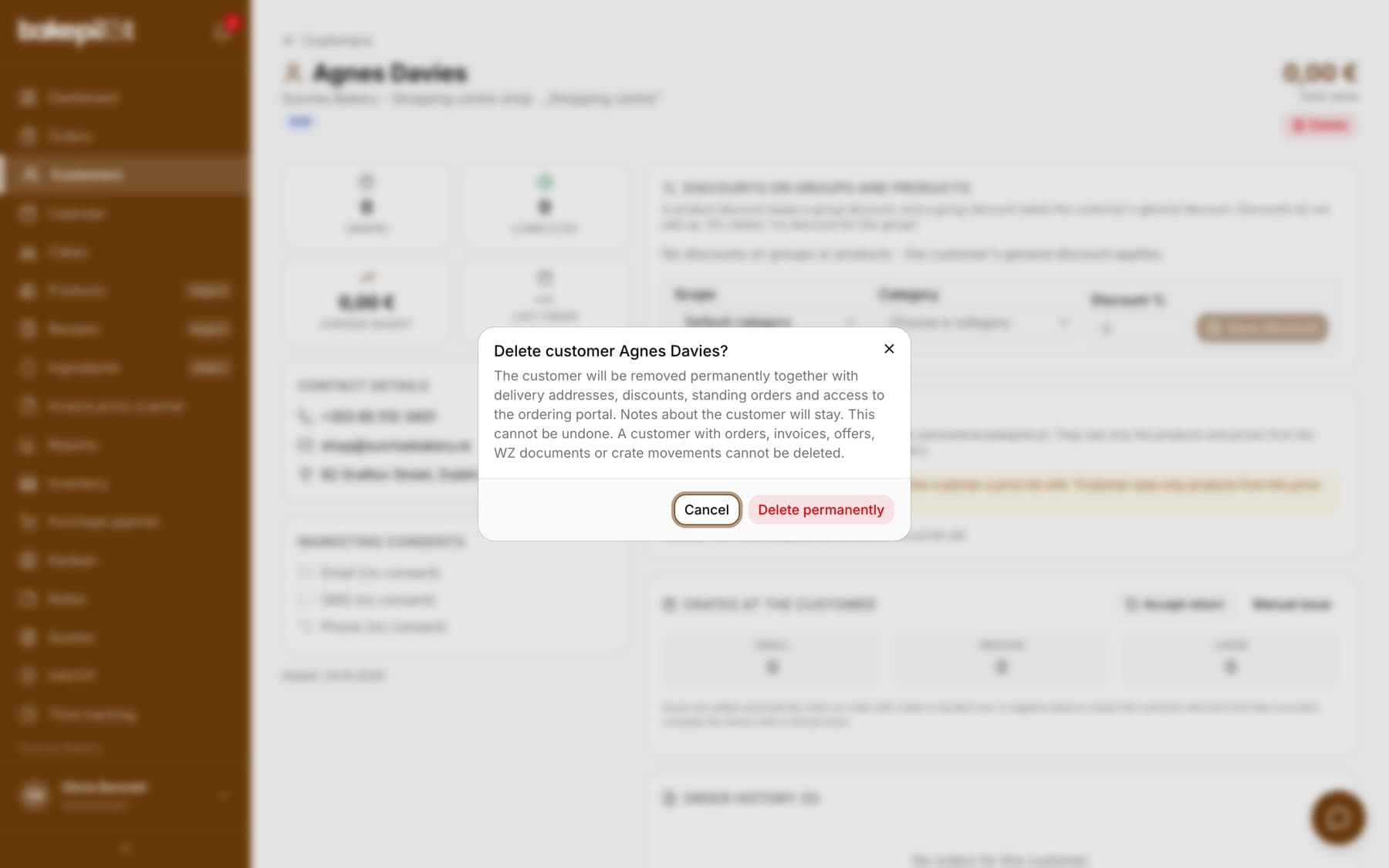
You delete a customer with the “Delete” button in the header of their card, on the right. Only a role with permission to delete customers sees the button (Administrator by default; other roles can get it in Settings, in the role permissions). You can delete only a customer with no sales history - a customer who has orders, invoices, quotes, delivery notes (WZ) or crate movements stays in the database, because those documents must show who you sold to. Deletion cannot be undone.
- Open the customer card and click “Delete”
- Read the “Delete customer …?” window describing what will be removed together with the customer
- Click “Delete permanently” - you go back to the customer list. When the customer has a sales history, you see a message with the number of orders, invoices, quotes, delivery notes and crate movements, and the customer stays
- Together with the customer, their delivery addresses, discounts, standing orders and access to the ordering portal (people, invitations and requests) are removed
- Notes about the customer stay, only without the link to them
- You cannot delete a customer who is the payer for other customers - the message tells you how many customers use them. First change the payer on their cards, otherwise their next invoices would change without your knowledge
- A customer with a history who has stopped buying - simply do not choose them in new orders; when they ask for their personal data to be deleted (GDPR), write to us through “Help and support” in the app
The customer's short name
In production, customers are often called by a nickname - “did you pack the rolls for Shorty?”. The “Short name” field (up to 40 characters) stores exactly that kind of name. It appears where the team works: on the Kanban board, the order list and printout, on deliveries, in the calendar and on the dashboard. On documents for the customer - the delivery note (WZ), invoice and quote - the full company name stays.
- The short name is saved with the order when the order is saved - a change in the customer record does not rewrite old orders
- The order card shows the full name and, under it, “Short name: …”
- The customer and order search also finds a customer by short name and company name
Delivery addresses (customer points)
A customer you deliver to in several places can have several delivery addresses. You add them in the “Edit customer” window, in the “Delivery addresses” section, after the customer has been saved. In an order with “Delivery” ticked, the selected customer's addresses appear as buttons above the “Delivery address” field - one click fills in the address.
- Open the customer and in the “Delivery addresses” section click “Add address”
- Enter the “Point name” (e.g. “Sokolska shop”), the “Address” and optionally “Notes for the driver”
- Tick “Default address (suggested in the order)” for the point you deliver to most often
- Click “Save address”
Tip: The default address fills in automatically when you choose the customer in an order with delivery and the address field is empty. The order keeps the address text, so a later change of the address in the customer record does not change old orders.
Payer for the customer (invoice to another entity)
When someone else pays for the customer - e.g. the municipality for a kindergarten - set this in the customer window, in the “Payer (invoice to another entity)” section: search for the payer in the customer database and choose the recipient's role. From then on, “Issue invoice” from this customer's order puts the payer as the buyer and the customer as the recipient (in KSeF, Poland's National e-Invoicing System: Podmiot3).
- The payer must be in the customer database - first add, for example, the municipality with its NIP and address
- The “Subordinate unit of a local government” role for the municipality's kindergartens, schools and nurseries; “Recipient” for a company's branches
- The button with a cross next to the payer removes the link
A customer that is your branch
When you have several shops or points that order goods from your production, mark such a shop as a branch. In the customer window choose the branch in the “This is our branch” field (by default “No, regular customer”) and click “Save changes” (for a new customer, “Add customer”). From then on, new orders of this customer, including standing orders, get this branch automatically, and the branch manager sees them in her view.
- The field is available in the Mistrzowski (Master) plan when “I have several sales points” is ticked in Settings
- Do not choose a branch for an outside company, a wholesaler or an independent shop - that is a regular customer you can assign a price list to
- The information icon next to the “This is our branch” field briefly explains what a branch customer is
A customer from the order form
You do not have to create a customer separately. When you enter the customer's name and phone or NIP in the order form, BakePilot saves them to the database together with the order. For the next order, just start typing the last name or phone - the customer appears in the suggestions.
- The customer's name plus a phone or NIP in the order is enough for them to be added to the database
- Suggestions in the order form search by first name, last name, short name, phone, company name and NIP
- You can fill in the email and marketing consents later in the Customers module
Duplicate detection
When you save a customer with the same phone, email or NIP as someone already in the database, BakePilot shows the “This customer already exists” window with the name of the existing customer and the value it was matched on. First and last names are not compared - two different people with the same last name are two customers.
- In the Customers module: “Overwrite the existing customer details”, “Create as a new customer” or “Cancel”
- In the order form there is also “Use the existing customer” - the order goes to the existing record without changing its details
- Matching in the Customers module: phone, email or NIP; in an order: phone or NIP
Tip: Most often the right choice is “Overwrite the existing customer details” - e.g. when the customer has changed their phone number. Choose “Create as a new customer” deliberately, only when it really is a different person.
List, search and export
The customer list is sorted alphabetically by last name. Above it there are the “All”, “Retail (B2C)” and “Wholesale (B2B)” filters, and when you have price lists, also an “All price lists” list with the “No price list” option and each price list separately. The “Search customers...” field searches the first name, last name, short name, company name and phone. Clicking a row opens the “Edit customer” window, and its “See more” button leads to the customer card.
- Type filters: “All”, “Retail (B2C)”, “Wholesale (B2B)”; price list filter: “All price lists”, “No price list” or a chosen price list
- “Search customers...” - by first name, last name, short name, company name and phone
- “Export” - a CSV or XLSX (Excel) file with the whole filtered list
- “Import CSV” - uploading a list from a file, with a template to download in the import window (columns: first name, last name, email, phone, NIP, address)
Choosing the columns on the customer list
On a computer the list is a table where you decide what is shown. The “Columns” button above the table opens a list of columns to tick; the “Customer” column is always visible. The browser remembers your choice separately for each user, so the owner and the salesperson can have different views. “Restore defaults” goes back to the starting set: “Short name”, “Type”, “Phone”, “City / address”, “Price list”, “Discount” and “Last order”.
- Available columns: “Short name”, “Company”, “NIP”, “Type”, “Phone”, “Email”, “City / address”, “Price list”, “Discount”, “Payer”, “Delivery addresses”, “Marketing consents”, “Orders”, “Last order”, “Total purchases”
- “Discount” shows the wholesale customer's discount: “default 10%” (the discount from Settings), “no discount” or their own percentage
- “City / address” shows the city when the address has a postal code, otherwise the whole address
- “Price list” shows the price list code (e.g. “C11”), and “Payer” shows who pays for the recipient customer
- “Total purchases” counts handed-over orders, “Orders” counts all except cancelled ones, “Last order” shows the date of the latest order
- Clicking the “Customer”, “Orders” or “Total purchases” header sorts the list; a second click reverses the order
- What is not shown in the columns (company, short name, NIP, B2B type) appears under the customer's name
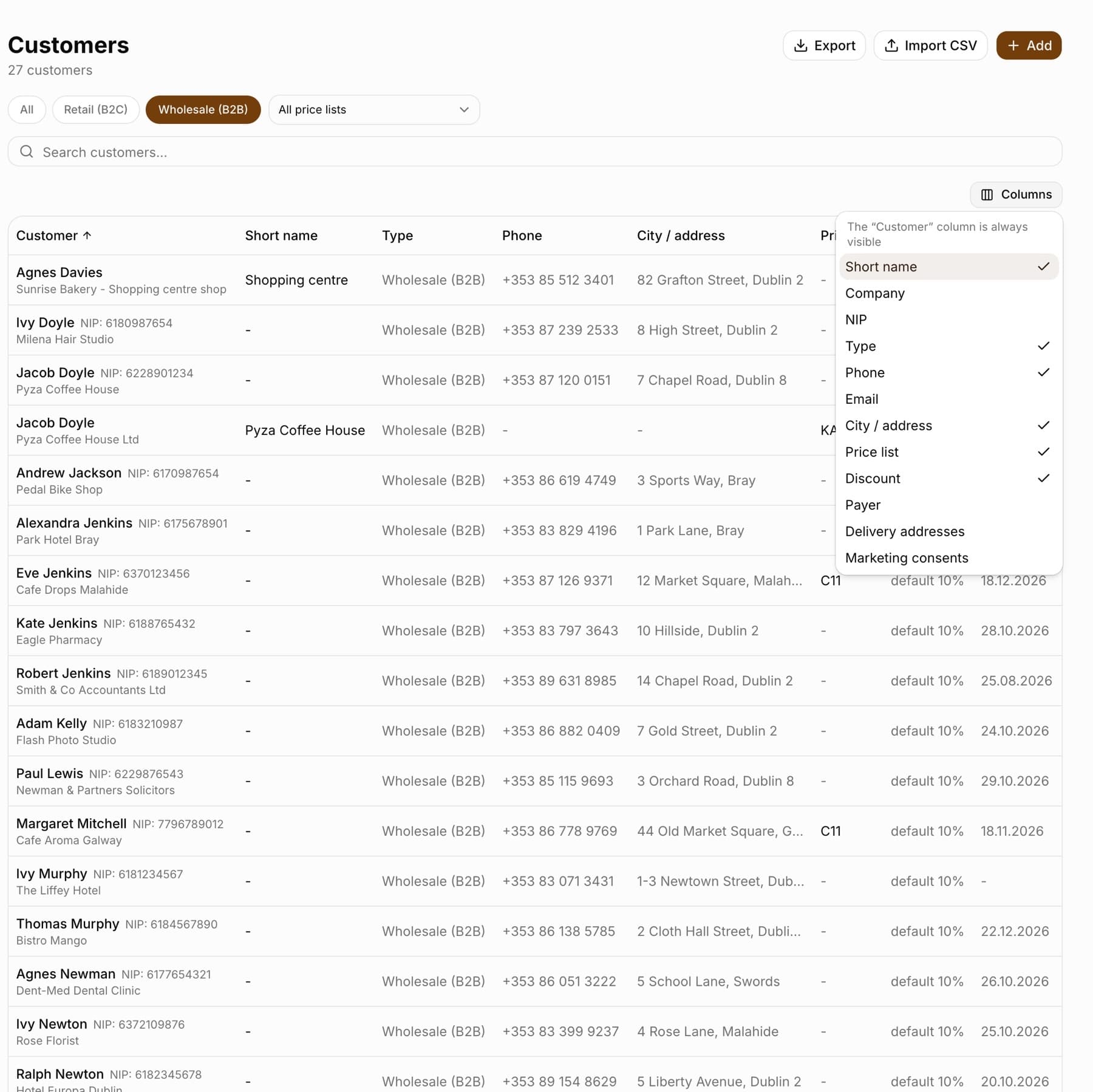
Tip: On a phone the list stays in card form - under the customer's name you see the price list, discount and payer.
Notes on the customer
The “Notes” field in the customer form is the place for preferences and remarks - e.g. “prefers Belgian chocolate”, “nut allergy”, “delivery on Tuesdays by 7:00”. The whole team sees the text on the customer card and in the edit window.
- One text field per customer, editable at any time
- Shown on the customer card in the “Notes” section
Tip: Write down allergies and flavor preferences on the customer - the salesperson will check them on the card before the next order.
Crates at the customer
The customer card keeps a balance of transport crates in three sizes: small, medium and large. Issues are added automatically when an order with crates filled in gets the Handed over status. You record returns with the “Accept return” button, and fill in missing history with “Manual issue”. A negative balance means the customer has returned more than was recorded. Crates at the customer are available in the Mistrzowski plan.
- A separate balance for each size: small, medium, large
- Automatic issues when an order gets the Handed over status
- “Accept return” and “Manual issue” - quantities per size plus a “Notes (optional)” field
- Movement history with the “from an order” label for automatic issues; manual movements can be deleted
Tip: You enter the number of crates for an order in the order form - these feed the balance when the order is handed over.
Frequently asked questions
Will a customer entered in an order be added to the customer database?
Yes. When the order is saved, BakePilot creates a record in the Customers module, unless it matches the phone or NIP to an existing customer - then it asks what to do.
What if I accidentally enter the same customer a second time?
BakePilot detects the duplicate by phone, email or NIP and shows the “This customer already exists” window with a choice: overwrite the details, create a new customer or cancel.
Two of my customers have the same first and last name - is that a problem?
No. We detect duplicates only by phone, email and NIP. Two people called “John Smith” with different phone numbers are two different customers.
A customer has changed their phone number - how do I update it?
The simplest way is to click the customer on the list and correct the “Phone” in the “Edit customer” window. If you enter the new number in an order together with the old NIP, BakePilot matches on the NIP and offers “Overwrite with the new details”.