
Stock levels
Current stock of ingredients, finished products and sub-recipes, minimum stock, low stock alerts and the purchase planner.
Last updated:
The inventory view
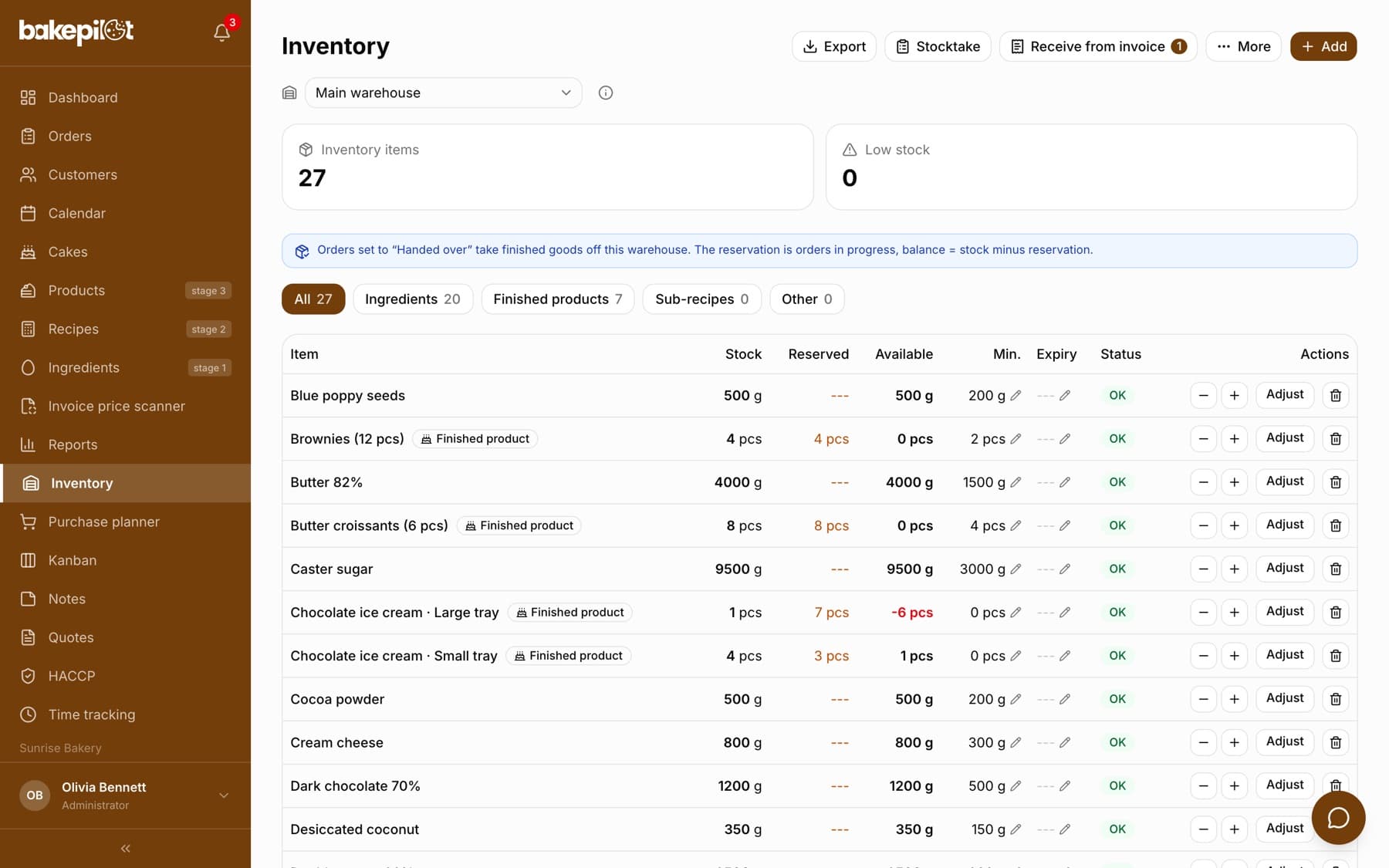
The “Inventory” module is a table of the items you keep in stock - mainly ingredients, and on the Mistrzowski (Master) plan also finished products and sub-recipes. Above the table you see two numbers: “Inventory items” and “Low stock”. A row whose stock has dropped below the minimum is highlighted in red and marked “Low stock”; the others have the status “OK”. With several sales points (Mistrzowski plan) you choose the warehouse above the summary: “Main warehouse” or a branch warehouse - see the article “Branch warehouse”.
- Columns: “Item”, “Stock”, “Reserved”, “Available”, “Min.”, “Expiry”, “Status”, “Actions”
- Stock and minimum in the item's unit (g, kg, ml, liter, pcs, tray)
- “Low stock” - when the stock is lower than the minimum
- Ingredient prices are not shown in the table - they go into the stock export
Item types and tabs
On the Mistrzowski plan there are tabs above the table: “All”, “Ingredients”, “Finished products”, “Sub-recipes” and “Other”, each with its number of items. The selected tab stays in the page address, so you can bookmark it in your browser. Items other than ingredients show a type badge next to the name: “Finished product”, “Sub-recipe” or “Other / Unspecified”.
- “Ingredients” - raw materials from the ingredient database
- “Finished products” - products from the product list; an archived product also has an “Inactive product” badge
- “Sub-recipes” - recipes kept in stock, e.g. a cream or a base dough
- “Other” - goods received from an invoice that are not ingredients (e.g. paper towels, cleaning products)
Tip: The “Inventory items” and “Low stock” numbers and the export cover all types, whichever tab is selected. More about finished products and sub-recipes: the article “Finished products and sub-recipes in inventory”.
Adding items
You add an inventory item manually for an ingredient from the ingredient database, and on the Mistrzowski plan also for a finished product or a sub-recipe (the “Item type” field in the add window). You can add them one by one or, with one click, import all ingredients that are not in the inventory yet - they get a stock of 0, which you fill in later.
- Go to “Inventory” and click “Add”
- If you see the “Item type” field, leave it on “Ingredient” (finished products and sub-recipes are covered in a separate article)
- Choose the “Ingredient” from the list and enter the “Initial stock” and “Min. level”
- Set the “Unit”, and optionally the “Expiry date”, “Packaging” and “Notes”
- Click “Add to inventory”
Tip: “Import from ingredients” (in the “More” menu above the list) adds all missing ingredients to the inventory at once (initial stock 0). Ingredients that are already in the inventory are not duplicated.
Changing the stock
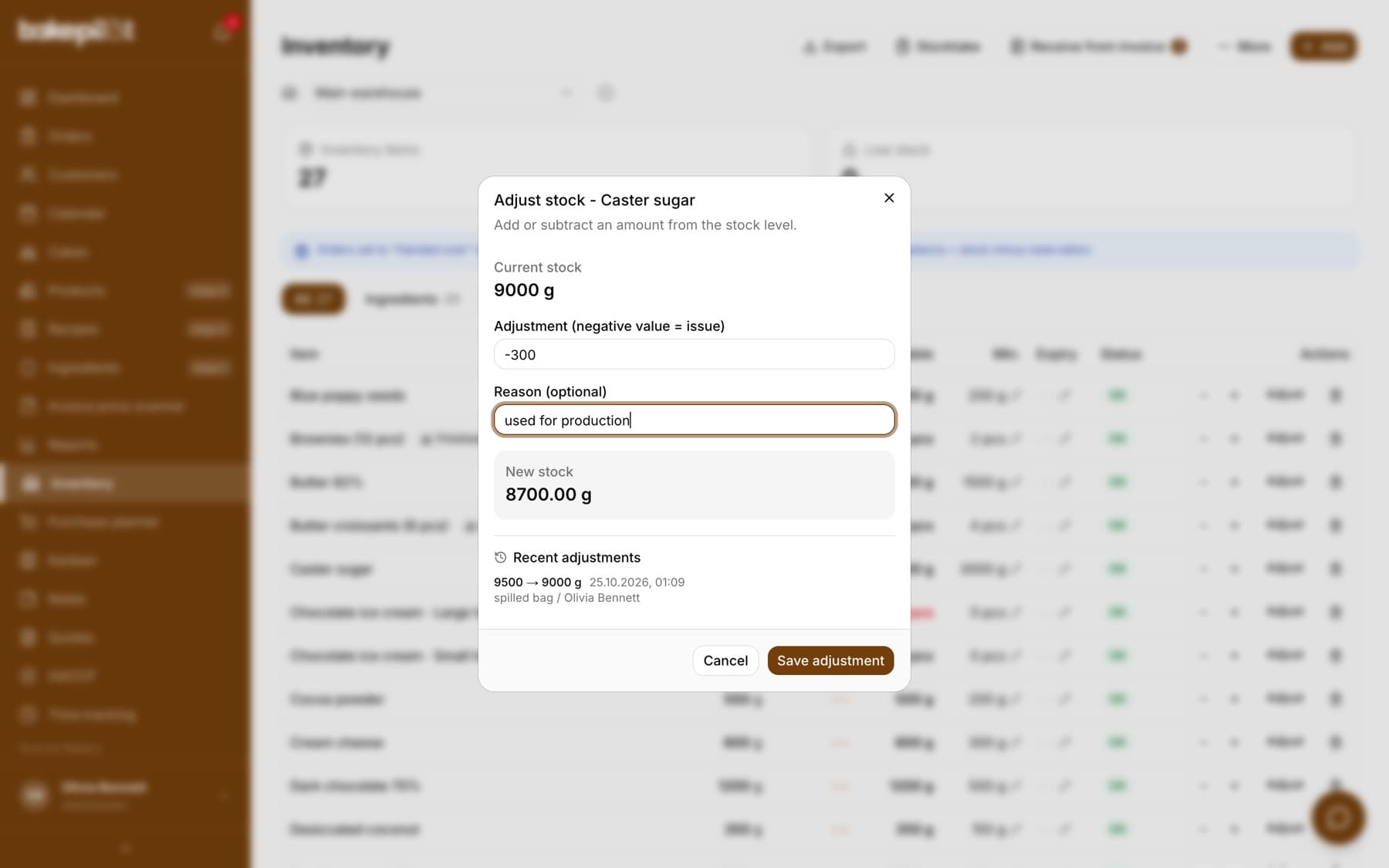
You change the stock directly in the table. The “-” and “+” buttons subtract or add one unit, and “Adjust” opens a window where you enter any adjustment and immediately see the new stock. You edit the minimum and the expiry date in place by clicking the pencil icon next to the value.
- Quick adjustment by 1 with the “-” and “+” buttons
- “Adjust”: the “Adjustment (negative value = issue)” field, the “Reason (optional)” field, a “New stock” preview, saved with the “Save adjustment” button
- Editing “Min.” and “Expiry” in the table row
- Deleting an item: click the “Delete” trash icon, then click it again within 3 seconds (“Click again to delete”) - the item disappears from the inventory together with its stock. By default only the Administrator can delete, and a branch account deletes only items in its own branch warehouse
Tip: Orders are NOT deducted from stock automatically. You receive a delivery with one button from a purchase invoice (section below), production from a recipe deducts what was used, and you even out the rest with an adjustment or a periodic stocktake.
Receiving goods from a purchase invoice
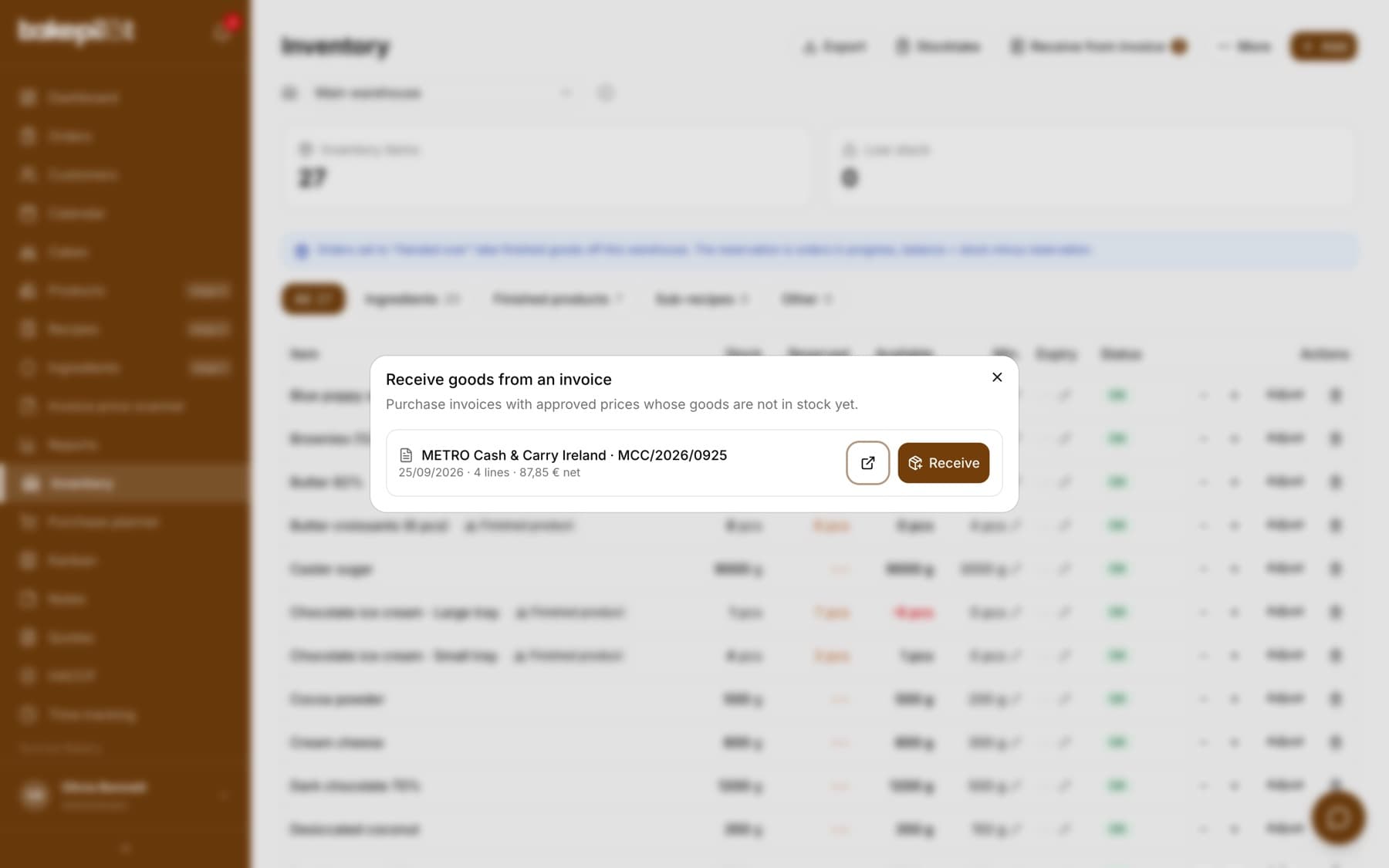
An invoice from KSeF (Poland's National e-Invoicing System) or from the price scanner whose price changes you have already applied is received into stock straight from Inventory: the “Receive from invoice” button in the header (with the number of invoices waiting to be received) opens the “Receive goods from an invoice” window with a list of these invoices - supplier, number, date, number of lines and net amount, newest first. The same receipt is also on the import screen in the scanner: the section “The goods from this invoice are not in stock yet.” with the “Receive into inventory” button. Nothing goes into stock by itself - you first see a preview and decide what to receive. Quantities from the invoice are converted to the unit of the inventory item: a carton of butter with 12 blocks of 200 g is 2,4 kg, and a 25 kg sack of sugar in the unit “OP” is 25 kg.
- Go to “Inventory” and click “Receive from invoice”
- Next to the invoice you want, click “Receive” - the receipt preview opens in the window (“Back to list” takes you back to the invoices)
- In the “Will go into stock” group, check for each line the quantity from the invoice, the quantity after conversion and the ingredient it goes to (marked “new item” when the ingredient is not in the inventory yet)
- Untick the lines you do not want to receive; goods that are not ingredients (e.g. paper towels, cleaning products) are unticked by default
- Click “Save receipt” - the stock goes up immediately, and the invoice lines show “In stock: +…”
- The “Will not go into stock” group shows lines that cannot be converted, with the reason - e.g. a carton without the number of pieces or a missing pack weight - and a “Complete it in the ingredient card” link
- Goods that are not an ingredient can be received as an “Other / Unspecified” item in the unit from the invoice (e.g. 3 KA); you select all such lines at once with the “Select all “Other / Unspecified” lines” switch
- An invoice whose prices are not approved yet (a draft) does not appear on the list to receive - below the list there is a collapsed section “… drafts await price approval” with an “Approve prices” link to the scanner
- An invoice dated before the last saved stocktake stays on the list with the label “before stocktake of …” - its goods are already counted in the stocktake, so it is usually not received
- The window shows the 50 newest invoices to receive; you will find older ones in “Ingredients” > “Invoice price scanner”
- An invoice cannot be received twice - after saving it disappears from the list in Inventory, and on the import screen you see “Received into inventory” with the date instead of the button
- You fix a mistake with a stock adjustment in Inventory; in the item history the receipt is labeled “Goods receipt from invoice” with the document number
- For an invoice older than 7 days the import screen shows a warning - if these goods were already counted in a stocktake, do not receive them a second time
- In the window in Inventory, an invoice from before the last stocktake is marked “before stocktake of …” with a note that the goods are already counted
Tip: Just starting to keep inventory? First do a stocktake with today's date - count what you have on the shelves - and only then receive invoices dated after the stocktake. Invoices from before the stocktake describe goods you have already counted; receiving them would double the stock. Receiving is available on the Mistrzowski plan (together with the price scanner) for people with the “Add” permission in the Inventory module - by default the administrator and the warehouse worker. “Other / Unspecified” items have no price, so in the stock export their price and value fields stay empty and are not included in the total.
Adjustment reason and recent adjustments
The window opened with the “Adjust” button is titled “Adjust stock - ingredient name”. In the “Reason (optional)” field, enter where the change came from - the field hint reads “e.g. delivery, used in production”. The reason is saved together with the adjustment, so a week later nobody has to guess why 25 kg of flour went missing. Below the fields of the same window there is a “Recent adjustments” section with the history of stock changes for this item.
- Each entry shows the stock before and after the change with the unit, the date and the time
- Below it, the reason and the person who saved the adjustment
- An adjustment without a reason is labeled “No reason given”, an adjustment from a stocktake - “Stocktake” with the document number and date (e.g. “Stocktake INW/3/2026 of 30.09.2026”), ingredients deducted after production - “Production”, and a delivery received from an invoice - “Goods receipt from invoice” with the document number
- The history covers every stock change, including those made with the “-” and “+” buttons and the deduction after a finished production
- The list shows the ten most recent adjustments of the item, with the note “Showing the 10 most recent adjustments.”
Tip: Two people can click “-” and “+” on the same item at the same moment - the changes add up and nothing is lost. A stocktake works differently: there you enter an absolute stock, so if someone changes the stock of an item in the meantime, the whole stocktake will not be saved, and the message will point to that item - instead of silently overwriting someone else's work.
Expiry dates
Each item can have an expiry date. In the “Expiry” column a date that has passed is red, and a date within the next 7 days is orange - so a quick look at the table shows what needs to be used first.
- Red date - expired
- Orange date - less than 7 days until expiry
- No date - the column shows “---”
Low stock on the dashboard and the purchase planner
When any item drops below its minimum, a “Low stock” card appears on the dashboard with a list of ingredients, their minimum, stock and the missing quantity, together with the “Plan purchases” and “Inventory” links. The purchase planner does not just collect shortages - it calculates the ingredient requirements for planned production and compares them with the stock in inventory.
- Open the “Purchase planner” (a button in the Inventory module or a link from the dashboard)
- Enter quantities for products in the “Planned production” section, or click “Load” in the “Load from orders” box and choose a period (“Today”, “Tomorrow”, “Week”, “Month” or your own dates)
- Click “Calculate requirements”
- In the “Shopping list”, check “Needed”, “In stock” and the “short” or “OK” label; the estimated cost of the shortages is shown next to the heading
- Click “Save shopping list” - a list to tick off opens (or download “CSV”)
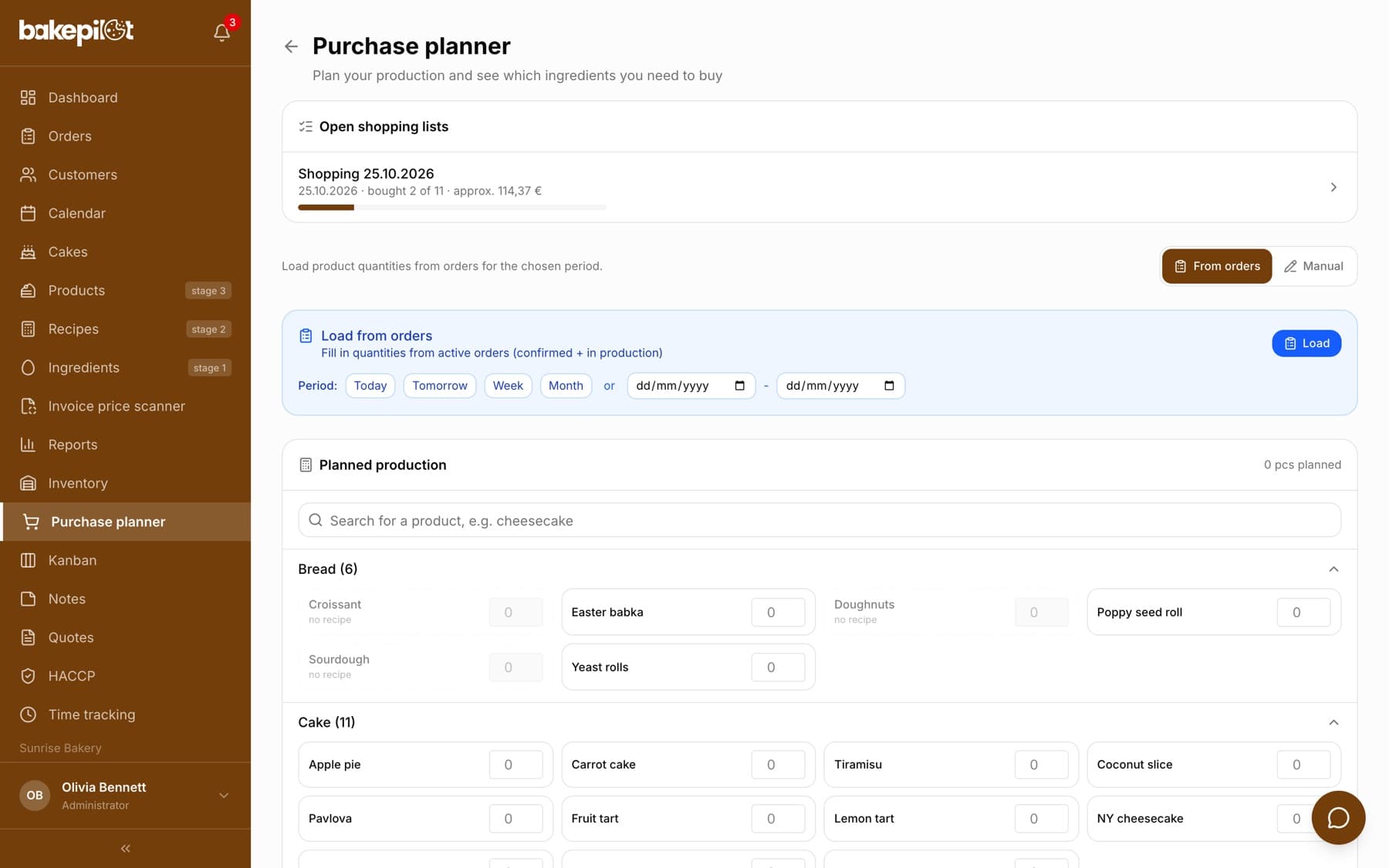
Tip: Only products with an assigned recipe count toward the requirements - the others are grayed out in the planner with the note “no recipe”. Ingredient quantities are calculated from the recipe yield (“The batch yields”), and sub-recipes are broken down into their ingredients. Sub-recipes from the plan that you have in stock are listed by the planner in a separate note, but it does not subtract them.
A shopping list to tick off in the store
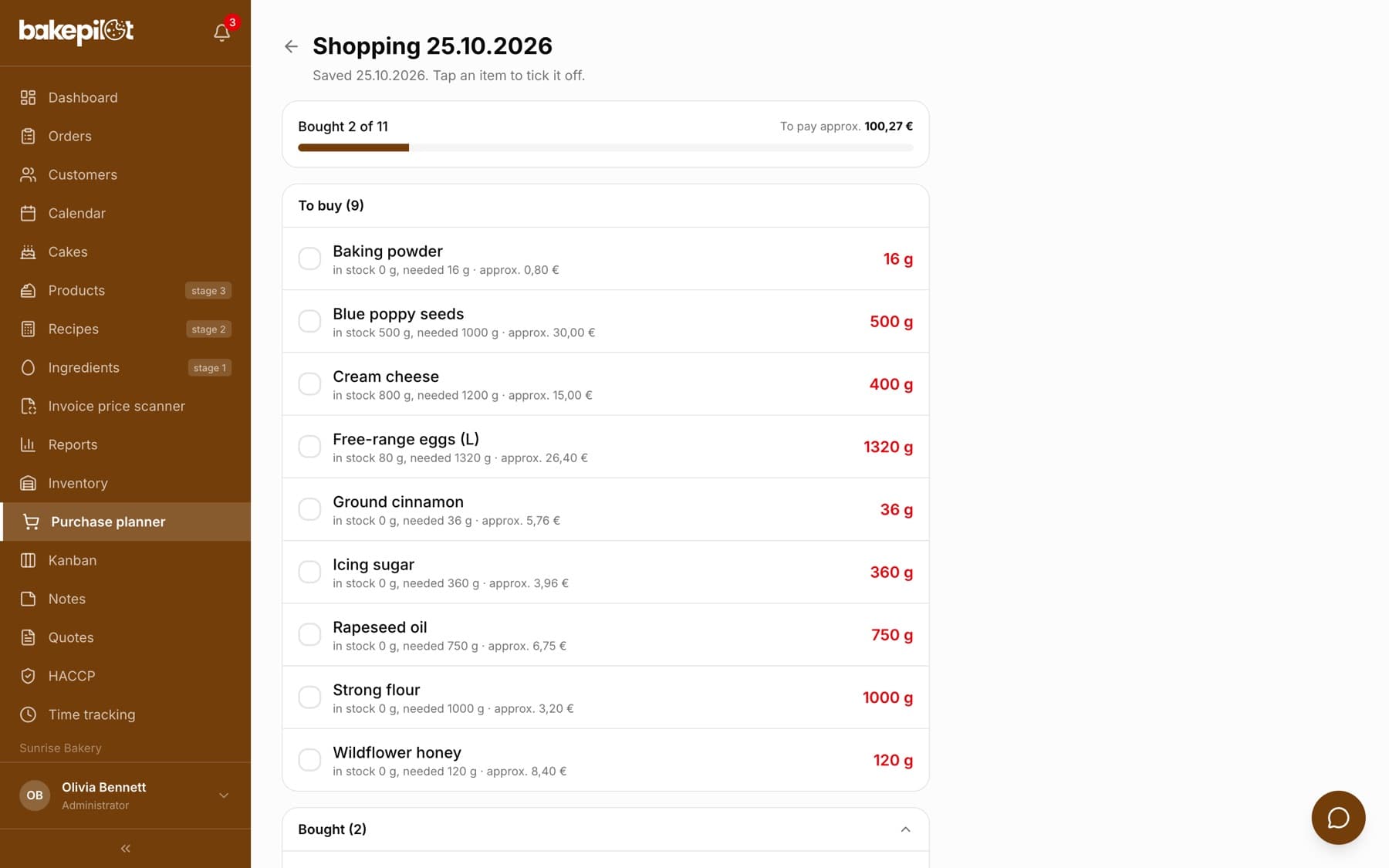
A saved list has its own address and is shared by the whole bakery: the owner calculates the requirements on a computer, and the person at the wholesaler ticks items off on a phone. Items that are short are in the “To buy” section - you tap the whole row, the item moves to “Bought”, and the bar at the top shows “Bought 3 of 12” and an approximate amount to pay for the rest. For an ingredient with a pack weight set in inventory you can see how many packs to buy. Ingredients you have enough of are collapsed under “In stock”. “Finish shopping” closes the list; open lists are shown at the top of the planner.
- The whole row is a button - easy to use with your thumb
- The list is a snapshot from the moment of calculation - later stock changes do not alter it
- Open lists with their progress are shown above the planner in the “Open shopping lists” section
- An administrator can delete a list
Stock export
The “Export” button opens the “Inventory export” window, where you choose the “Stocktake date” - the date the document gets (today by default, at most one year back, not in the future). The file contains the current inventory as a stocktake sheet with your company details, quantities, net and gross prices and the value of each item. At the bottom of the sheet there are signature lines for the person who prepared it and the person who approved it, and the print footer shows the stocktake date and the moment the file was generated separately. The sheet itself is in Polish, like other documents for third parties.
- “CSV (Excel)” and “XLSX (Excel)” - for further work in a spreadsheet
- “PDF (print)” - a version to print and sign
- “Download blank template” - a sheet without quantities, for counting on paper
- The type column says whether the item is an ingredient, a finished product, a sub-recipe or “Other”; when the inventory has more than one type, subtotals for each type appear above the total (ingredients, finished products and so on)
- Finished products and sub-recipes are valued at production cost from the recipe, without VAT - the VAT and gross columns stay empty for them
- An item without a price (e.g. a product without a recipe) has empty price and value fields and is not included in the total
Related articles
Finished products and sub-recipes in inventory
Inventory
Stocktake
Inventory
Ingredient database
Products
Purchase invoices
Purchases
Invoice price scanner - update prices from a photo of an invoice
Products
Creating a recipe
Recipes
Cost calculator
Products
Production from a recipe: weighing, stages and rescue after overpouring
Recipes