
Stocktake
Counting ingredients periodically, evening out stock levels and a stocktake document with the date you choose.
Last updated:
Why do a stocktake
You keep the inventory manually, so after a month or a quarter the real quantity on the shelf usually differs from the one in the app: losses, waste, a delivery entered late. A stocktake is a periodic adjustment - you count and weigh what you have, BakePilot shows the differences, sets the new stock after saving and leaves a stocktake document with a number and the date you chose.
- Typical frequency: once a month or once a quarter
- Comparison with the system stock for each item
- Differences calculated automatically as you type
- Saving sets the stock to the entered values and creates an INW/number/year document
Doing a stocktake
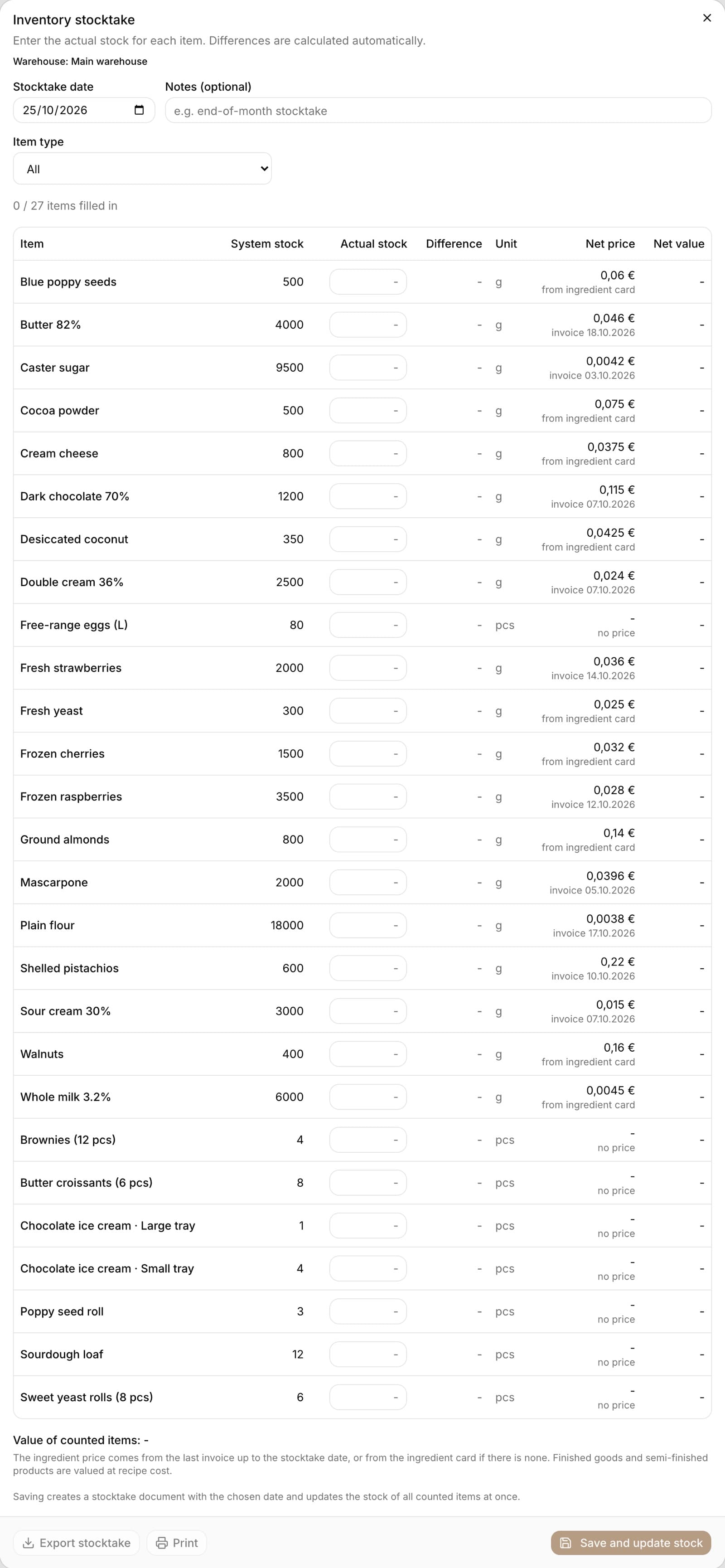
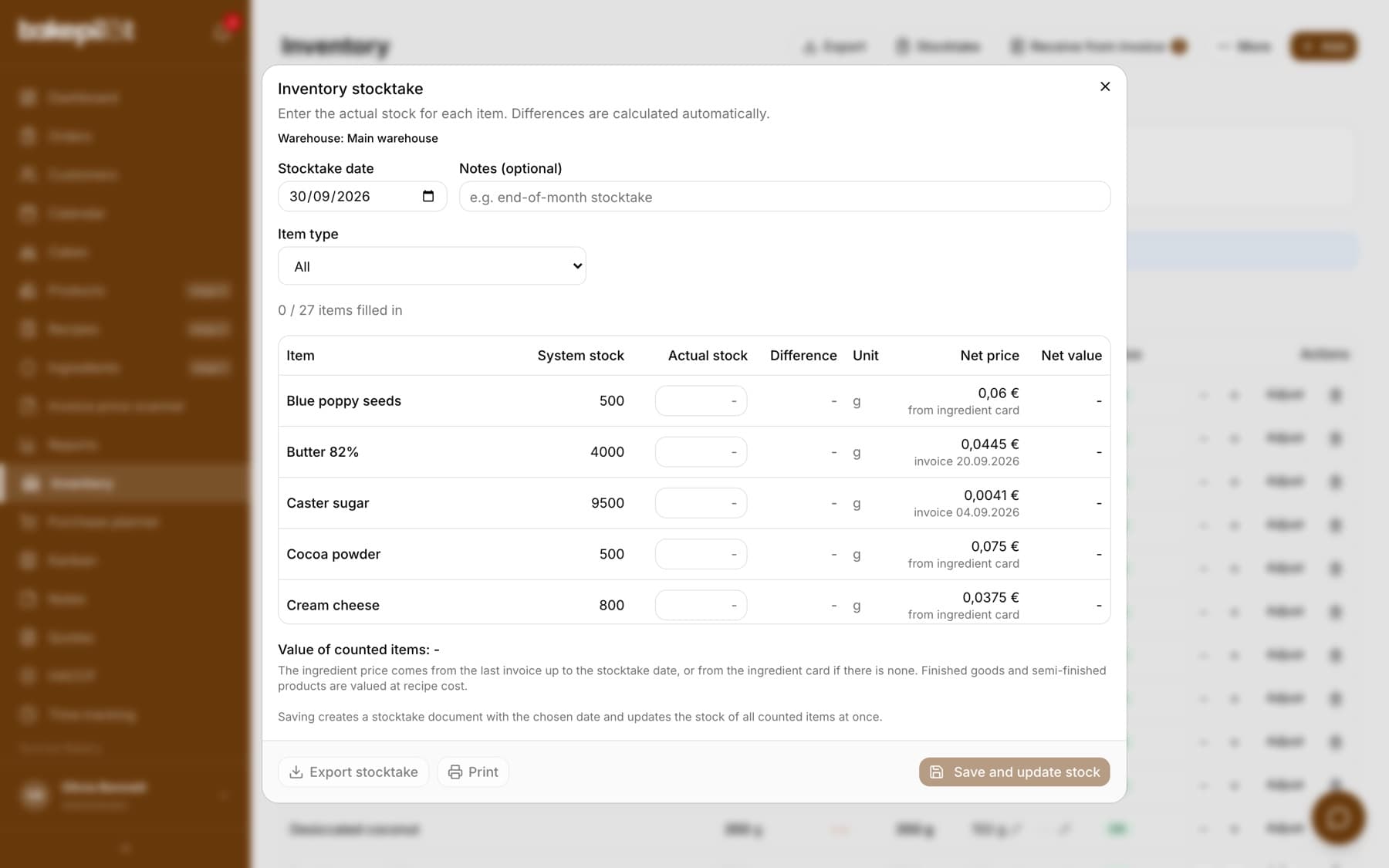
You do the stocktake in the “Inventory stocktake” window. Above the table you choose the “Stocktake date” - the date that should be on the document (today by default; you can go back at most one year, and you cannot choose a future date) - and optionally enter “Notes (optional)”. Each row has the “System stock” from the app and an empty “Actual stock” field. When you enter a quantity, the “Difference” column shows the result: a shortfall in red, a surplus in blue, a match in green. The counter above the table shows how many items have been filled in.
- In the “Inventory” module, click “Stocktake”
- Set the “Stocktake date”, e.g. the last day of the month if you count the next morning
- Count the ingredients and enter the quantities in the “Actual stock” column (comma and dot both work as the decimal separator, 0 means an empty shelf)
- Check the “Difference” column - verify large discrepancies before saving
- Click “Save and update stock” - “Saved as INW/…” appears above the table
- After saving, download the file with the “Export stocktake” button (CSV) or print the document with the “Print” button
- Items for which you do not enter an actual stock stay unchanged and are not included in the document - you can do a stocktake for just part of the inventory
- When the inventory has more than one item type, there is an “Item type” field above the table (e.g. “Finished products”) - it narrows what you see in the table; saving covers all entered quantities, including those of other types
- The sheet is ordered by type: first ingredients, then finished products, sub-recipes and “Other”, alphabetically within each group
- An item counted with no difference goes on the document, but its stock does not change
- The whole stocktake is saved at once: either all items are saved, or none
- If someone changed the stock of an item while you were counting, saving will fail and the message will point to that item. The system stock in the table refreshes by itself and the entered quantities stay - check that item and save again
Tip: Stocktaking is available on the Mistrzowski (Master) plan for people with the permission to set stock - by default the administrator and the warehouse worker.
Price and inventory value on the stocktake date
The stocktake values the inventory straight away. Each row has a “Net price” column - the price of one stock unit (a kilogram, gram, liter or piece, the way you count the item) - and below it, in small text, where that price comes from. When you enter the “Actual stock”, the “Net value” column shows the counted quantity multiplied by the price. Below the table you see the “Value of counted items” and the number of items without a price. Prices are calculated for the chosen “Stocktake date” - when you change the date, they load again.
- Ingredient: the price from the last invoice dated no later than the stocktake date - a stocktake of 29.09 takes the last invoice up to and including 29.09. Below the price it says “invoice” with the date, e.g. “invoice 12.09.2026”
- The invoice price applies to the whole pack (e.g. a 25 kg sack), so BakePilot converts it to the unit you count the item in. For an item counted in pieces, the price per piece follows from the item's pack weight. Without that weight, only a piece whose price the invoice knows gets a price (e.g. a block of butter, when the source has the number of pieces per carton) - a carton of eggs does not give a price for one egg, so such an item has “no price”
- Ingredient without an invoice up to the stocktake date: the price from the ingredient card, converted the same way to the item's unit (a card price of 3 PLN per 1 kg gives 0.003 PLN per gram), with the note “from ingredient card” - so you can see it is not an invoice price
- Finished products and sub-recipes: “recipe cost”, just like in the inventory value on the list
- An “Other” item and an ingredient whose price cannot be converted fairly (e.g. counted in kilograms while the invoice does not know the pack weight): “no price” and “-” instead of an amount - such an item is not included in the total and does not pretend to be worth zero
- The value covers only counted items - items not counted go neither on the document nor into the total
- Prices on the document are net and in the organization's currency at the moment of saving
Tip: The document stores the prices from the moment it is saved. An invoice entered later, dated before the stocktake, no longer changes the saved document - you will see it in the next stocktake. Invoices approved in the scanner before 30.09.2026 have the approval date in the purchase history, not the date from the invoice.
The stocktake document and its date
Each save creates a document numbered INW/number/year - numbering restarts every year, and the year comes from the chosen stocktake date. The printout and the CSV file show the “Stocktake date” chosen in the window, without a time. The print footer separately shows when the file was generated, so a document printed in October for September still carries the September date.
- Printout: a title with the document number, your company details, the stocktake date, the number of items, notes, the columns system stock, actual stock, difference, net price, net value and price source (e.g. the invoice number and date with the supplier, the ingredient card or the recipe cost), a total row with the value and the number of items without a price, and signature lines for the person who prepared and the person who approved the document. The printout is in Polish, like other documents for third parties
- The CSV file has the same columns and a total row at the bottom; an item without a price has an empty price field there, so the sheet can be summed
- The file name contains the document number and date, e.g. inwentura_INW-3-2026_2026-09-30.csv
- In the item history (the “Adjust” window, “Recent adjustments” section) the adjustment is labeled “Stocktake INW/3/2026 of 30.09.2026”
Stocktake history
“Stocktake history” (the “More” menu in the “Inventory” module) shows the saved documents: number, stocktake date, number of items, number of changed items, the person who saved the stocktake, the document value and notes. You can download any document again with the “CSV” button or print it with the “Print” button - always with the date from the document and the stock from the moment it was saved.
- The list shows the 50 most recent stocktakes, newest date first
- A document cannot be changed or deleted - you fix a mistake with a stock adjustment or another stocktake
- Stocktakes saved before 29.09.2026 have no document - their trace stays in the item history labeled “Stocktaking”
- Documents saved before 30.09.2026 have no prices - the printout shows “-” in the price and value columns
- “Export” > “Download blank template” in the Inventory module - a sheet for counting on paper before entering the figures in the app