
Purchase invoices
A register of supplier invoices: fetching from KSeF, the photo scanner, payment statuses and cost categories.
Last updated:
Where to find purchase invoices
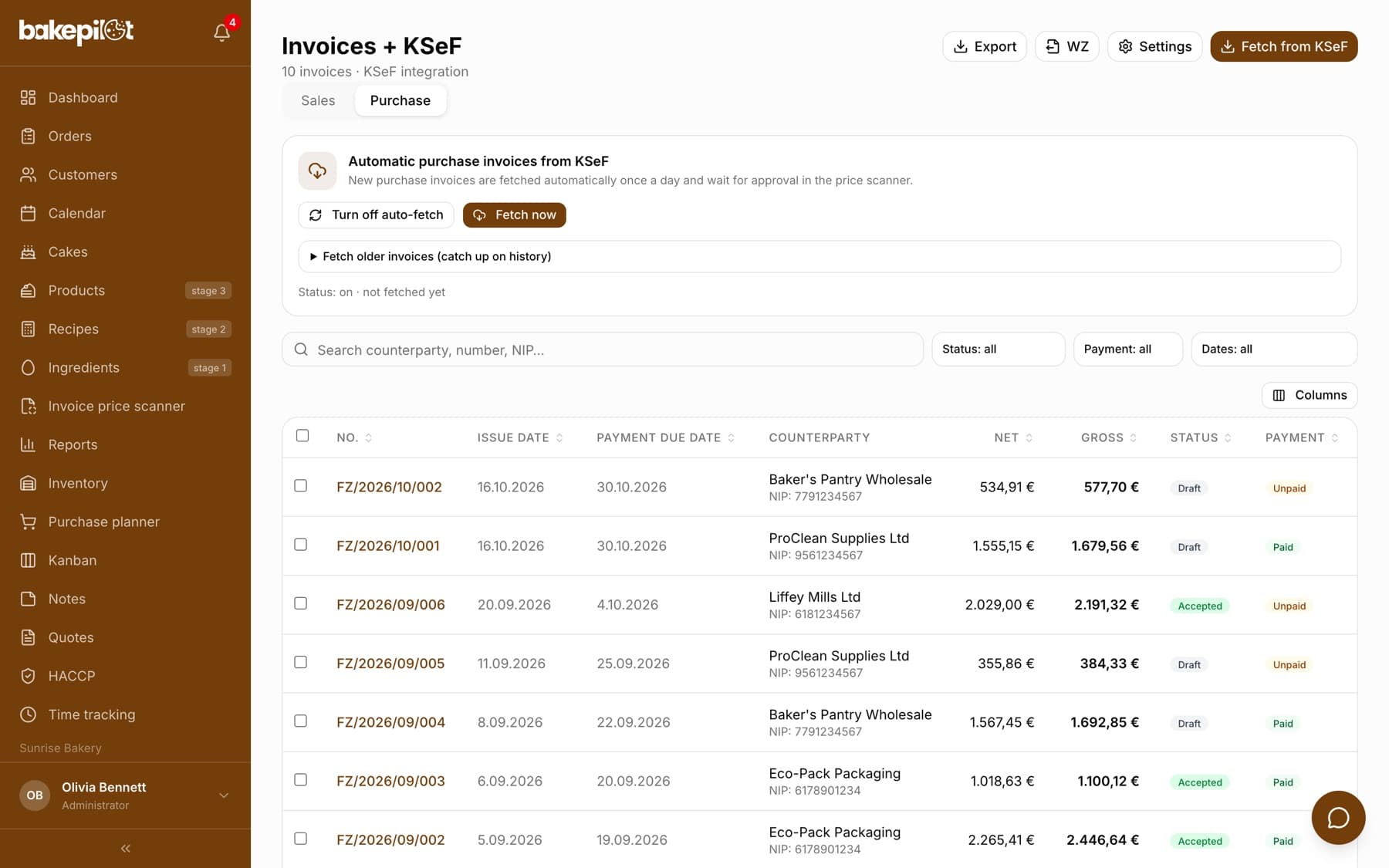
You will find invoices from suppliers in the “Invoices” module on the “Purchase” tab. It is a register of documents for accounting and for the VAT estimate in the Finance module. The invoice itself does not change your inventory - you receive the goods from it separately, with the “Receive into inventory” button in the invoice price scanner or “Receive from invoice” in Inventory. A purchase invoice arrives here from two sources: automatically from KSeF (Poland's National e-Invoicing System) or from the invoice price scanner after you approve the lines it has read. There is no manual purchase invoice form.
- Columns: “No.”, “Issue date”, “Payment due date”, “Counterparty”, “Net”, “Gross”, “Status”, “Payment”
- The “Columns” button additionally turns on “Sale date” and “Category”
- The “Search counterparty, number, NIP…” search box and the “Status”, “Payment” and “Dates” filters (“Dates: today”, “Dates: this month”, “Dates: previous month”, “Range…”)
- The export icon saves the filtered list to CSV or XLSX
Fetching from KSeF
If you have KSeF connected, BakePilot fetches the invoices issued to your company by itself once a day, in the morning, and on demand when you click “Fetch now”. The “Automatic purchase invoices from KSeF” panel on the “Purchase” tab shows whether the switch is on and the date of the last fetch. We describe the details, limits and catching up on history in a separate article.
- Requires KSeF to be connected (Invoice settings), the Mistrzowski (Master) plan and the “Fetch purchase invoices” permission
- “Turn on auto-fetch” / “Turn off auto-fetch” - the switch for daily fetching
- “Fetch now” - fetching on demand
- The line “Status: on · last fetched …” below the buttons
Tip: KSeF handles invoices from Polish companies in Polish zloty. You enter foreign suppliers and small paper documents through the invoice price scanner.
The invoice price scanner for suppliers outside KSeF
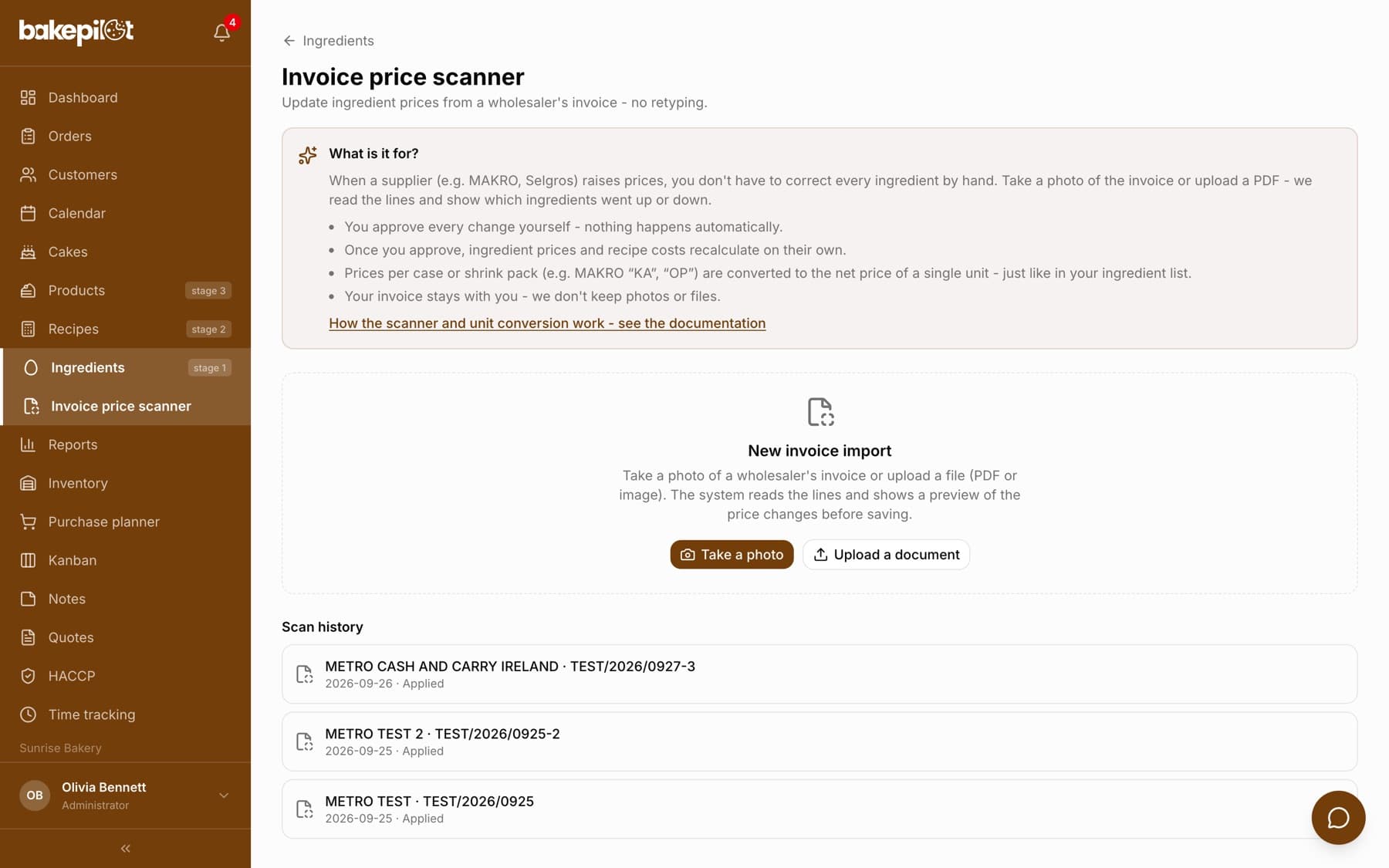
For paper invoices and PDFs from email there is the “Invoice price scanner” (in the menu under Ingredients). You take a photo or upload a file, the app reads the lines and the VAT summary, and you approve the ingredient price changes. After you click “Apply changes”, the document appears on the “Purchase” tab with net, VAT and gross amounts. By default the scanner is visible to the Administrator and the Accountant - you can give access to another role in Settings, in the permissions matrix (the “Invoice price scanner” permission in the Invoices module).
- Open the “Invoice price scanner” and click “Take a photo” or “Upload a document” (PDF or image, up to 10 MB)
- Check the lines that were read: accept, correct the net price, choose the ingredient or skip
- Click “Apply changes”
Tip: When the VAT table cannot be read from the photo, you will see the message “VAT amounts were not read - the invoice was not added to the VAT register. Ingredient prices have been imported.” Such a document shows up as a gap in Finance.
Payments and cost categories
Every invoice has a payment status, “Paid” or “Unpaid”, and the payment due date from the document. You mark an invoice as paid on the invoice card with the “Paid” button - the app saves the payment date - or in bulk from the list. You also assign a cost category to purchase invoices, which the Finance module uses.
- Select invoices with the checkboxes on the list - a “N invoices selected” bar appears
- Click “Paid” or “Unpaid” to change the payment status
- Click “Assign category” and choose a category or “No category”
- Tick “Remember for these suppliers” if further invoices from these companies should go to the same category
Tip: The “Payment: Unpaid” filter shows everything that is waiting for a transfer. There is no separate reminder about due dates on the dashboard.