
Ingredient database
Managing ingredients, prices and suppliers.
Last updated:
Ingredient list
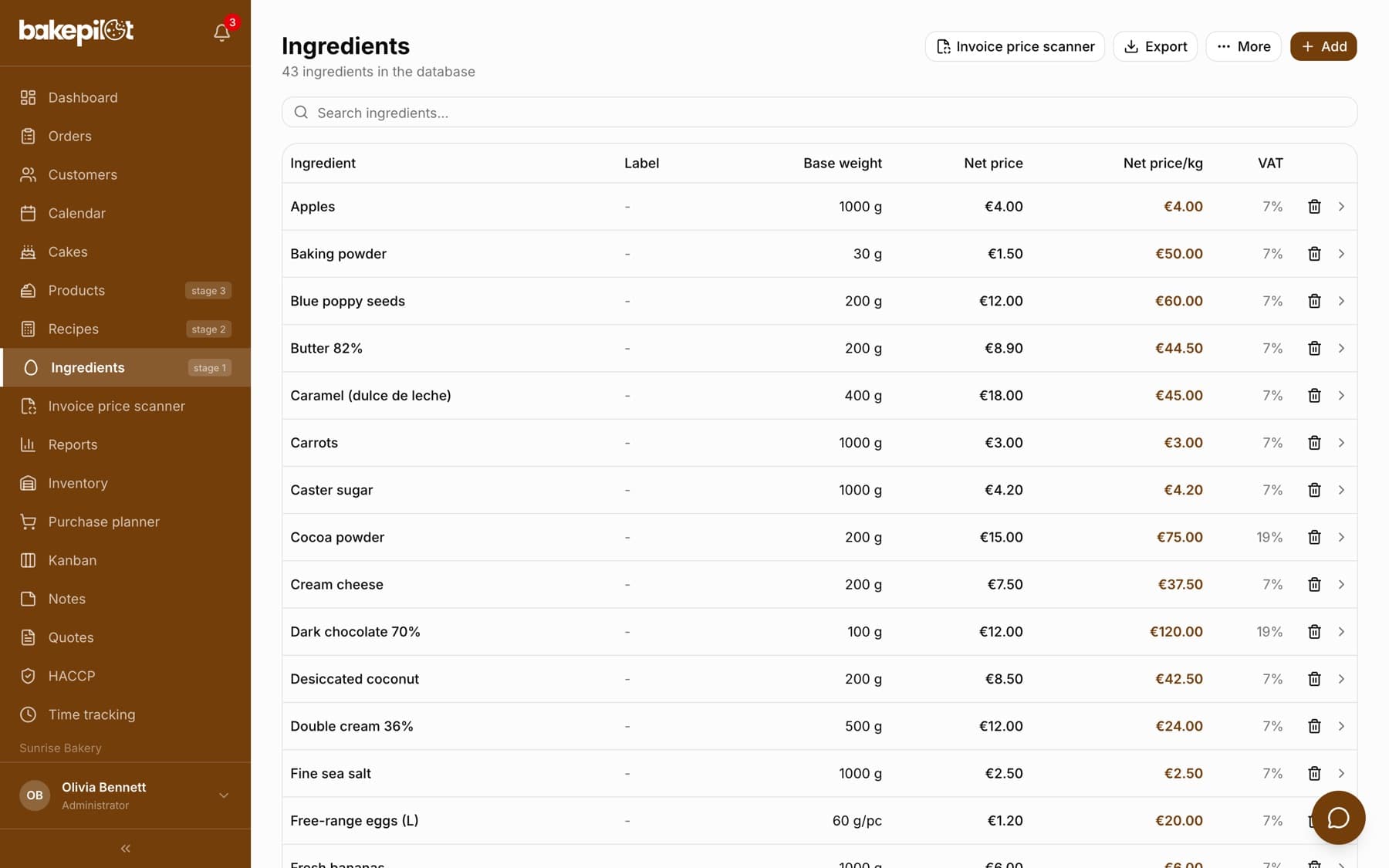
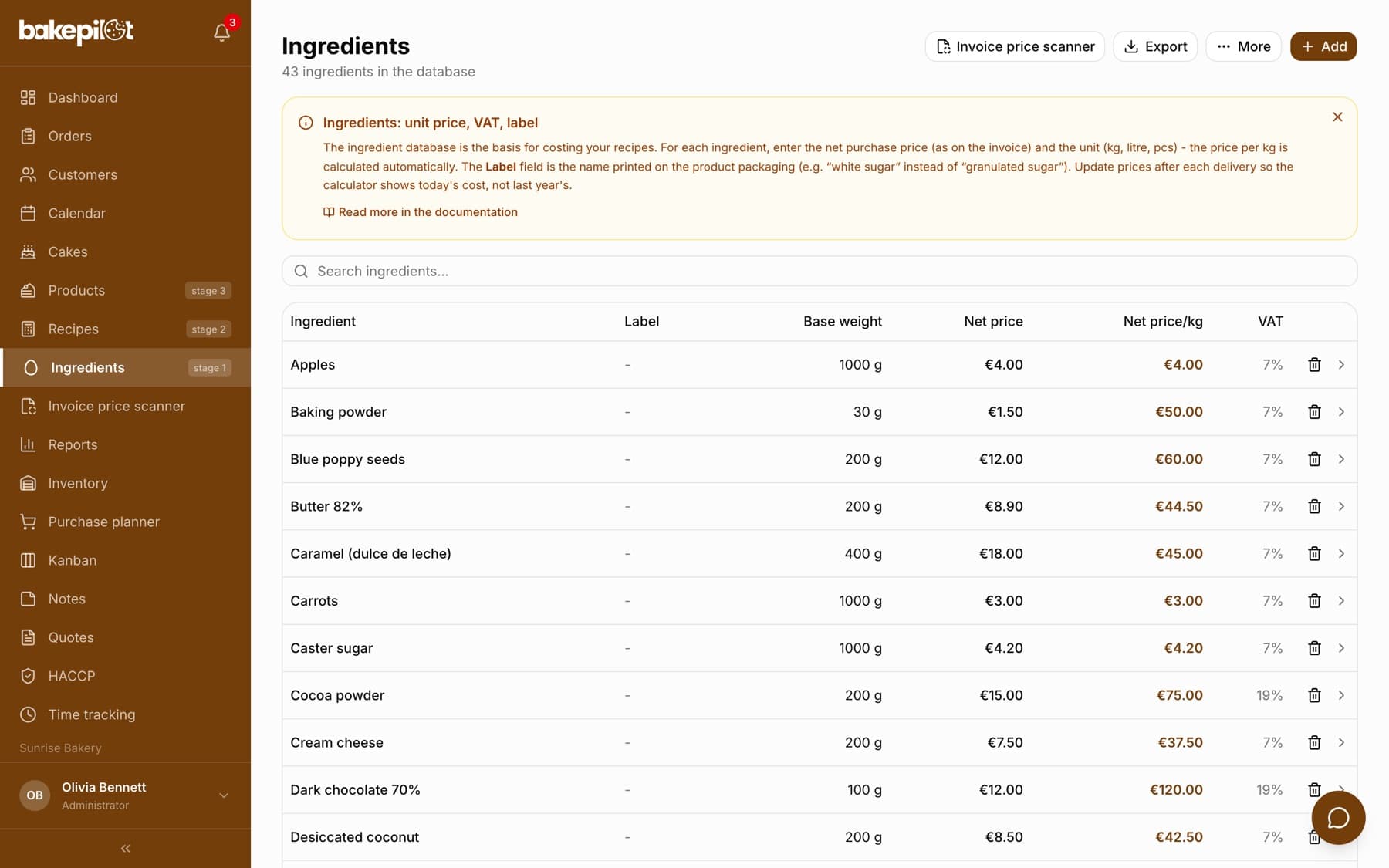
The Ingredients module opens the database of all your company's raw materials. Below the title there is an ingredient counter, above the table the “Search ingredients...” field, and at the top the “Invoice price scanner”, “Export”, “More” (with “Automatic pricing”, “Import Excel” and “Import CSV”) and “Add” buttons. The ingredient database is available on every plan.
- Columns: “Ingredient”, “Label” (the name on the label), “Base weight” (the package weight, for pieces e.g. “60 g/pc”), “Net price” (the package price), “Net price/kg” and “VAT”
- Clicking a row opens the ingredient edit window, and the arrow at the end of the row (labelled “Ingredient details”) opens the ingredient card with suppliers, allergens and price history
- The bin icon in a row deletes the ingredient (described below)
- An ingredient with a price per kg of zero has a “no price/kg” tag in the price column - it does not count in recipe costs until you fill in the package weight
- On a phone the list is shown as cards and you load more ingredients with the “Load more” button
Where ingredients come from: three ways
An ingredient is a raw material with a price and a package weight - the cost of every recipe is calculated from them. You can build the database in three ways and combine them freely: enter ingredients manually, upload them from a file or let them be created from wholesaler invoices.
- Manually - the “Add” button above the ingredient list (described in the section below); best for a start, when you have a dozen or so raw materials
- From a file - “More” → “Import Excel” (an XLSX spreadsheet, also just a list of names without prices) or “Import CSV”; import is available on every plan
- From invoices - the “Invoice price scanner” reads a photo or PDF of an invoice, and with KSeF (Poland's National e-Invoicing System) connected, invoices from wholesalers are downloaded automatically and wait in the scanner for approval (Mistrzowski (Master) plan). An item that is not in the database you link to an existing ingredient or choose “Create a new ingredient”
- Prices from invoices never go in on their own - you accept, correct or skip each item
Tip: A common start: a list of names from Excel (import without prices), with prices and suppliers filled in from the first invoices in the price scanner. Details in the articles on importing ingredients from Excel, the invoice price scanner and automatic cost invoices from KSeF.
Adding ingredients
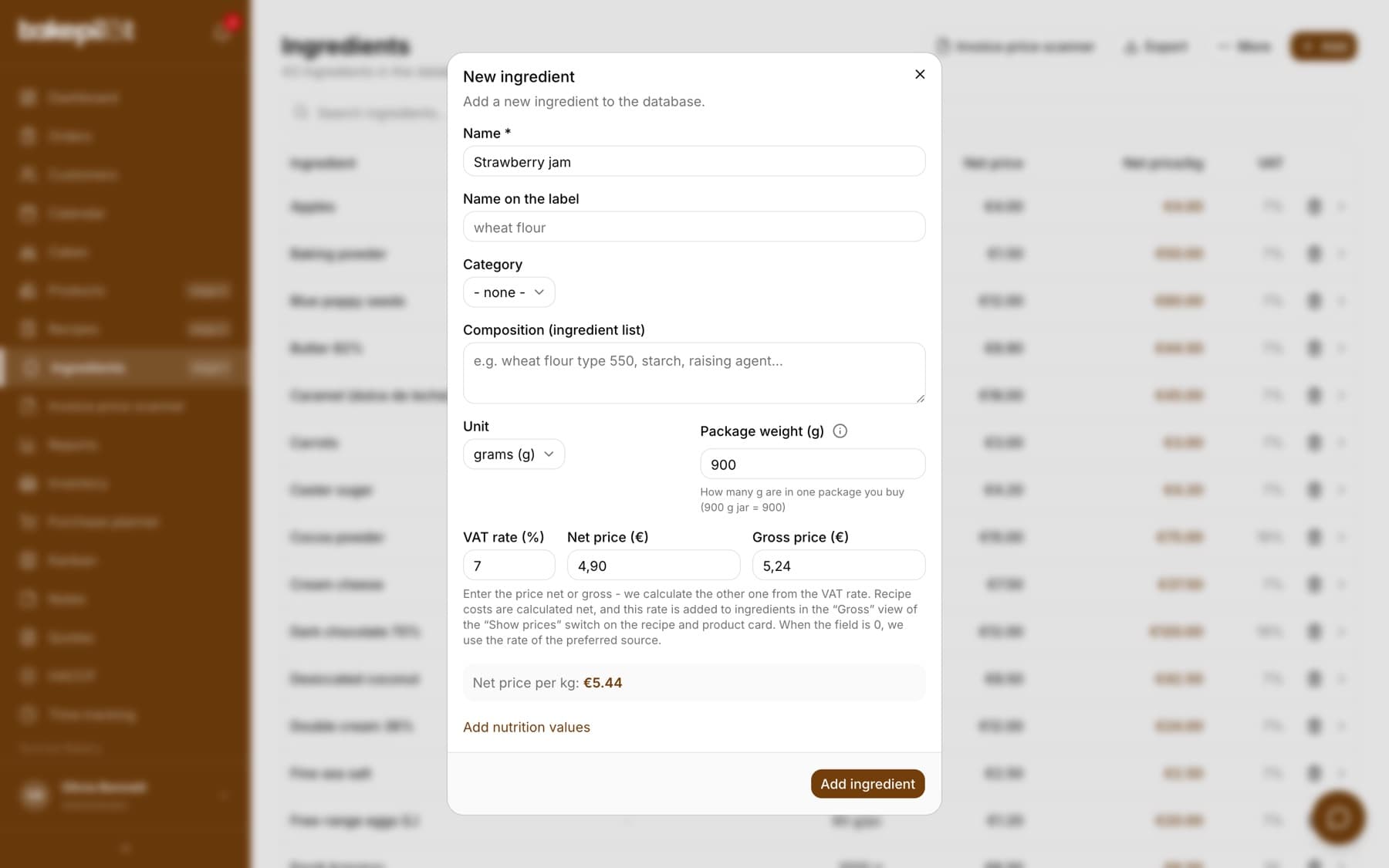
In the Ingredients module click “Add ingredient” and enter your raw materials: flour, sugar, butter, eggs, chocolate. The three most important fields are the unit, the package weight and the price of that package - from them BakePilot calculates the “Net price per kg:”, which you see right below the form. This is the number that then goes into every recipe.
- A working name and the “Name on the label” - the latter goes into the product's ingredient list
- Unit: grams, kilograms, millilitres, litres, pieces
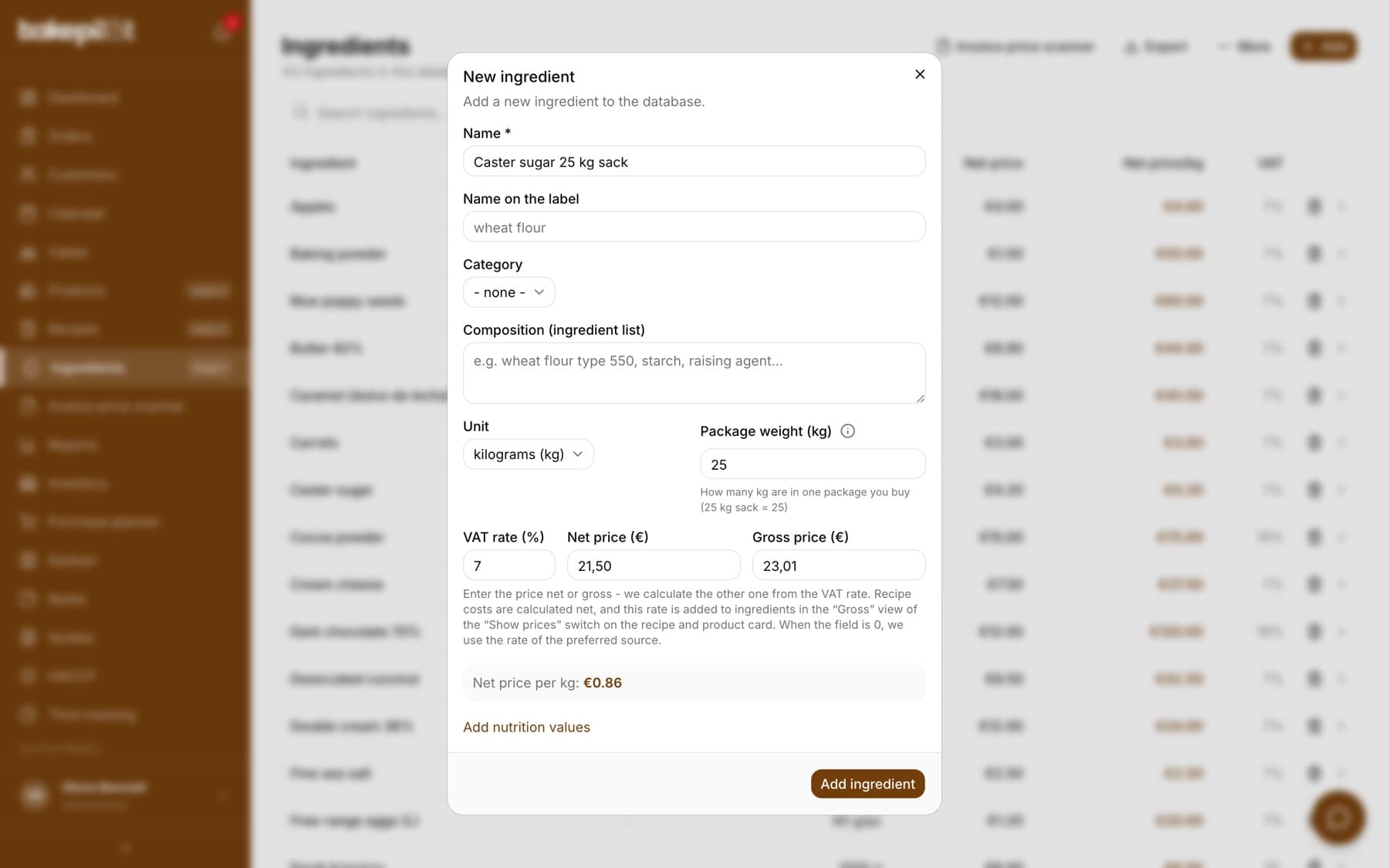
- Package weight - in the unit selected next to it, as the field label shows: “Package weight (kg)” and a 25 kg sack = 25, “Package weight (g)” and a 900 g jar = 900 (for pieces: the weight of one piece in grams, an egg = about 60)
- The price per kg is always the package price divided by its weight: a 200 g block of cheese for 5 PLN is 25 PLN per kg
- “VAT rate (%)” next to the price - take it from the invoice (most often 5%, packaging 23%); 0 means the rate from the preferred source, e.g. from an invoice downloaded from KSeF. For an active VAT payer it counts in the “Gross” view on the recipe and product card, for a VAT-exempt business also in recipe costs
- “Net price (PLN)” or “Gross price (PLN)” - the price of one package; you enter the one you have in front of you, and the app calculates the other from the VAT rate. When the rate is empty (0), the gross field is disabled with the hint “Enter the VAT rate to calculate from the gross price.” The net price is what is saved, rounded to the grosz (1/100 PLN), so after reopening the gross price may differ by 1 grosz from what you entered
- “Net price per kg:” is calculated automatically below the fields
- Next to the weight field there is an “i” icon with the hint “How to enter price and package?” - the same rules as in the “Price and weight refer to the same package” section below
- Optionally: category, composition from the label, nutrition values per 100 g
Tip: If the “Net price per kg:” shows 0.00 PLN, the ingredient will be counted as free in recipes. The most common cause is an empty package weight - the app warns about it with a yellow box, and in the list the ingredient gets a “no price/kg” tag.
Package weight in kilograms
The weight field label always tells you which unit to enter - “Package weight (g)” or “Package weight (kg)”, depending on the unit selected next to it. The hint under the field gives an example in the same unit. The most reliable test is the “Net price per kg:” below the form: a sack of sugar for 84.85 PLN should give about 3.39 PLN per kg, not 3,39 grosz or 3390 PLN.
Price and weight refer to the same package
The most common mistake with the first ingredients is the price of one package entered next to the weight of another. There is one rule: the package weight and the price describe THE SAME package. With the “pieces” unit, that package is one piece - in the weight field you enter the weight of one piece in grams (the hint under the field: “Weight of 1 piece in grams (e.g. egg = 60)”), and in the price field the price of one piece, not of the whole multipack.
- Example - eggs: a tray of 10 eggs for 9 PLN. Unit “pieces”, weight 60, price 0.90 PLN. Below the form you get 15.00 PLN per kg
- A mistake from a real account: unit “pieces”, weight 60, price 10 PLN (the price of a pack of eggs instead of one egg). The result is 166.67 PLN per kg, and every recipe with eggs is more than ten times too expensive
- Example - butter: a 200 g block for 6.50 PLN. Unit “grams”, weight 200, price 6.50 PLN (with the “kilograms” unit: weight 0,2). The result is 32.50 PLN per kg
- Example - sugar: a 25 kg sack for 84.85 PLN. Unit “kilograms”, weight 25 (not 25000), price 84.85 PLN. The result is 3.39 PLN per kg
- Check: the “Net price per kg:” should look like a price from the wholesaler's shelf - butter around 30 PLN per kg, not 3 PLN or 3000 PLN
Tip: If you buy in cases (e.g. 8 blocks of butter), the ingredient keeps the price and weight of ONE block. You record the number of blocks per case with the supplier in the “Units per case” field - the invoice price scanner will use it.
Editing and deleting an ingredient
You correct an ingredient in the “Edit ingredient” window, which opens when you click its row in the list. The window has the same fields as when adding: names, unit, package weight, net price, VAT rate, composition and nutrition values. After “Save changes” you will see the “Ingredient updated” message. You change suppliers, allergens and the pricing method on the ingredient card.
- In the ingredient list click the ingredient row
- Correct the fields in the “Edit ingredient” window
- Click “Save changes”, and if you changed the price or package weight, also click “Recalculate all” in the recipe list (saving in this window does not recalculate recipes by itself, see the “Updating prices” section)
- You delete with the bin icon in the list row or the “Delete” button on the ingredient card; the first click turns the button into “Are you sure?”, the second deletes, and clicking elsewhere cancels
- An ingredient used in a recipe cannot be deleted - you will see “Cannot delete the ingredient” and “The ingredient is used in a recipe. Remove it from the recipe first.”
- Deletion is permanent: together with the ingredient, its suppliers, purchase log, price change history and allergens disappear
- A manual price change in the edit window switches the pricing method to “Manual” - see the section “When the method switches to “Manual” by itself”
- By default the administrator, warehouse worker and purchaser can edit, and only the administrator can delete
Nutrition values and composition of an ingredient
You enter an ingredient's nutrition values in the add or edit ingredient window: click “Add nutrition values” (at the bottom of the window), and the “Nutrition values per 100 g” box appears. Copy them from the package label. From these numbers and the recipe quantities, BakePilot calculates the nutrition table on the product label. An ingredient that already has energy entered opens with the box expanded.
- Fields: “Energy (kcal)”, “Fat (g)”, “of which saturates (g)”, “Carbohydrate (g)”, “of which sugars (g)”, “Protein (g)”, “Salt (g)” and “Fibre (g)” - all per 100 g
- “Composition (ingredient list)” in the same window - the ingredient's composition as on its label (e.g. wheat flour type 550, starch), used when the product's ingredient list is built from the recipe
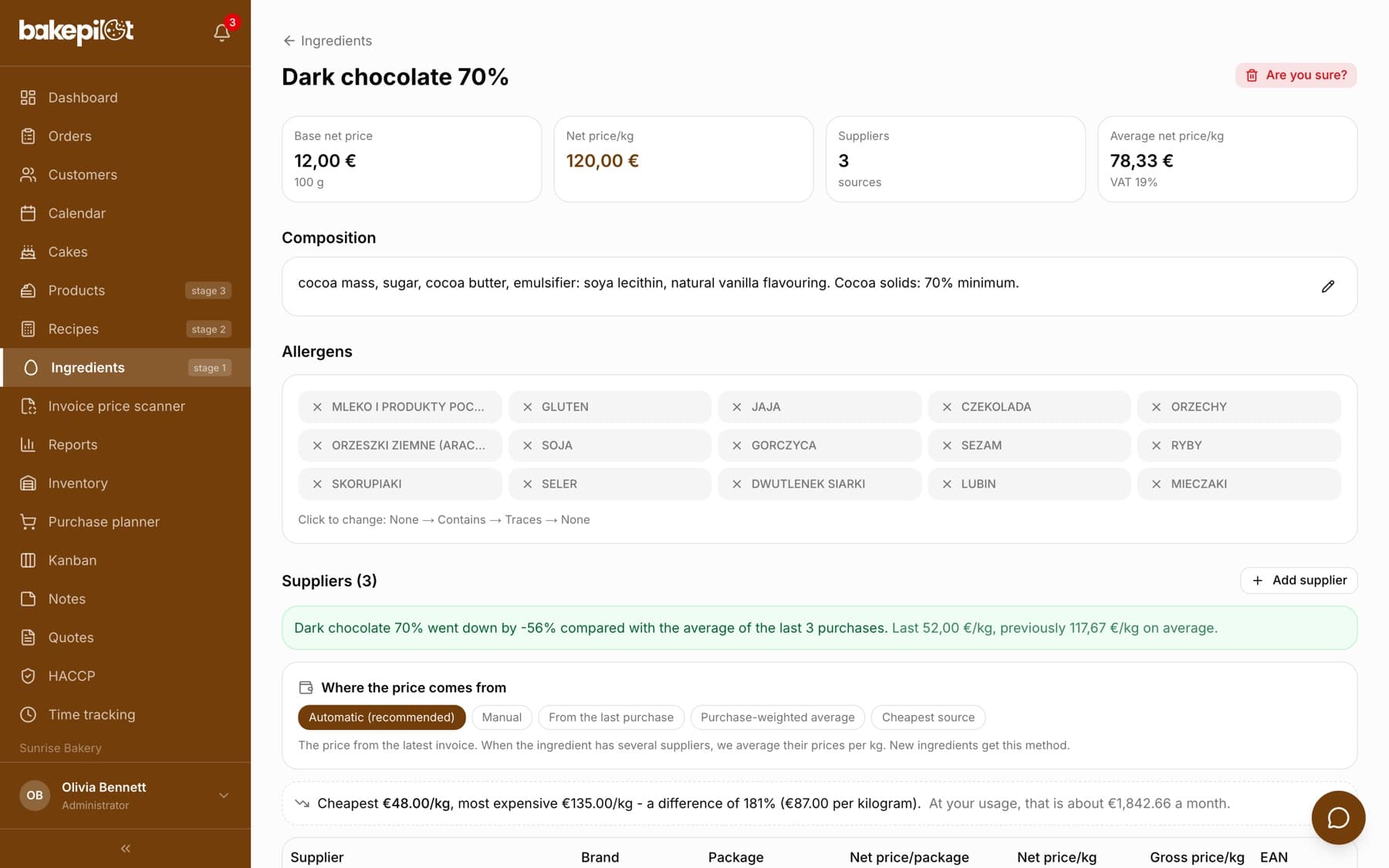
- On the ingredient card the “Composition” section shows “Name on the label:” and the composition as on the label; the “Edit composition” pencil lets you correct them without opening the edit window (Profesjonalny (Professional) plan)
- An ingredient without nutrition values makes the table on the label incomplete - the label page lists such ingredients in the warning “Ingredients without nutrition values: …”
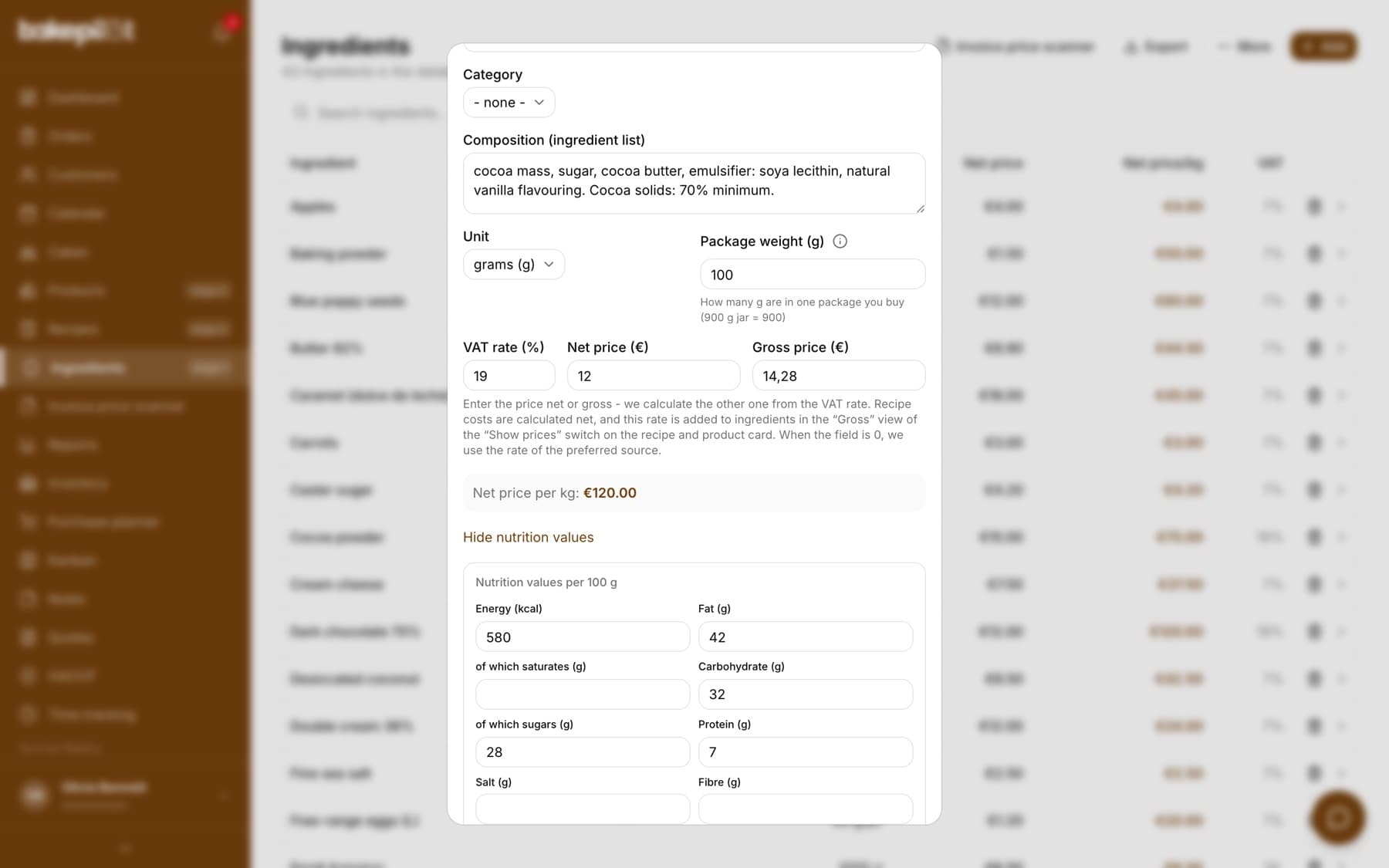
Tip: Take the nutrition values from the label of the specific product you use - the same name (e.g. dark chocolate) from two manufacturers can have a completely different fat and sugar content.
Suppliers and allergens on the ingredient card
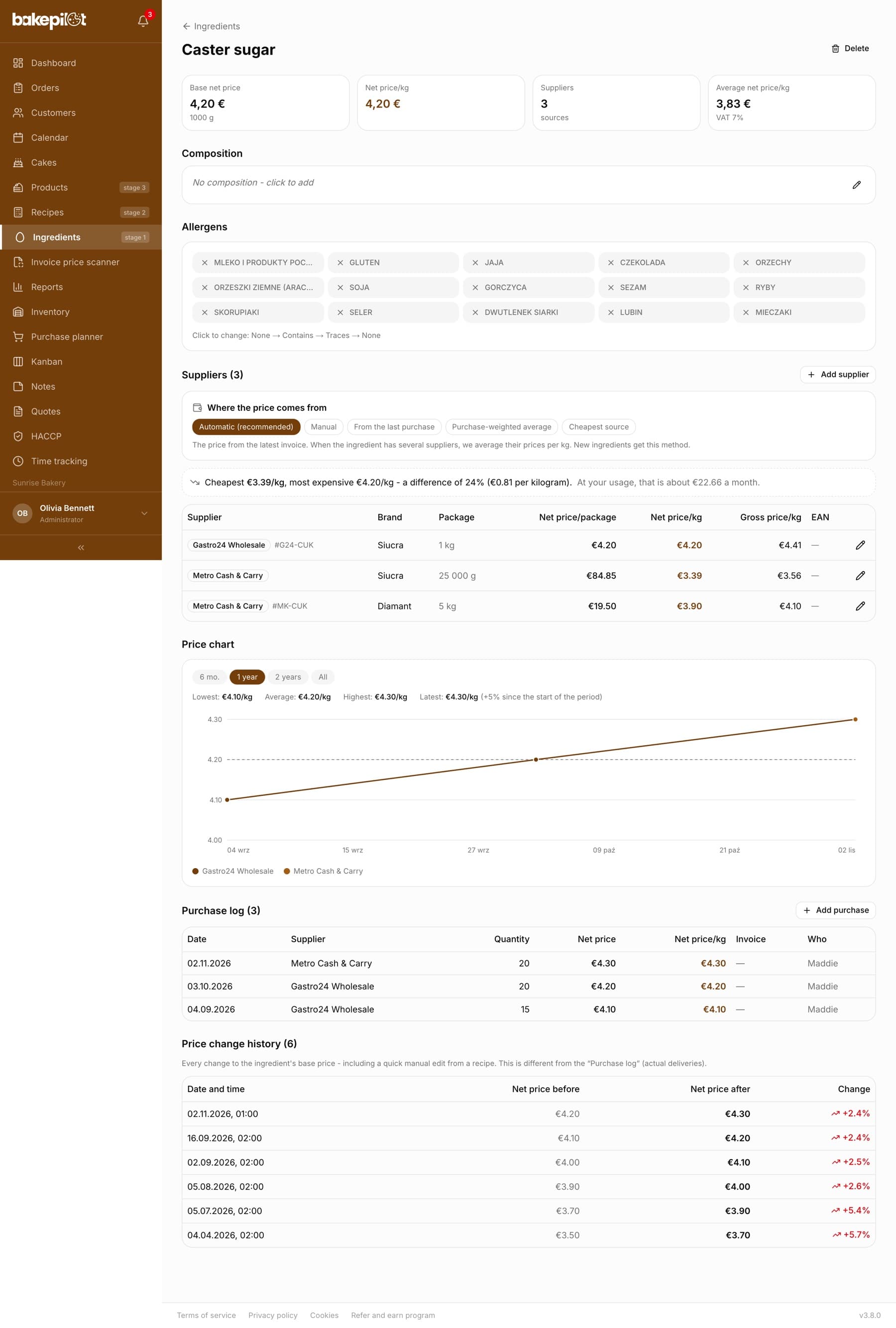
Suppliers and allergens are not in the add form - you set them on the ingredient card. Click “Add supplier” to record who you buy the raw material from, in what package and at what price. Below is the allergen matrix: for each allergen you choose Contains, Traces or None and click “Save allergens”.
- “Add supplier” - the name, package and price at that supplier
- “Units per case” - how many retail packages a case from this wholesaler holds (e.g. 8 blocks of butter)
- The ingredient's list of suppliers with each one's price and the average price per kg
- Allergen matrix: Contains / Traces / None, saved with the “Save allergens” button
- Ingredient allergens feed the generation of the ingredient list and allergens for the product label
The “Add supplier” window
In the window you enter how this supplier sells the raw material: the wholesaler's name, the size of the retail package and the net price. You enter the package weight the same way as in the ingredient form - in the unit selected next to it (“Package wt. (kg)”: a 25 kg sack = 25). A separate “Units per case” field says how many of these packages a case holds - this is information for the invoice price scanner.
- Net price per package - the price of ONE retail package (a block of butter), not of the case
- Package weight - in the unit selected next to it; the price per kg is calculated automatically below the form
- Units per case - the contents of one case (a case of MAKRO butter = 8), not the number of cases bought
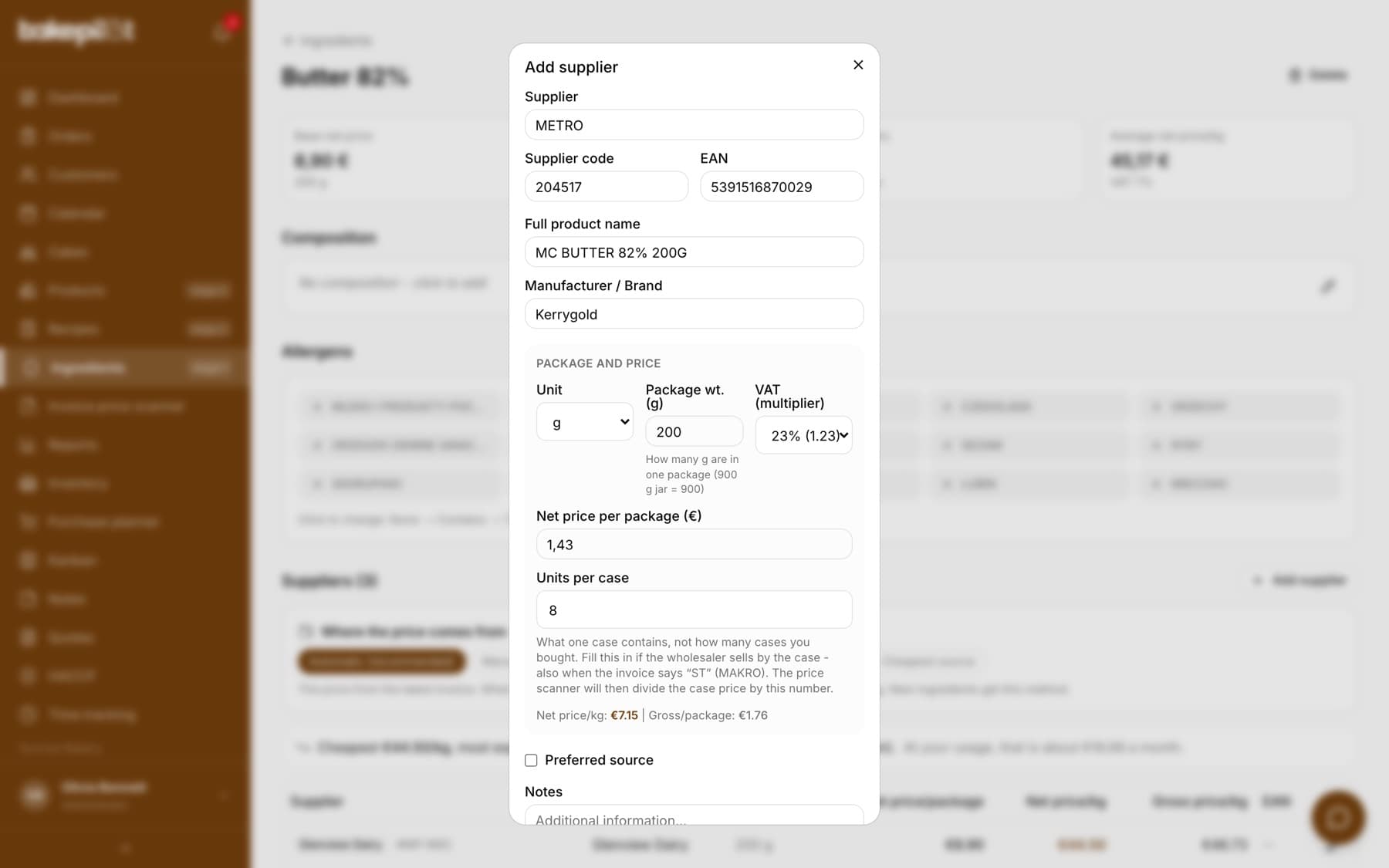
Tip: Fill in the “Units per case” field if the wholesaler sells in cases or shrink packs - also when the invoice says “ST” (as in MAKRO invoices from KSeF). The invoice price scanner will then divide the case price by this number instead of skipping the item. An empty field means “I don't know” and does not break anything apart from the automatic conversion of such invoices.
Where the ingredient price comes from
On the ingredient card, above the list of suppliers, there is a “Where the price comes from” section with pricing methods to choose from. It decides which price goes into recipes, so it is worth setting it deliberately instead of guessing where the number on the screen came from. New ingredients get the “Automatic (recommended)” method.
- “Automatic (recommended)” - the price from the latest invoice, and when the ingredient has several suppliers, the average of their prices per kg
- “Manual” - you enter the price yourself and nothing overwrites it
- “From the last purchase” - the price from the most recent purchase, good for costing new products
- “Purchase-weighted average” - the total amount paid divided by the quantities bought; the fairest food cost when you buy from several suppliers
- “Cheapest source” - the price of the cheapest active supplier, i.e. your cost with optimal purchasing
- All at once: above the ingredient list, “More” → “Automatic pricing” opens the “Automatic pricing for all ingredients” window with the price before and after the change for each ingredient on another method; ingredients with a change of more than 25% are unticked for review (usually a wrong package weight at the supplier), and “Switch selected” changes the method and recalculates prices and recipes (Profesjonalny (Professional) plan); in the same window, “Undo the last switch” restores the previous method and price of each ingredient from the last change
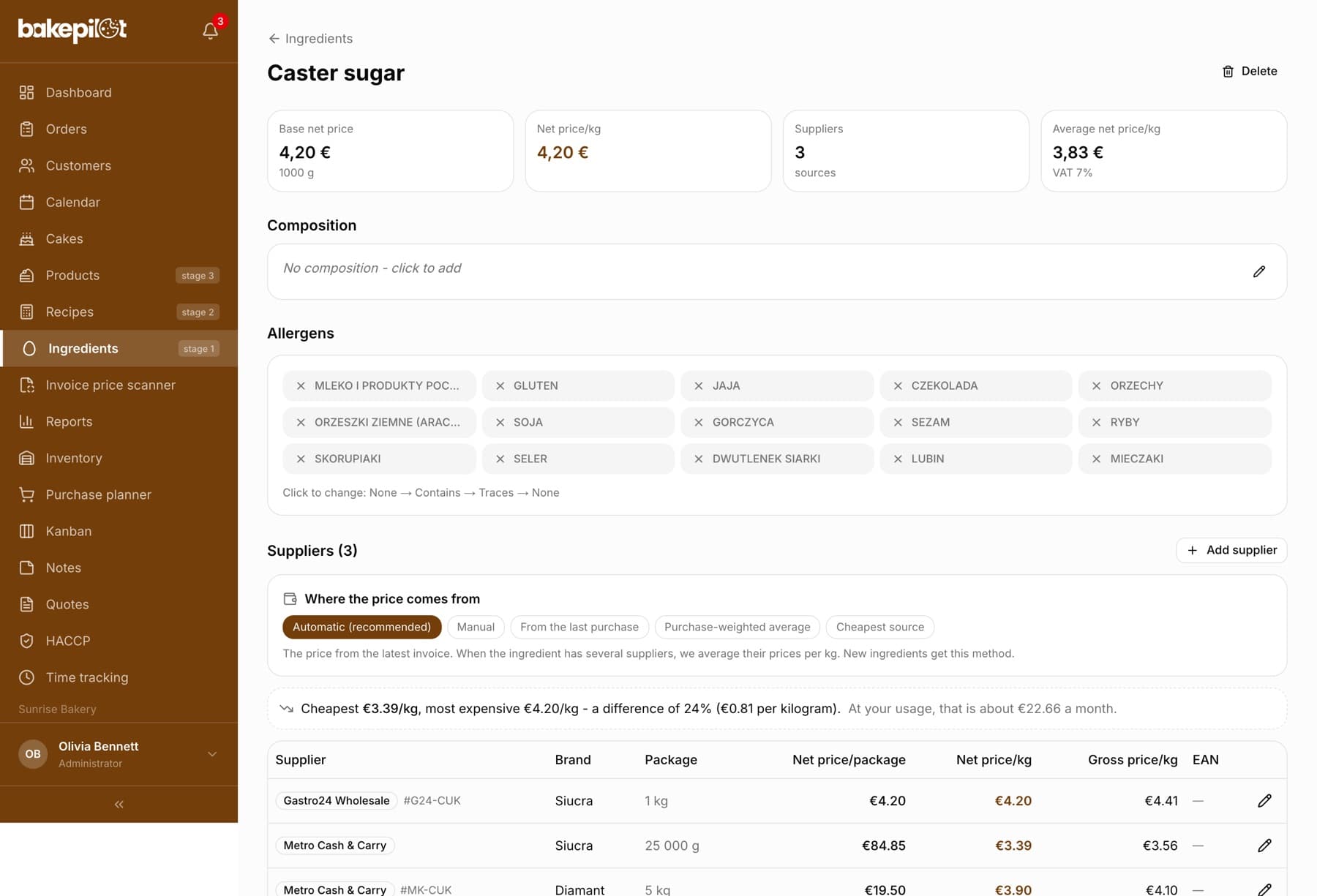
Tip: If the chosen method has no data (no purchases or suppliers), the price stays the same and you will see the message “Method changed - no data to recalculate, the price stays the same”. We do not reset the price to zero, because a free ingredient would silently understate every recipe it is used in.
When the method switches to “Manual” by itself
A price entered manually in the ingredient form is your decision, so the app then switches the method to “Manual”. Without this, the next invoice would replace the amount you entered, and since the ingredient form has no method field, there would be no way to tell that something had changed.
- A new ingredient with a price above zero gets the “Manual” method; one created without a price stays on “Automatic (recommended)”
- Editing an ingredient switches the method only when you change the price of an ingredient priced automatically - correcting the name or nutrition values does not touch the method
- Ingredients created by the invoice price scanner and the list import stay on the automatic method
- You go back to the automatic method with one click in the “Where the price comes from” section
Tip: The change is silent - you will not see a message about it. If after a manual price correction you want updates from invoices, go to the ingredient card and click “Automatic (recommended)”.
Why the automatic method calculates an average
Milk bought sometimes at one wholesaler and sometimes from a local supplier has no single true price. If the recipe were always calculated from the price of the last delivery, its cost would jump after every invoice. That is why the automatic method works in two ways: with one supplier it takes that supplier's price, i.e. the one from the latest invoice, and with several suppliers it averages their prices per kilogram.
- One supplier - the price from the latest invoice (approving the invoice saves it with the supplier)
- Several suppliers - the average of their prices per kg, more stable and closer to what you actually pay
- A supplier without a package weight entered is not included in the average, because without a weight there is no price per kg
- An ingredient without suppliers - the price from the last purchase in the purchase log
Tip: You can change the method at any time - after the change the price is recalculated immediately and you will see “Method changed, price recalculated”. Recipes with this ingredient are then recalculated automatically, without clicking “Recalculate all”.
Supplier comparison and price alert
When an ingredient has several suppliers, we show one line above their list: the cheapest, the most expensive, the percentage difference and how much you lose per kilogram. If you have a purchase history longer than a month, we also add an approximate monthly saving at your usage. The price alert works separately: when the last purchase differs by more than 15% from the average of the previous ones, a note about a price rise or drop appears above the card.
- The price spread is calculated per kilogram, so different packages do not distort the comparison
- Monthly saving only with a history longer than 30 days
- The alert needs at least three purchases - an average cannot be set from two
- The average for comparison is calculated without the last purchase, so that a price rise does not raise the reference point by itself
Updating prices
Update ingredient prices after every delivery. The recipe cost is saved at the moment of recalculation, and this saved value is used by the recipe list, the product card, the variant cost and the recipe prices in the product list. Whether recipes are recalculated automatically depends on how you change the price.
- Recipes with this ingredient (and recipes that contain it in a sub-recipe) are recalculated automatically: after approving an invoice in the price scanner, including an invoice downloaded from KSeF; after adding, editing or deleting a supplier on the ingredient card when the method is “Automatic (recommended)” or “Cheapest source”; after changing the method in the “Where the price comes from” section; after “Switch selected” in the “Automatic pricing” window
- You have to click “Recalculate all” in the recipe list (or “Recalculate” on the card of a single recipe): after changing the price or package weight in the “Edit ingredient” window, after a quick price edit from the recipe card (clicking an ingredient row in the ingredients table) and after an import from Excel or CSV
- The recipe card calculates costs live from current prices, so you see the new price on it immediately. When the saved prices are older, the card shows the message “The saved prices come from an earlier calculation…” - then click “Recalculate”
- Price history with the dates of changes, a price chart and the “Purchase log” - you see every delivery and how the price changed over time
Tip: Example: butter went up from 28,60 to 32.50 PLN per kg. You correct the price of the block in the “Edit ingredient” window - the cheesecake recipe card immediately shows a higher Food cost, but the recipe list and the product card keep the old cost until you click “Recalculate all”. The same change from an invoice in the price scanner recalculates recipes automatically.
Price change history and the purchase log
There are two different overviews on the ingredient card. The “Price change history” is every change to the ingredient's price, saved with a date - you see from when a given price applied. The “Purchase log” is a list of deliveries: what you bought, when and at what price, whether or not the price changed. This shows you which raw material keeps getting more expensive and gives you an argument when talking to a supplier or raising the prices of your own products.
- “Price change history” - every price change saved with a date
- “Purchase log” - individual deliveries with quantity and price
- You can easily spot ingredients that keep getting more expensive
- Historical prices do not change the costs of orders already settled
Tip: The invoice price scanner (Mistrzowski (Master) plan) adds changes to this history automatically after every scanned invoice - you do not have to enter anything manually.
Import, export and the price scanner
In the ingredient list you have three ways to enter data (two imports in the “More” menu): “Import Excel” (an XLSX spreadsheet that merges rows with the same name into one ingredient with several suppliers), “Import CSV” (a simple text file) and “Invoice price scanner” (a photo or PDF of a wholesaler invoice, Mistrzowski (Master) plan). You can also export the ingredient list to a file, e.g. for a stocktake or to compare price lists.
- “Import Excel” - an XLSX spreadsheet with supplier grouping
- “Import CSV” - a simple file with a list of ingredients
- “Invoice price scanner” - updating prices from a photo of an invoice
- Exporting the ingredient list to a file
Frequently asked questions
Can I import ingredients?
Yes. On the Ingredients page click “More” → “Import Excel” and upload an XLSX spreadsheet (e.g. the SKLADNIKI tab from your company calculator). Rows with the same name are merged into one ingredient with several suppliers and an average price. “Import CSV” is also available next to it. Details in the article on importing ingredients from Excel.
Can I see how an ingredient's prices have changed?
Yes. The ingredient card has a “Price change history” with dates - you see from when each price applied and how the raw material got more expensive or cheaper over time. Separately, the “Purchase log” shows every delivery.
Why does an ingredient have a price per kg of 0.00 PLN?
Most often because no package weight has been entered. Fill it in on the ingredient card - the price per kg will be calculated automatically, and the “no price/kg” tag will disappear from the list. Then click “Recalculate all” in the recipe list.
The price per kg of eggs came out at over 100 PLN. What is wrong?
With the “pieces” unit, the price applies to one piece. If you entered the price of a whole tray (e.g. 10 PLN) with the weight of one egg (60 g), the app calculates 10 PLN for 60 g, i.e. 166.67 PLN per kg. Change the price to the price of one egg (e.g. 0.90 PLN), save and click “Recalculate all” in the recipe list.
Related articles
From ingredient to product - how BakePilot calculates cost and profit
Step-by-step guides
Importing ingredients from Excel (XLSX) with supplier grouping
Products
Automatic purchase invoices from KSeF
Purchases
Cost calculator
Products
Stock levels
Inventory
Creating a recipe
Recipes
Stocktake
Inventory
Purchase invoices
Purchases
Invoice price scanner - update prices from a photo of an invoice
Products