
Transfer between warehouses (MM)
A transfer note (MM) moves goods from one warehouse to another: the stock goes down in the source warehouse and up in the target one, and you can print the document.
Last updated:
When it is useful
Production issues goods to the shops, and each shop has its own warehouse (article “Branch warehouse”). A transfer note - MM, the Polish document for moving goods between warehouses - records such an issue in one step: the goods leave the stock of one warehouse and go into the stock of the other, with the number MM/number/year and today's date.
- The feature is part of the Mistrzowski (Master) plan and works when “I have several sales points” is ticked
- By default the Administrator and the Warehouse worker can transfer; you give other roles the “Stock transfer (MM)” permission (Inventory module) in the permission matrix
- MM numbering is shared by the whole company and restarts every year
How to transfer goods
You make the transfer from the warehouse the goods leave.
- Go to “Inventory” and choose the source warehouse on the list (e.g. “Main warehouse”).
- Click “More” (the three-dot icon on a phone) and choose “Transfer”.
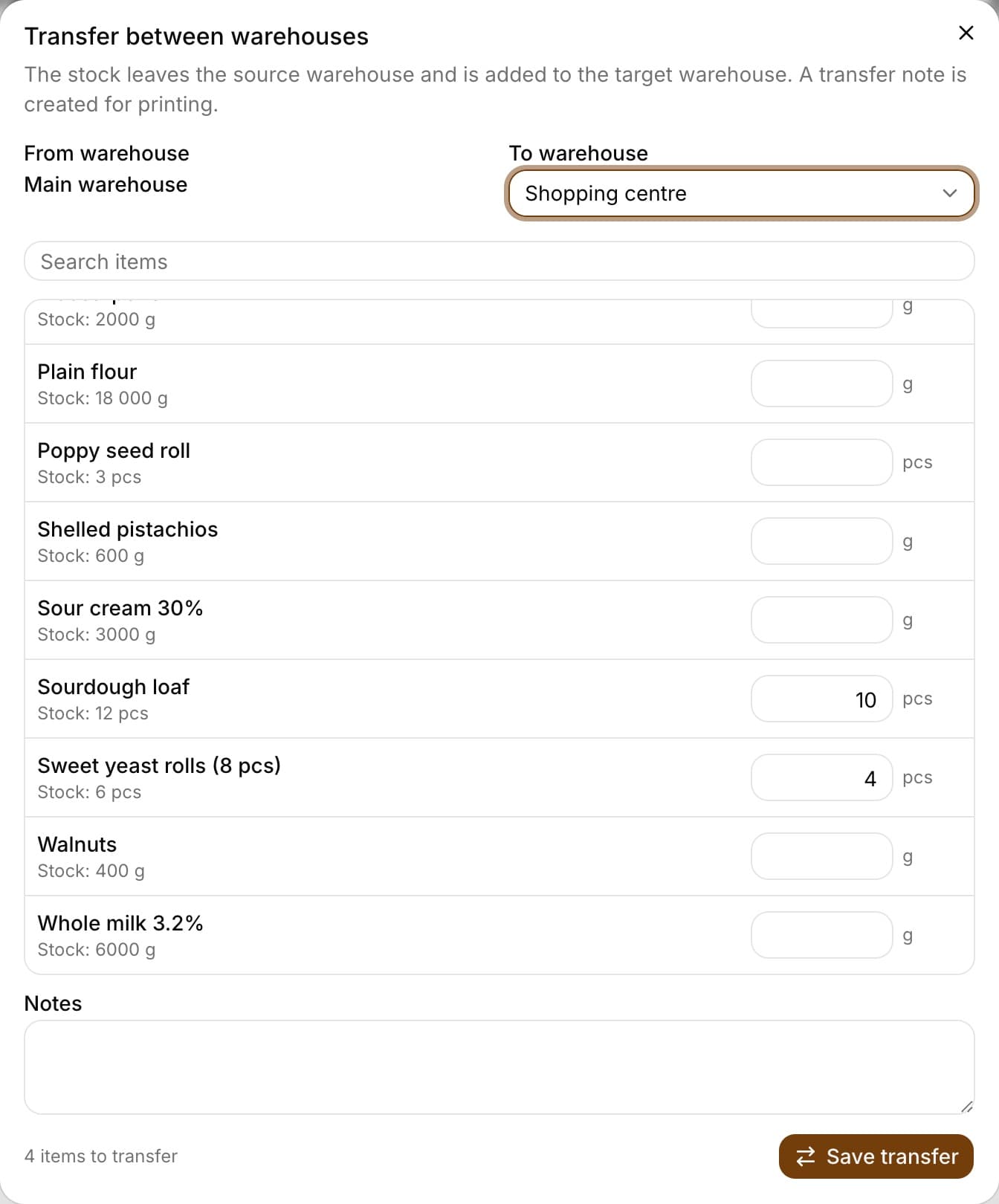
- In the “To warehouse” field, choose the target warehouse.
- Enter the quantity for the items you are moving (comma and dot work the same). Items without a quantity do not go on the document. The smallest quantity is 0,01 - a smaller one cannot be saved on the document.
- Optionally enter “Notes” and click “Save transfer”.
- After saving you will see “Document MM/… saved” with the list of items. “Print transfer note” prints the document.
- The list contains only items of the source warehouse with a stock greater than zero; with many items there is a “Search items” field
- If the target warehouse does not have such an item yet, the app creates it (with the stock from the document and a minimum of 0)
- If the same item has a different unit in the target warehouse, it is skipped and listed below the document - correct the unit and transfer it separately
- In the item history (“Recent adjustments”) you will see “Transfer out …” in the source warehouse and “Transfer in …” in the target one
When goods are short
If you enter more than there is in stock, the window shows the warning “Missing in the source warehouse” before saving, with the quantity that will be transferred. The app transfers as much as there is (the source stock drops to zero) and records the shortage on the document.
- When there are shortages, the printout shows a requested quantity column next to the issued one
- On the “Transfer notes” list a document with shortages has the note “Shortages on issue”
- If all items are short, no document is created
Issuing to a branch from an order
On the card of an order that has a branch (article “Branch orders”) there is an “Issue to branch” button. It opens the same window: from the main warehouse to the order's branch, with the quantities from the order.
- The window shows the products from the order that have an item in the main warehouse; the same product in several order lines is one line with the total quantity
- You can change the quantities before saving
- Issued documents are shown next to the button (“Issued: MM/…”), and the printout says which order number it was issued for
Transfer notes and printing
“Transfer notes” (the “More” menu in the Inventory module) shows the 50 most recent transfers from and to the selected warehouse: number, date, direction, number of items, order and author. “Print” prints the document again, with your company details, the source and target warehouse and signature lines for the person issuing and the person receiving the goods.
- A document cannot be changed or deleted - you fix a mistake with a transfer in the opposite direction or a stock adjustment
- The printout is in Polish, whatever the interface language
Staff assigned to a branch
A staff member assigned to branches (article “Staff assigned to branches”) transfers goods only TO their branches - from the main warehouse or from another of their branches. Example: the manager of the Galeria shop can transfer goods from the main warehouse to Galeria. She cannot transfer from Galeria to the main warehouse, nor from the main warehouse to the Centralna shop.
- Otherwise they can only view the main warehouse - the “Transfer” item in the “More” menu is there so they can receive a delivery from production into their branch
- On the “Transfer notes” list they see only documents that involve one of their branches
- The administrator and staff with access to all branches can transfer in any direction
Frequently asked questions
I do not see “Transfer” in the “More” menu. Why?
The button is visible on the Mistrzowski plan, with “I have several sales points” ticked, for a role with the “Stock transfer (MM)” permission, and when there is somewhere to transfer to from the selected warehouse. A staff member assigned to one branch has the button only in the main warehouse, because they transfer goods to themselves, not away from themselves.
What happens if I click “Save transfer” twice or the connection drops?
Repeating the save from the same window returns the same document - a second MM with the same items will not be created.