
Creating a recipe
Product recipes - ingredients, quantities, batch weight and portions.
Last updated:
Recipe list and tabs
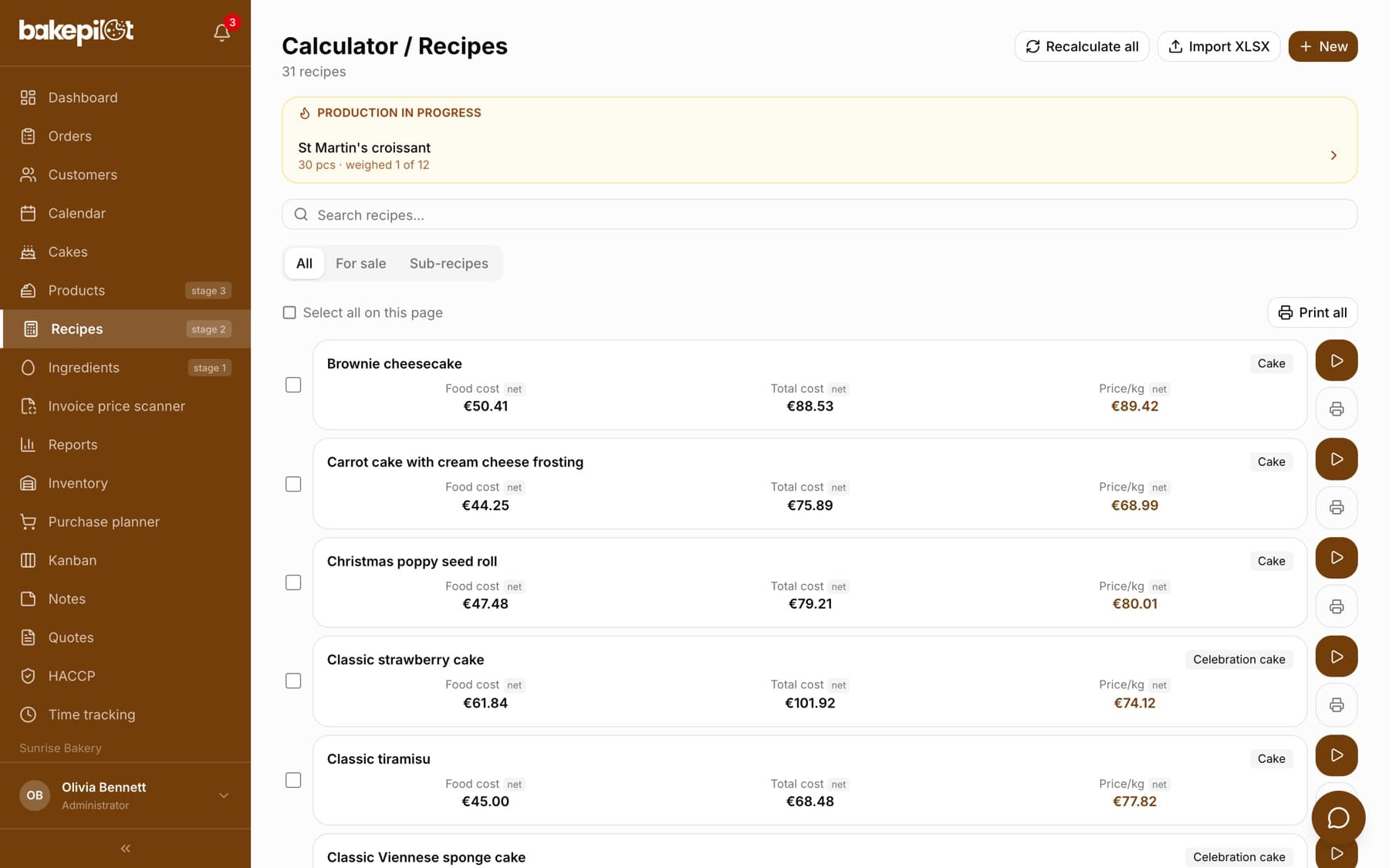
The Recipes module (stage 2 in the menu) opens the “Calculator / Recipes” list with a recipe counter. Each recipe is a card with its category and three amounts: “Food cost” (raw materials), “Total cost” (the full production cost, KCP in the Polish version) and “Price/kg”. Clicking a card opens the recipe card with the cost calculator. Recipes are available from the Profesjonalny (Professional) plan.
- The “Search recipes...” field narrows the list by name and short name
- Tabs: “All”, “For sale” (recipes in any category except Sub-recipe) and “Sub-recipes” (recipes in the “Sub-recipe” category, e.g. cream, sponge)
- You set the recipe category, including “Sub-recipe”, in the “Category” field of the recipe form
- The checkbox on a card and “Select all on this page” are for printing selected recipes; “Print all” prints the whole list (see the article on printing recipes)
- The button with the play arrow on a card starts production from the recipe (Mistrzowski (Master) plan), and the “Production in progress” box above the list takes you to a production that is still running
- At the top: “Recalculate all”, “Import XLSX” and “New” (new recipe)
What a recipe is
A recipe is a formula: a list of ingredients with quantities, the batch weight and the number of pieces or portions. BakePilot uses recipes for two things: (1) automatically calculating the product cost from current ingredient prices, (2) generating the ingredient list and allergens for the label.
- Ingredient list (from the ingredient database)
- Quantity of each ingredient (in grams or in packages)
- Batch weight and number of pieces or portions
- Equipment (oven and mixer power × time) or the “Overhead” mode with an amount of fixed costs
- Sub-recipes - cream, sponge or icing made separately are saved as a separate recipe in the “Sub-recipe” category and added to the final recipe with the “Add a sub-recipe (another recipe)...” field (details in the article “Sub-recipes in recipes”)
Tip: Before you start a recipe, check ingredient prices on the ingredient list: the “Net price/kg” column should look like a wholesaler's price. Eggs at 166 PLN per kg or butter at 3 PLN per kg mean the price and the package weight do not refer to the same package - the recipe will then calculate the wrong cost.
The recipe form in four steps
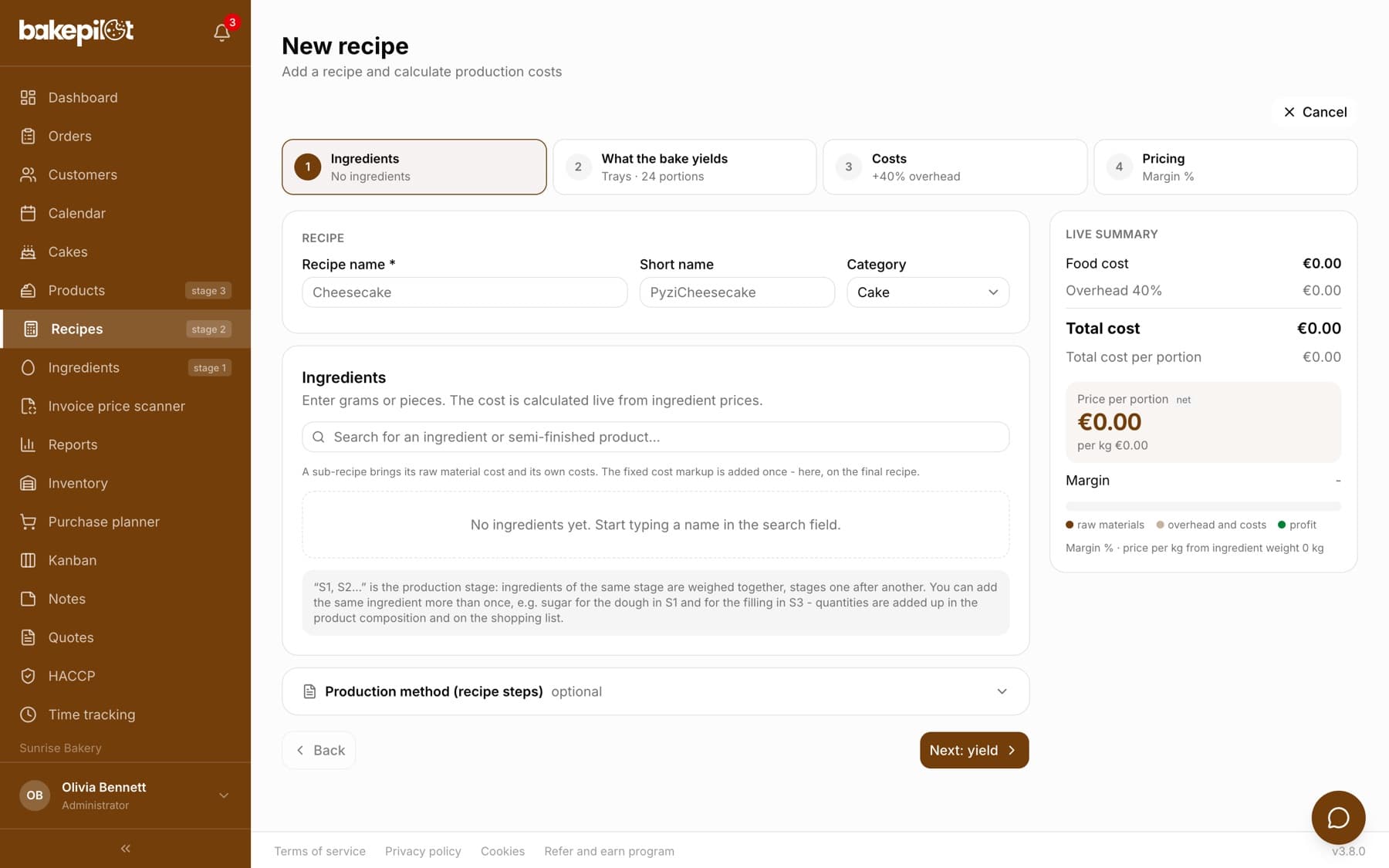
A new recipe and editing an existing one take four steps: “Ingredients”, “What the bake yields”, “Costs” and “Pricing”. You switch steps with the buttons at the top or with “Back” and “Next”. Next to them (on a phone, in the bar at the bottom of the screen) you always see a live summary: food cost, total cost, the price per piece or per kg and the margin. These figures are the same calculations that the recipe card saves.
- “Ingredients” - name, short name, category, ingredients with stages, grams or pieces and the cost of each line; this is also where you add a sub-recipe and the production method
- “What the bake yields” - trays, pieces or kilograms, the number of pieces or portions and the batch weight in kg. Entering grams in the kilogram field (e.g. 4495) shows the hint “Yes, change to 4.495 kg”
- “Costs” - the fixed cost markup from Settings is added automatically, and the advanced section holds equipment or overhead plus packaging, transport, cleaning and water
- “Pricing” - the pricing method as three large tiles (“Margin %”, “Price per piece”, “Price per kg”), with the result below: price, margin, markup and profit
- A marker on each step shows whether the step is ready or needs attention (e.g. a batch weight that does not match the ingredients)
- When an ingredient has no price, the summary warns that the total cost is understated and that the price and margin are uncertain
- When editing, “Save changes” is available on every step; a new recipe is saved with the button on the last step
Adding ingredients
In the “Ingredients” section, search for a raw material in the database and enter the amount in grams or in packages - the two fields convert into each other. You enter amounts for the whole batch. BakePilot calculates: ingredient price per kg / 1000 × grams = ingredient cost in the recipe.
- Ingredient search with autocomplete
- You pick ingredients from the database - if a raw material is missing, add it in the Ingredients module first
- Amount in grams or in packages/pieces - converted automatically
- You can add the same ingredient several times, each with its own stage - e.g. sugar for the dough in “S1” and for the filling in “S3”, just like in a recipe on paper. In the product's ingredient list, on the shopping list and when deducting from inventory the amounts are added up
- Copy a whole recipe with the “Duplicate” button - handy for flavor variants
Tip: If your recipes are in Excel, first create all the ingredients (with prices), then create the recipes. The other way round you will keep going back to add ingredients.
Batch weight and number of portions
Below the “The batch yields” tiles you enter the weight of what the recipe actually produces and the number of portions or pieces. The field labels change with the mode: “Tray weight (kg)” and “Portions per batch” for trays, “Batch weight (kg)” and “Pieces per batch” for pieces, and just the weight for kilograms. From these figures BakePilot calculates the cost and the price per tray, piece or kilogram.
- Batch weight - the whole batch from the recipe, not one piece; always in kilograms (2.7, not 2700). A weight above 200 kg looks like grams, so the form shows the warning “This looks like grams. The field is in kilograms…”, because an inflated weight lowers the price per kg, and with a fixed price per kg it raises the price per tray and per piece
- Next to the weight field there is an “i” icon with the hint “What to enter as bake weight?”
- Portions per batch / Pieces per batch - how many slices or pieces you divide the batch into
- A new recipe starts with an empty weight field - the app does not fill anything in, you enter the weight yourself
- An empty weight field is fine - the price per kg is then calculated from the ingredient weight (with no baking loss), and the recipe card reminds you of this; once you know the weight after baking, enter it
- A weight that does not match the ingredients - less than 60% or more than 105% of their weight, e.g. 3 kg with 10 kg of ingredients - is not used either: the price per kg is then calculated from the ingredient weight, and the recipe card and form show the warning “The batch weight of X kg does not match the ingredient weight of Y kg”
- The same weight is used for the price of a whole tray with the “Price per kg” pricing method (price per kg × tray weight), the cost per kilogram when a tray is sold by weight in an order, the estimated profit in an order and the nutrition values “per 100 g” on the label - a weight that does not match the ingredients is replaced everywhere by the ingredient weight
- Older recipes may have a weight of 3 kg, which the form used to fill in by itself when the field was left empty. If it does not match the ingredients, it is ignored like any other mismatched weight and the card shows a warning - correct it or clear the field
- The cost per piece and per kilogram is calculated automatically
Tip: Example: a cheesecake recipe produces a tray that weighs 4 kg 495 g after baking. In the “Tray weight (kg)” field enter 4.495, not 4495. An entry of 4495 means four and a half tonnes - the form warns “This looks like grams”, and even if you ignored the warning, the weight does not match the ingredients and the price per kg is calculated from the ingredient weight.
The batch yields - trays, pieces or kilograms
Every recipe has a “The batch yields” setting that says what unit you count the finished product in. Trays - the bakery classic: the calculator shows prices for a whole, 3/4, half and quarter tray and per slice. Pieces - for items such as blueberry buns, doughnuts or bread sold by the piece: you enter how many pieces come out of one batch, and BakePilot calculates the cost and price per piece. Kilograms - for bakes sold by weight: the cost and price per kg are calculated. The setting also changes the available pricing methods and what you see on the product card.
- Trays - prices for a whole / 3/4 / half / quarter tray and a slice
- Pieces - cost and price per piece, e.g. 40 blueberry buns or loaves per batch
- Kilograms - cost and price per kg for bakes sold by weight
- Existing recipes stay in tray mode - nothing changes until you switch
- With the “Price per piece” or “Price per kg” pricing method you enter the selling price in the “Net” or “Gross” field - the other one is calculated automatically. The VAT rate is taken from the product the recipe is linked to (as on an invoice: the rate of the default variant, 8% without a variant). A recipe without a product has only the “Net” field. The net price is saved, on the same basis as the total cost. A VAT-exempt company has a single selling price field
Tip: The tile you choose narrows the list in the “Pricing method” field: with “Pieces” you are left with “Margin %” and “Price per piece”, with “Kilograms” with “Margin %” and “Price per kg”. If the current pricing method is no longer available after you change the tile, the system goes back to “Margin %” - check that field after switching.
What you see on the recipe card
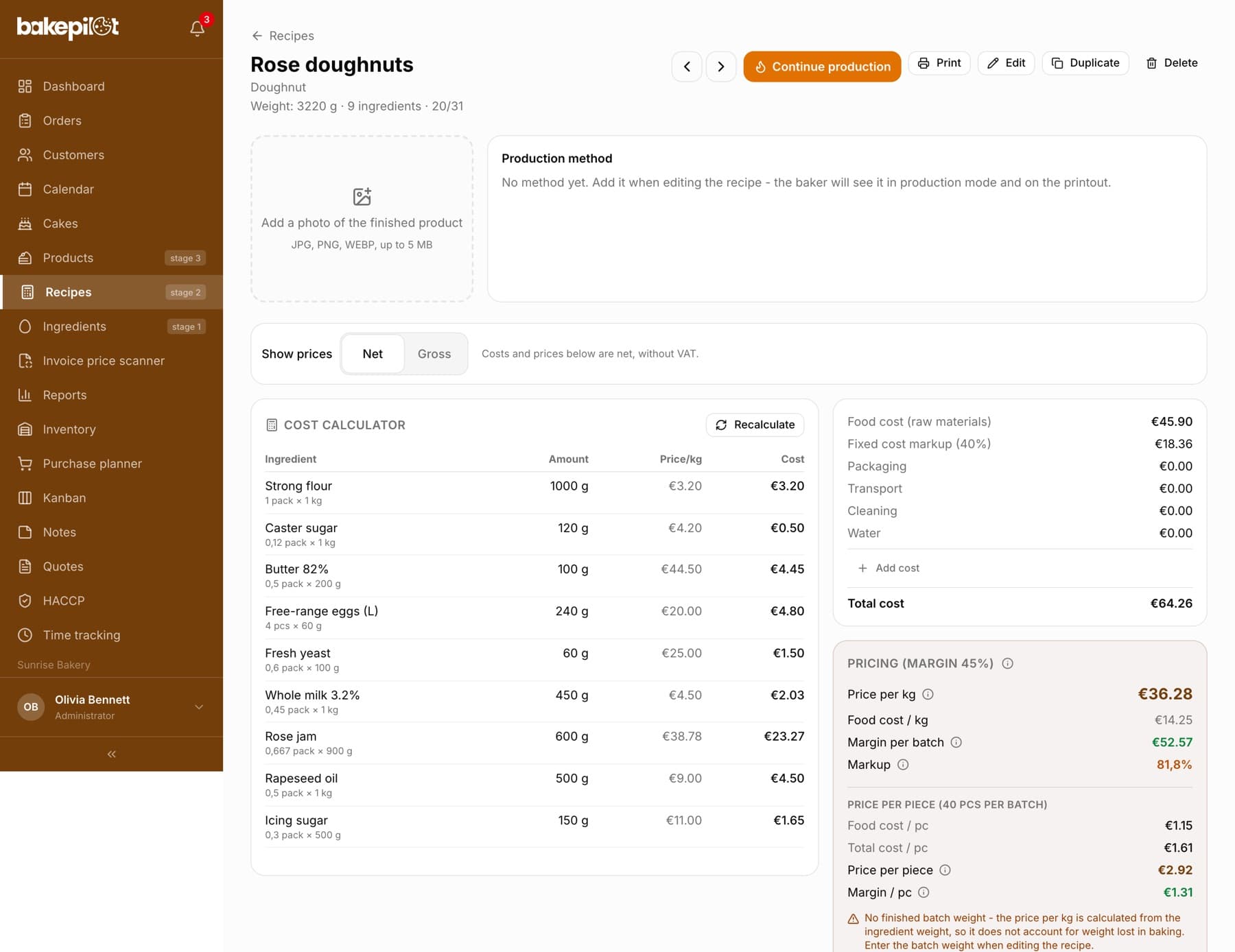
You open the card by clicking a recipe on the list. Read it from the top: action buttons, photo and description, the price switch, and below it the cost calculator and pricing. The prices in the “Pricing” block are suggested selling prices calculated from the recipe costs and your target margin - they do not change the product price on the menu, which you set separately on the product card. The “i” icon next to each line shows the formula with your figures.
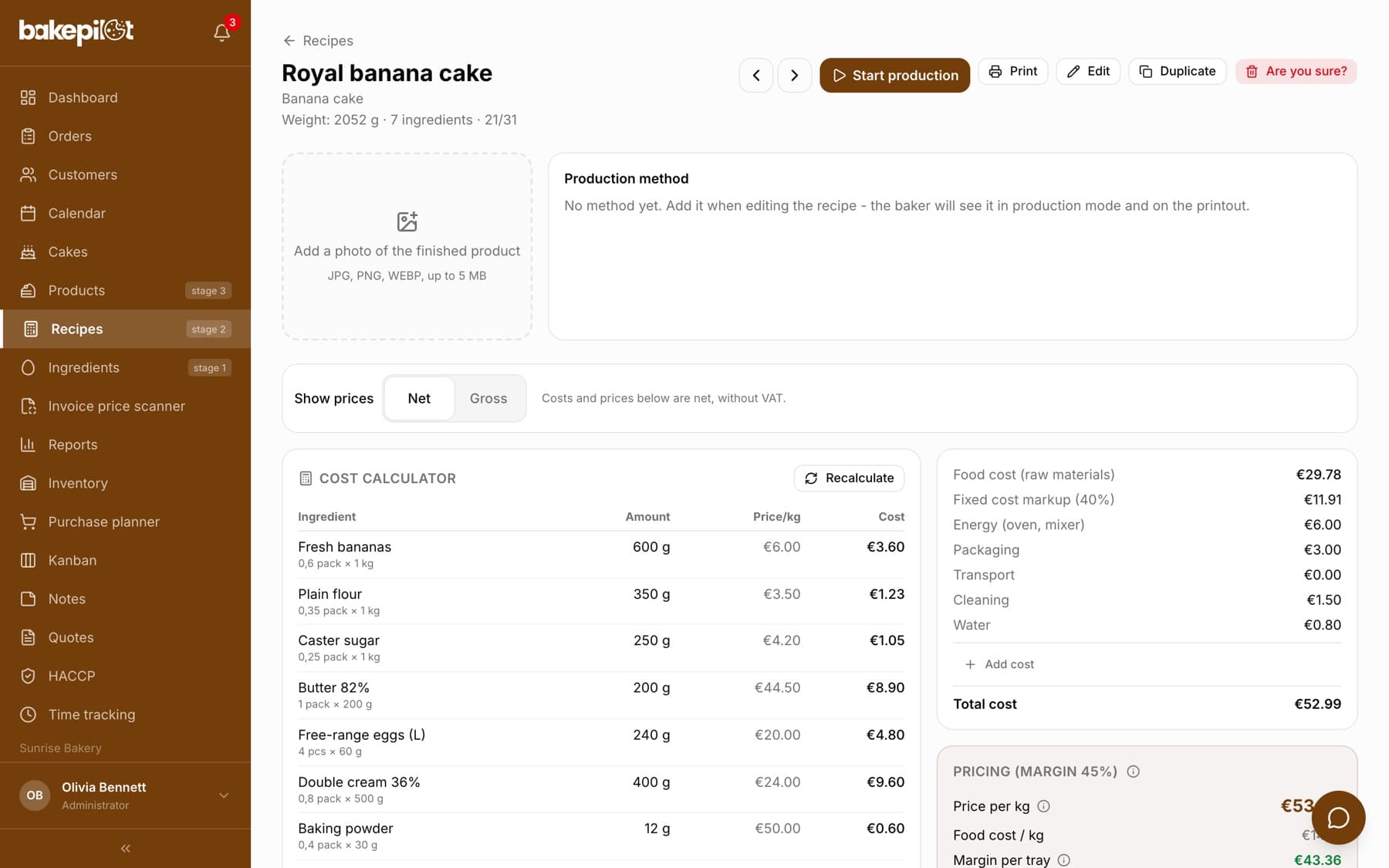
- At the top: “Start production” (Mistrzowski (Master) plan), “Print”, “Edit”, “Duplicate” and “Delete”, plus arrows to the previous and next recipe
- Below the title: a photo of the finished product (“Add a photo of the finished product”) and the “Production method” block with the recipe steps from the recipe edit form
- Below the photo and description: the “Show prices” bar with the “Net” and “Gross” buttons and one sentence saying on what basis the amounts below are shown (details in the point below)
- “Cost calculator”: the ingredient table with amount, price per kg and cost, next to it “Food cost (raw materials)”, “Fixed cost markup (X%)”, “Energy (oven, mixer)”, additional costs and “Total cost”
- “Pricing (margin X%)” (or “Pricing (fixed price …)”): “Price per kg”, “Margin per batch” or “Margin per tray”, “Markup” and “Price per piece (N pcs per batch)”
- Food cost (raw materials) - the sum of ingredient costs
- Total cost - raw materials plus markup, energy and additional costs
- Price of the whole batch = total cost ÷ (1 − margin), price per kg = that amount ÷ batch weight after baking, price per piece = that amount ÷ number of pieces - baking loss does not reduce the margin
- When the batch weight is not entered or does not match the ingredients, the price per kg is calculated from the ingredient weight and the card warns about it
- When the saved prices differ from those based on current costs, the card shows a message - click “Recalculate”
- When the “Price per piece” or “Price per kg” pricing method is on but no price is entered, the card warns and calculates from the margin
- The “Show prices” bar: “Net” by default, with the sentence “Costs and prices below are net, without VAT.” After you click “Gross”, raw materials get the VAT of their own rates, while prices from the recipe stay net (“Sales prices from the recipe stay net, because the product has the sales VAT rate.”); margin and profit are always net. Amounts in the calculator have no separate markers - that one sentence describes the basis
- A VAT-exempt company (Settings > Organization, the “Company VAT status” field) sees the caption “VAT exempt: ingredient costs include VAT, sales prices without VAT.” instead of the switch
Tip: You set the fixed cost markup once for the whole company: Settings > Organization, the “Cost calculation” section, the “Fixed cost markup (%)” field. You can add your own cost line with the “Add cost” button on the recipe card.
Editing, duplicating and deleting a recipe
You change a recipe with the “Edit” button on its card. The same form as for creating opens: name, category, “The batch yields”, weight and portions, ingredients, sub-recipes, production method, equipment and pricing method. After “Save changes” the recipe costs are recalculated automatically.
- On the recipe list, click the recipe card
- Click “Edit”, correct the form and click “Save changes”
- To make a similar recipe, click “Duplicate” - a copy is created with “(copy)” added to the name, and its edit form opens with the message “Copy created - adjust it and save”
- Changing a recipe changes the cost of all products and variants that use it
- “Delete” takes two clicks: the first turns the button into “Are you sure?”, the second deletes the recipe together with its ingredient list; clicking elsewhere cancels
- A recipe used in a product or as a sub-recipe in another recipe cannot be deleted: “The recipe is used elsewhere (e.g. in a product or as a sub-recipe in another recipe) - first remove that link”
- A recipe that has an inventory item (a sub-recipe in stock) cannot be deleted either: “The recipe has an inventory item (sub-recipe) - first remove that item from the inventory”
- By default, the administrator and the baker can edit, anyone who can create recipes can duplicate, and only the administrator can delete
Recalculate all
A recipe's cost is saved at the moment it is recalculated - when the recipe is saved and after you click “Recalculate”. Some price changes recalculate recipes by themselves: approving an invoice in the price scanner (including from KSeF, Poland's National e-Invoicing System), changing a supplier with the “Automatic (recommended)” or “Cheapest source” method, changing an ingredient's pricing method and “Automatic pricing”. After a manual price change in the ingredient window, a quick price edit from the recipe card, an ingredient import from a file and a change of the fixed cost markup, the saved costs stay as they were until you recalculate them. “Recalculate all” on the recipe list recalculates every recipe in your company at once from current ingredient prices and the markup.
- Go to the recipe list
- Click “Recalculate all” - the button shows “Recalculating...”
- After a moment you will see the result “Recalculated X/Y recipes”
- If the number recalculated is lower than the total, some recipes could not be recalculated - open such a recipe and try “Recalculate” on its card
- You recalculate a single recipe with the “Recalculate” button in the “Cost calculator” block on its card
- By default, only the administrator sees the button

Importing recipes from Excel
Recipes you have kept in Excel so far can be uploaded with the “Import XLSX” button on the recipe list. The file has a main sheet with the list of recipes (row = one recipe), and the ingredients with quantities are either in the columns of that sheet (column header = ingredient name) or on separate sheets named after the product. Import is part of the Profesjonalny (Professional) plan and is done by the administrator by default.
- First create all the raw materials used in your recipes in the ingredient database - the import matches ingredients by name and skips the ones it does not know
- On the recipe list, click “Import XLSX”, choose the file and click “Next”
- Select the “Main sheet with the product list” and check the “Column mapping”: “Product name”, “Short name”, “Type (Ciasto/Tort/Drobny)”, “Weight (kg)”, “Number of pieces” (set a column with no match to “-- do not map --”); a data preview is shown below
- Click “Import” - the result shows the number of imported and recalculated recipes and the “Imported:” list
- The system matches the other sheets to recipes by name - the window shows how many ingredient sheets were matched
- Ingredients that are not in the database go to “Notes” as “Ingredients not found (N): …” - add them in the Ingredients module and complete the recipes manually
- Imported recipes immediately get a cost calculated from current ingredient prices
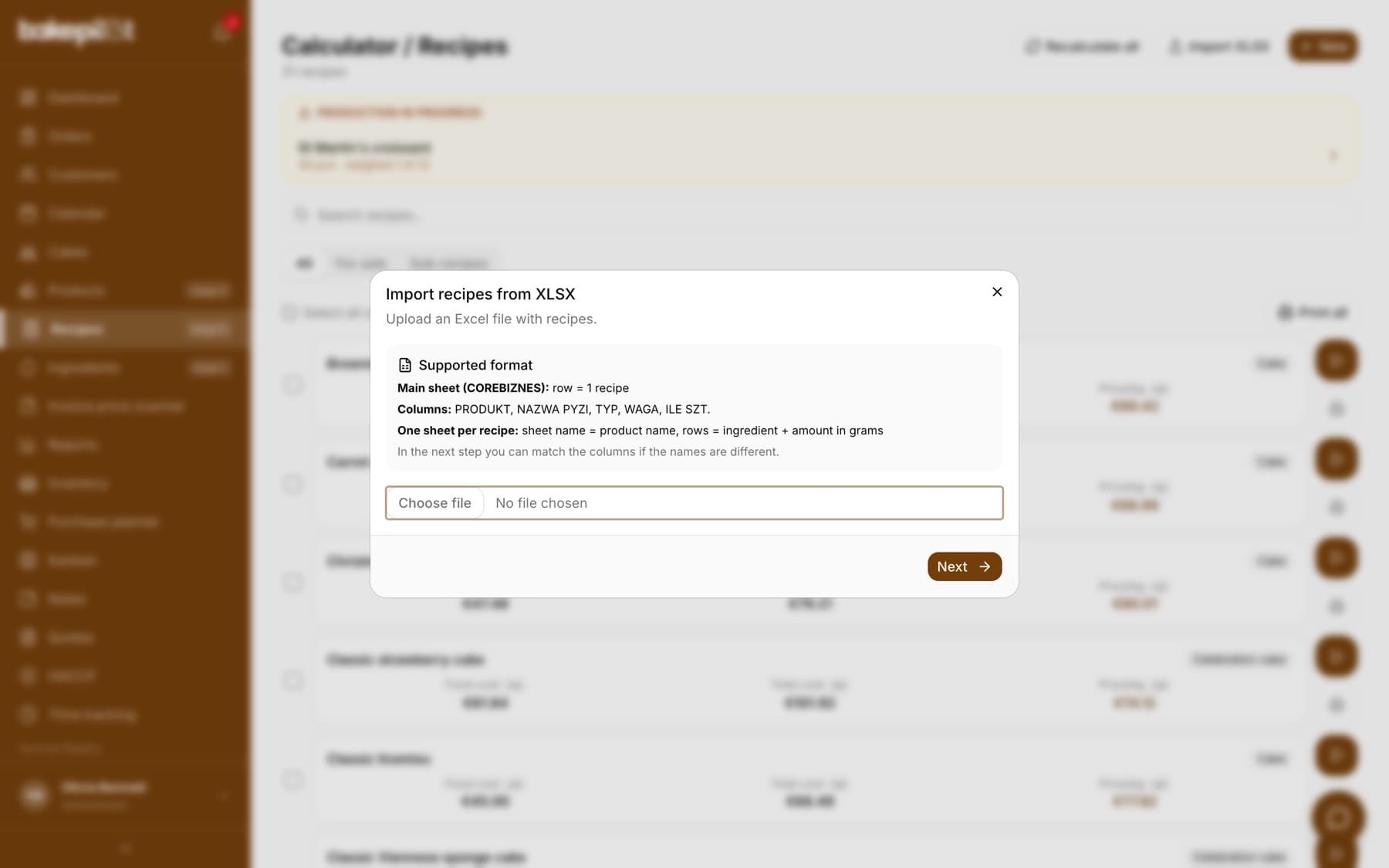
Tip: The format template (the COREBIZNES sheet, columns PRODUKT, NAZWA PYZI, TYP, WAGA, ILE SZT.) comes from a Polish bakery's own costing spreadsheet. If your columns are named differently, that is fine - you match them in the “Column mapping” step.
Linking to a product
In the product window you choose in the “Recipe” field which recipe the product is made from. The product card then shows the cost breakdown of the whole batch (Food cost, Total cost) and pricing based on your margin. The cost of what you actually sell is calculated by the variant: in it you enter how much of the recipe it uses (“use 1 of 40”), and BakePilot multiplies the recipe cost by that share.
- A product points to one recipe for the cost breakdown and the label, but each variant can have several recipes at once (sponge + cream + glaze)
- A recipe can be used by many products (flavor variants)
- After a manual change of ingredient prices, click “Recalculate all” on the recipe list - the product card and the variant cost use the saved recipe cost
Tip: For a product with variants (e.g. a cake for 10/15/20 portions) you link the same recipe to each variant with a different usage: “use 10 of 20”, “use 15 of 20”, “use 20 of 20”.
Food cost - per kilogram and per piece
BakePilot shows food cost (raw material cost) in two ways: per kilogram of finished product and per piece / portion. This matters because you price some products by weight (celebration cakes, cakes sold by the slice) and others by the piece (doughnuts, cream puffs, macarons). For every recipe you see both values together with the margin, so you know straight away whether the selling price holds up.
- Food cost per kg - for products sold by weight
- Food cost per piece / portion - for products sold by the piece
- Margin calculated automatically from the product's selling price
- You refresh both values with the “Recalculate” button on the recipe card or “Recalculate all” on the list
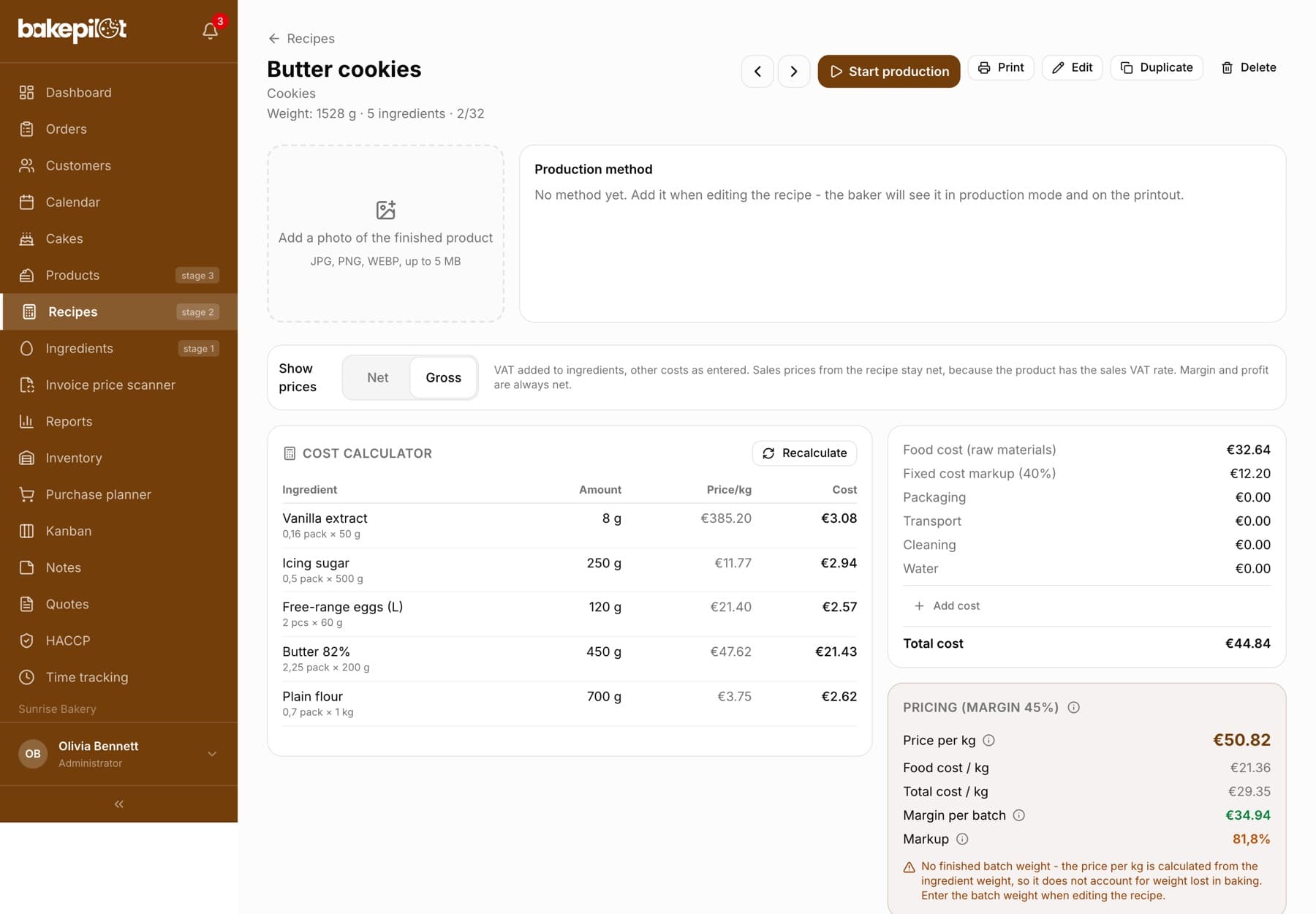
Tip: For small items (doughnuts, cookies) look at the food cost per piece - “per kg” can look alarming for light products, while the real cost of one piece is low.
Frequently asked questions
Can I have recipes without a linked product?
Yes - these are sub-recipes: cream, sponge, icing. You add them to another recipe with the “Add a sub-recipe (another recipe)...” field in the recipe form, or link them to a product variant together with the main recipe (the variant cost is then the sum of all its recipes). In the recipe edit form choose the “Sub-recipe” category, and on the recipe list you will find them in the “Sub-recipes” tab.
What if an ingredient price changes?
Correct the price in the ingredient window (or faster: click its row in the ingredient table on the recipe card), then go to the recipe list and click “Recalculate all” - all recipes and product costs are recalculated at once. The recipe card shows the new price straight away, because it calculates costs live. Prices approved from the invoice price scanner recalculate recipes by themselves.
What do I enter as the batch weight if I don't know it?
You can leave the field empty - the price per kg is then calculated from the ingredient weight, and the recipe card reminds you of this. Once you weigh the finished batch, enter its weight in kilograms: the whole batch from the recipe, not one piece (4.495, not 4495).