
Cost calculator
The real production cost and margin on the product card - from the recipe and current ingredient prices.
Last updated:
How does the calculator work?
The calculator links a product with a recipe, and the recipe with ingredients. In the recipe you enter how much of each ingredient the whole bake uses - a tray, 40 pieces or 2,4 kg. BakePilot calculates the cost from the current ingredient prices in your database and shows it on the product card. The result is the real production cost - not a rough estimate.
- You enter ingredients with quantities in the recipe, for the whole bake
- Automatic cost calculation from current prices
- Cost per piece or portion - in “Pieces” and “Trays” mode; in “Kilograms” mode the cost and price per kilogram
- Margin: what you keep on each product - you see it on the product card
- Results matched to the recipe's “The batch yields” setting: trays, pieces or kilograms
Where you enter ingredients
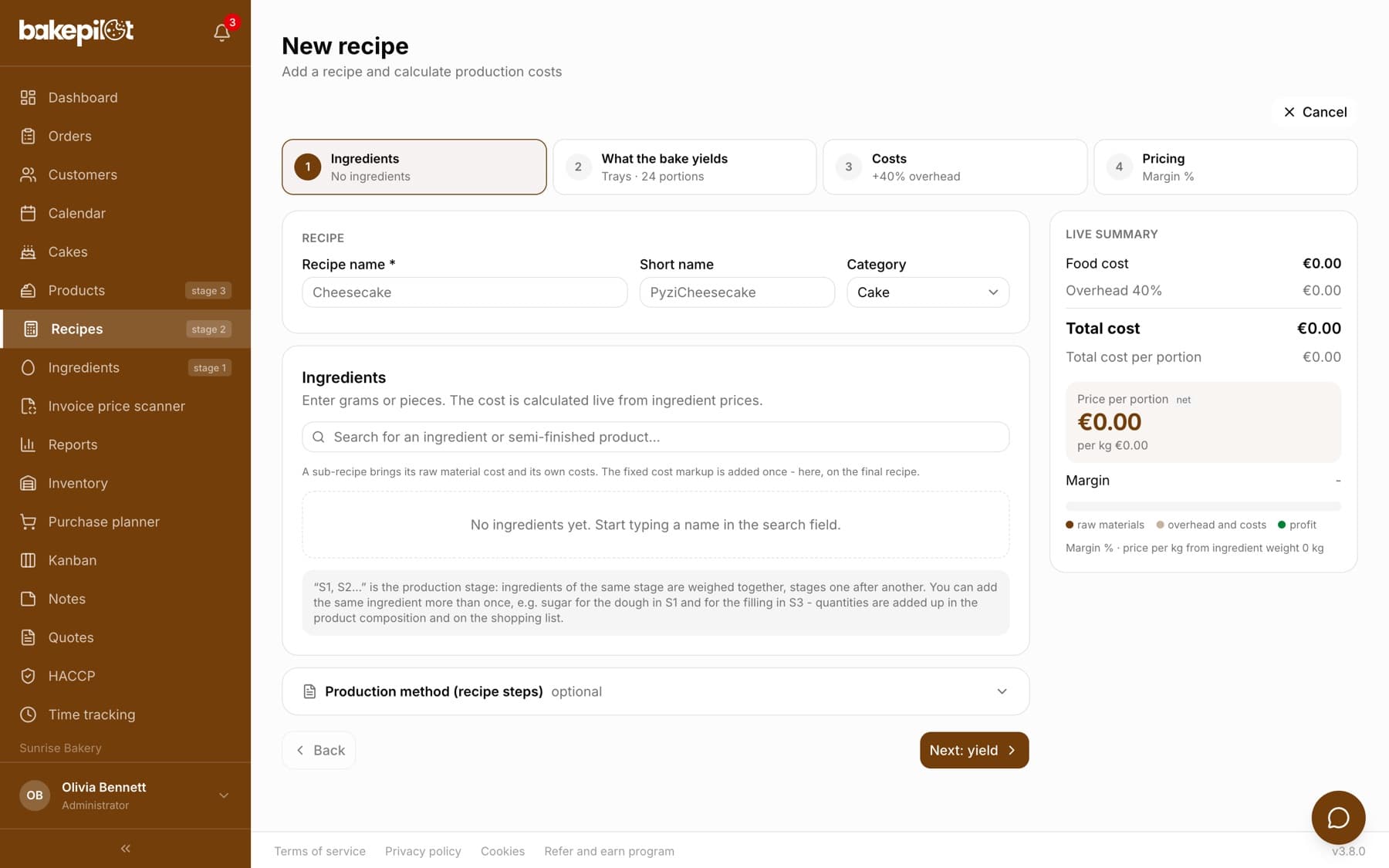
You do not assign ingredients to a product - you assign them to a recipe. In the Recipes module open a recipe, in the “Ingredients” section search for the ingredient and enter the quantity in grams or in packages (the two fields convert into each other). You enter quantities for the whole bake, not for one piece. You link the product with a finished recipe in the “Recipe” field in the product window.
- Ingredient search in the recipe form
- Quantity in grams or in packages/pieces - converted automatically
- Quantities for the whole bake from the recipe
- You link the product with the recipe in the “Recipe” field
Tip: Update ingredient prices after every delivery - then the calculator shows real costs, not those from six months ago. Prices approved in the invoice price scanner recalculate recipes automatically; after a manual price correction in the ingredient window or after an import from a file, click “Recalculate all” in the recipe list.
Where you see the margin
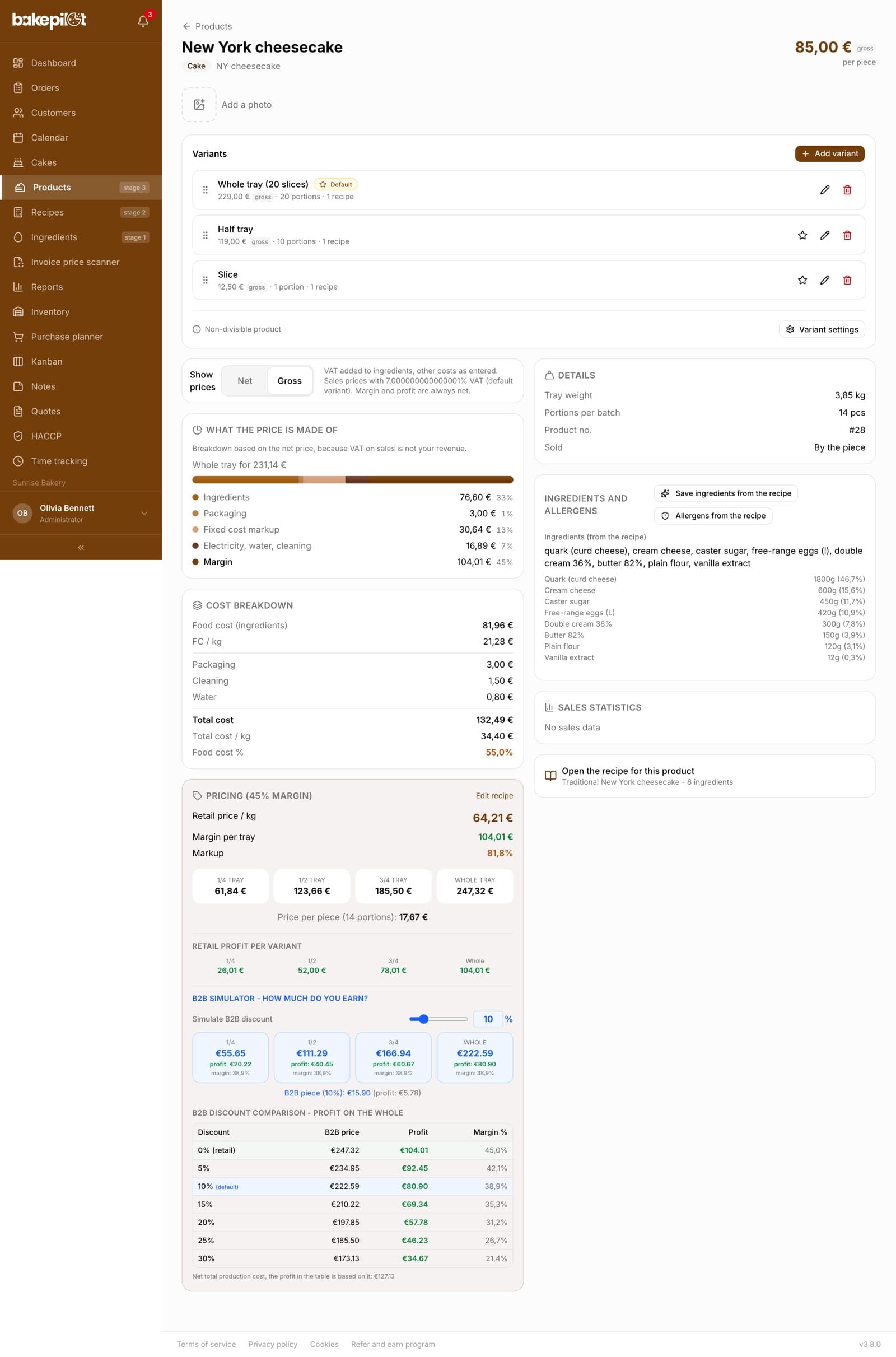
The margin is not in the product list - the list shows prices: the “Price / kg” column and, for tray recipes, the “Whole tray”, “Half tray”, “Quarter (1/4)”, “3/4 tray” and “Avg. / piece” columns (you choose the visible columns with the “Columns” button). You see the margin and costs on the card of a specific product: click the product in the list and choose “See more”. In the left column, below the variants, there are in turn: the “Show prices” bar, “What the price is made of”, “Cost breakdown” and the pricing block.
- “What the price is made of” - a bar with the parts “Ingredients”, “Packaging”, “Fixed cost markup”, “Electricity, water, cleaning” and “Margin” in the price of a whole tray or bake
- “Cost breakdown”: Food cost (ingredients), FC / kg (FC stands for food cost, i.e. the cost of ingredients), Total cost, Total cost / kg, Food cost %
- Pricing: “Retail price / kg”, “Margin per tray” or “Margin per bake”, “Markup” as a percentage
- “Retail profit per variant”: what you keep on 1/4, 1/2, 3/4 and a whole tray (tray recipes)
- “B2B simulator - how much do you earn?” (tray recipes): a “Simulate B2B discount” slider from 0 to 50% and a “B2B discount comparison - profit on the whole” table for 0% and 5-30%; a product with a fixed B2B price shows information about that price instead of the slider
- In the product list prices have a “net” or “gross” tag - hover over it to see where it comes from
Net or gross: the company's VAT status
You enter the ingredient price net or gross - the app saves the net price and calculates the other amount from the ingredient's VAT rate. Whether costs and margins are calculated net or gross depends on your company's VAT status. You set it once, and on the recipe card and the product card, above the costs, a bar tells you in one sentence what basis the amounts below are in.
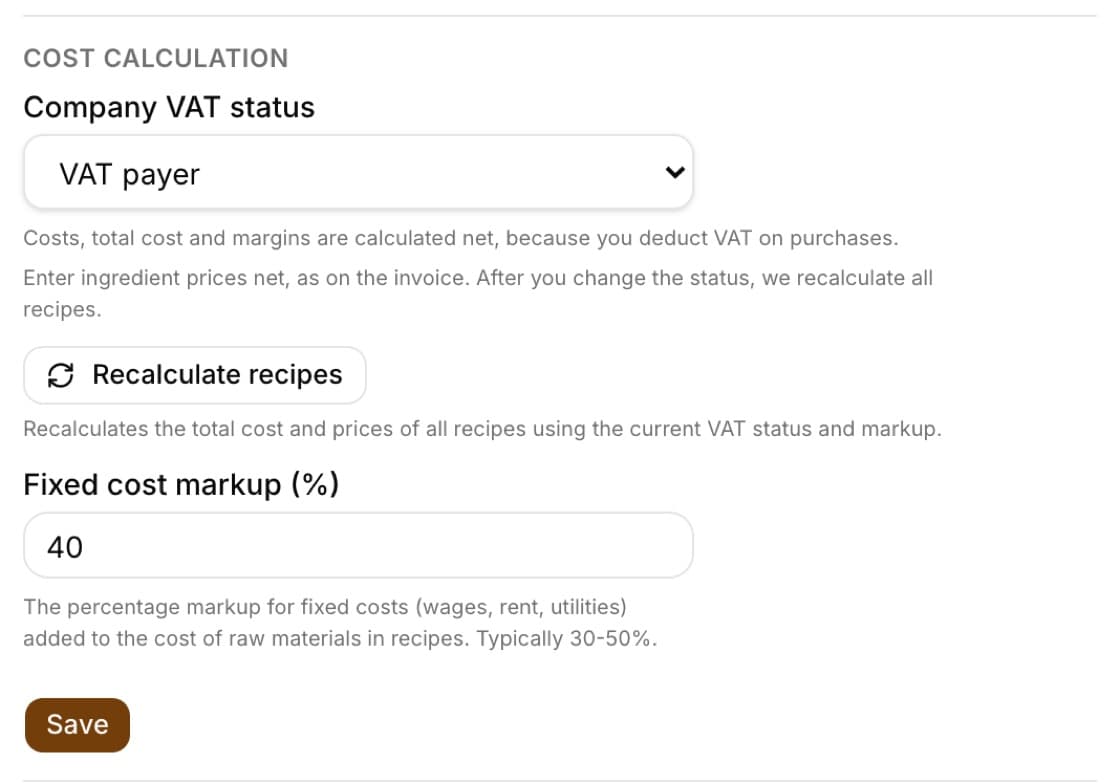
- Open Settings, the “Organization” card, and scroll to the “Cost calculation” section
- In the “Company VAT status” field choose “VAT payer” or “VAT exempt” - below the field you will see what this changes in the costs
- Click “Save” at the bottom of the card - the recipes are recalculated automatically, and a message tells you how many were recalculated
- If you see the yellow warning “In the invoice settings the company is marked as …”, also check the “VAT payer” field in the invoice settings - it is a separate setting that controls invoices, and the app does not change it for you
- “VAT payer” (default) - Food cost, Total cost, prices from the recipe, the margin and the estimated profit in the order are net, because you deduct VAT on purchases
- “VAT exempt” - we add VAT only to the ingredients (the ingredient's net price plus its VAT rate), because VAT on purchases is your cost; the bar says: “VAT exempt: ingredient costs include VAT, sales prices without VAT.”
- For a VAT-exempt business the fixed cost markup is calculated on the net ingredient cost, and the other costs (packaging, energy, your own items) as you entered them
- The ingredient's VAT rate: the “VAT rate (%)” field in the ingredient window (when adding or editing, as a percentage, e.g. 23), and when it is empty (0) - the rate of the preferred supplier
- After a status change all recipes are recalculated automatically, and a message tells you how many were recalculated; if the recalculation fails, the same section has a “Recalculate recipes” button (on every plan)
- For an active VAT payer, the estimated profit in the order is calculated from the net value of the item - the same value that would go onto an invoice from the order (a price list and promotion with their own net, a variant with its own rate, 8% without this data)
Tip: Enter the price set in the recipe (“Selling price per kg” or “per piece”) on the same basis as the Total cost - net for an active VAT payer. A gross price entered next to net costs inflates the margin by the VAT.
The “Show prices: Net | Gross” switch
An active VAT payer has a “Show prices” switch with “Net” and “Gross” buttons. It only changes what you see on the screen - saved costs, recipe prices and margins stay the same. It lets you check the cost of ingredients including VAT, i.e. what you actually spend at the wholesaler, without working it out in your head. A VAT-exempt business does not have the switch, only the caption “VAT exempt: ingredient costs include VAT, sales prices without VAT.”
- On the recipe card scroll below the photo and the “Production method” - the switch is right above the “Cost calculator”. On the product card it is in the left column below the variants, above the “What the price is made of” bar
- Click “Gross” - the amounts below are recalculated immediately, and a sentence appears next to the switch saying what includes VAT and what does not
- Click “Net” to go back (default view: “Costs and prices below are net, without VAT.”). The browser remembers your choice, so the view stays the same when you go from the recipe to the product
- “Gross” adds VAT to the ingredients: each ingredient at its own VAT rate (an exempt or 0% ingredient unchanged) - in the ingredients table, in the Food cost and in the Food cost per kg and per piece
- The other costs (energy, packaging, transport, your own costs) and the fixed cost markup stay as you entered them, so the gross Total cost = ingredients incl. VAT + the rest
- On the recipe card the sales prices from the recipe stay net - the recipe has no sales VAT rate, the product does. The sentence next to the switch says so
- On the product card the sales prices (pricing, tray tiles, B2B simulator) are gross at the VAT rate of the default variant - the same rate the invoice from the order uses; a product without a variant and a product from the configurator get 8%, as on the invoice (you set a different one in the variant), and a variant with the “zw” (exempt) or “np” (not subject to VAT) rate has sales prices equal to net
- The price in the product card header and the variant prices have their own “gross” or “net” tag according to the “The price is” field in the variant - the switch does not change them
- The B2B simulator calculates profit from net: it divides the product's fixed B2B price (entered gross) by the same VAT rate; for a VAT-exempt business the whole price is revenue
- The percentage margin is the same in both views, and the profit stays a net amount - VAT on sales is not your revenue. The sentence “Margin and profit are always net.” next to the switch says so, and under the B2B simulator table there is the line “Net total production cost, the profit in the table is based on it: …” (the Total cost in the “Cost breakdown” next to it then has ingredients incl. VAT, which is why the amounts differ)
- In the “Gross” view the amounts have no “net” tags - the basis is described by one sentence next to the switch
- The “What the price is made of” bar is always calculated from the net price (in the “Gross” view the sentence “Breakdown based on the net price, because VAT on sales is not your revenue.” says so)
Tip: You set the sales VAT rate in the product variant, in the “VAT” field. Fresh baked goods and cakes usually have 5% or 8% - check with your accountant.
Variant cost and special cases
The cost of what you actually sell is calculated by the product variant - separately for each one. In the variant window you link recipes and enter the usage (“use 1 of 40”), and at the bottom you see “Variant cost (sum of recipes × multipliers)”. A few situations worth knowing before you decide the result is wrong:
- Variant cost = the sum of recipe costs multiplied by the usage, calculated separately for each variant
- A product without a recipe shows “No linked recipe…” on its card instead of the cost breakdown
- An ingredient with a package weight of 0 counts as free - in the ingredient list it has a “no price/kg” tag
Frequently asked questions
Does the calculator include labor costs?
There is no separate field for an hourly rate. Labor and running costs come in through the “Fixed cost markup (%)” from the organization Settings, added to every recipe, and through the “Overhead” mode in the recipe, where you enter the amount of fixed costs for that recipe. You can also add your own item with the “Add cost” button on the recipe card.
Are the Total cost and food cost net or gross?
It depends on the VAT status in Settings (the “Organization” card, the “Company VAT status” field). An active VAT payer sees costs, recipe prices and margins net. A VAT-exempt business sees the food cost gross, because VAT on purchases is its cost, and the Total cost with the “ingredients gross” tag - VAT is added only to the ingredients, and the markup is calculated on the net ingredient cost. In both cases you enter ingredient prices net, as on the invoice.
How do I see costs and prices including VAT?
An active VAT payer switches the view with the “Show prices: Net | Gross” switch above the costs on the recipe or product card. In the “Gross” view the ingredients include VAT at their own rates, the prices on the product card use the rate of the default variant (8% without a variant, as on the invoice), and the percentage margin and profit are still calculated from net. The saved data does not change.
What if an ingredient price changes?
It depends on how you change the price. Approving an invoice in the price scanner, changing a supplier with the automatic method or changing the pricing method recalculates the recipes with that ingredient automatically. After a manual correction in the “Edit ingredient” window or after an import from a file, click “Recalculate all” in the recipe list - the costs of recipes and products are updated at once. You recalculate a single recipe with the “Recalculate” button on its card.