
Finished products and sub-recipes in inventory
Stock of finished products and sub-recipes next to ingredients: variants, adding items, issuing from orders with reservation and balance, receipt from production and valuation at production cost.
Last updated:
What you can keep in stock
Besides ingredients, the inventory keeps two more item types. A “Finished product” is a product from the product list, e.g. blueberry buns or an apple pie. A “Sub-recipe” is a recipe you prepare in advance and use later, e.g. a custard cream or a shortcrust dough. Both item types have the same set of fields as an ingredient: stock, minimum, expiry date, packaging and notes, and they also appear in “Low stock” and on the dashboard.
- A product with several variants (e.g. “Chocolate ice cream”: small pan, large pan, tub) has a separate item for each variant, e.g. “Chocolate ice cream · large pan”; a product with one variant or without variants has one item
- One product (or variant) and one recipe can have only one item in a given warehouse
- You view the items on the “Finished products” and “Sub-recipes” tabs or under “All”
Tip: Finished products and sub-recipes in inventory are part of the Mistrzowski (Master) plan. Everyone with access to inventory sees the tabs, and people with the “Add” permission in the Inventory module can add items - by default the administrator and the warehouse worker.
Adding a finished product or a sub-recipe
You add finished products and sub-recipes manually in the same window as ingredients, or all at once with the “Import from products” button in the “More” menu. The list shows only active products (variants) and recipes that are not in the inventory yet - when all of them are there, the field shows “All items of this type are already in the inventory”.
- Go to “Inventory” and click “Add”
- In the “Item type” field, choose “Finished product” or “Sub-recipe”
- Choose the “Product” or the “Sub-recipe” - recipes already used in other recipes are at the top of the list, in the “Used as a sub-recipe” group, the rest in the “Other recipes” group
- Check the “Unit” - the recipe suggests it - and enter the “Initial stock” and “Min. level”
- Click “Add to inventory”
Tip: You change the stock of finished products and sub-recipes the same way as for ingredients: with the “-” and “+” buttons, the “Adjust” window or a stocktake, plus receipt from production (described below). Every change goes into “Recent adjustments” for the item.
Import from products
When you have many products, you do not have to add them one by one. “More” > “Import from products” adds to the warehouse you are viewing all active products that are not there yet, with a stock of 0 pcs. A product with several variants is added as separate variant items. Then you enter the stock with the “-” and “+” buttons or a stocktake.
- Clicking again does not duplicate anything - only new products and variants are added
- Items are created in pieces (“pcs”) - that is how orders are counted
- The button is visible to people with the “Add” permission in the Inventory module on the Mistrzowski plan
Issuing finished products from orders: reservation and balance
The inventory can take finished products off stock when an order is handed over. You turn this on in “More” > “Issuing from orders”: tick “Take finished goods off stock on “Handed over”” and choose the “Issuing warehouse” (the main warehouse or a branch warehouse, e.g. “Central Production”). From then on, an order set to “Handed over” takes its quantities off stock, and in this warehouse the finished products show the “Reserved” column (ordered, not handed over yet) and the “Available” column (stock minus reservation).
- Go to “Inventory”, open “More” and click “Issuing from orders”
- Tick “Take finished goods off stock on “Handed over””
- Choose the “Issuing warehouse” and click “Save”
- Add the finished products with the “Import from products” button and enter the stock
- The reservation is confirmed, in-production and ready orders - from the app and from the ordering portal (once accepted)
- “Handed over” takes the order quantity off stock, down to zero at most - a lack of goods does not block the hand-over
- Reverting the hand-over or cancelling a handed-over order returns exactly what was taken off
- In “Recent adjustments” the entry reads “Order no. … handed over” or “Order no. … hand-over reverted”
- Only items counted in pieces are taken off; items sold by weight, trays and items from the cake configurator stay unchanged
- A product that is not in the issuing warehouse is not taken off and has no reservation
- An item marked “Done” on the production board does not count toward the reservation and is not taken off on hand-over - it was made separately for that order
- Receipt from production (production list, finishing a production) goes to the item of the whole product, not the variant - you change variant stock manually or with a stocktake
- After adding or deleting a product variant, click “Import from products” again; deleting a variant also deletes its inventory item
- The setting is changed by the administrator (the “Edit company” permission), on the Mistrzowski plan; without it the finished goods inventory works as before
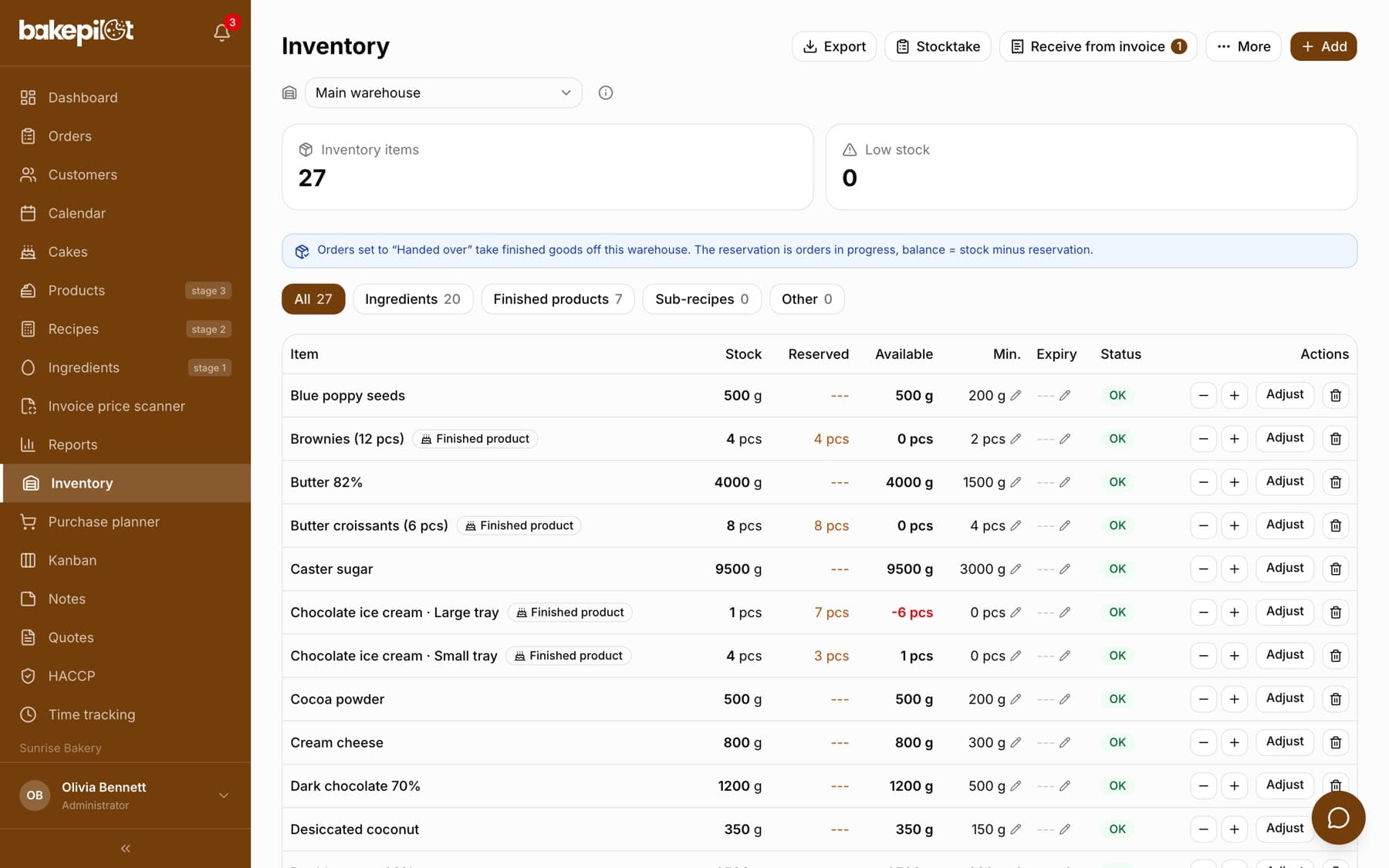
Tip: The production board then shows shortages in red next to order lines, e.g. “-1” before the product name, and a customer in the portal gets a message when they order more than you have - without revealing how much you have in stock.
Receipt from production
The stock of a finished product or sub-recipe does not have to go up manually. When you finish a production from a recipe (“Finish production” in weighing mode), the “Finish production?” panel has an “Into inventory” section. Tick “Receive what came out into inventory”, check the item and the quantity in the “Came out” field and click “Finish” - the ingredient usage and the product receipt are saved together, in one step.
- In weighing mode, click “Finish production”
- In the “Into inventory” section, tick “Receive what came out into inventory” - when the item is already in the inventory, the box is ticked straight away
- When the recipe makes several products, choose one, e.g. “Finished product: Blueberry bun”; a recipe used in other recipes also has the option “Sub-recipe: {name}”
- Correct “Came out” if more or less came out than the recipe says (e.g. loss during baking)
- Click “Finish”
- “Came out” suggests the production size in the item's unit: 40 blueberry buns × 2,5 batches = 100 pcs; a sub-recipe in kg is calculated from the batch weight; without a batch weight the field is empty and you have to fill it in
- When the item is not in the inventory yet, you will see “This item is not in inventory yet - we will add it when you finish.” - it will be created in the unit suggested by the recipe
- In the item history (“Recent adjustments”) the entry “Received from production: {recipe}” leads to the finished production, and the ingredients used have the entry “Production: {recipe}”
- The production list on the Kanban board (“Prod.”) receives the product into an existing product item kept in pieces; reducing “Prod.” or deleting the entry (“Delete entry”) takes the product off and returns the ingredients to stock
- When there was less in stock than was used, the item goes down to zero, and the message after finishing (and on the production list) says how much was missing, e.g. “Wheat flour (1,2 kg short)”
Tip: The “Into inventory” section is part of the Mistrzowski plan and is visible to anyone who can finish a production - by default the administrator and the baker.
A sub-recipe in stock during production
When a sub-recipe has an inventory item, production takes the sub-recipe itself off stock, not its ingredients. Example: a cake has 300 g of cream in its recipe, and the cream is in the inventory - after finishing the cake production, 0,3 kg is taken off the “Cream” item, while the dairy cream and sugar from the cream recipe stay untouched, because they were already taken off when the cream was made. A sub-recipe without an inventory item is taken off as before - as its ingredients. The same rule applies at every level, also when the cream itself contains another sub-recipe.
- Works when finishing a production from a recipe (the weighed amount of the sub-recipe) and on the production list on the Kanban board (the recipe quantity for the pieces produced)
- Grams are converted to the item's unit: kg directly, pieces via the weight of one piece from the sub-recipe (batch weight divided by the number of pieces)
- A sub-recipe kept in a unit that cannot be converted from grams is not taken off stock - the message after finishing lists it under “Skipped”
- When there is less of the sub-recipe in stock than was used, the item goes down to zero, and its ingredients are not deducted in its place
- The purchase planner shows the sub-recipes from the plan that you have in stock (“Sub-recipes from this plan are in stock: …”), but it still counts the requirements for their ingredients in full - it is only information so you can buy less
Stock unit
The item's unit follows from what the recipe yields (the “The batch yields” field in the recipe). The hint is shown below the picker: “Unit suggested from the recipe yield.”. You can change the unit when adding, but the valuation depends on it - see below.
- A product from a recipe in pieces - “pcs”, in kilograms - “kg”, in trays - “tray”
- A product without an assigned recipe - “pcs”
- A sub-recipe from a recipe in pieces with a batch weight - “pcs”; any other sub-recipe - “kg”
- Stock can be fractional, e.g. 0,5 tray or 1,25 kg of cream
Valuation at production cost
The value of finished products and sub-recipes is calculated from the recipe cost, not the selling price. Finished product: the cost of the whole recipe divided by what it yields - a recipe for 40 blueberry buns costing 80 PLN gives 2 PLN per piece. Sub-recipe: the cost of the raw materials and the recipe's own costs (electricity, water, cleaning, additional costs) per gram, without the fixed cost markup - that is added once, in the recipe of the finished product, just like in the cost calculator.
- The valuation is shown in the stock export (“Export”: “CSV (Excel)”, “XLSX (Excel)” and “PDF (print)”), not in the inventory table
- Finished products and sub-recipes have no VAT - the VAT and gross columns stay empty for them
- No valuation instead of zero when: the product has no recipe, the recipe has no calculated cost or yield (number of pieces, batch weight), the item's unit does not match the recipe (e.g. a product from a recipe in pieces kept in kg), or a sub-recipe in pieces has no batch weight and number of pieces
- An item without a valuation is not included in the total value; when the inventory has more than one item type, the export also shows a total for each type
Recipes and products with an inventory item
A recipe that has a sub-recipe item in the inventory cannot be deleted - you will see the message “The recipe has an inventory item (sub-recipe) - first remove that item from the inventory”. Delete the item first (the trash icon in the inventory table, two clicks), then the recipe. A product you archive stays in the inventory with an “Inactive product” badge, so that the stock still sitting on the shelf does not disappear.