
Shift schedule
Building the weekly schedule and copying it to the next week.
Last updated:
Building the schedule
On the “Schedule” tab you see the whole week: employees in rows, days from Monday to Sunday in columns. You change the week with the arrows next to the date range. You add a shift with the plus in the cell for that day, and you edit an existing one by clicking its hours.
- On the “Schedule” tab, click the plus in the cell for the employee and day
- In the “Add shift” window, check the “Employee” and “Day”, set “From” and “To”
- Optionally choose the “Location” and “Position” and enter a “Note”
- Click “Save”
- A weekly view on a computer, a list of shifts per day on a phone
- A night shift past midnight (e.g. 22:00-06:00) - the window says “Night shift - it ends the next day”, and the shift counts towards the day it started
- Overlapping shifts of one employee will not be saved - you will see a conflict message
- You delete a shift with the “Delete shift” button in the edit window
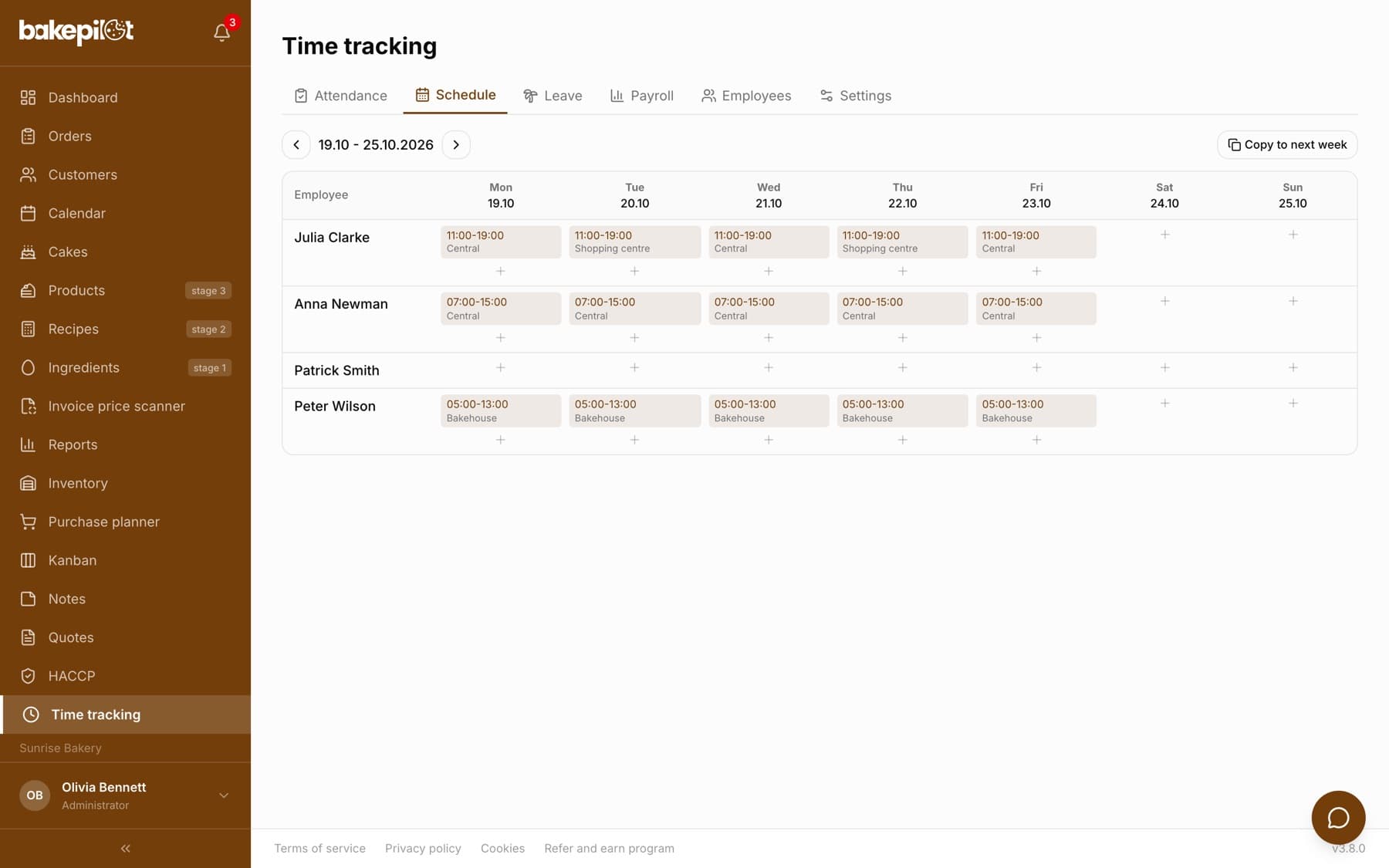
Copying the week
If your schedule is fairly fixed, build one week and click “Copy to next week”. After you confirm, the app moves all shifts seven days ahead and sums up: “Copied N shifts”, and if the following week already had shifts that conflict with the copied ones, it adds “skipped M (conflicts)”.
Tip: The schedule is the reference for the attendance list - it is against the schedule that the app detects late arrivals, early clock-ins and work outside the schedule.
Frequently asked questions
Does the employee see their schedule?
Yes, if their account is linked to the employee. On the “My hours” page they see today's shift and the “Upcoming shifts” for the next week.