
Leave and absences
A leave register with a day counter: allowance, leave on demand, carried-over leave.
Last updated:
Leave balance
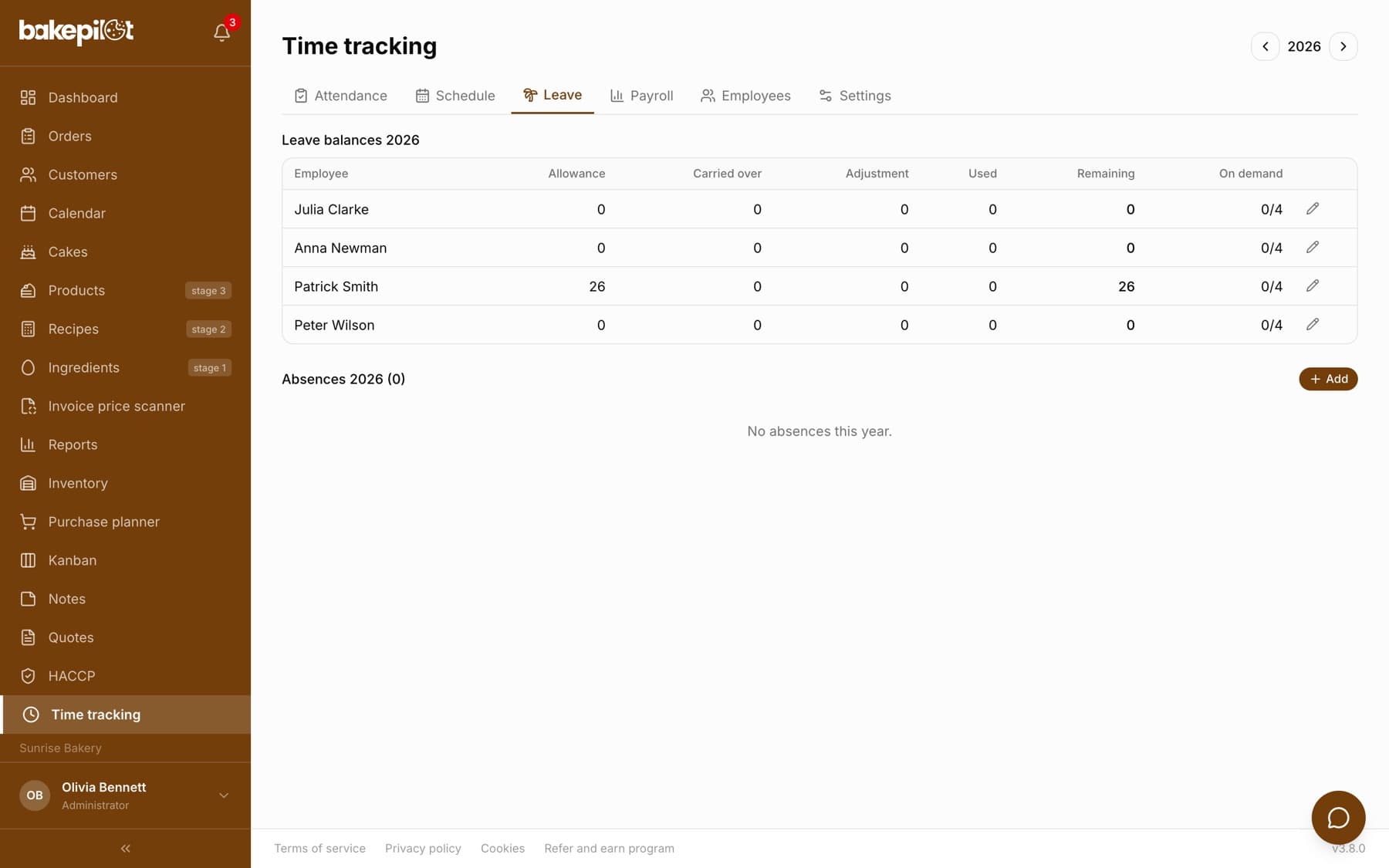
The “Leave” tab starts with the “Leave balances” table for the selected year (you change the year with the arrows in the top right corner). For each employee you see the columns “Allowance”, “Carried over”, “Adjustment”, “Used”, “Remaining” and “On demand” as used/limit. When you add annual leave or leave on demand, the app counts the working days on its own - excluding Sundays, public holidays and, depending on the setting, Saturdays.
- On the “Leave” tab, click the pencil “Edit balance” next to the employee
- Set the “Annual allowance (days)”, “Leave carried over”, “Adjustment (±)” and the “On demand” limit
- Optionally add a “Note on the adjustment”
- Click “Save balance”
- The allowance is set per employee and year
- Automatic counting of working days and public holidays
- A separate counter for leave on demand (default limit of 4 days)
- Leave carried over from the previous year is added to the allowance
- A negative “Remaining” value is highlighted in red
Tip: Whether Saturday counts as a working day is set on the “Settings” tab with the field “Saturday is a working day (affects how leave days are counted)”.
Types of absence
You add absences in the “Absences” section below the balances. Annual leave and leave on demand reduce the allowance; the other types do not. The “Paid (counts towards pay)” field is suggested based on the type and the contract, but you can change it.
- In the “Absences” section, click “Add”
- Choose the “Employee” and the “Type”: “Annual leave”, “Leave on demand (urlop na żądanie)”, “Special leave (urlop okolicznościowy)”, “Childcare leave”, “Care - care allowance (sick leave to care for a child)”, “Unpaid leave”, “Sick leave” or “Other absence”
- Set “From” and “To”
- Check the “Paid (counts towards pay)” field and optionally enter a “Note”
- Click “Save”
- Annual leave and leave on demand use up the allowance, the others do not
- Payment is suggested by type and contract - for civil-law contracts by the “Paid leave” field on the employee
- Exceeding the on-demand limit does not block anything - the app only asks whether to add it anyway
Tip: For civil-law contracts (umowa zlecenie) you decide yourself whether leave is paid - according to what you have agreed with the employee.
Childcare leave, care allowance and special leave
These three types are for recording absences that your accountant settles separately. None of them reduces the annual leave allowance. The “Paid (counts towards pay)” field is only a suggestion and you can change it in each entry.
- “Special leave (urlop okolicznościowy)” - paid by default
- “Childcare leave” - paid by default
- “Care - care allowance (sick leave to care for a child)” - unpaid by default, because the allowance is paid by ZUS (Polish social security), not by the employer, so it is not included in the “To pay” amount
- The app does NOT enforce day limits for these absences or check whether the employee is entitled to them - you determine that with your accountant according to current Polish regulations
Tip: In the summary on the “Payroll” tab, each type of absence in the selected period has its own column with hours and days - your accountant gets a ready list.
Frequently asked questions
Does the employee see their balance?
Yes, if they have an account linked to the employee - the “My hours” page has a “Leave” card with the number of days remaining, used and on demand.