
Payroll and export
Hours to pay: overtime, night hours, bonuses and export.
Last updated:
How hours are calculated
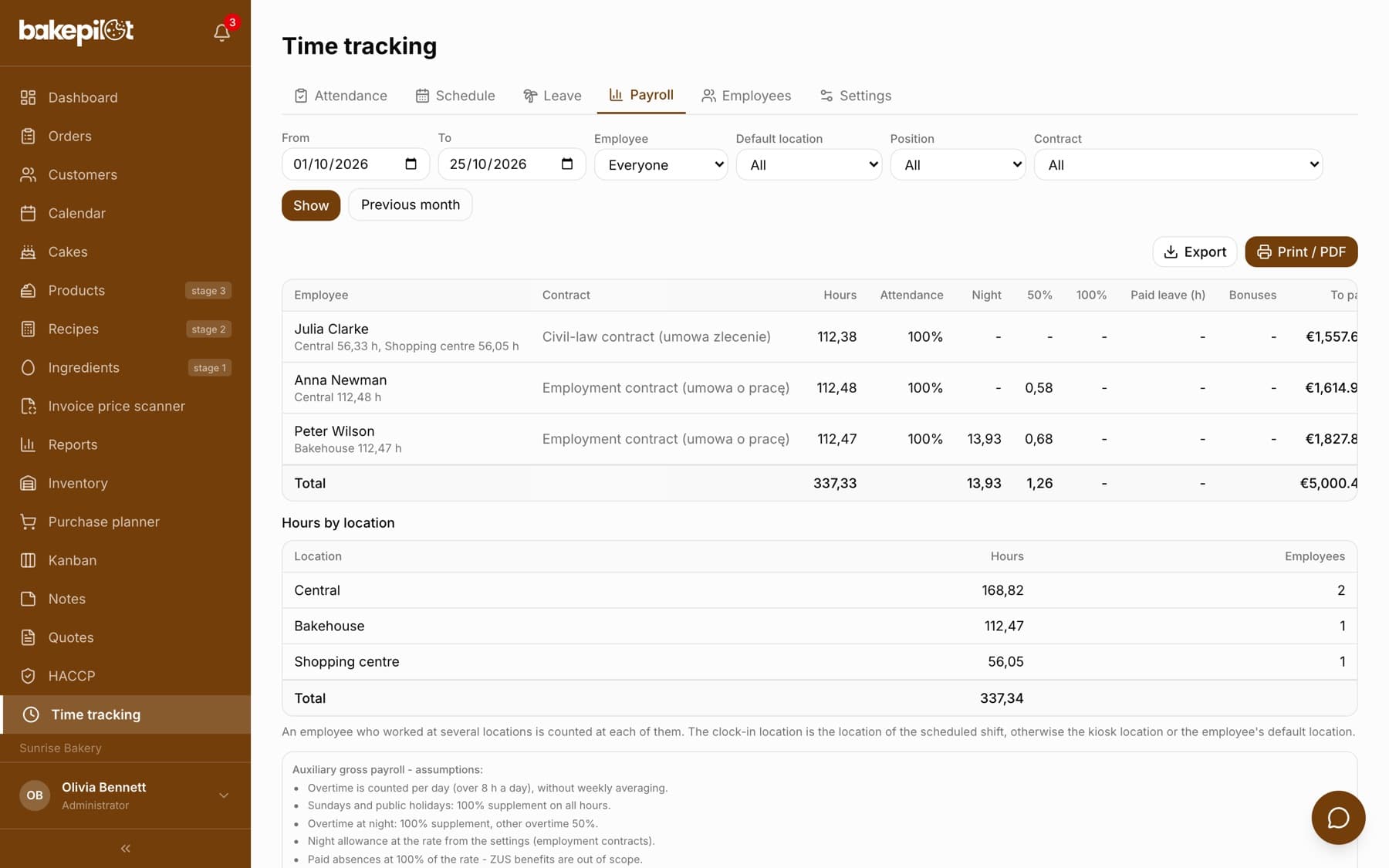
The “Payroll” tab sums up the selected period in a table with the columns “Employee”, “Contract”, “Hours”, “Attendance”, “Night”, “50%”, “100%”, “Paid leave (h)”, “Bonuses” and “To pay”, with a “Total” row at the bottom. You set the period and filters above the table (“From”, “To”, “Employee”, “Default location”, “Position”, “Contract”, the “Show” button), and the “Previous month” shortcut sets the full previous month.
- Hours worked, night hours, 50% and 100% overtime, paid leave
- Employment contract (umowa o pracę): overtime counted per day above 8 h, with a 50% supplement, and 100% at night, on Sundays and public holidays
- Night allowance at the “Night allowance (PLN/h)” rate from “Settings” - applies to employment contracts
- Civil-law contract (umowa zlecenie): hours times the rate, without statutory supplements
- Bonuses added per employee and month
A supporting summary, not payroll software
The summary shows the gross amount as a basis for your accountant - it does not calculate ZUS contributions, the PIT advance or the net amount. Below the table there is an “Auxiliary gross payroll - assumptions” box with the list of rules applied, also visible on the printout, so your accounting knows what the calculation is based on.
- Overtime counted per day (above 8 h a day), without averaging over the week
- Sundays and public holidays: a 100% supplement on all hours
- Overtime at night: a 100% supplement, other overtime 50%
- Paid absences counted at 100% of the rate - ZUS benefits are out of scope
Tip: Treat it as an accurate, ready summary of hours and gross amounts to hand over to your accountant - not as payroll software.
Absences by type
If someone had an absence in the selected period, the table gets a separate column for each type that occurred, e.g. “Sick leave” or “Childcare leave”. The cell shows hours and days, e.g. “16 h / 2 d”. An absence marked as unpaid has “- unpaid” added to the column name, and unpaid leave exceptionally settled with pay has “- paid”, so paid and unpaid entries of the same type do not merge into one number.
- Columns appear only for types present in the period
- The “Total” row adds up the hours and days of each type
- The export has two columns for each type: hours (h) and days
- Days are counted as working days, but sick leave and care allowance as calendar days (from-to, including Saturday, Sunday and public holidays) - hours and amounts always come from working days
Bonuses
Below the summary there is a “Bonuses” section. You add a bonus for an employee for a specific month with a gross amount and a note (e.g. what it is for) - it goes to the “Bonuses” column and to the “To pay” amount for that month.
- In the “Bonuses” section, click “Add”
- Choose the employee and month and enter the “Gross amount”
- Optionally add a note and click “Save bonus”
Export and printing
There are two buttons above the table. “Export” saves the summary to a CSV or Excel (XLSX) file, and “Print / PDF” opens the browser print dialog, where you can choose to save as PDF. The printout includes a header with the period, the table and the payroll assumptions - ready to hand over to your accountant.
- “Export” - CSV or Excel (XLSX)
- “Print / PDF” - a printout with the table and assumptions
- Filters: employee, default location, position, contract, period
- The export also has the absence columns by type and, when you have locations, the hours for each location
Frequently asked questions
Does the summary calculate the net “take-home” amount?
No. The module calculates the gross amount to pay based on hours and the rate. ZUS contributions, the PIT advance and the net amount are determined by your accounting based on this summary.
How is night overtime settled?
For employment contracts, overtime at night, as well as work on Sundays and public holidays, is counted with a 100% supplement. Other overtime on weekdays has a 50% supplement. You set the night hours with the “Night hours from” and “Night hours until” fields in “Settings”.
Where does “Attendance” come from?
It is the ratio of hours worked to the hours planned in the schedule for the selected period. Without shifts in the schedule, the column shows a dash.