
Clocking in: kiosk and phone
How to add an employee with a PIN, set up a shared tablet and clock in from your own account.
Last updated:
Locations and positions first
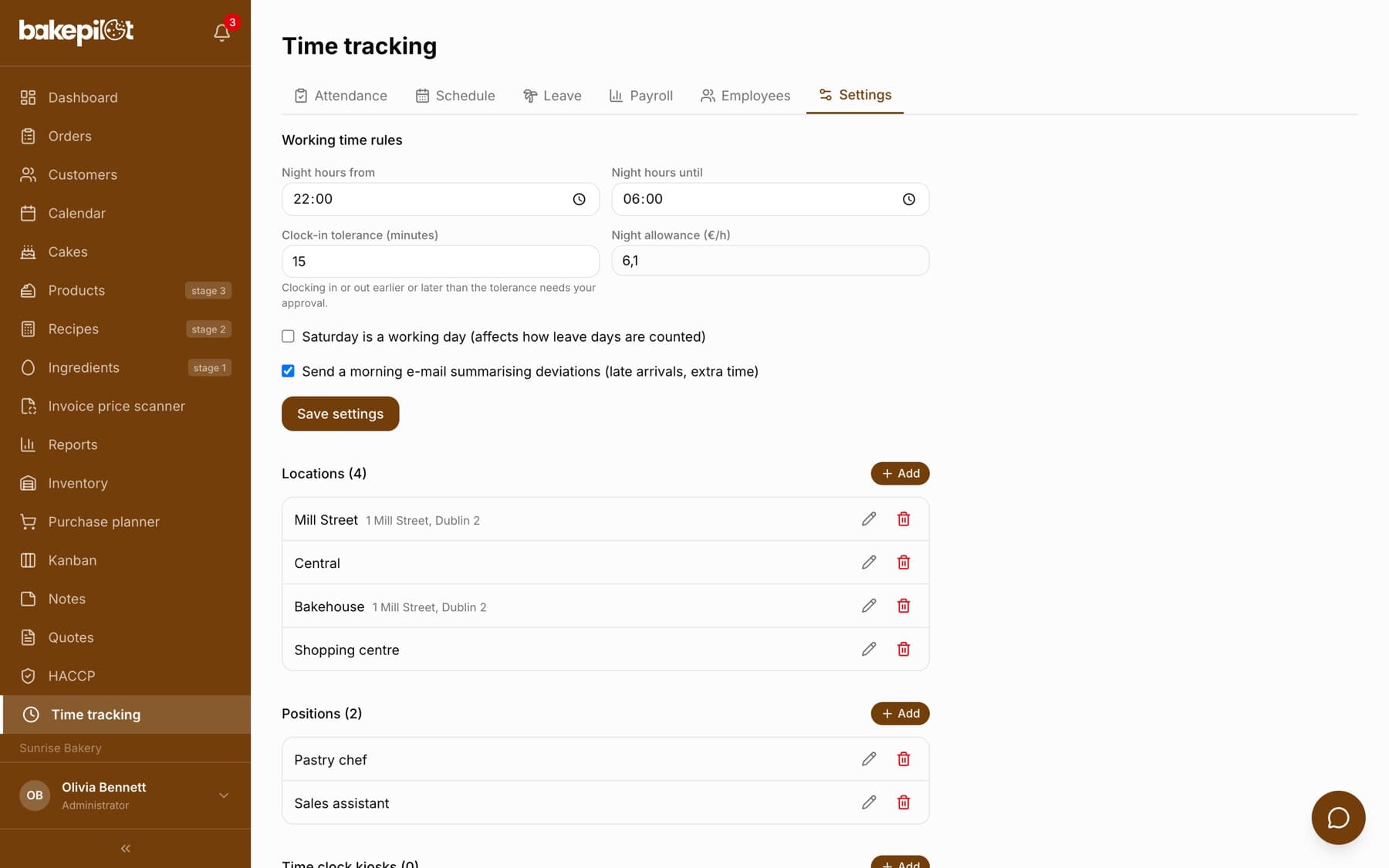
The “Settings” tab has two lists: “Locations” and “Positions”. A location is a workshop or a shop (with an optional address), a position is e.g. baker, pastry chef, salesperson. Both are used when adding employees, in the schedule and in the attendance filters. Each list has an “Add” button and edit and delete icons next to the items.
Adding an employee and a PIN
You add employees on the “Employees” tab. The form collects the details needed for the schedule and payroll. After saving, the app shows the employee's 4-digit PIN in a yellow box - pass it on to that person.
- On the “Employees” tab, click “Add”
- Enter the “First name” and “Last name”, choose the “Position” and the “Default location”
- Set the “Contract type”: “Employment contract (umowa o pracę)” or “Civil-law contract (umowa zlecenie)”
- Enter the “Gross hourly rate” - for an employment contract you can instead enter “or gross monthly salary” and choose the “Working time”
- Optionally set “Contract signed” and “Contract end” and the “Leave allowance for this year (days)”
- If the employee has a BakePilot account, choose it in the “BakePilot account (optional)” field; in the “Kiosk PIN (optional)” field enter 4 digits or leave it empty to generate one at random
- In the “Employee locations” section, tick the locations where they work, or “All locations (e.g. manager)”
- Click “Add employee” and note down the PIN shown
- “Employee locations” decide for which locations the employee enters today's takings in Reports; the “Default location” is always one of them, permanently ticked and marked “(default)”
- Only the Administrator or a person with the permission to manage the Time tracking module can save an employee record - the same permission opens takings entry for all locations in Reports
- With a monthly salary, the app calculates the hourly rate on its own based on the length of the month
- “Contract end” - the app sends an e-mail 30, 14, 7 and 2 days before the end, and shows “contract: N days” next to the name
- The “Paid leave” field - for civil-law contracts it depends on company policy
- Only people with the permission to manage the module see the PIN on the employee list
Tip: You can change the PIN at any time with the key icon “Reset kiosk PIN” - enter your own 4 digits or leave it empty for a random one. The old PIN stops working immediately.
Setting up the kiosk
A kiosk is a shared tablet or phone on the premises. On the “Settings” tab, in the “Time clock kiosks” section, you generate a link, open it on the device and leave it on the screen. The employee enters their PIN on the number pad - the clock-in happens automatically after the fourth digit, and after a few seconds the screen returns to its starting state for the next person.
- On the “Settings” tab, in the “Time clock kiosks” section, click “Add”
- Enter a name (e.g. Tablet - shop) and choose the location
- Click “Generate kiosk link” and copy the link with the “Copy” button
- Open the link on the tablet on the premises and leave it on the screen
- You can copy the kiosk link again later with the “Copy kiosk link” button next to the kiosk on the list
- The kiosk screen shows only the name of the bakery and the location - no data before a PIN is entered
- After clocking in, the screen shows the first and last name and “Clocked in at …” or “Clocked out at …”
- You can switch the kiosk off at any time with the “Deactivate” button - the link stops working
Tip: You can have a separate kiosk for each location - assign a location to it, and clock-ins go to the right place.
Clocking in from your own account
An employee whose account you linked in the “BakePilot account” field sees the “My hours” page when they open “Time tracking”. It shows today's shift from the schedule, a large “Clock in” button (after clocking in it changes to “Clock out”), the leave balance, “Upcoming shifts” and “Recent clock-ins (7 days)” with the status of each clock-in. If the account is not linked to an employee, the page asks them to contact the owner.
Clocking in early and late
In “Settings”, the “Clock-in tolerance (minutes)” field defines how much earlier or later than the schedule someone can clock in without approval. A clock-in outside the tolerance or without a shift in the schedule gets the “Pending approval” status - the kiosk and the app show the message “Clock-in outside the schedule - waiting for the owner's approval.” Extra hours do not count towards pay until you approve them on the “Attendance” tab.
- You set the tolerance (in minutes) yourself
- Clocking in too early, clocking out late and working outside the schedule go for approval
- Until you decide, the extra time does not count towards pay
- Late arrivals are marked for information on the attendance list
Frequently asked questions
What if an employee forgets to clock out?
An open clock-in is marked on the attendance list as “No clock-out” after 16 hours and does not count towards the hours until you correct it manually (with a reason).
Can someone see another person's PIN?
PINs are stored encrypted. Only a person with the permission to manage the module sees them - on the employee list. After 5 wrong attempts the kiosk locks for a minute and shows “Too many wrong attempts - try again in a minute”.
An employee works at two locations - how do I set that up?
Give them one “Default location”, and in the schedule choose the right location for each specific shift. Each location can have its own kiosk assigned to it. If they also need to enter takings for both locations, tick the second location in the “Employee locations” section.
An employee does not see their shop when entering takings. What should I do?
Open their form on the “Employees” tab and tick that shop in the “Employee locations” section. Also check that their account is selected in the “BakePilot account (optional)” field - without it the app does not know which locations they belong to. Below the list of locations there is a hint: “The employee enters today's takings for these locations. The default location is always one of them.”