
Attendance list and corrections
Electronic attendance, approving extra time and correcting clock-ins.
Last updated:
What you see on the list
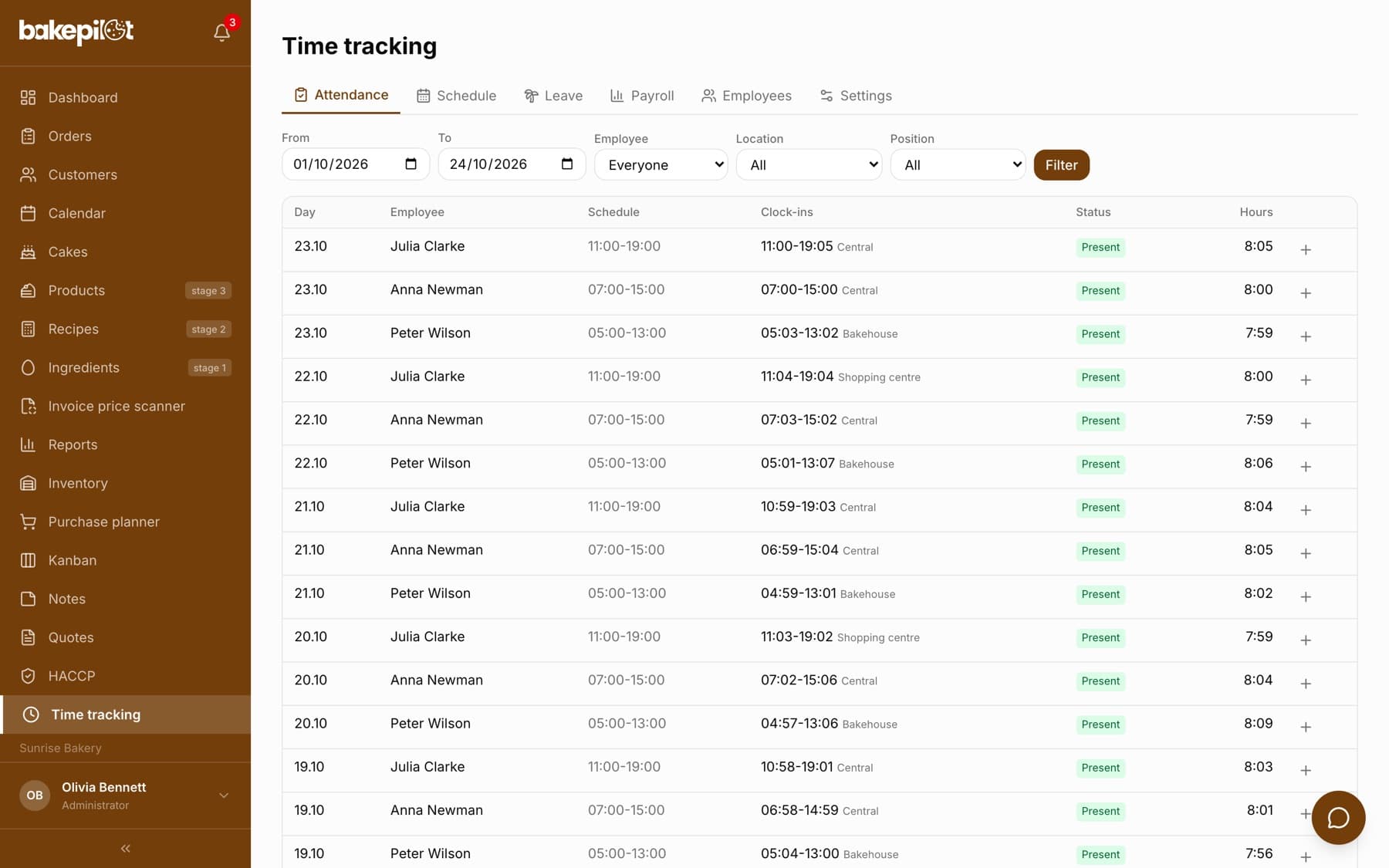
The “Attendance” tab shows a table with the columns “Day”, “Employee”, “Schedule”, “Clock-ins”, “Status” and “Hours”. The day status is calculated automatically from the clock-ins and the schedule. Above the table there are the filters “From”, “To”, “Employee”, “Location” (when you have added locations), “Position” and a “Filter” button - by default you see the current month.
- Statuses: “Present”, “Late”, “Absent”, “No clock-out”, “Off schedule” and the type of absence during leave
- The “Hours” column - time calculated after the clock-ins are reconciled against the schedule
- Clock-ins added manually are marked “(manual)”
- Each clock-in shows the name of the location where it was recorded - the “Location” filter shows clock-ins and shifts from that location, so an employee working at several locations appears in each of them
Approving extra time
Clock-ins outside the tolerance or without a shift in the schedule wait in the yellow “Pending approval” section above the table, with a counter and a description of the deviation (e.g. “15 min before the shift”, “8 min late”, “off schedule”). Each one has the “Approve” and “Reject” buttons. Rejected extra time is counted according to the scheduled hours, not the actual clock-in - you control what goes to payroll.
- A “Pending approval” section with a counter
- “Rejected extra time is paid according to the scheduled hours.”
- A morning e-mail summarizing deviations, if you turn it on in “Settings”
Manual corrections
If someone forgot to clock in or entered the wrong time, you correct the entry manually. Clicking a clock-in in the table opens the “Correct clock-in” window, and the plus at the end of the row opens the “Add clock-in manually” window. Every correction requires a reason, is marked as a manual entry and signed with your account, and a manual entry is treated as approved right away.
- On the “Attendance” tab, click a clock-in in the “Clock-ins” column or the plus at the end of the row
- Set the “Day”, “Clock in” and “Clock out” - if the clock-out is earlier than the clock-in, the app treats it as the next day (night shift)
- Enter the “Reason for the correction (required, shown in the history)”
- Click “Save”; you can remove a wrong clock-in with the “Delete clock-in” button
Tip: Corrections keep things fair: every change shows who made it and why - the reason appears when you hover over the clock-in.
Frequently asked questions
Will I be notified about late arrivals?
Yes. If you tick “Send a morning e-mail summarising deviations (late arrivals, extra time)” in “Settings”, every morning you get an e-mail with the list of deviations from the previous day. You also see the deviations right away on the “Attendance” tab.
Where does the “No clock-out” status come from?
It appears when a clock-in stays open for more than 16 hours. Such a day does not count towards the hours until you add the clock-out manually.