
Splitting takings by VAT rate
Two or three amounts from the cash register report each day - and the VAT estimate becomes real.
Last updated:
Why it is needed
Sales invoices have VAT rates stored in their items, so BakePilot calculates everything from them by itself. Counter sales are different: the daily report knows the total takings, but not how much of it was cakes at the reduced rate and how much was, say, coffee or a service. Without that information the output tax estimate would be guesswork, which is why we ask you to split the amount.
- Invoices: rates known from the items, nothing to enter
- Receipt sales: the total needs to be split by rate
- Without a split, the day is listed as a gap in Finance
Where and how to enter it
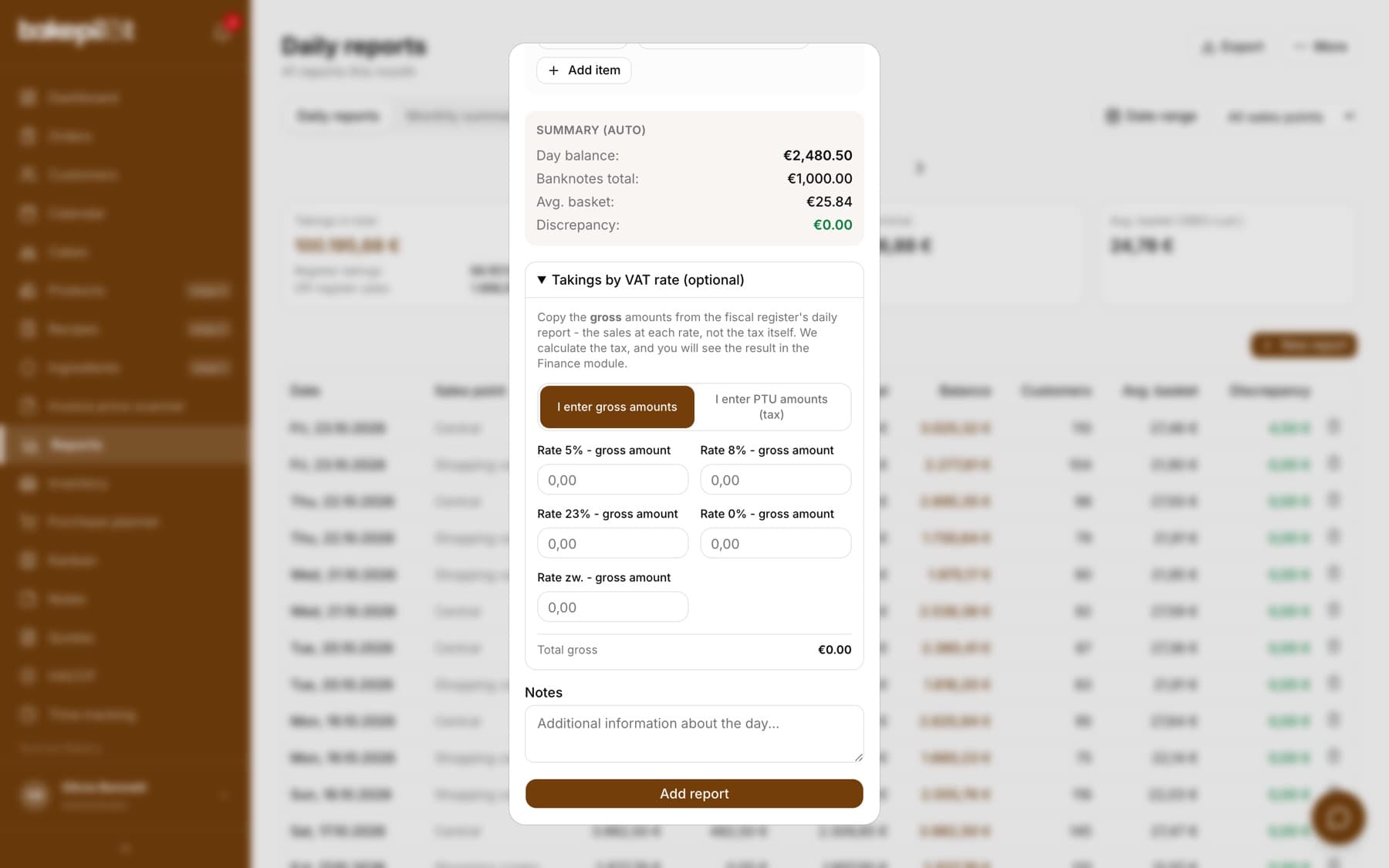
In the daily report form, under the day summary, you will find the collapsed “Takings by VAT rate (optional)” section. Expand it, choose which amounts you copy from the cash register report and enter them in the rate fields. These are usually two or three numbers, which takes a few seconds.
- Open the daily report for the day (new or existing)
- Expand the “Takings by VAT rate (optional)” section
- Choose “I enter gross amounts” or “I enter PTU amounts (tax)” - depending on what your cash register prints
- Copy the amounts into the “Rate 5%”, “Rate 8%”, “Rate 23%”, “Rate 0%”, “Rate exempt” fields
- Check the “Total gross” or “Total tax” row and save the report
Tip: Polish cash registers often print PTU amounts on the daily report, which is the tax alone per rate. In that case switch to “I enter PTU amounts (tax)” and copy them as they are - do not convert anything to gross.
Gross or PTU amounts
The two switches match two kinds of cash register printouts. “I enter gross amounts” - you enter gross sales at each rate and BakePilot calculates the tax itself. “I enter PTU amounts (tax)” - you enter the ready tax amounts per rate, exactly as they appear on the report. In gross mode the app compares the total with the cash register takings: when the total is clearly lower, it warns you that you may have entered tax instead of sales.
- “I enter gross amounts” - sales at a rate, the app calculates the tax
- “I enter PTU amounts (tax)” - tax amounts copied from the register
- A warning when the split is much lower than the register takings
- Information about the difference between the split and the takings - the report can still be saved
An empty field is not zero
This distinction matters for how reliable the estimate is. A field left empty means “I did not enter this”, and the day will appear as a gap in the Finance tab. An entered zero means “this rate did not occur today” and is treated as complete information.
- Empty field - no data, the day is marked as a gap
- Zero - the rate did not occur, data is complete
- The split is optional and does not block saving the report
What if you forget
Nothing bad happens. The daily report is saved normally with all the other data, and the day is listed as missing in the Finance tab. You can come back to it later and fill in the split, or close the whole period with one bulk entry.
- The report is saved even without the split
- Missing days listed directly in the Finance tab
- You can fill them in by editing the report later
- Or in bulk, with the “Complete the period in bulk” button in Finance
Frequently asked questions
Do I have to enter this every day?
You do not have to. It is an optional field and the report is saved without it. The more days you fill in, the more accurate the estimate - but even a month without a split can be closed with one bulk entry.
Do I enter net or gross amounts?
Gross or tax amounts (PTU) - depending on what your cash register prints. You choose this with the switch above the fields. You never enter net amounts.
I have two cash registers in two locations - what then?
If you have sales points turned on, each point has its own daily report - you then enter the VAT split separately in each point's report, and Finance adds them up itself. Without sales points, enter the totals from both fiscal reports together, the same way you add up the day's takings.
I entered the wrong amount - can I fix it?
Yes, just open the daily report for that day and correct the value. The estimate recalculates immediately.