
Adding products
How to add products to your bakery's catalog.
Last updated:
Product list
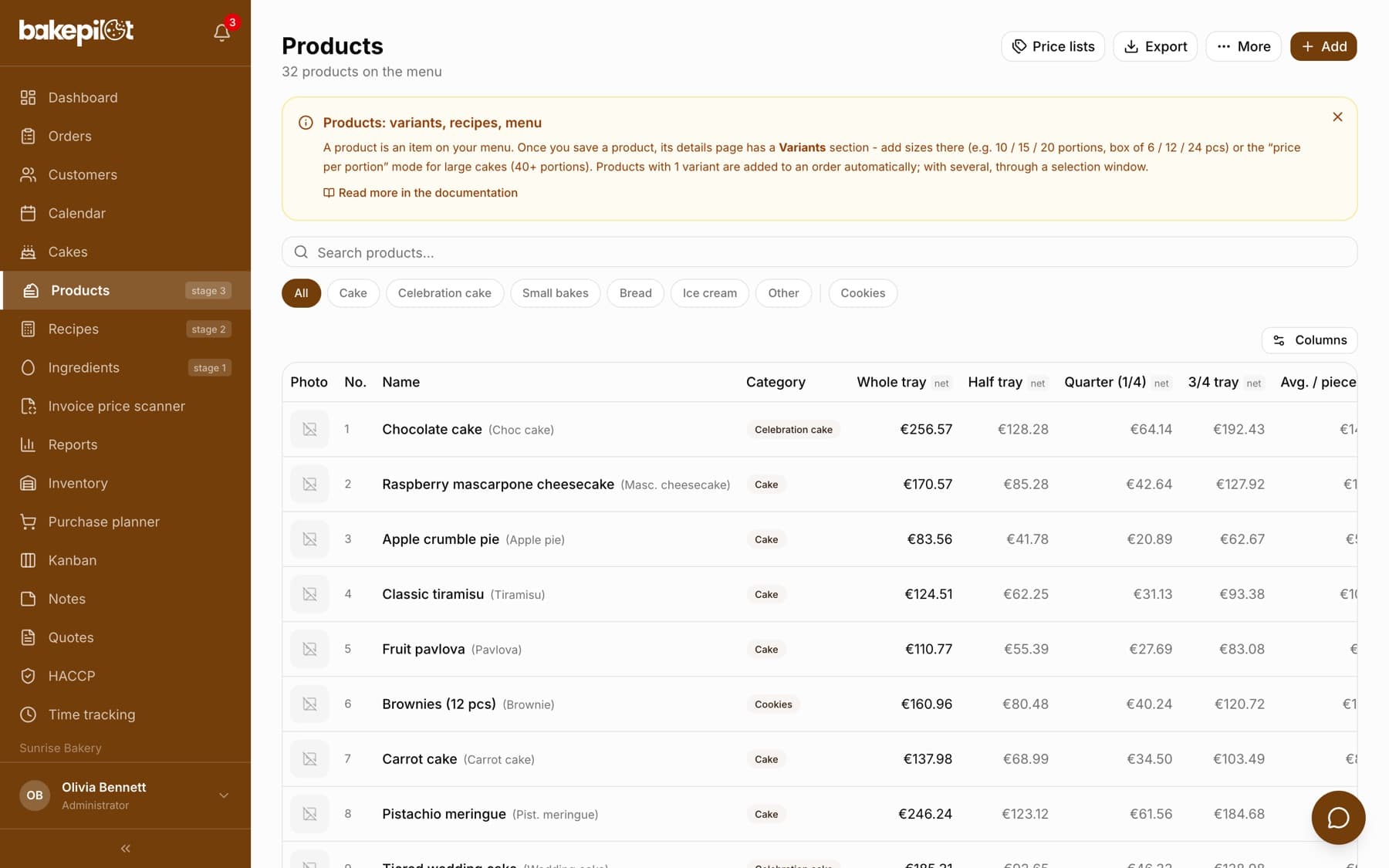
The Products module opens a list of all your company's products, including inactive ones. Below the title there is a product counter, and above the table the “Search products...” field and the category buttons: “All”, six default categories, followed by your own categories. Clicking a row opens the product edit window. The list is available on every plan.
- Table columns: “Photo”, “No.”, “Name” (with the short name in brackets), “Category”, “Type” (“By weight” or “By the piece”, with a “Seasonal” note for a seasonal product), “Price / kg”, prices from the recipe (“Whole tray”, “Half tray”, “Quarter (1/4)”, “3/4 tray”, “Avg. / piece”) and “Status”; “Type” and “Price / kg” are hidden by default - the “Columns” button hides and shows individual columns
- In the “Status” column a green dot means an active product, a grey one a product withdrawn from sale
- The “Generate label” icon in a row opens the product label (Profesjonalny (Professional) plan)
- On a phone the list is shown as cards and you load more products with the “Load more” button; on a computer the list is split into pages
- Buttons above the list: “Price lists” (price lists for wholesale customers, Profesjonalny plan), “Export”, “More” (with “Menu” for printing and “Import CSV”) and “Add”
Creating a new product
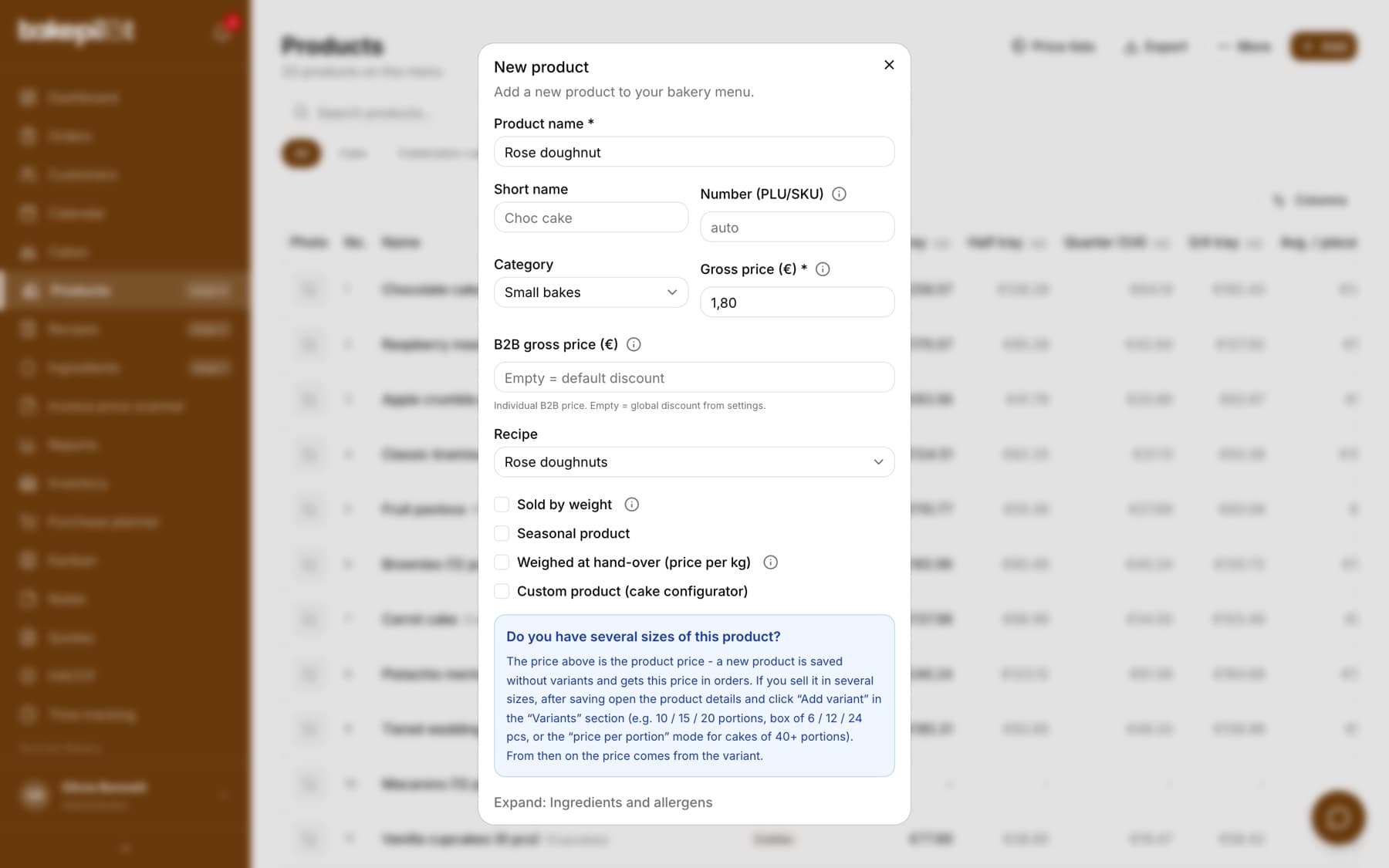
In the Products module click “Add product”. Fill in the name, price and category, and complete the other fields as needed. After saving, add at least one variant to the product - only then can it be selected in an order.
- Product name and a short name for documents
- PLU/SKU number - assigned automatically or entered manually, just like on the till
- “Gross price” (or “Net price”, described below) and a separate “B2B gross price” for wholesale orders
- Category: Cake, Celebration cake, Small bakes, Bread, Ice cream, Other or your own category from Settings
- Recipe - the field appears once you have recipes; linking one unlocks the cost breakdown and the pricing on the product card
- The “Sold by weight”, “Seasonal product” and “Weighed at hand-over (price per kg)” checkboxes, and when editing a product also “Active (visible on the menu)”
- “Weighed at hand-over (price per kg)” - the customer orders pieces (e.g. a tray of ice cream) but pays for the weight: the price of the product and its variants is the price per 1 kg, and you enter the weight before handing over in the order details (the “Weighing before handing over” card). Turn this field on before you start taking orders for this product - open orders will also have to be weighed before handing over
- Next to the “Number (PLU/SKU)”, price, “B2B price” and “Sold by weight” fields there is an “i” icon with a short explanation - each of these fields is also described in the section below
Tip: Cakes that customers build from options are handled by the cake configurator - see the separate article. Bakeries that do not make cakes can turn on the “We do not make cakes” profile in the company Settings, which hides the cake features from the forms.
Sold by weight, PLU/SKU number and B2B price
Three fields in the product window raise the most questions. “Sold by weight” is TICKED by default in a new product (unless “By the piece” was chosen in the “What do you mostly sell?” question at sign-up or in Settings, in the “Business profile” section - then it is unticked). The price in the product window is then the price per 1 kg, and in the order you enter the weight (e.g. 1,5). If you sell by the piece, untick this field before saving. “Number (PLU/SKU)” is optional, and leave “B2B gross price” empty if a percentage discount for businesses is enough for you.
- “Sold by weight” ticked - tray cake sold by weight, cookies, bread by the kilogram: price per 1 kg, weight in the order
- “Sold by weight” unticked - pastries, doughnuts, individual desserts, eclairs: price per piece
- This field also determines the estimated profit in the order and the “/kg” or “/pc” note on the menu, in the product list and in the hints when adding to an order
- “Number (PLU/SKU)” is your own product number, e.g. 83 for St. Martin croissants. An empty field in a new product = the app assigns a number one higher than the highest. Numbers cannot repeat; the number is included in the product export and in the API, so it makes it easier to match the product in your till or accounting software
- “B2B gross price” is a fixed price for businesses (shops, cafes), including VAT - percentage discounts do not lower it, only a price list assigned to the customer takes priority
- An empty “B2B gross price” field = the gross price minus the B2B discount set on the customer, or, if the customer has none, minus the “Default B2B discount (%)” from Settings > Organization
Tip: Example: a rose doughnut for 5.50 PLN. If you leave “Sold by weight” ticked, the app treats 5.50 PLN as the price per kilogram and in the order suggests entering a weight instead of a number of pieces. For a doughnut, untick this field - then 5.50 PLN is the price of one piece.
After saving: add a variant
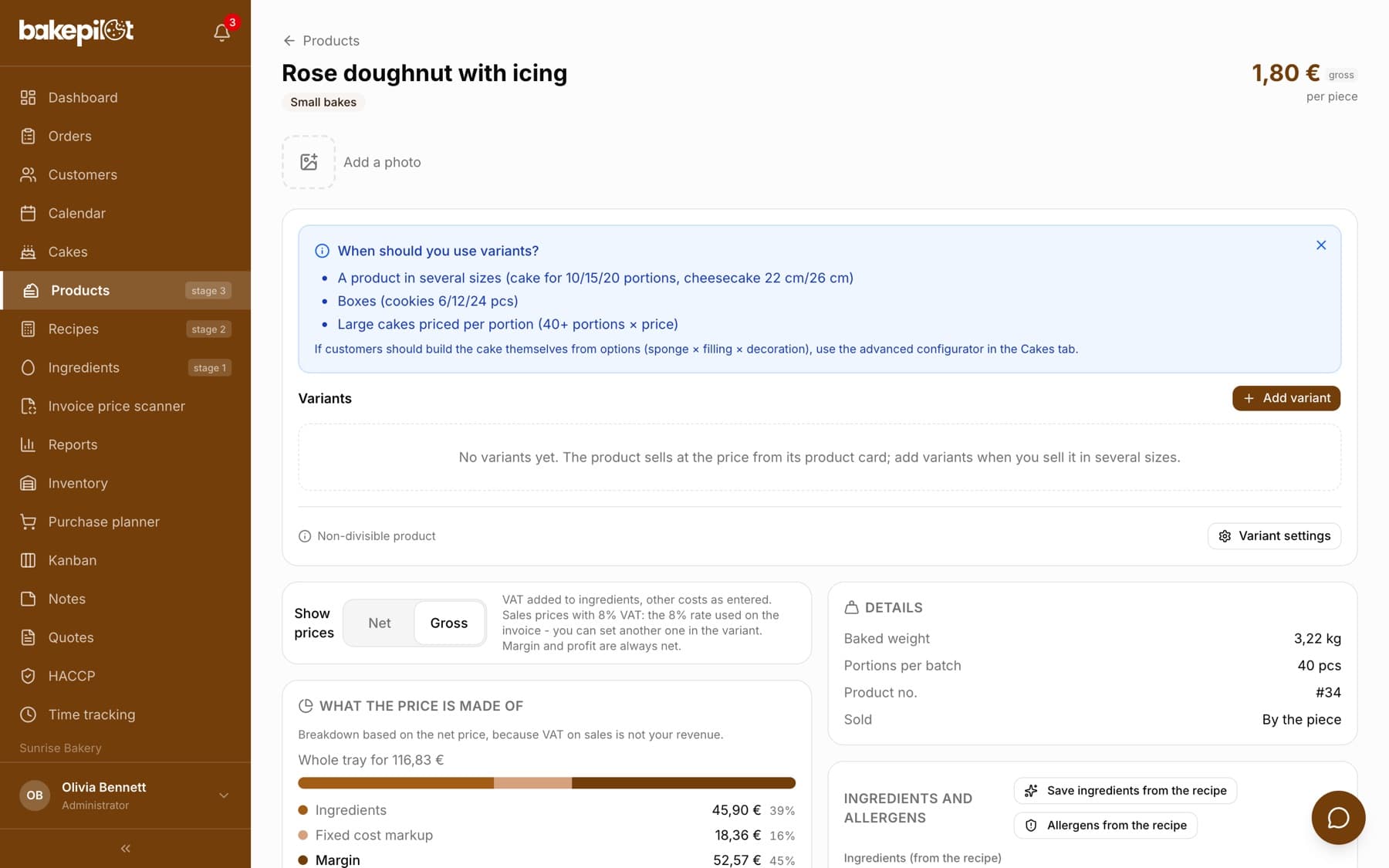
A new product is saved without a variant, and without a variant it will not get into an order. Click the product in the list and choose “See more” - on the product card add at least one variant, even just one with the base price. That is also where you link recipes to the variant and see its cost.
- Product card: list → “See more”
- At least one variant, otherwise the product will not appear in orders
- A variant with a price, a unit and the recipes its cost is calculated from
Tip: The menu suggests the order of work: Ingredients (step 1), Recipes (step 2), Products (step 3). If you start with products, you will come back to ingredients for the prices anyway.
Editing and deactivating a product
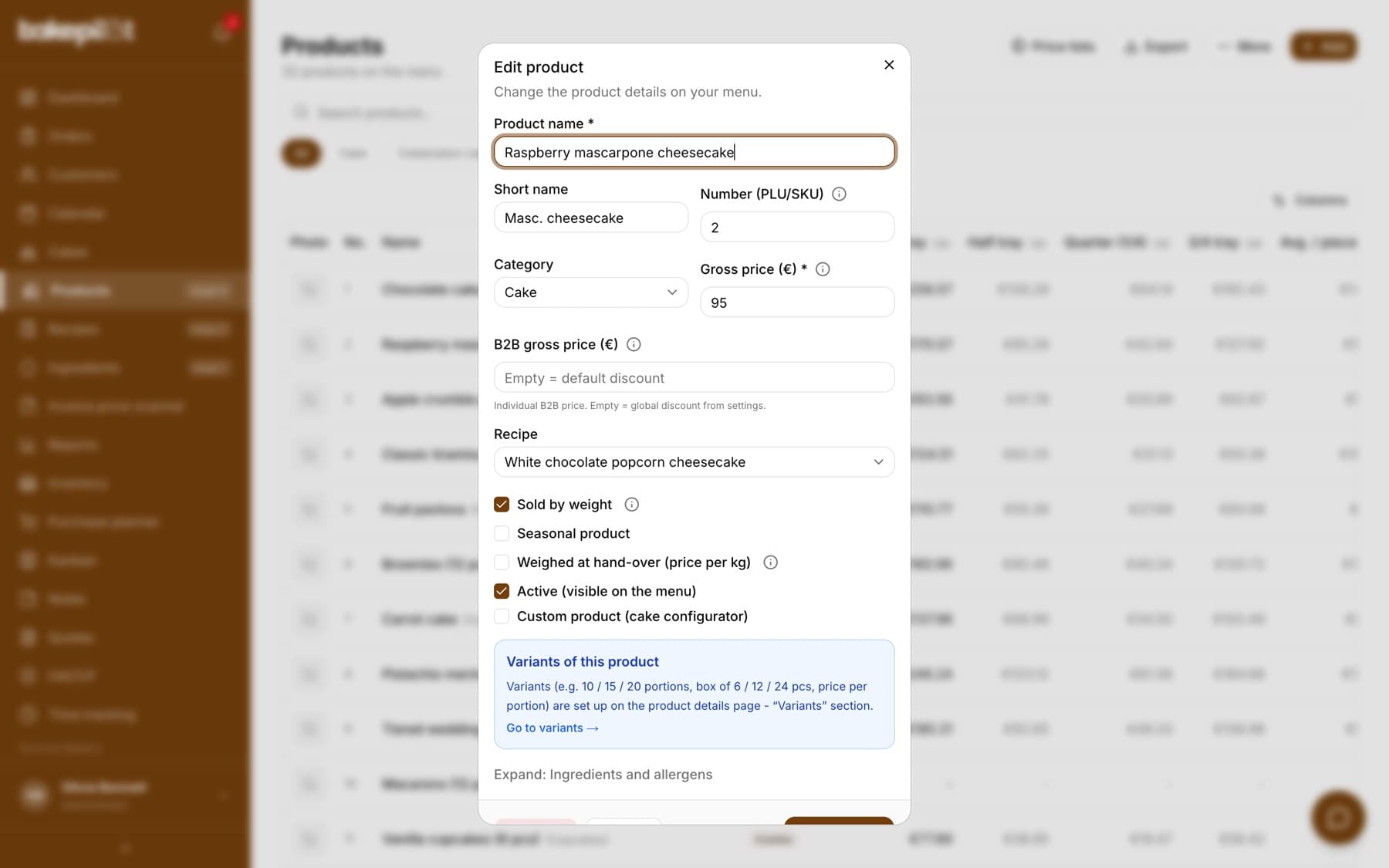
To change a product, click its row in the list - the “Edit product” window opens with the same fields as when adding. You save the changes with the “Save changes” button. Variants, photos and the cost breakdown are on the product card, which the “See more” button opens.
- In the product list click the product row
- Correct the fields in the “Edit product” window, e.g. the name, category, price or recipe
- Click “Save changes” - you will see the “Product updated” message
- A product is not deleted from the database, only deactivated: the “Deactivate” button in the edit window, followed by the confirmation “Are you sure you want to deactivate this product?”
- A deactivated product stays in the list with a grey dot in the “Status” column and disappears from the printable menu, while the orders it was already in stay unchanged
- You restore the product by ticking “Active (visible on the menu)” in the edit window and saving the changes
- An empty “Number (PLU/SKU)” field when editing does not erase the number the product already has; a number used by another product is rejected with the message “Number … is already used by another product”
- Editing requires the permission to edit products, and deactivating the permission to delete products; by default only the administrator has both (you can change this in Settings, in the role permissions)
Price: net or gross
In the product window the price field is called “Gross price (PLN)” - this is the amount you ring up on the till. If you work with net prices plus VAT, as in wholesale, set this in the variant: the variant window has a “The price is” switch with the “Gross (incl. VAT)” and “Net (excl. VAT)” options and a “VAT” field, and the price is converted to the other value below it. When the default variant has a net price, the field in the product window is called “Net price (PLN)”. The “B2B gross price (PLN)” field is an individual price in wholesale orders - empty means “the gross price minus the customer's B2B discount, or without it minus the default discount from Settings”.
- “Gross price (PLN)” - the default, the amount from the till
- “Net price (PLN)” - when the default variant has “The price is: Net (excl. VAT)”
- Next to the price in the product card header, next to the variant prices and in the product list there is a small “gross” or “net” tag; hovering over it tells you that you change it with the “The price is” switch in the variant
- “B2B gross price (PLN)” applies in wholesale orders; an empty field = the B2B discount set on the customer, or, if there is none, the “Default B2B discount (%)” from Settings
Tip: When an invoice is issued from an order, gross amounts are converted to net “from the gross” using the variant's VAT rate - the gross amount on the invoice matches the order price. Variants with a VAT rate give the most reliable result; items without a variant get 8% by default.
Product categories
Every product has one of six default categories: Cake, Celebration cake, Small bakes, Bread, Ice cream and Other. In addition you can add your own categories - in Settings, on the “Product categories” card, for example “Rolls” or “Rye bread”. In the product form the “Category” field first shows the default categories and below them the “Your own” group. When you choose one of your own categories, a “Default category” field appears underneath - the purchase planner groups the product by it.
- Six default categories, always available
- You add your own categories with the “Add category” button, rename them in the field and save with the icon next to it, and set the order with the “Move up” and “Move down” arrows
- The product list, the product card and the printable menu show your own category instead of the default one
- The filter above the product list has separate buttons for your own categories, after the default ones
- Deleting your own category (the bin icon and a second click on “Delete”) does not delete products - they return to their default category
Tip: Your own categories can be changed by a person with the permission to edit products - the administrator by default. When importing products from a file, you can enter the name of your own category in the “kategoria” column (letter case does not matter); such a product gets the default category Other, which you then change in the form. In the product list export, the category column shows your own category and the default category column the default one.
Photos, ingredients and label
You can add a photo gallery to a product, which is visible when creating an order and on quotes. In the expandable “Ingredients and allergens” section you fill in the description, ingredients, allergens, “Net quantity” (with the unit g, kg, ml, l or pcs), “Shelf life (days)”, “Date type on the label” and “Storage conditions” - this data goes onto the product label, which you open with the “Generate label” icon in the product list. BakePilot can collect the ingredients and allergens from the recipe with the “Save ingredients from the recipe” and “Allergens from the recipe” buttons on the product card, including the ingredients of sub-recipes.
- Product photo gallery
- Description, ingredients and allergens; the ingredient list from the recipe goes from the largest quantity, using the ingredient's “Name on the label” or “Composition as on the label”
- “Date type on the label” has two options: date of minimum durability (“Best before”) or use-by date (“Use by”, perishable product)
- Below the list there is a hint: the date on the label = the packing date (you enter it when printing) + the shelf life in days
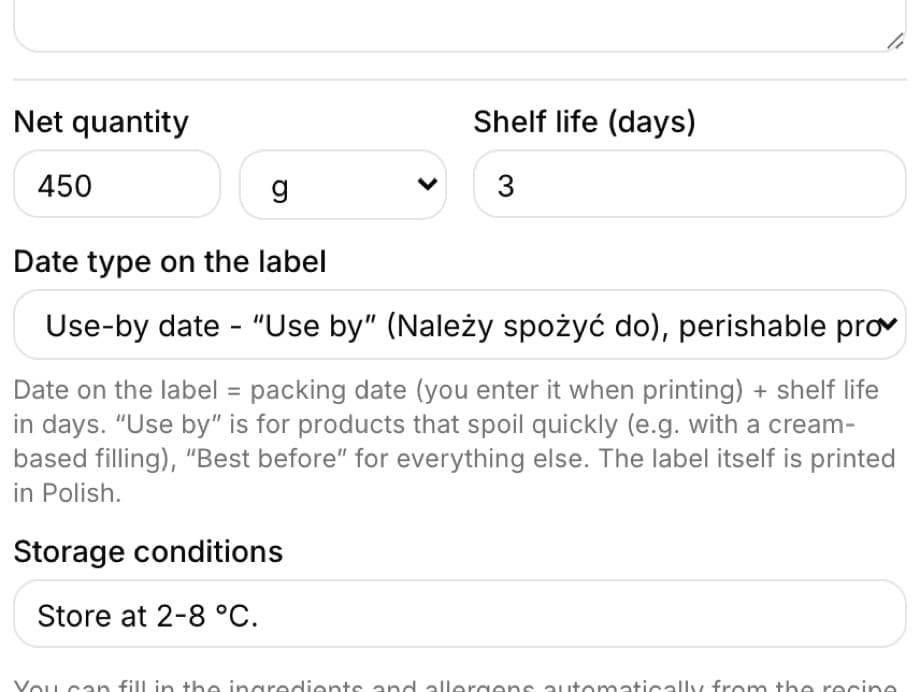
Tip: The decision whether a product needs a use-by date (“Use by”, e.g. with a cream-based filling) or a date of minimum durability (“Best before”), and how many days to enter, stays with you - the app does not guess it from the recipe.
Product label under Regulation (EU) 1169/2011
The label is built from the product, recipe and organization data. The printed label is in Polish; the line names below are given in English. At the top there is the product name and description, below them the ingredient list under an “Ingredients:” heading, a “Contains: …” line with allergens and the nutrition table, and at the bottom the net quantity, the date, the storage conditions and a “Producer:” line with the name, address and NIP (Polish tax ID) from Settings.
- Allergens from the 14 items in Annex II to Regulation 1169/2011 (e.g. WHEAT flour, BUTTER, EGGS) are highlighted in the ingredient list in bold capitals - also in an ingredient list entered manually; the “Contains: …” line stays as additional information
- The date is printed in day.month.year format as a use-by date (e.g. 16.10.2026) or a best-before date, with the storage conditions right below it
- The nutrition table per 100 g follows the order set by the regulation: energy in kJ and kcal, fat, of which saturates, carbohydrate, of which sugars, protein, salt - calculated from the values entered for the ingredients
- A contents line in pieces instead of the net quantity when the net quantity unit is a piece
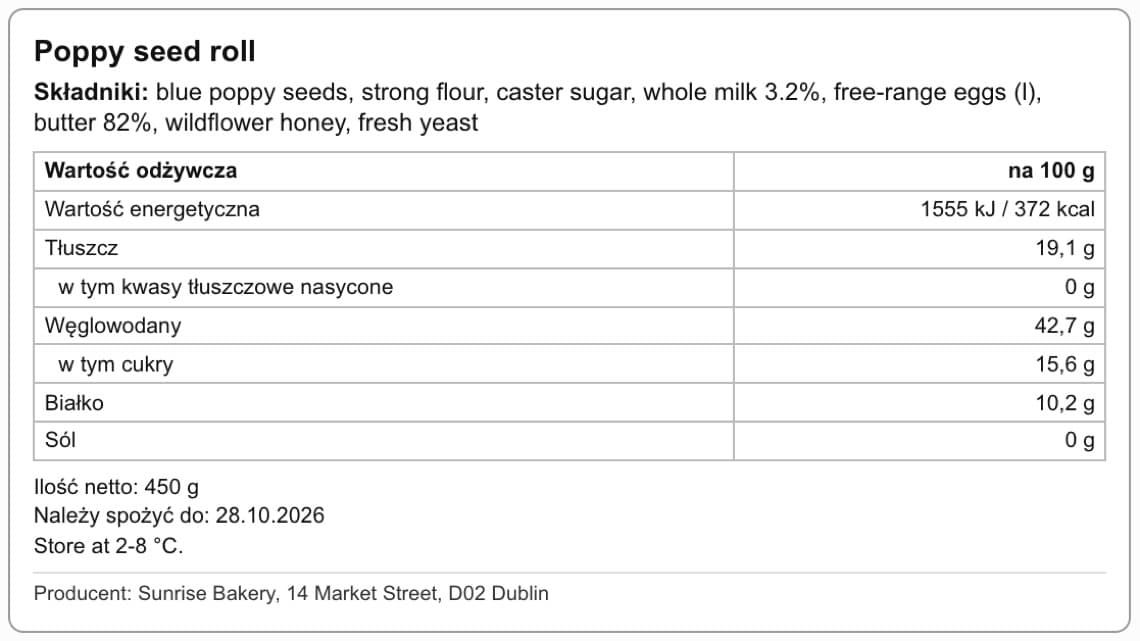
Tip: Two things stay with you, and the app does not pretend to know them: the nutrition values of the ingredients (you enter them for the ingredient, per 100 g) and the weight of the finished bake in the recipe (without it - or when it does not match the weight of the ingredients, i.e. it is less than 60% or more than 105% of their weight - the values are calculated per 100 g of raw ingredients, not of the finished product, and the label page warns you about this above the preview). Always review the generated ingredient list before printing: the system knows the raw ingredients from the recipe, but not about changes you have not entered into the ingredients.
Printing the label: packing date and table
On the label page, above the preview, there is a bar with the “Number of labels:” and “Packing date:” fields (today by default), the “Nutrition table” switch and the “Print / save PDF” button. Changing the packing date immediately recalculates the date on the preview: the packing date plus the “Shelf life (days)” from the product. Unticking the table hides it only in this printout - you change the default in Settings, where you also choose the sheet format.
- “Number of labels:” - how many copies go onto the sheet or roll
- “Packing date:” - the use-by or best-before date is calculated from it; an empty date = a label without a date
- “Nutrition table” - you can turn it off for a single printout
- The “Format: …” line shows the format from Settings (e.g. “A4 sheet - 2 columns (≈99×57 mm)”)
- Yellow warnings above the preview (no ingredient list, no shelf life in days, no recipe, values calculated per raw ingredients, ingredients without nutrition values) are only visible on screen - they are not printed

Tip: A product without “Shelf life (days)” gets a label without a date and a warning: a prepacked product needs a date of minimum durability or a use-by date, except for products normally eaten within 24 hours of being made.
Exporting the product list
The “Export” button above the product list saves products to a file, e.g. for your accountant, a wholesaler or for corrections in Excel. The export includes all products matching the current filters (search and category), not just the visible page, including inactive ones.
- In the product list set a filter if you want to export only part of it (e.g. the Celebration cake category) - without a filter the export includes everything
- Click “Export”
- Choose “CSV” or “XLSX (Excel)” - the file downloads straight away
- One row for each product variant (a product without variants and a product from the cake configurator - one row): next to the product data there are columns for the variant, portions, price mode, variant price, unit and whether the variant is the default one
- Product columns: number, name, short name, category, default category, type, price, B2B price, batch yield, prices from the recipe (per kg, trays, piece), by weight, seasonal, active, divisible, ingredients, allergens and creation date
- The column headers are in Polish regardless of the interface language, because the file usually goes to people outside the app
- Export is available on every plan; the button is visible to roles with the permission to export products - only the administrator by default
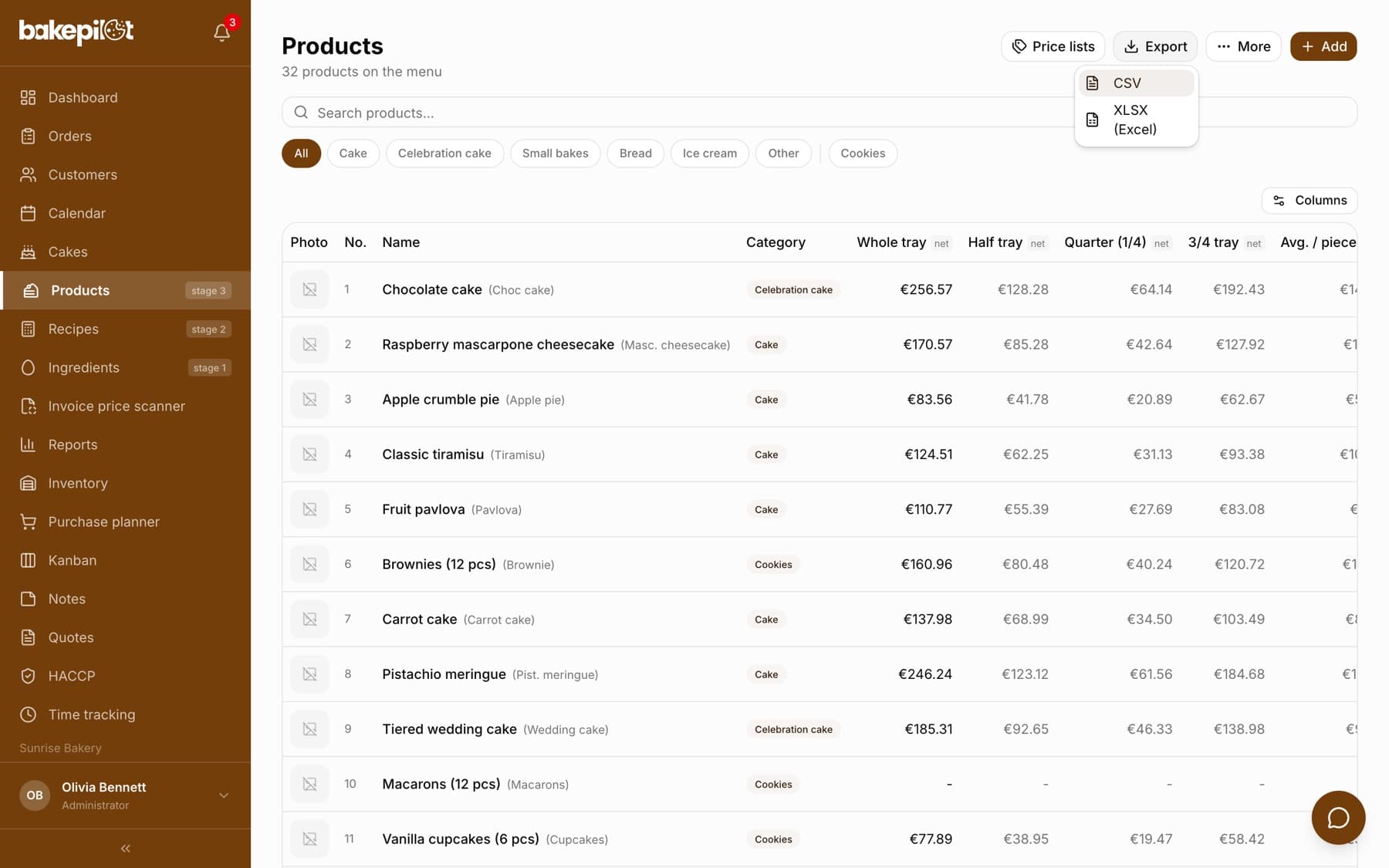
Tip: You can upload the exported file back, completed in Excel and saved as CSV, via “More” → “Import CSV” - together with variants. The import skips products whose name already exists in the account.
Printable menu (PDF)
The “Menu” button above the product list opens a ready-to-print company menu with active products grouped by category - default categories first, then your own. You can print the menu or save it as a PDF, e.g. to put up in the shop or send to a customer. The printed menu is in Polish. The feature is available on every plan.
- In the product list click “More” → “Menu”
- Choose the version: “B2C (retail)” - retail prices, or “B2B (wholesale)” - wholesale prices
- Click “Print / PDF” and in the print window choose a printer or “Save as PDF”
- Header: the company name, address, phone and e-mail from Settings and the title “MENU” (or “CENNIK HURTOWY”, the wholesale price list, in the B2B version) with today's date
- Columns: number, name, price and unit (“/kg” for products that are “Sold by weight”, “/szt” (per piece) for the others)
- The name column shows the product's short name if you entered one, followed by the allergens from the “Allergens” field in brackets
- The price is the product price from the product window; in the B2B version - the product's “B2B price”, and if it has none, the price minus the “Default B2B discount (%)” from the company Settings
- Inactive products do not appear on the menu
- Footer of the retail version: a note that allergen information is available on site; of the wholesale version: a note that the wholesale prices may change
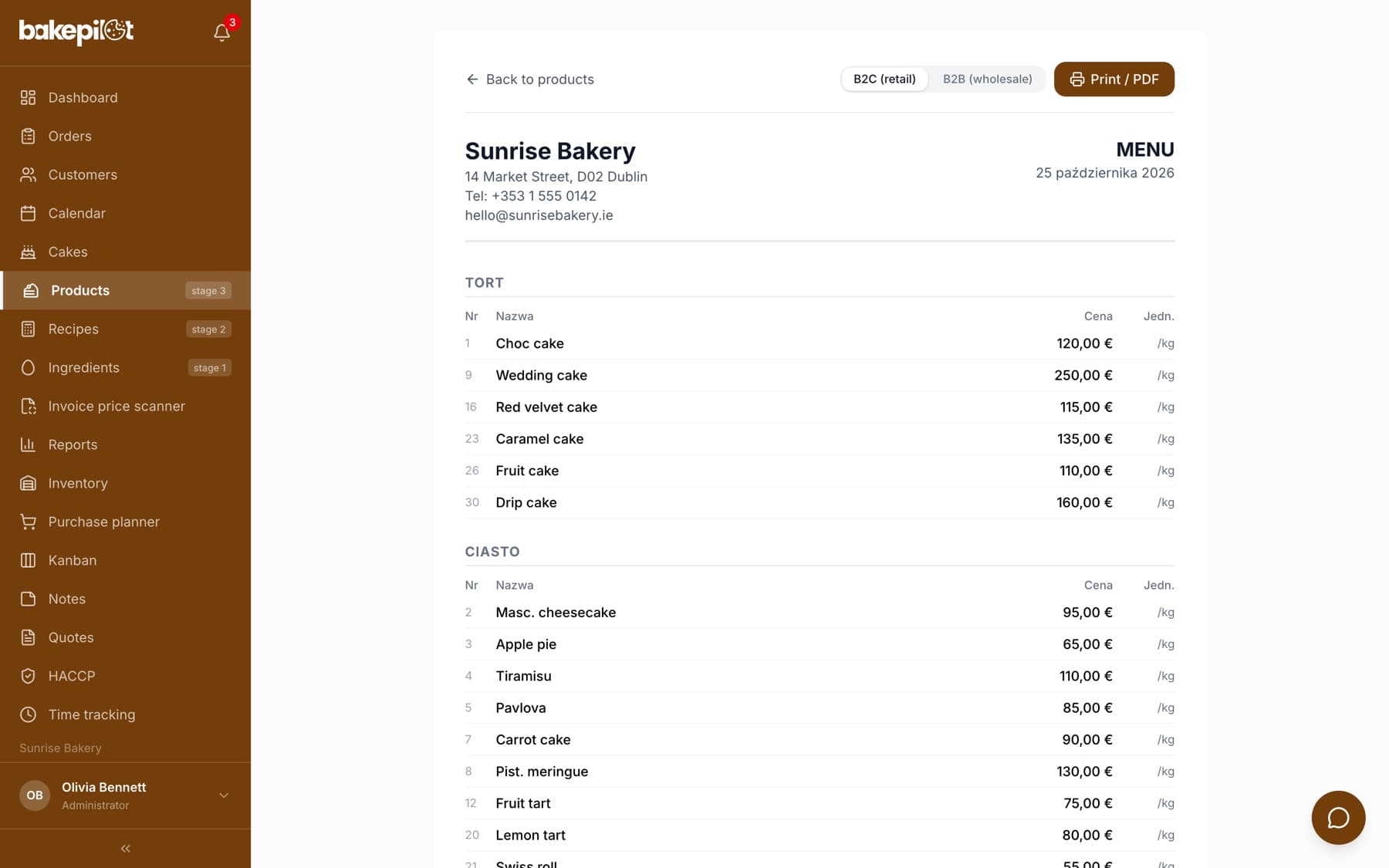
Tip: The menu shows one price per product - the price from the product window, not the prices of the individual variants. If you sell a product in several sizes, check that this price describes it well, or put the size in the short name. Individual prices for wholesale customers are set in price lists.
Frequently asked questions
How do I set different prices for wholesale customers?
With price lists: in the product list click “Price lists”, create a price list (e.g. “Hotels”), add products to it with the “Add products” button and assign it to your wholesale customers. The step-by-step description is in the article on price lists for wholesale customers.
How many products can I add?
There is no product limit on any plan. You can add as many products as you need.
Can I import products from a file?
Yes. In the product list click “More” → “Import CSV” and upload a file with products (you can prepare it in Excel and save it as CSV). In the import window you can download a ready file template with the required columns. You can also upload a file from the product export (Export → CSV) completed in Excel - together with variants. The import skips products whose name already exists in the account, so uploading the same file again does not duplicate anything.
Related articles
Price lists for wholesale customers
Customers
From ingredient to product - how BakePilot calculates cost and profit
Step-by-step guides
Product variants
Products
Wholesale (B2B)
Orders
Cake configurator - custom cake orders step by step
Products
Cost calculator
Products
Creating a recipe
Recipes
Creating an order
Orders