
Issuing invoices
How to issue sales invoices in BakePilot: from an order, manually, numbering, printing and KSeF.
Last updated:
Before you issue your first invoice
An invoice needs the seller's full details. If anything is missing, in the invoice settings you will see a yellow message “Complete your organization details” with a list of the missing fields, most often the “Bank account number” and the “Bank name”. You fill them in under Settings in the “Organization” section and go back to invoices.
- Company name, NIP (Polish tax identification number) and address in the “Organization” section
- “Bank name” and “Account number”, printed on the invoice
- The message disappears once the details are complete
Invoice from an order
The quickest way to get an invoice: in the order details, click “Issue invoice”. The form opens with the buyer details, items, quantities and prices from the order. You check it, correct what needs correcting and save it. The invoice gets the next number and goes into the register as a “Draft”.
- Open the order and click “Issue invoice”
- Check the “Buyer”, “Dates and place” and “Invoice items” sections
- Choose the payment method and add “Notes” if needed
- Click “Save invoice”
- If the order has a delivery cost, a “Delivery” item appears at the end of “Invoice items” (quantity 1, with the Polish unit for a service). The gross total of the invoice matches the order amount including delivery (to the grosz, as with the other items)
- Delivery gets the VAT rate of the goods in the order, because it is part of selling them. When the order contains goods at different rates, the delivery cost is split between the rates in proportion to the net value of the goods. The invoice then shows several items, e.g. “Delivery (5%)” and “Delivery (23%)”, which together add up to the delivery amount from the order
- The delivery cost is calculated the same way as the prices in the order: when all items have net prices (variants with a net price), delivery is also treated as net and VAT is added to it; in all other orders the delivery amount is gross
- If an invoice has already been issued for the order, you will see a warning with its number above the form. You can issue another one, but check that you are not duplicating the document
Tip: Prices in an order are gross prices, while the invoice holds net amounts. The app converts the amounts back from gross using the VAT rate of the product variant, so the gross total on the invoice matches the order amount. Items without a variant get an 8% rate, so check it if you sell at a different rate.
Payer and recipient (e.g. a municipality and a kindergarten)
Sometimes the goods are paid for by someone other than the one who receives them: a municipality pays for a kindergarten or nursery, a company's head office pays for its branch. The buyer on the invoice is then the payer, and you enter the recipient in the “Recipient other than the buyer” section. In KSeF (Poland's National e-Invoicing System) the recipient goes into the “Podmiot3” section and gets access to the invoice.
- In the invoice form, tick “Recipient other than the buyer”
- Choose the “Recipient role”: “Subordinate unit of a local authority (JST), e.g. a municipal kindergarten” or “Recipient (buyer's branch or unit)”
- Enter the “Recipient name”, and optionally the “Recipient's NIP” and “Recipient address”
- Save the invoice. The recipient appears on the invoice below the buyer
- For a subordinate unit of a local authority (JST), the invoice in KSeF is marked as relating to a subordinate unit (the JST field on the buyer's side)
- You set a permanent payer and recipient pair in the record of the receiving customer, in the “Payer (invoice to another entity)” section. Then “Issue invoice” on the kindergarten's order fills in the municipality as the buyer and the kindergarten as the recipient by itself. The section is in the customer form from the Profesjonalny (Professional) plan, because the payer works on the delivery note (WZ) (Profesjonalny) and on the invoice (Mistrzowski (Master))
- A corrective invoice carries over the recipient from the original invoice
Manual invoice
You can also issue an invoice that is not linked to an order, for example for catering or renting a room. On the “Sales” tab in the “Invoices” module, click “New invoice”. In the “Buyer” section the “Search customers by name...” field suggests customers from your database, but you can also type the details by hand.
- “Buyer”: name, NIP, address, email
- “Dates and place”: issue date, sale date, payment due date, place of issue
- “Invoice items”: name, quantity, unit (szt, kg, l, m, opak, kpl, i.e. pcs, kg, l, m, pack, set), net price and VAT rate; you can type quantity and price with a comma or a dot, e.g. 2,5
- VAT rates for the Polish zloty: 23%, 8%, 5%, 0%, ZW (exempt), NP (not subject to VAT); for the euro: 19%, 7%, 0% and “befreit”
- An item with the ZW rate requires the “Legal basis for the VAT exemption” in the invoice settings. The legal basis goes onto the invoice page, the printout and to KSeF
- “Payment”: Bank transfer, Cash or Card, plus notes printed on the invoice
Invoice list and filters
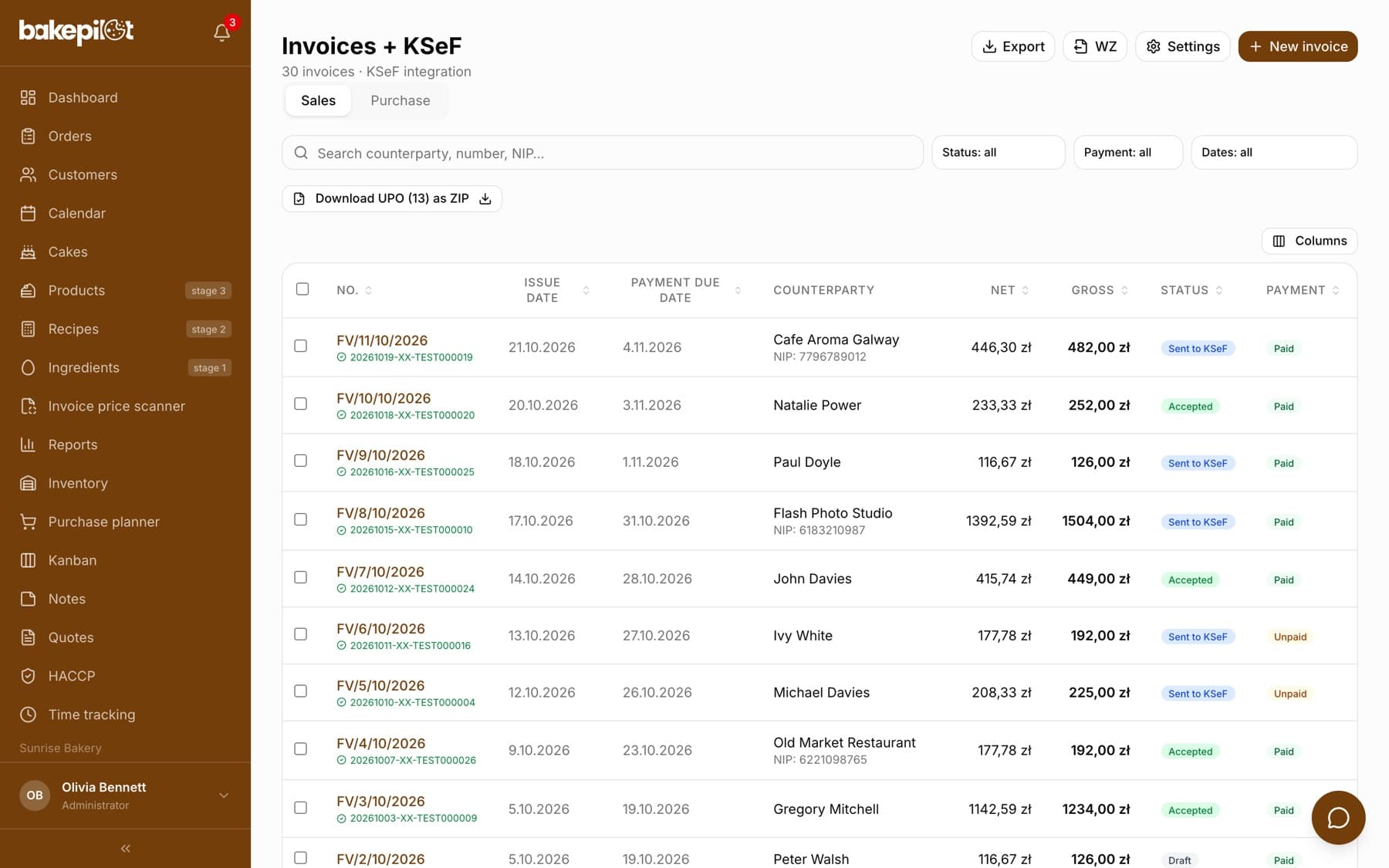
The “Invoices” module has two tabs, “Sales” and “Purchase”, and at the top the “WZ” button (the list of delivery notes (WZ)), “Settings” and “New invoice”. The list shows the number, dates, counterparty, net and gross amounts, the document status and the payment status. The “Columns” button also turns on the sale date, and the download icon exports the filtered list to CSV or XLSX.
- Document statuses: “Draft”, “Sending to KSeF”, “Sent to KSeF”, “Accepted”, “Rejected”
- Payment status: “Paid” / “Unpaid”
- Search by counterparty, number and NIP, plus filters for status, payment and dates
- Selecting invoices (on a computer) shows the “N invoices selected” bar with the “Paid” and “Unpaid” buttons, so you change the payment status of many invoices at once
- With one sales invoice selected, the bar also has “Issue corrective invoice”; on the “Purchase” tab it has “Assign category” for costs
Numbering and default settings
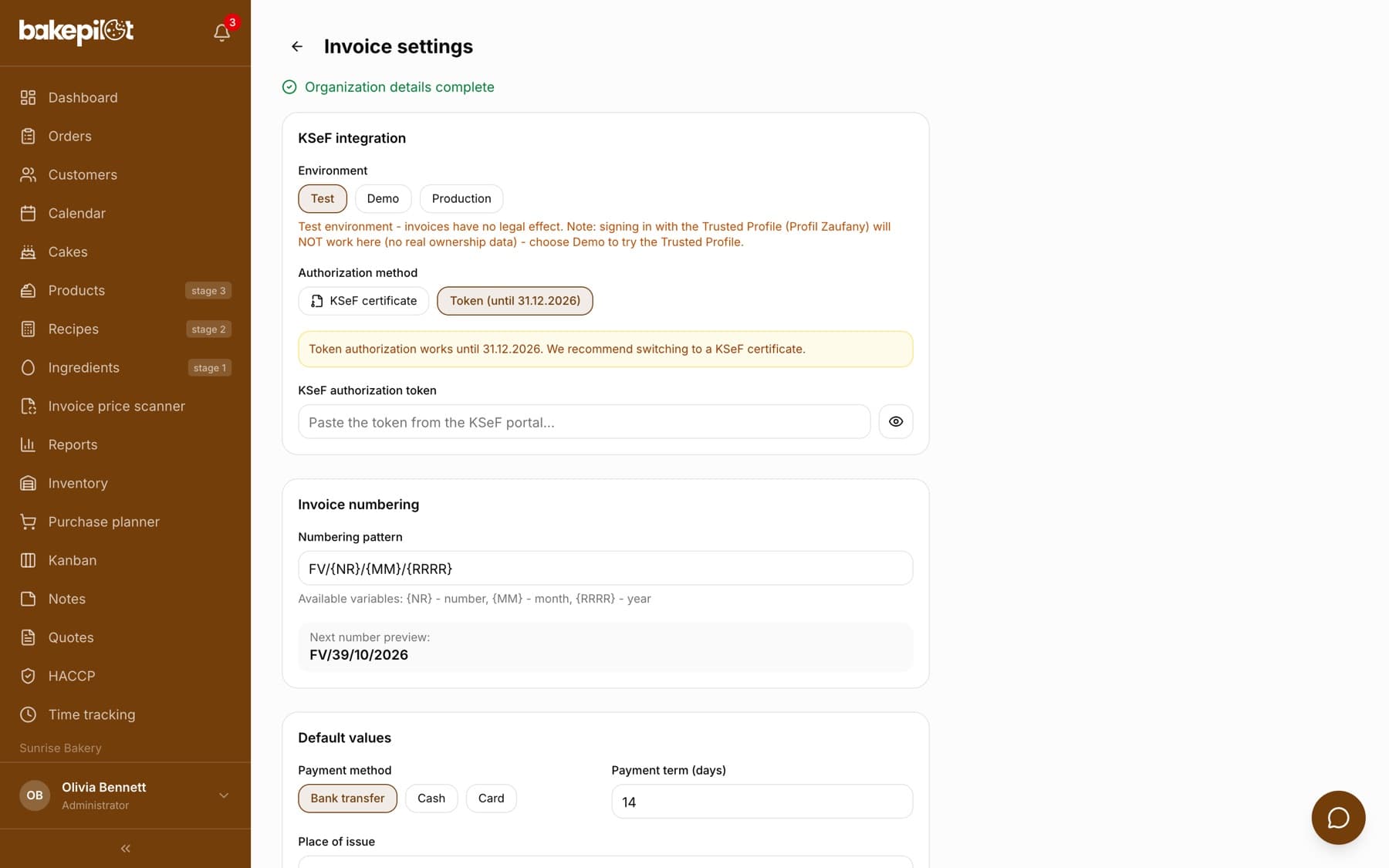
You set the numbering pattern in the invoice settings, in the “Invoice numbering” section. By default it is FV/{NR}/{MM}/{RRRR}, meaning the next number, month and year, and below the field you see the “Next number preview”. On the same tab you set the default payment method, the payment term in days, the place of issue and the notes that should appear on every new invoice.
- “Numbering pattern” with the variables {NR} (number), {MM} (month), {RRRR} (year)
- “Default values”: payment method, payment term (days), place of issue, default notes
- “VAT settlement”: “Taxpayer status” (“VAT payer” or “VAT exempt”) and “Settlement period” (monthly or quarterly). The Finance module uses them
- Set the “Taxpayer status” the same way as the “Company VAT status” in Settings (the “Organization” section, “Cost calculation”). That field decides whether recipe costs and margins are calculated net or including VAT. When the two settings differ, Settings shows the message “In the invoice settings the company is marked as … - check that both settings match.”
- “Legal basis for the VAT exemption”: the provision under which you sell without VAT (e.g. “art. 113 ust. 1 ustawy o VAT”, Article 113(1) of the Polish VAT Act, for the small business exemption); needed for items with the ZW rate
- The number is assigned by the app; a deleted draft leaves a gap in the numbering
Invoice page, printing and KSeF
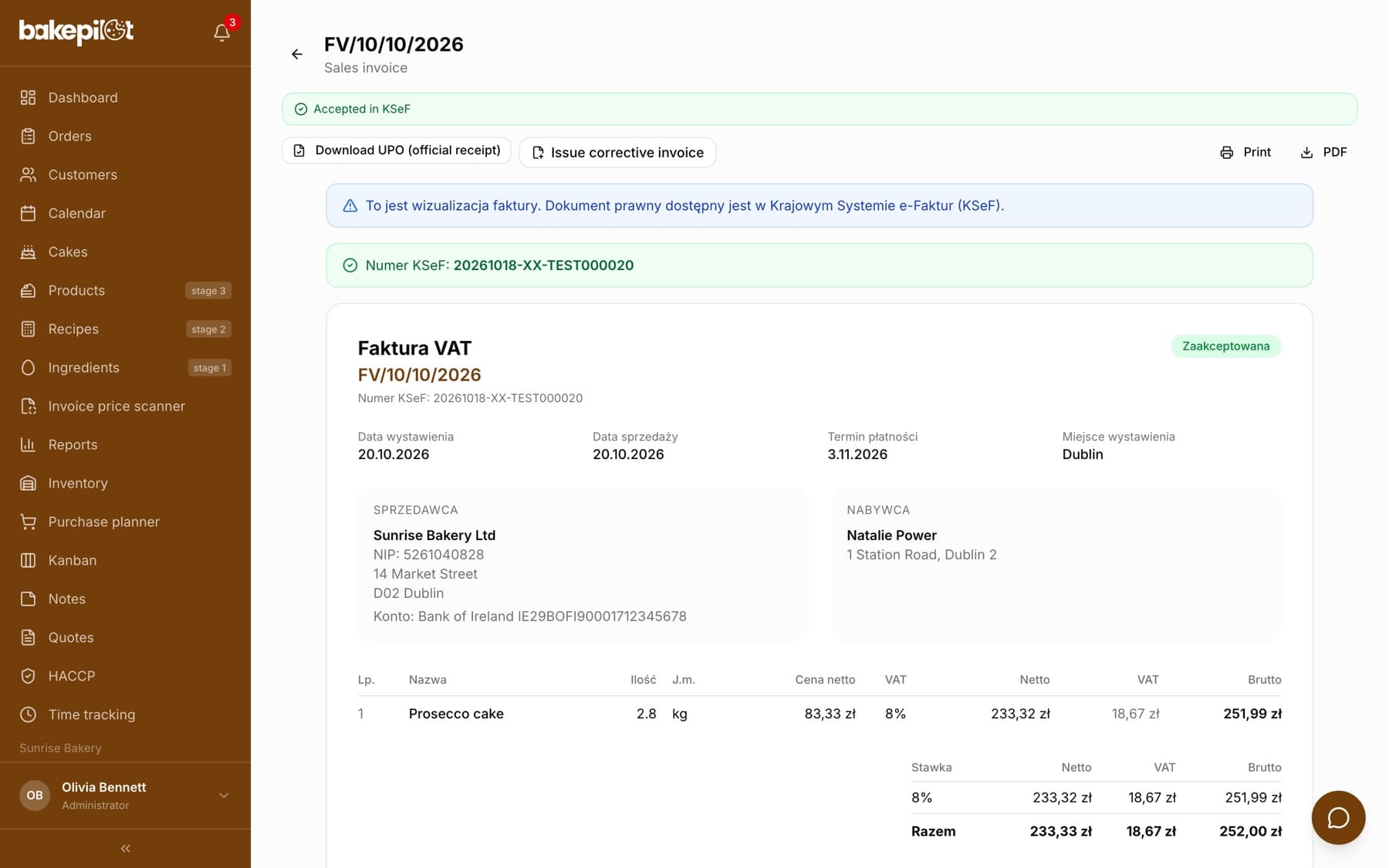
The invoice page shows the document in a print layout: the “VAT invoice” heading, dates, seller details with the account number, buyer details, items and the breakdown by VAT rate. The “Print” button opens the print dialog, and “PDF” opens the same dialog; choose “Save as PDF” there if you want to send the file yourself. You send invoices in Polish zloty to KSeF with the “Send to KSeF” button.
- “Send to KSeF”, for invoices with the “Draft” status in PLN
- “Check KSeF status”, for sent invoices until they are accepted
- “Download UPO (official receipt)”, the official confirmation of receipt for accepted invoices; on the list, “Download UPO (N) as ZIP” downloads many at once
- “Paid”, marks the payment and saves the date
- “Issue corrective invoice”, for an invoice accepted in KSeF, leads to the correction form
- “Fix and send again”, for an invoice rejected by KSeF; details in the article “Fixing an incorrect invoice”
- A QR code for verification on ksef.mf.gov.pl appears on the page once the KSeF number is assigned
Tip: An invoice issued with today's date shows the reminder “The invoice is dated today - send it to KSeF today”. The printout does not include the company logo; it prints the seller's full text details.
Marking an invoice as paid
Every invoice has a payment status, “Paid” or “Unpaid”, independent of its status in KSeF. When the customer pays, open the invoice page and click “Paid”. The app saves the payment date and the button disappears. For many invoices at once (e.g. after a bulk transfer), use the list: on a computer, select the invoices and click “Paid” in the “N invoices selected” bar. The same bar has the “Unpaid” button (“Undo marking as paid”), which fixes a mistake. There is no undo on the invoice page.
- A single invoice: open it and click “Paid”. You will see “Invoice marked as paid”
- Many invoices: select them on the list and click “Paid” in the bar above the table
- A mistake: select the invoice on the list and click “Unpaid”
- By default, the administrator and the accountant can mark payments
- The payment filter on the list shows paid or unpaid invoices
- The payment status is not sent to KSeF. It is your own record of settlements with the customer
- You can change up to 200 invoices at once with one click
Frequently asked questions
Does BakePilot support JPK_V7M?
We do not generate JPK files (the Polish standard audit file for tax). BakePilot issues invoices, sends them to KSeF and prepares a summary for your accountant. The JPK file itself is filed by your accounting office or your accounting software.
Can I issue a pro forma invoice?
Not yet. The VAT invoice is available. If you need a document before the sale, use the Quotes module.
Will BakePilot email the invoice to the customer?
There is no automatic email sending. You save the invoice as a PDF from the print dialog and send it from your own mailbox, or you send it to KSeF.