
Fixing an incorrect invoice
What to do with an invoice that contains a mistake: you fix a draft directly, and an invoice in KSeF with a corrective invoice.
Last updated:
An invoice with the Draft status
As long as the invoice has the “Draft” status, nothing has happened outside the app yet: it has not gone to KSeF (Poland's National e-Invoicing System) or to the customer. You can delete it and issue a correct one from scratch. One thing you need to know: the number of a deleted draft does not return to the pool. The next invoice gets the following number, so the register has a gap. Note it in your records or agree it with your accountant.
- Open the page of the invoice with the “Draft” status
- Click “Delete” and confirm the question “Are you sure you want to delete this invoice?”
- Issue a new invoice with the correct details, from an order or via “New invoice”
- By default, the administrator can delete; the “Delete” button is only available for a draft
- Deleting the draft of a consolidated invoice from delivery notes (WZ) releases those delivery notes. They return to the “Issued” status and you can issue an invoice from them again
Tip: Before you send anything to KSeF, look through the invoice preview. After sending, there is no going back.
An invoice sent to KSeF
Invoices with the “Sent to KSeF”, “Accepted” or “Rejected” status no longer have a “Delete” button, and an attempt to delete one ends with the message “An invoice sent to KSeF cannot be deleted”. That is how it should be: the document already exists in the state system. Under Polish law, such an invoice is not fixed by editing it, but by issuing a corrective invoice.
- An invoice sent to KSeF cannot be deleted or withdrawn
- A correction requires a separate document: a corrective invoice
- This applies to changes in quantity, price, VAT rate and buyer details
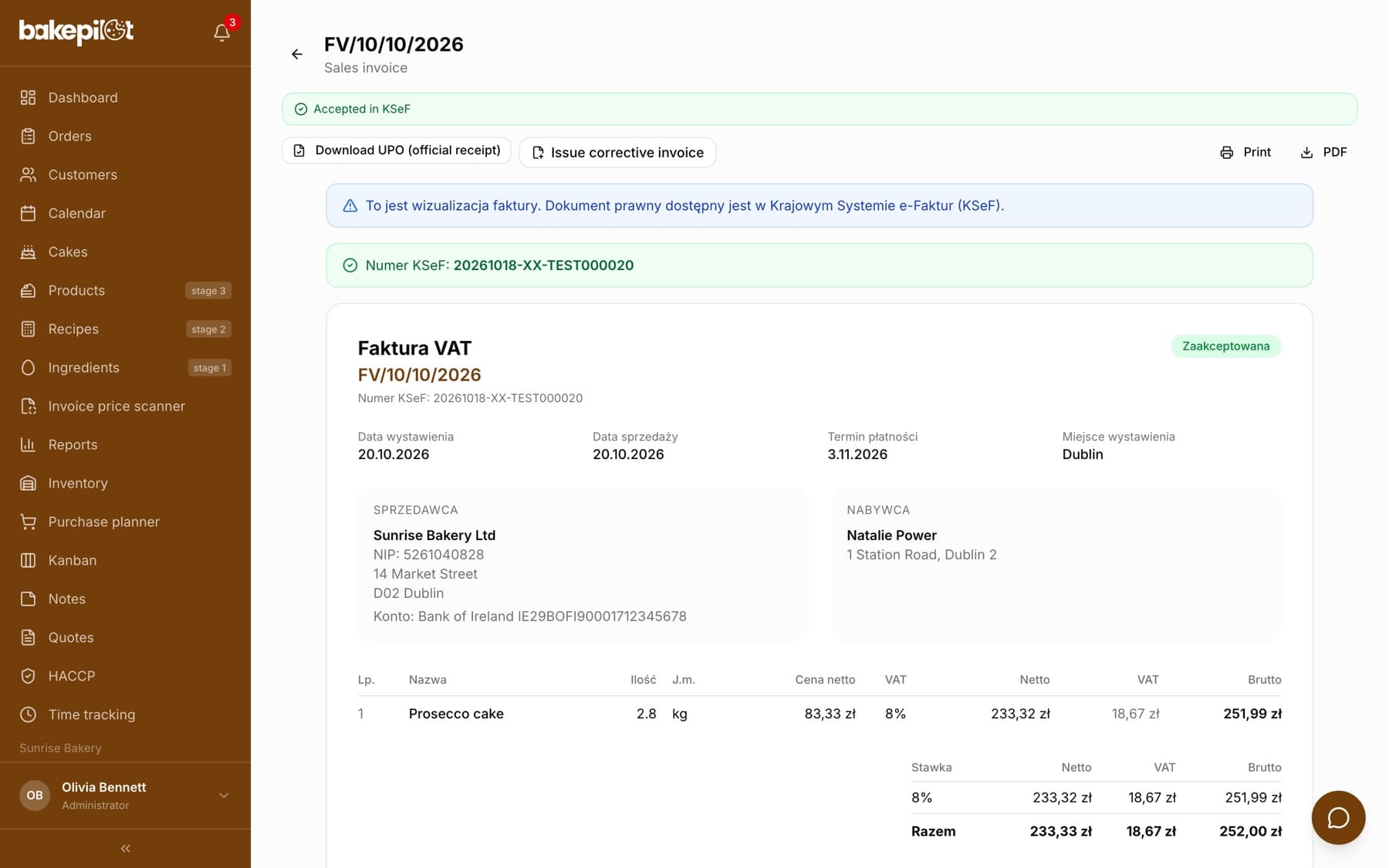
How to issue a corrective invoice
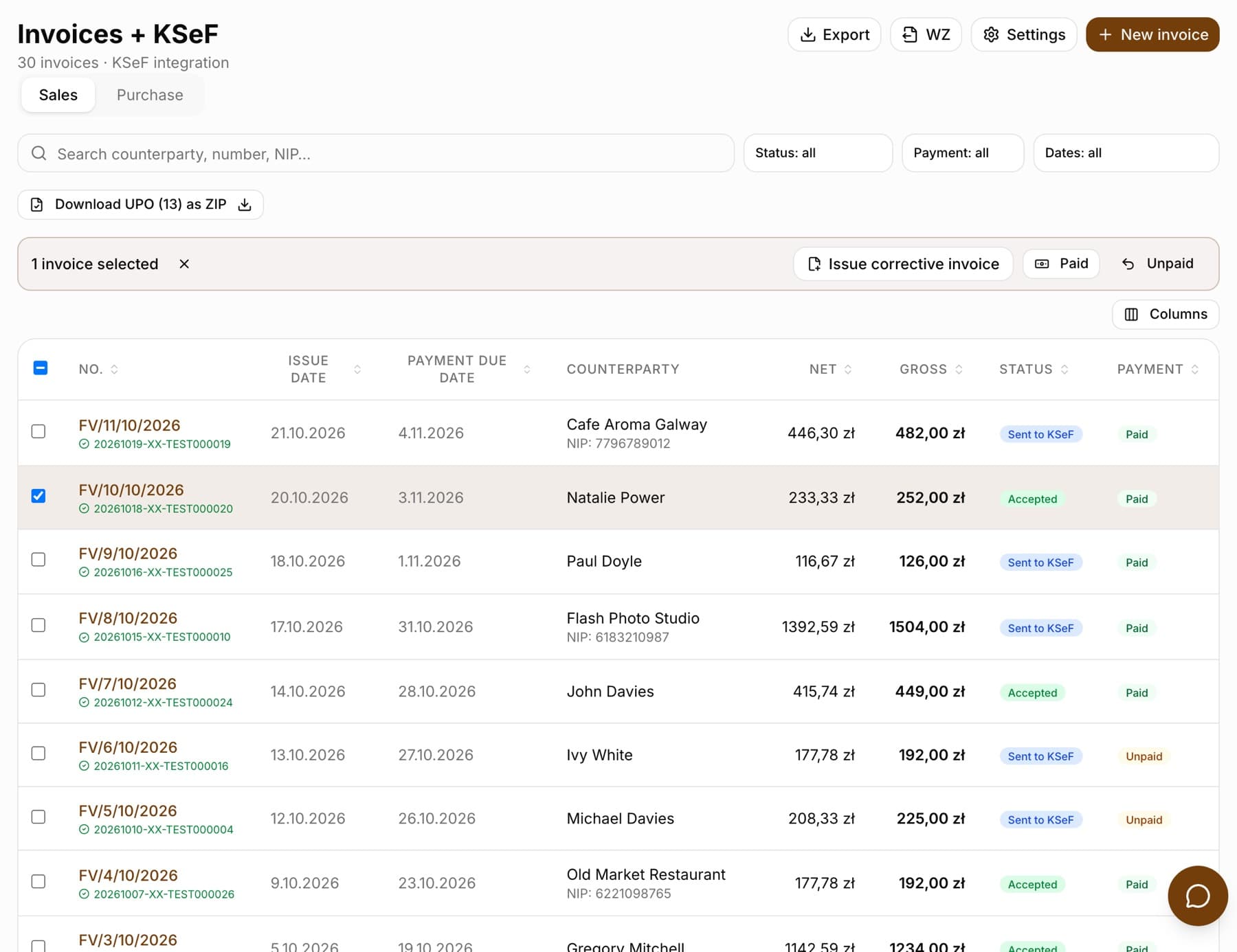
You can issue a corrective invoice for a sales invoice accepted in KSeF. Three routes lead to the correction form: the “Issue corrective invoice” button on the invoice page, the same button in the bar above the invoice list after selecting one invoice, and “New invoice” with the “Corrective invoice” type, where you search for the invoice by number, buyer or NIP. The form shows the items of the original invoice filled in with its values; you change only what should be different. An item you do not touch does not go onto the correction. Below the table you see the correction amount: a negative value means a correction that reduces the amount. The corrective invoice is created as a draft, so you can still review it before sending it to KSeF from its own page.
- Select the invoice on the list and click “Issue corrective invoice” in the bar above the table, or open the invoice page and click the same button, or choose “New invoice”, then “Corrective invoice” and the invoice from the list
- Change the quantity, net price or VAT rate for the items the correction applies to
- Optionally enter the reason for the correction
- Click “Issue corrective invoice”. The document is created as a draft
- Check the amounts and send the corrective invoice to KSeF the same way as a regular invoice
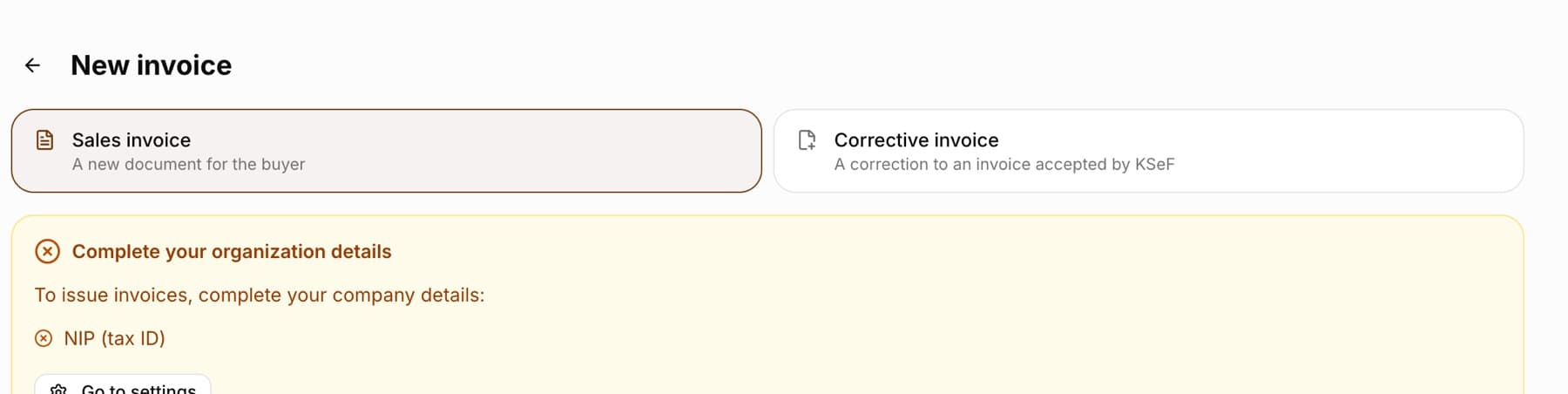
Tip: Corrective invoices have their own numbering series (FK/number/month/year by default), so they are easy to tell apart from invoices in the summary for your accountant.
Why “Issue corrective invoice” is grayed out
When the selected invoice cannot be corrected, the button in the bar above the list is grayed out, and clicking it shows the reason. On the page of such an invoice, the same reason appears above the action buttons. The button in the bar works with one invoice selected; with several, it says “Select a single invoice to issue a corrective invoice for it”.
- Draft: “This is a draft - it has not reached KSeF, so no correction is needed”
- An invoice being sent or sent but not yet accepted: “You can issue a correction once KSeF accepts the invoice”
- An invoice rejected by KSeF: “An invoice rejected by KSeF was not issued - instead of a correction, fix it and send it again”
- A corrective invoice: “A corrective invoice is issued for the original invoice”, with a link to that invoice
Wrong buyer NIP: a correction to zero
A wrong buyer NIP (Polish tax identification number) is not fixed by correcting the details; this follows from the KSeF rules. Instead, the whole invoice is zeroed out and then a new one is issued with the correct number. In the correction form, the “Correction to zero (whole invoice)” switch does this: once ticked, all items go down to zero and the correction amount is an exact reversal of the original invoice.
- Tick “Correction to zero” to zero out the whole invoice
- Then issue a new invoice with the correct NIP
- Use the same route when an invoice was sent to KSeF by mistake
What a corrective invoice will not do
You cannot issue a corrective invoice for a draft or for an invoice rejected by KSeF, because these documents have not entered legal circulation. You delete or send a draft, and you fix a rejected invoice with the “Fix and send again” button on its page. According to the explanations of the Polish Ministry of Finance, a rejected file is not an issued invoice, so instead of a correction you send a corrected file, and the invoice keeps its number. There are no correction notes either: the regulations abolished them at the beginning of February 2026, so every mistake, including in a name or address, is fixed with a corrective invoice issued by the seller.
- Draft: delete it and issue the invoice again; no correction is needed
- An invoice rejected by KSeF: “Fix and send again”, then “Save corrected invoice”. The same number, corrected details, sent again; the issue date must stay within the period in the invoice number
- A corrective invoice rejected by KSeF: this route does not exist. Write to us through the help chat and we will help you send it again
- Correction notes no longer exist from 1 February 2026
Frequently asked questions
Can I edit an invoice after sending it to KSeF?
No. The document already exists in the state system, so it can only be fixed with a corrective invoice.
Can I issue a correction to a corrective invoice?
Yes. Each further correction refers to the original invoice, not to the previous correction, as the KSeF rules require.
Do I have to give a reason for the correction?
No. The reason is an optional field, although it is worth filling in, because it makes conversations with the customer and your accountant easier.
Can an invoice sent to KSeF be cancelled?
No. A document in KSeF exists in legal circulation, and the only way to fix it is a corrective invoice. If the invoice got there by mistake, issue a correction to zero.