
From KSeF to ingredients - wholesaler invoices, prices and stock levels
You connect KSeF, wholesaler invoices arrive in the price scanner by themselves, and once you approve them they become ingredients with a price per kg, recipe costs and goods in stock.
Last updated:
The key point: a fetched invoice waits for your approval
An invoice fetched from KSeF does not change anything by itself. It goes to the “Invoice price scanner” with the “Draft” status and waits there until you review the lines and click “Apply changes”. Only then are ingredients created or updated, together with their prices and recipe costs. If the scanner holds a dozen “Draft” invoices and you do not see the wholesaler's goods in Ingredients, this is the step that was skipped.
- Steps 1-2: KSeF in the “Production” environment and fetching purchase invoices (Invoices module)
- Steps 3-6: reviewing “Draft” invoices in the scanner, assigning lines to ingredients and “Apply changes”
- Step 7: the ingredient gets a supplier, a price per package and a price per kg
- Step 8: you receive the goods from the invoice into stock with one button, after a preview
- Step 9: recipes with these ingredients recalculate on their own
Tip: The whole KSeF path works in the Mistrzowski (Master) plan. You assign a line to an ingredient once - further invoices with the same product match by barcode on their own.
Step 1: KSeF in the “Production” environment
Go to “Invoices”, click “Settings” and open the “KSeF integration” section. In the “Environment” field choose “Production” and click “Save settings”, then connect the certificate with the “Connect to KSeF in a few minutes” wizard. Only in the “Production” environment will you receive real invoices from your suppliers. With “Test” or “Demo” the app shows a yellow box “This is not the real KSeF” with a “Switch to Production” button.
- Invoices > “Settings” > the “KSeF integration” section
- In “Environment” choose “Production” (or click “Switch to Production” in the yellow box) and click “Save settings”
- In “Authorization method” choose “KSeF certificate” and go through the three steps of the “Connect to KSeF in a few minutes” wizard
- Once the certificate is issued you will see “Connected to KSeF” and the expiry date
KSeF integration - the certificate wizard step by step
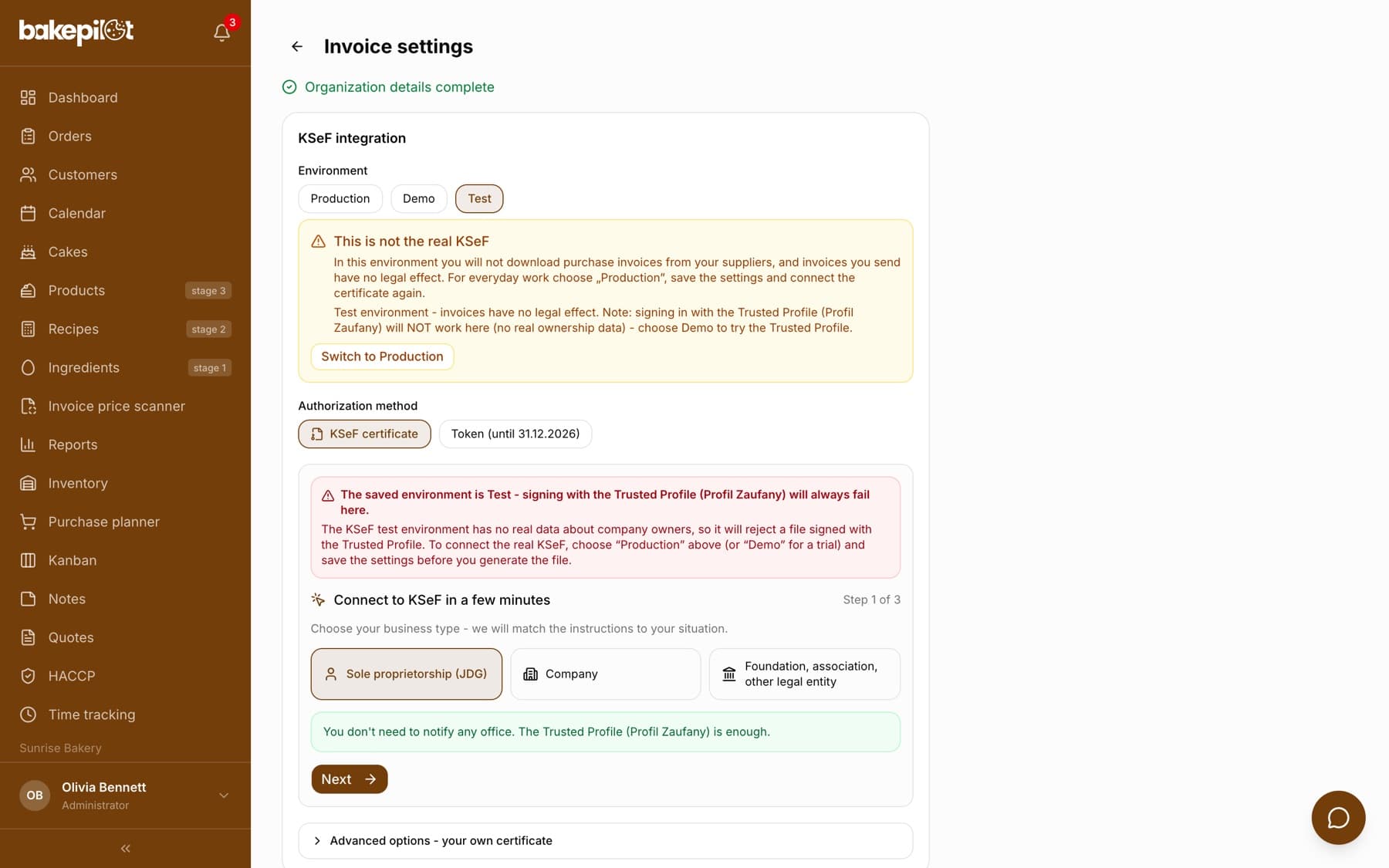
Tip: A certificate works only in the environment it was issued in. When you change the environment, after saving you will see a message that the previous certificate no longer works - go through the wizard again. Invoice settings are visible to a person with the “Invoice settings (details, numbering)” permission in the Invoices module, but the KSeF certificate, environment and permissions are set only by the account owner.
Step 2: fetching purchase invoices from KSeF
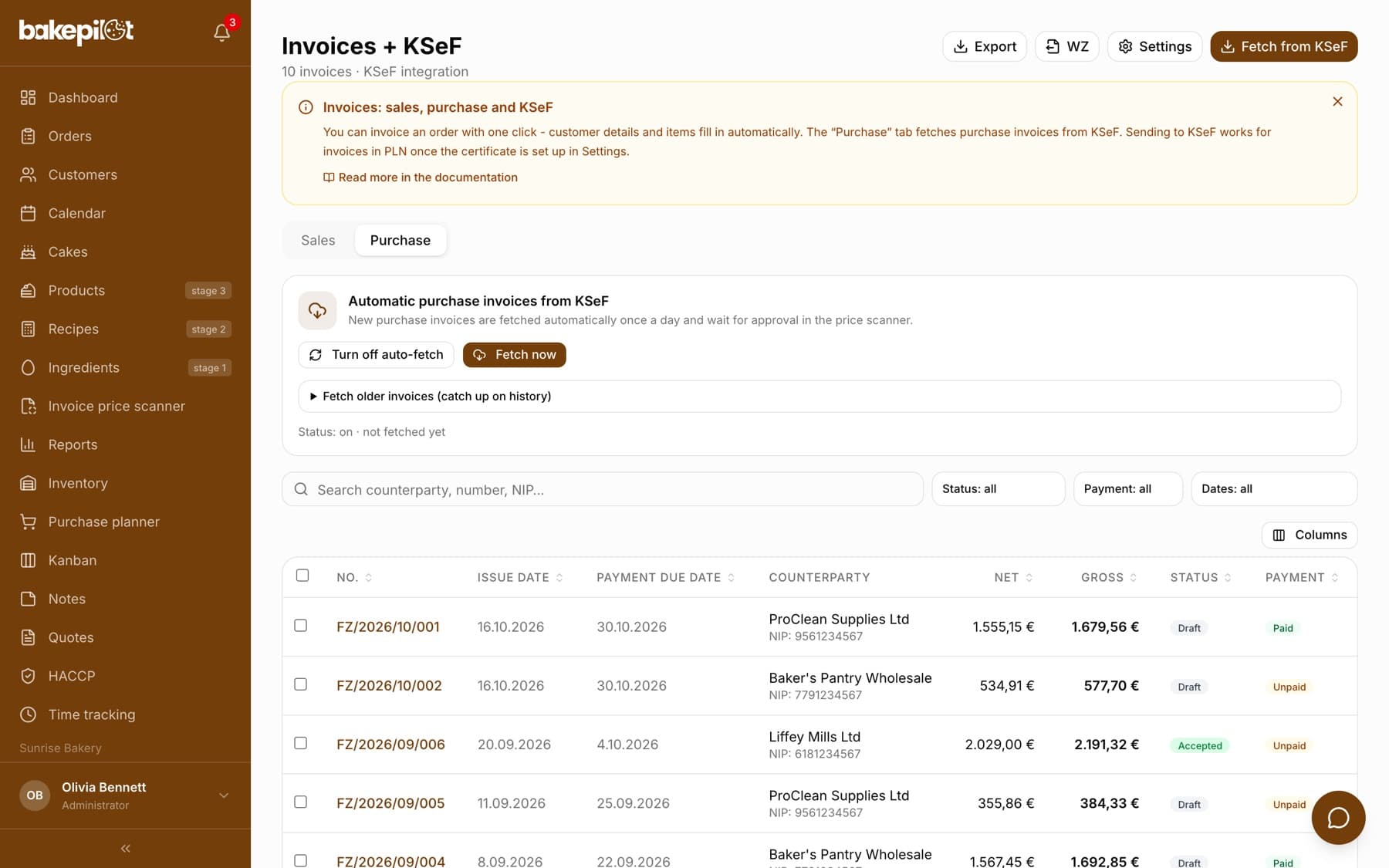
Invoices from wholesalers are fetched automatically once a day, in the morning. You will find the “Automatic purchase invoices from KSeF” panel in “Invoices” on the “Purchase” tab. The first fetch goes back 30 days, and you can bring in older invoices manually.
- Open “Invoices” and go to the “Purchase” tab
- Check the “Status: on” line under the buttons; if you see “off”, click “Turn on auto-fetch”
- Do not want to wait until morning? Click “Fetch now” - the “Fetching from KSeF finished” message gives the number of new invoices “awaiting approval in the price scanner”
- Older invoices: expand “Fetch older invoices (catch up on history)”, pick a date in the “From” field and click “Fetch from this date”
- One manual fetch covers up to 15 invoices - this is a KSeF limit; the rest comes with the next click after about 15 minutes or with the morning fetch
- Invoices already saved in the app are skipped, there are no duplicates
- The panel is visible to a person with the “Downloading purchase invoices from KSeF” permission (Administrator and Accountant by default)
Step 3: find invoices with the “Draft” status
Every fetched invoice waits in the “Invoice price scanner” - in the menu under Ingredients or via the “Invoice price scanner” button above the ingredient list. The number on that button tells you how many scanned invoices are waiting for price approval. In the “Scan history” section every invoice has a supplier, number, date and status. Invoices from KSeF are marked “KSeF” next to the supplier name.
- “Draft” - the invoice is waiting for review; nothing has reached your ingredients yet
- “Applied” - changes saved, the invoice is read-only
- “Discarded” - the import was discarded, no prices were changed
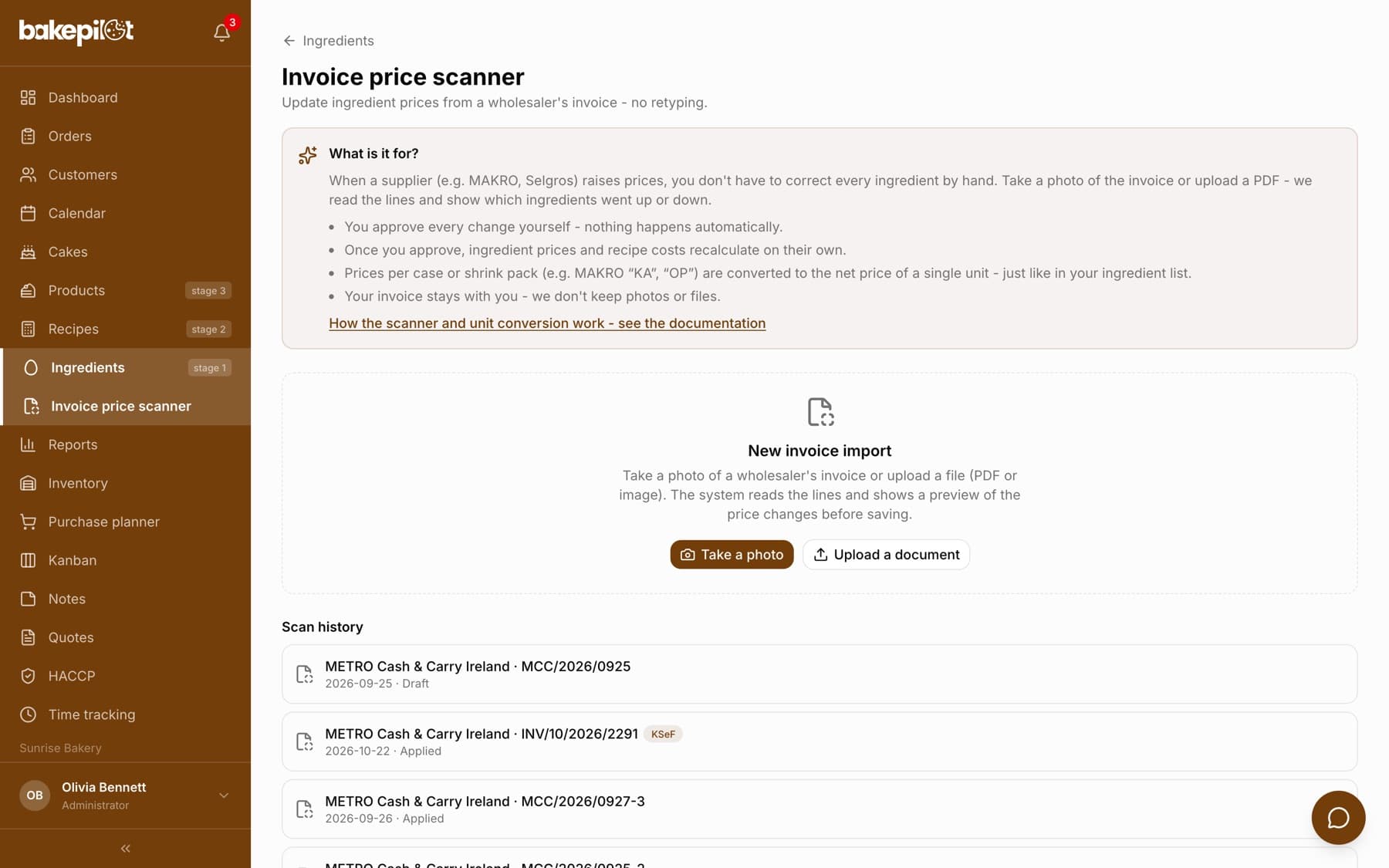
Tip: The scanner is visible to a person with the “Invoice price scanner” permission (Administrator, Accountant, Warehouse worker and Purchaser by default). You can change this in Settings, in the permissions matrix.
Step 4: assign lines to ingredients
Click a “Draft” invoice and the “Import preview” opens. Lines the app already knows by barcode are in the “Matched lines” group with the old and new price. On the first invoice from a wholesaler almost everything is in the “Unmatched lines” group, because the app does not yet know which product is which ingredient. You make this decision once.
- For each line, open the “Assign to ingredient” list and choose your ingredient, e.g. “MC BUTTER 82% 200G” → “Butter 82%”
- For a product you do not have in your database yet, choose “Create a new ingredient” - you can correct the invoice name in the “New ingredient name” field
- Leave packaging, paper towels, cleaning products and other non-recipe items on “Skip this line” (or click the cross next to the line)
- When you see “Suggested by name - check it and confirm with the tick button, otherwise the line will be skipped” under the list, check the suggestion and click the tick
- Click the tick next to every line you assigned - an accepted line has a green tick
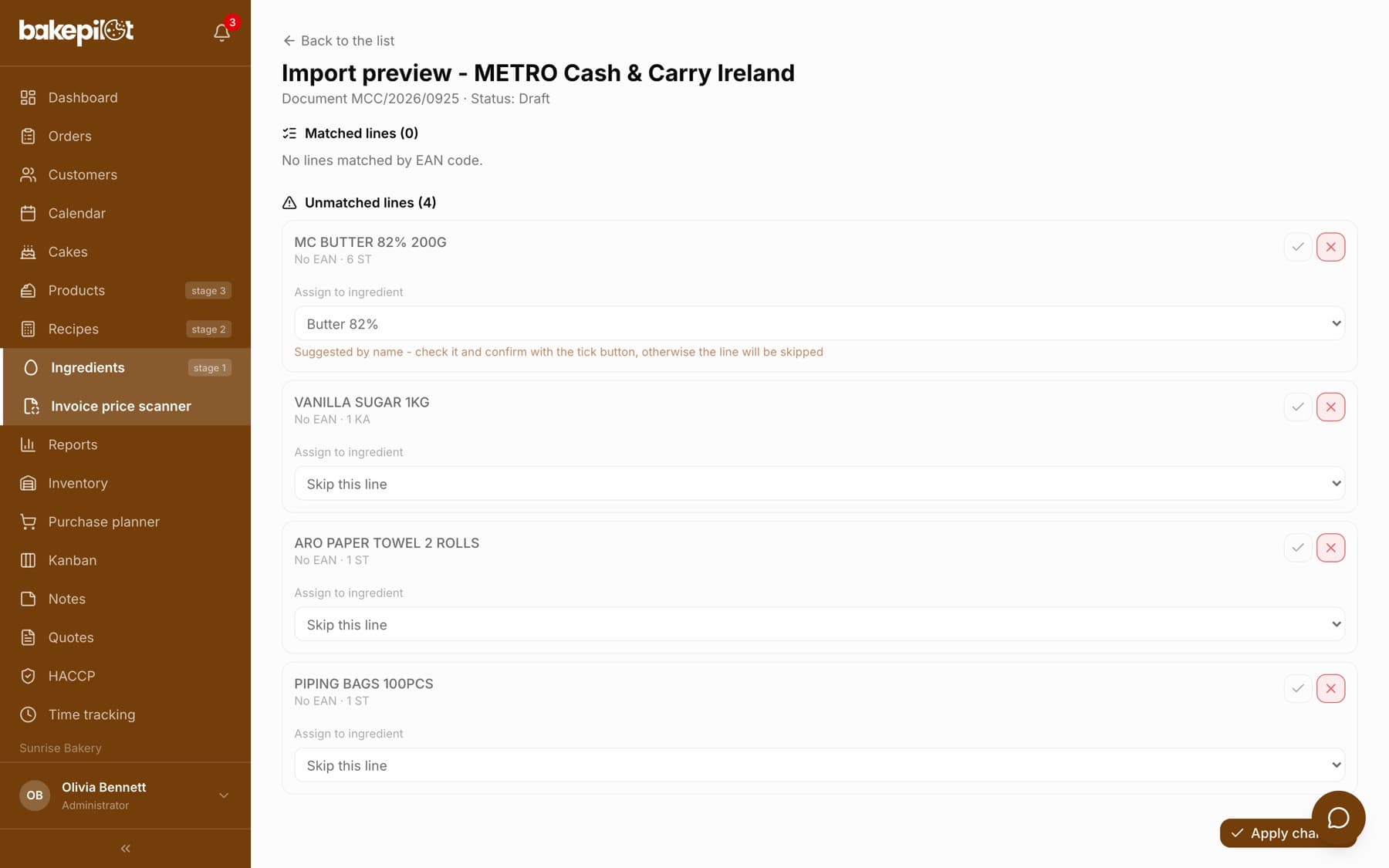
Tip: You do not have to assign everything at once. A line left on “Skip this line” simply does not change any price, and you review each invoice only once - after “Apply changes” it can no longer be edited.
Step 5: package weight and units per case
A price in BakePilot is always the price of one retail package (a block of butter, a bag of flour), and the price per kg is calculated from that package's weight. A wholesaler sometimes gives the price of a case or a price per kilogram, so the scanner needs two numbers: the package weight and the number of units in a case. When a line is already linked to an ingredient's supplier and something is missing, the preview shows a “units per case” or “Package weight” field with a “Save” button next to the line.
- “units per case” is the content of ONE case, not the number of cases you bought (a case of 8 blocks of butter = 8)
- You enter the “Package weight” in the unit shown in brackets: with “(kg)” a 25 kg sack is 25
- Both numbers are saved with the ingredient's supplier, so further invoices are converted on their own
- On the first invoice, when the line is only just getting a supplier, these fields are not there yet - you add the missing number after approval, on the ingredient card (step 6)
- The scanner never guesses a price: a line that cannot be calculated does not change the price and gets a description of the reason
Step 6: “Apply changes” and the invoice summary
Click “Apply changes” at the bottom of the preview. The invoice gets the “Applied” status, and at the top you see a green “Changes are saved” bar with counters. Below, every line describes what happened to it. This invoice can no longer be changed - you correct prices on the ingredient cards.
- “Ingredient price updated” - the new price went in
- “Assigned to an ingredient” and “New ingredient created” - the line went to the chosen or a new ingredient
- “Price unchanged” - the invoice price was the same as before
- “Price not accepted” - the reason in yellow (e.g. a different package unit at the supplier) and the “Complete it on the ingredient card” link
- “Skipped” - a line with no ingredient assigned
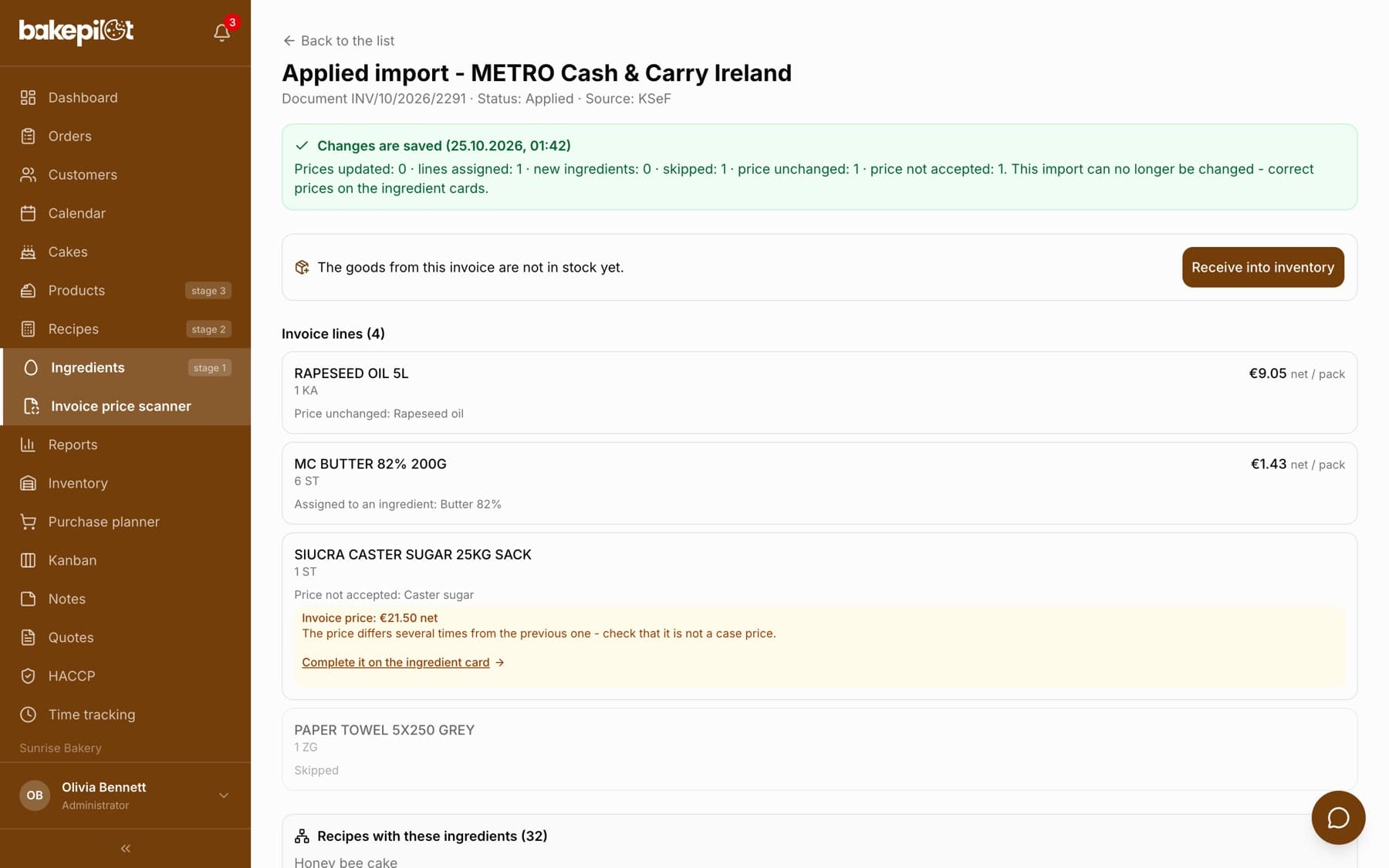
Tip: “Price not accepted” usually means the ingredient's supplier has a different package unit (grams instead of millilitres) or the weight or units per case are missing. Click “Complete it on the ingredient card”, click the pencil next to the wholesaler in the suppliers table and correct “Package wt.”, “Units per case” or the price. The next invoice from this wholesaler will then be converted on its own.
Step 7: what you will see in Ingredients
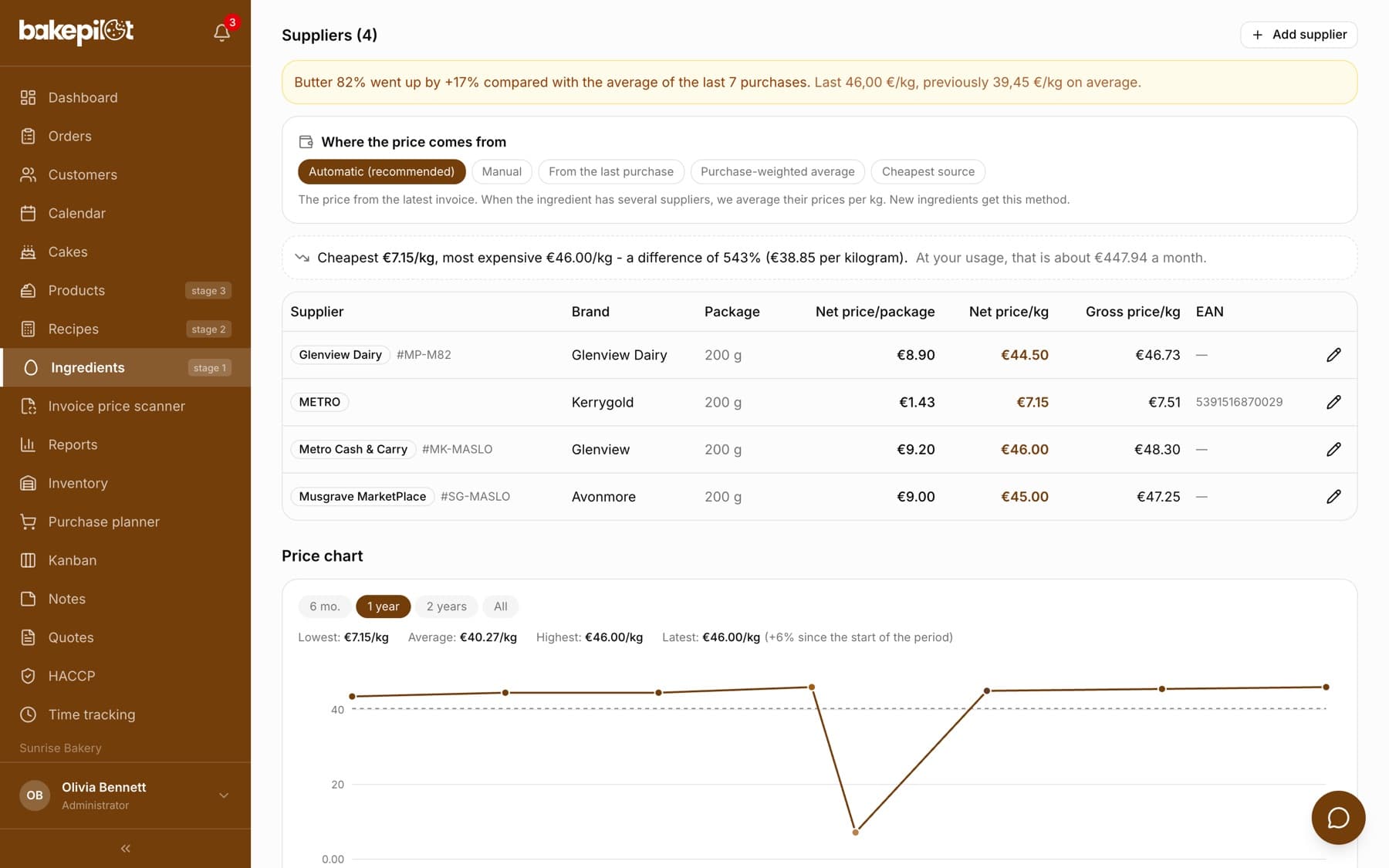
An approved line leaves a trace on the ingredient card. The wholesaler from the invoice appears in the “Suppliers” table with the barcode, package weight, net price per package and net price per kg. The purchase goes into the “Purchase log” with the invoice number. The ingredient price used in recipes is set by the “Where the price comes from” section.
- “Automatic (recommended)” - the price from the latest invoice, and with several suppliers the average of their prices per kg; new ingredients get this method
- “From the last purchase”, “Purchase-weighted average”, “Cheapest source” - other ways of calculating from the same data
- “Manual” - you enter the price yourself
- An invoice from one wholesaler changes the price only for that supplier; when the product comes from a new wholesaler, the scanner adds a new supplier
- An approved invoice does not overwrite the price of an ingredient set to “Purchase-weighted average” or “Cheapest source” - these methods calculate the price their own way
- In the tiles above the card: “Base net price” (per package) and “Net price/kg”
Automatic pricing for ingredients added earlier
Ingredients added before connecting KSeF may use the “Manual” method - then their price does not follow your invoices. You can switch them all at once in Ingredients: the “More” menu > “Automatic pricing”. The “Automatic pricing for all ingredients” window shows ingredients with a different method, with the price before and after the change.
- In Ingredients click “More”, then “Automatic pricing”
- Review the list: the “Today”, “Now / kg”, “After / kg” and “Change” columns
- Untick ingredients you do not want to touch - price changes of more than 25% are unticked for review, because they usually mean a wrong package weight at the supplier
- Click “Switch selected” - recipes with these ingredients recalculate on their own
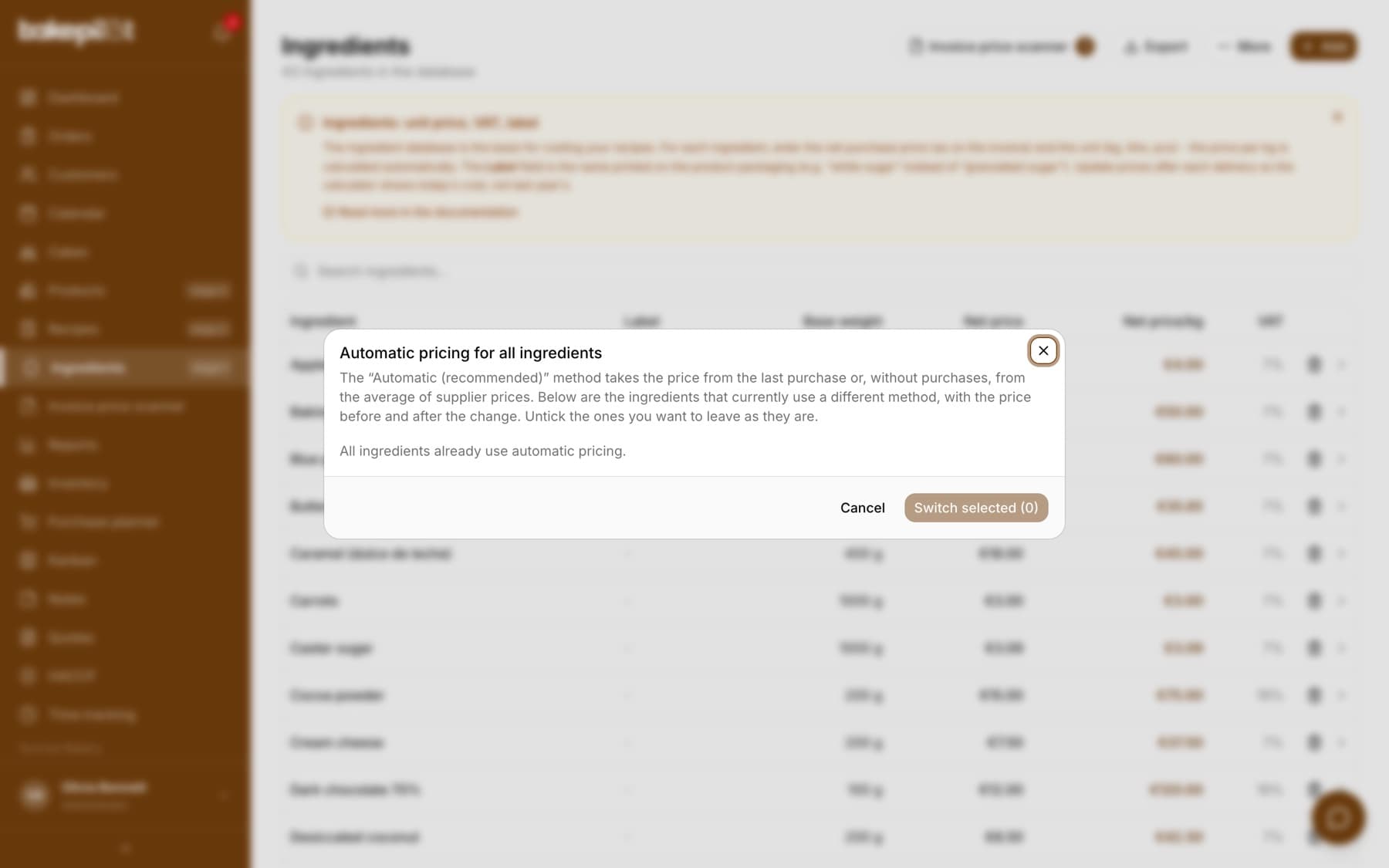
Tip: You can undo a mistake with the “Undo the last switch” button in the same window - it restores the previous method and price of each ingredient. Automatic pricing is available from the Profesjonalny (Professional) plan and requires the “Edit” permission in the Ingredients module (Administrator, Warehouse worker and Purchaser by default).
Step 8: goods from the invoice into stock
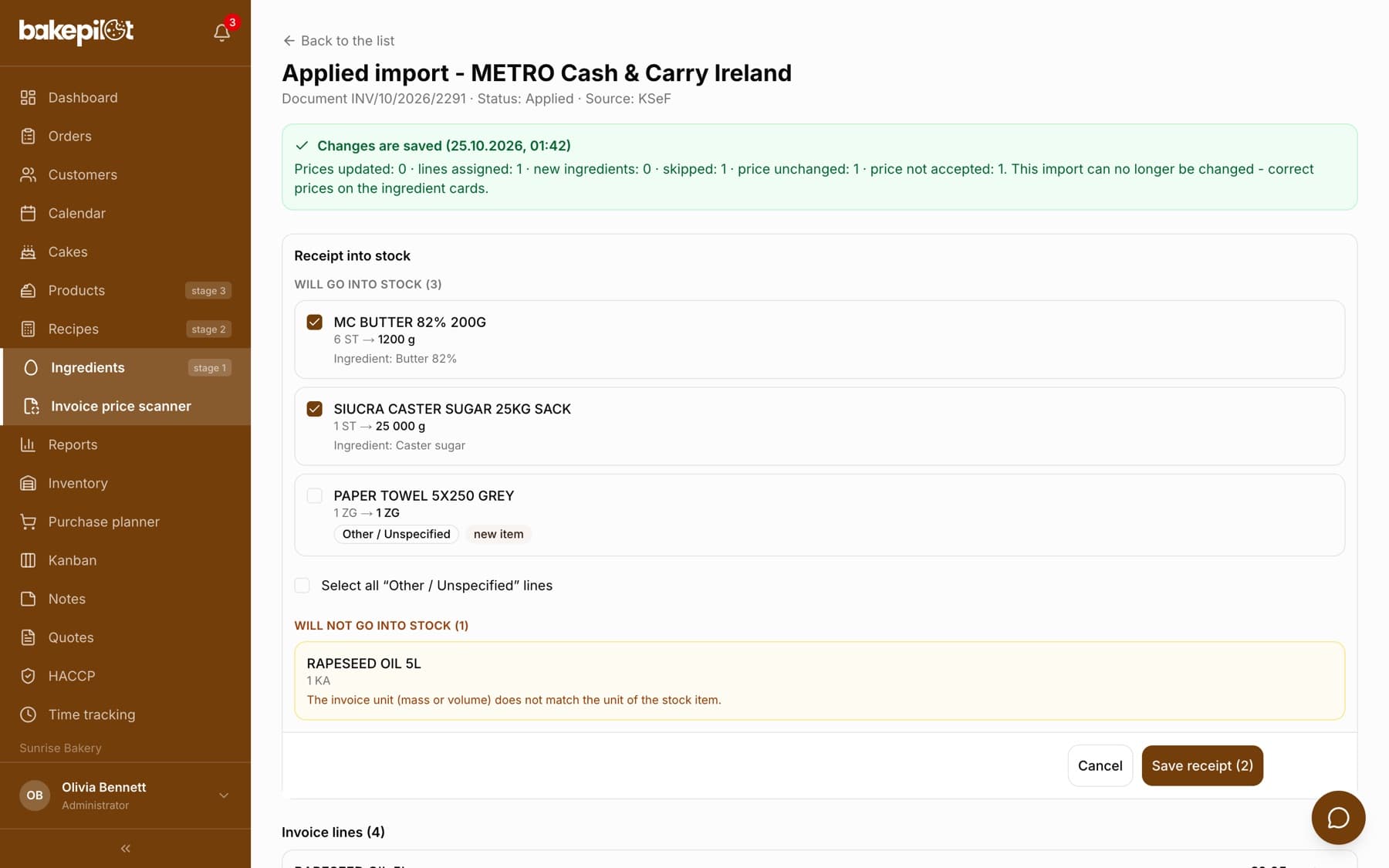
Prices are one thing and stock levels another - an approved invoice does not increase stock by itself. Under the green bar of an approved invoice there is a “The goods from this invoice are not in stock yet.” section with a “Receive into inventory” button. You will find the same in Inventory under the “Receive from invoice” button. You see a preview first, then you decide.
- On the approved invoice click “Receive into inventory” (or in Inventory “Receive from invoice” and “Receive” next to the invoice)
- In the “Will go into stock” group check the invoice quantity and the quantity converted to the stock unit (e.g. 1 ST → 25 000 g)
- Untick lines you do not want to receive; non-ingredient goods (“Other / Unspecified”) are unticked by default
- Click “Save receipt” - stock goes up immediately, and the invoice lines show “In stock: +…”
- The “Will not go into stock” group shows lines that cannot be converted, with the reason
- An invoice cannot be received a second time - you fix a mistake with a stock adjustment in Inventory
- For an older invoice the preview warns you: if these goods are already counted in a stocktake, do not receive them again
- Receiving from an invoice is in the Mistrzowski (Master) plan and requires the “Goods receipt (also from an invoice)” permission in the Inventory module (Administrator, Warehouse worker and Purchaser by default)
Step 9: recipe costs calculate on their own
After “Apply changes”, recipes that use the changed ingredients (also as semi-finished products) recalculate automatically - “Recalculate all” is not needed. On the invoice summary the “Recipes with these ingredients” list shows which recipes the change affects. You will see the new cost on the recipe card in “Food cost (raw materials)” and “Total cost”, and then on the product card.
- The import preview before approval shows “Knock-on effect - recipes to recalculate”
- An ingredient created from an invoice does not go into any recipe by itself - you add it when editing the recipe
- A price per kg of 0 means a missing package weight; such an ingredient does not count in costs - add the weight at the supplier
Tip: How an ingredient price turns into a recipe cost and a product price and margin is described in the “From ingredient to product” guide.
Plan and permissions at every step
The KSeF path requires the Mistrzowski (Master) plan, because that is where invoices, KSeF and the price scanner are. Each step is visible to a person with the right permission - you can change the default role assignments in Settings, in the permissions matrix.
- KSeF certificate and environment - Mistrzowski (Master) plan, account owner only
- Fetching purchase invoices from KSeF - Mistrzowski (Master) plan, “Downloading purchase invoices from KSeF” (Administrator, Accountant)
- Invoice price scanner and approval - Mistrzowski (Master) plan, “Invoice price scanner” (Administrator, Accountant, Warehouse worker, Purchaser)
- Suppliers on the ingredient card - Profesjonalny (Professional) plan, “Purchase sources” (Administrator, Purchaser)
- Pricing method and “Automatic pricing” - Profesjonalny (Professional) plan, “Edit” in Ingredients (Administrator, Warehouse worker, Purchaser)
- Receiving goods from an invoice - Mistrzowski (Master) plan, “Goods receipt (also from an invoice)” in Inventory (Administrator, Warehouse worker, Purchaser)
Frequently asked questions
I have a dozen “Draft” invoices. Do I have to go through each one?
Yes, every invoice waits for your decision - nothing reaches your ingredients without clicking “Apply changes”. The first invoice from a given wholesaler takes the longest, because you assign all the lines. Later ones with the same products match by barcode, and usually you only need to review and approve them.
Auto-fetch is on, but no invoices arrive.
Check in Invoices > “Settings” whether the “Production” environment is selected in the “KSeF integration” section. The “Test” and “Demo” environments have no real invoices from suppliers - the app then shows the “This is not the real KSeF” box. After changing the environment, save the settings and connect the certificate again.
I approved an invoice and some lines show “Price not accepted”.
The scanner did not enter the price because it could not convert it reliably - the reason is written in yellow next to the line. Click “Complete it on the ingredient card”, correct the package weight, unit or units per case at the supplier and enter the price if needed. Further invoices from this wholesaler will then be converted on their own.
Does approving the price receive the goods into inventory?
No. Approval updates prices and recipe costs. You receive the goods into stock separately with the “Receive into inventory” button on the approved invoice or “Receive from invoice” in Inventory - after a quantity preview.
Related articles
Automatic purchase invoices from KSeF
Purchases
Invoice price scanner - update prices from a photo of an invoice
Products
KSeF integration - a certificate in a few clicks
Invoices
Ingredient database
Products
Stock levels
Inventory
From ingredient to product - how BakePilot calculates cost and profit
Step-by-step guides