
Advanced variants - several recipes, boxes, portions, B2B, allergens
What else variants can do: sponge plus cream in one variant, boxes of 6 and 12, price per portion, price suggestions, B2B price, ingredients and allergens from the recipe onto the label.
Last updated:
Why variants at all
One product on the menu, but several things to buy: sizes, boxes, a slice or a whole tray. Variants keep them together - sales statistics, the purchase planner and Kanban see one product, and each item has its own price, VAT and cost. Without variants you would have to create a separate product for each size and make sure by hand that a recipe change reaches all of them.
A variant with several recipes
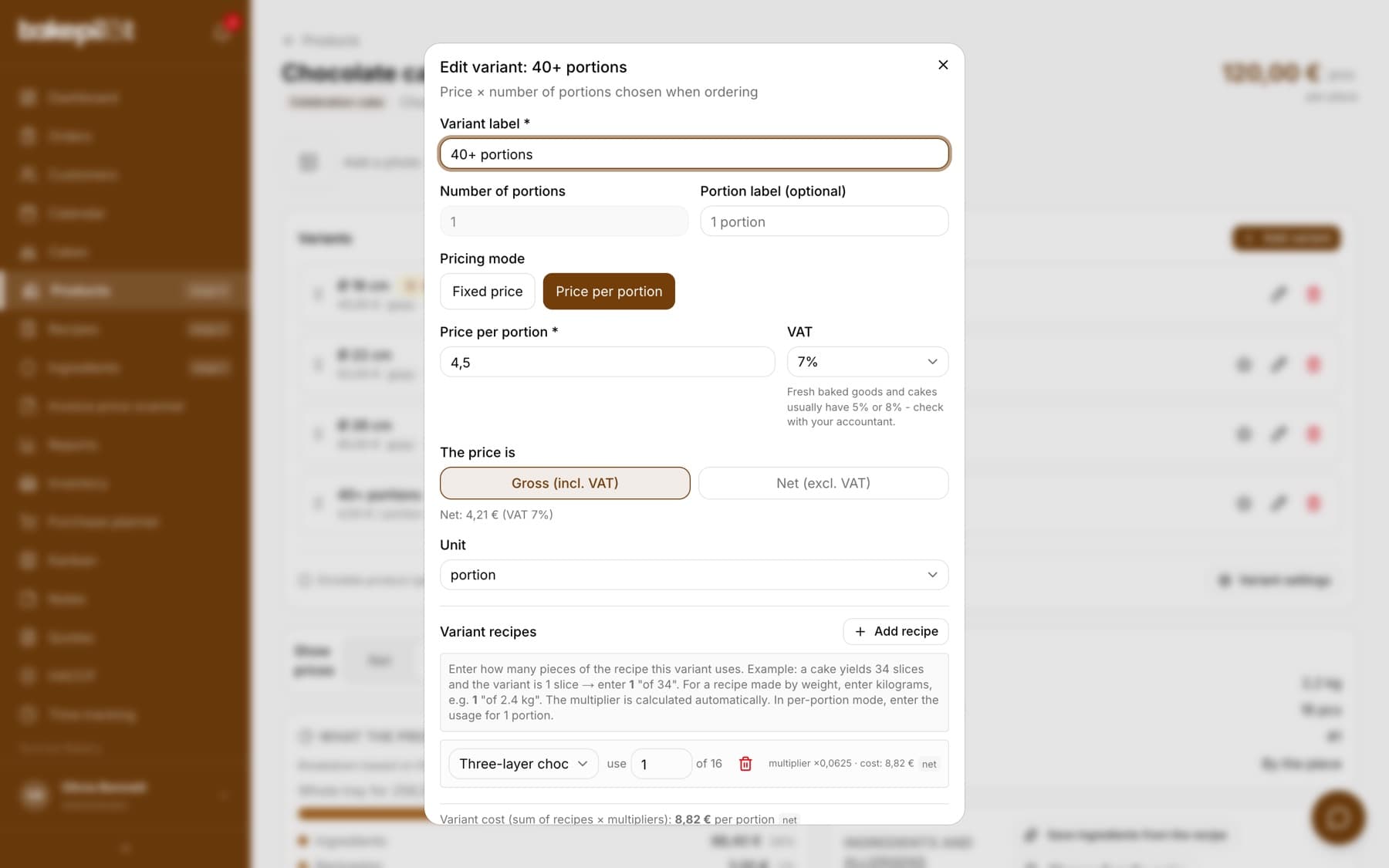
A cake is sponge plus cream plus glaze. Instead of one big recipe you can have three separate ones and add all of them to one variant. In the variant window you click “Add recipe” several times and enter the usage for each (“use 1 of 4” of the sponge, “use 1 of 3” of the cream). The variant cost is the sum of the recipes multiplied by their usage. A change in the butter price recalculates the cream, and the cream recalculates every cake that uses it.
- Sponge recipe: Pieces mode, 4 layers per batch
- Cream recipe: Kilograms mode, 1.5 kg from the recipe
- Variant “22 cm”: sponge “use 2 of 4” + cream “use 0.5 kg of 1.5 kg”
Tip: A cream recipe can be linked to ten cakes at once. A change in the price of a cream ingredient recalculates the cost of every variant that uses it.
A sub-recipe in the recipe or recipes in the variant
Since September 2026 you have two paths, and it is worth knowing when to use which. A sub-recipe inserted into a recipe (the “Add a sub-recipe (another recipe)” field) describes what one bake is made of: the cake contains 600 g of cream, always the same amount. Recipes added to a variant describe how much of that bake you sell: the same sponge and cream in a 12-portion and a 24-portion variant, just with different usage.
- The composition of the bake is fixed → a sub-recipe in the recipe (the cake always with 600 g of cream)
- The same bake in several sizes → recipes in the variant (“use 1 of 4”, “use 2 of 4”)
- Both paths calculate the cost equally accurately and both recalculate after ingredient prices change
- You can combine them: a cake recipe with sub-recipes, and size variants at the product level
Tip: The fixed cost markup is added once, on the final recipe - splitting a bake into sub-recipes does not increase the cost. A sub-recipe must have its yield filled in (“The batch yields”), because without it the price per gram cannot be calculated.
Boxes and multipacks
Cookies in 6, 12 and 24: three variants of one product with the pack unit, 6/12/24 portions and the recipe “use 6 of 40”, “use 12 of 40”, “use 24 of 40”. The box price does not have to be a multiple of the piece price - the cost is calculated exactly anyway, so you will see which box you earn the most on.
“Price per portion” mode and price suggestions
For divisible products (you turn this on in “Variant settings”), a variant can have a price per portion instead of a fixed one. When taking an order, the salesperson enters the number of portions. In the same settings you choose the price suggestion mode: “Percentage markup on cost” (you enter the markup, for example 200 = price three times the cost), “Average price per portion” (you enter your typical price per portion) or both. The suggestions appear under the variant price field as clickable values.
B2B price and the discount simulator
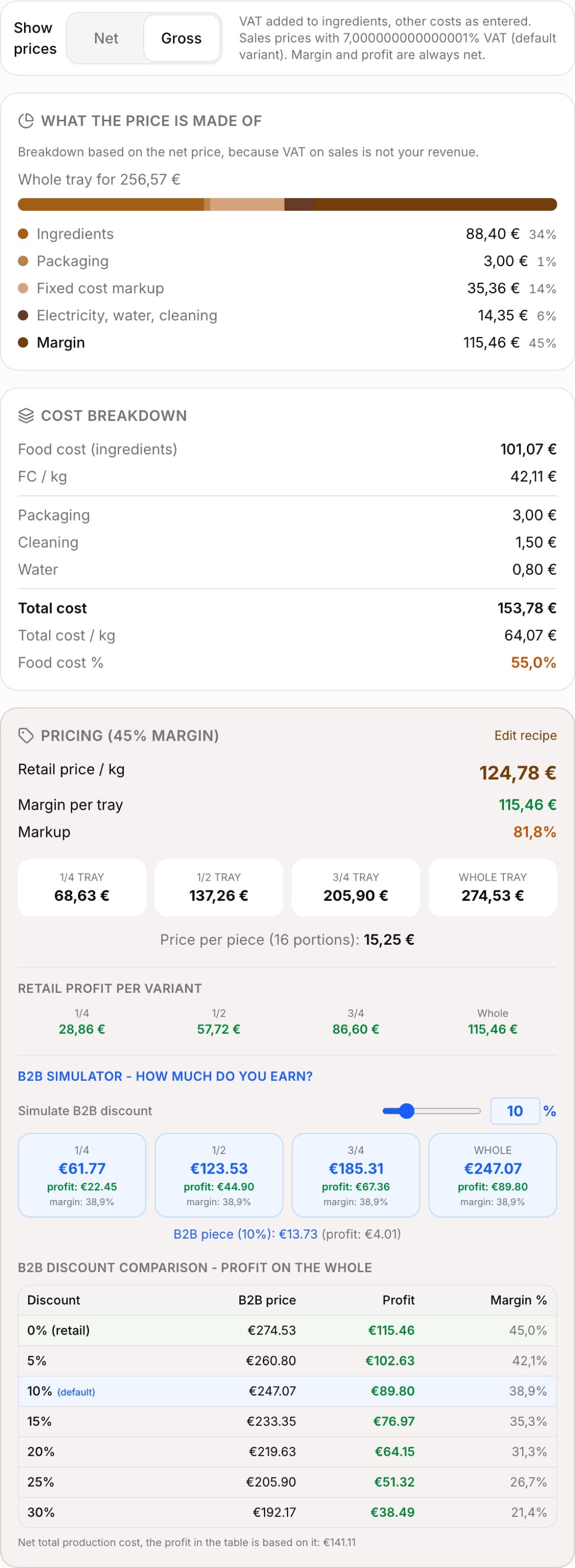
A product has a “B2B price” field - if you fill it in, business customers get this price instead of the percentage discount from Settings. If you leave it empty, the global discount applies. On the product card in Trays mode there is a simulator: a discount slider and a table with the B2B price, profit and margin for discounts of 0-30%. It is a quick way to check up to which discount a tray still pays off.
Ingredients and allergens from the recipe onto the label
On the product card in the “Ingredients and allergens” section there are two buttons. “Save ingredients from the recipe” lists the ingredients from the largest quantity down and uses the names from the ingredient's “Name on the label” field. “Allergens from the recipe” collects the allergens marked on the ingredient cards and builds the text “Contains: … May contain traces of: …”. Both go onto the product label (the label icon on the product list).
- On each ingredient's card, mark the allergens in the matrix: Contains, Traces or None. Save.
- On the product card, click “Allergens from the recipe”, then “Save ingredients from the recipe”.
- In the product edit window, fill in the net quantity, the shelf life in days and the storage conditions - these also go onto the label.
Tip: If a product has several recipes in its variants (sponge + cream), the ingredients and allergens are generated from the recipe linked to the product, not from the variant recipes. Link to the product the recipe that has the full set of ingredients, or fill in the allergens manually.
Checklist before your first sale
Before you consider a product ready, go through this list. Each item is one click, and together they make sure the numbers in your orders are real.
- Every ingredient has a price per kg greater than zero (no red “no price/kg” on the list)
- The recipe has a real batch weight and a number of pieces or portions
- The product has a linked recipe and at least one variant
- The variant has VAT, a gross/net setting and a recipe with usage
- The variant cost is lower than the variant's net price
- Ingredients and allergens generated, if you print labels
Frequently asked questions
Can I change a variant's recipe without changing the product's recipe?
Yes. The product recipe is used for the cost breakdown and the label, the variant recipes for the cost of a specific item. They can be different, although the default variant usually uses the same one as the product.
I deleted the last variant and cannot add the product to an order.
The last variant cannot be deleted - the button is locked for this reason. If a product has no variants at all (for example created before variants were introduced), add one on its card.
Related articles
From ingredient to product - how BakePilot calculates cost and profit
Step-by-step guides
Celebration cake - sizes as variants or a custom order configurator
Step-by-step guides
Doughnut, eclair, individual dessert - a product sold by the piece
Step-by-step guides
Product variants
Products
Cost calculator
Products