
From ingredient to product - how BakePilot calculates cost and profit
Five steps you take for every product: ingredient, recipe, reading the costs, product, variant. Where exactly you see food cost and how much you earn.
Last updated:
Three stages, always in the same order
In the app menu, three items are marked with a stage: Ingredients (stage 1), Recipes (stage 2) and Products (stage 3). That is no accident - the product cost is calculated from the recipe, and the recipe is calculated from ingredient prices. If you start with the product, you will see only zeros. First ingredients, then the recipe, and finally the product with a variant.
- Ingredient = a raw material with a purchase price and package weight (the system calculates the price per kg)
- Recipe = a list of ingredients with quantities + a choice of what the batch yields: trays, pieces or kilograms
- Product = an item on your menu with a selling price, linked to a recipe
- Variant = the specific thing a customer orders: 1 piece, a box of 6, a whole tray, a cake for 12 servings
Step 1: an ingredient with a price and package weight
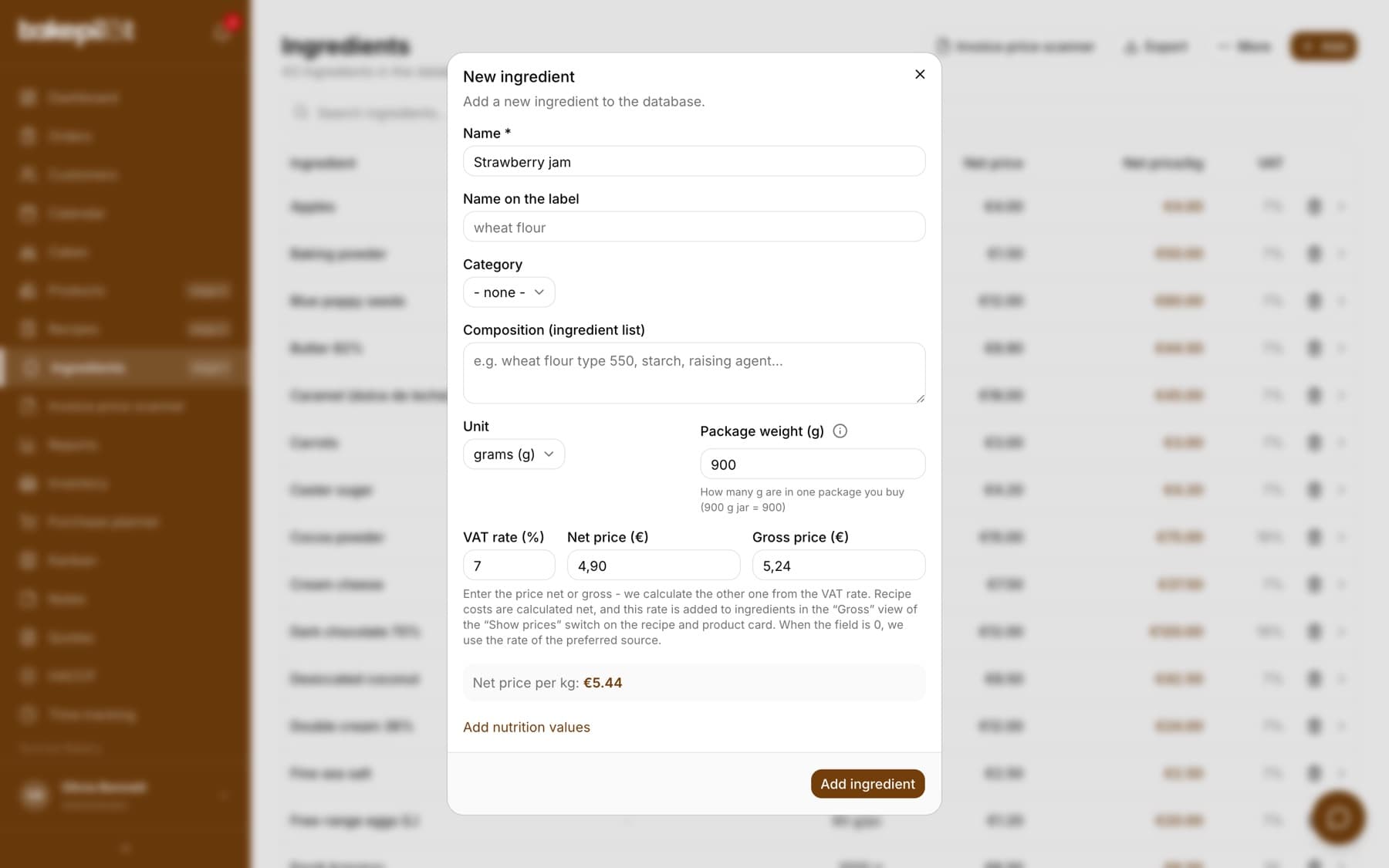
Go to Ingredients and click Add. The three most important fields are “Unit”, “Package weight” and “Net price”. From them the system calculates the net price per kg, which you see live under the form (the “Net price per kg:” line) - this is the number that then goes into every recipe. If it shows 0.00 PLN, the ingredient will be counted as free.
- Enter the name you use for the raw material in your bakery (for example “Rose jam”). The name on the label is a separate field - there you enter what should appear in the product's ingredient list.
- Choose the unit: grams for most raw materials, milliliters for liquids, pieces for eggs. With pieces, enter the weight of one piece in grams in the weight field (an egg = about 60), and in the price field the price of ONE egg: a tray of 10 eggs for 9 PLN is 0.90 PLN, not 9 PLN.
- In the “Package weight” field, enter the weight of the package you buy in the unit chosen next to it - the field label shows what you are counting in. With grams a 900 g jar = 900, with kilograms a 25 kg sack = 25.
- In the “Net price” field, enter the net price of this package, as on the invoice - or the gross price in the gross price field, if you have entered a VAT rate. The price and the weight must refer to the same package. Check that the “Net price per kg:” line below looks sensible.
- Fill in the “VAT rate (%)” from the invoice (0 means: the rate from the preferred source, for example from an invoice from KSeF, Poland's National e-Invoicing System) and click “Add ingredient”.
- Correct example: eggs, unit “pieces”, weight 60, price 0.90 PLN - gives 15.00 PLN per kg
- Example of a mistake: eggs, unit “pieces”, weight 60, price 10 PLN (the package price) - gives 166.67 PLN per kg, and every recipe with eggs is more than ten times too expensive
- A 25 kg sack of flour with the unit “kilograms”: weight 25, not 25000
Tip: You do not have to enter everything by hand. Have your ingredients in Excel? Use “Import Excel” or “Import CSV” from the “More” menu above the ingredient list (a list of names is enough, prices can come later). In the Mistrzowski (Master) plan there is also the “Invoice price scanner” above the list: it reads a photo or PDF of an invoice, and with KSeF connected, invoices from wholesalers download automatically and wait in the scanner for your approval - new ingredients can also be created from them. The scanner is visible to people with the “Invoice price scanner” permission (by default the Administrator and Accountant).
Step 2: the recipe and the question “what does the batch yield”
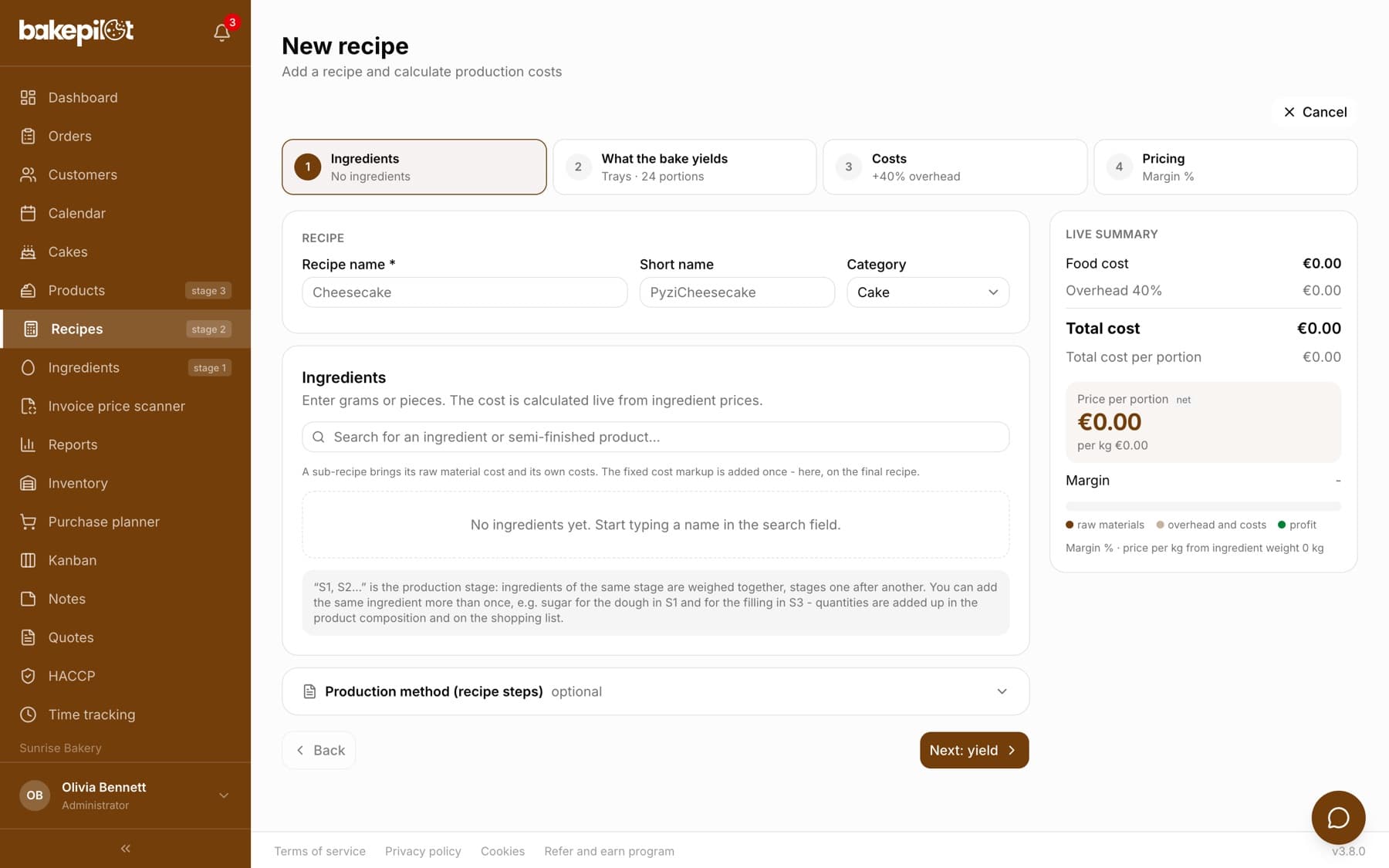
Go to Recipes and click New. Apart from the name and ingredients, you have to answer one question: what does this recipe yield? There are three tiles to choose from in the “The batch yields” section. This choice decides which prices you will see later: per tray and slice, per piece or per kilogram.
- Enter the recipe name and choose a category.
- In “Pricing method” leave “Margin %” and enter your target margin (for example 45). The system calculates the price from it. If you prefer to set the price up front, choose “Price per kg” or “Price per piece”.
- Select the right tile in “The batch yields”. Check the hints under the weight and portion fields - they change depending on your choice.
- Add ingredients using the search. For each one, enter the quantity in grams (or in packages - both fields convert into each other). You enter quantities for the whole batch, not for one piece. The “S1, S2…” field next to an ingredient is the weighing stage in production mode - it is not needed for costing.
- If you make part of the bake separately (cream, sponge, icing), use the “Add a sub-recipe (another recipe)” field under the ingredient search and enter how many grams of that sub-recipe go into the bake.
- Optionally fill in the equipment (oven power and time) and additional costs: packaging, transport, cleaning, water.
- Click “Create recipe”. The costs calculate automatically and you see the recipe card right away.
- Trays - a cake cut into slices: cheesecake, apple pie, brownies. You enter the tray weight and the number of portions.
- Pieces - products counted by the piece: doughnuts, eclairs, croissants, individual desserts. You enter the weight of the whole batch and the number of pieces.
- Kilograms - a bake sold by weight: cookies, spit cake, bread. You only enter the batch weight.
Tip: The most common mistakes in the batch weight: the weight of one piece instead of the whole batch, and grams entered in the kilogram field (4495 instead of 4.495). The weight is always the whole finished bake from this recipe, in kilograms. A weight that does not match the weight of the ingredients (less than 60% or more than 105%) is ignored and the card shows a warning. Don't know the weight? Leave the field empty - the price per kg will be calculated from the ingredient weight.
Step 3: read the cost and price on the recipe card
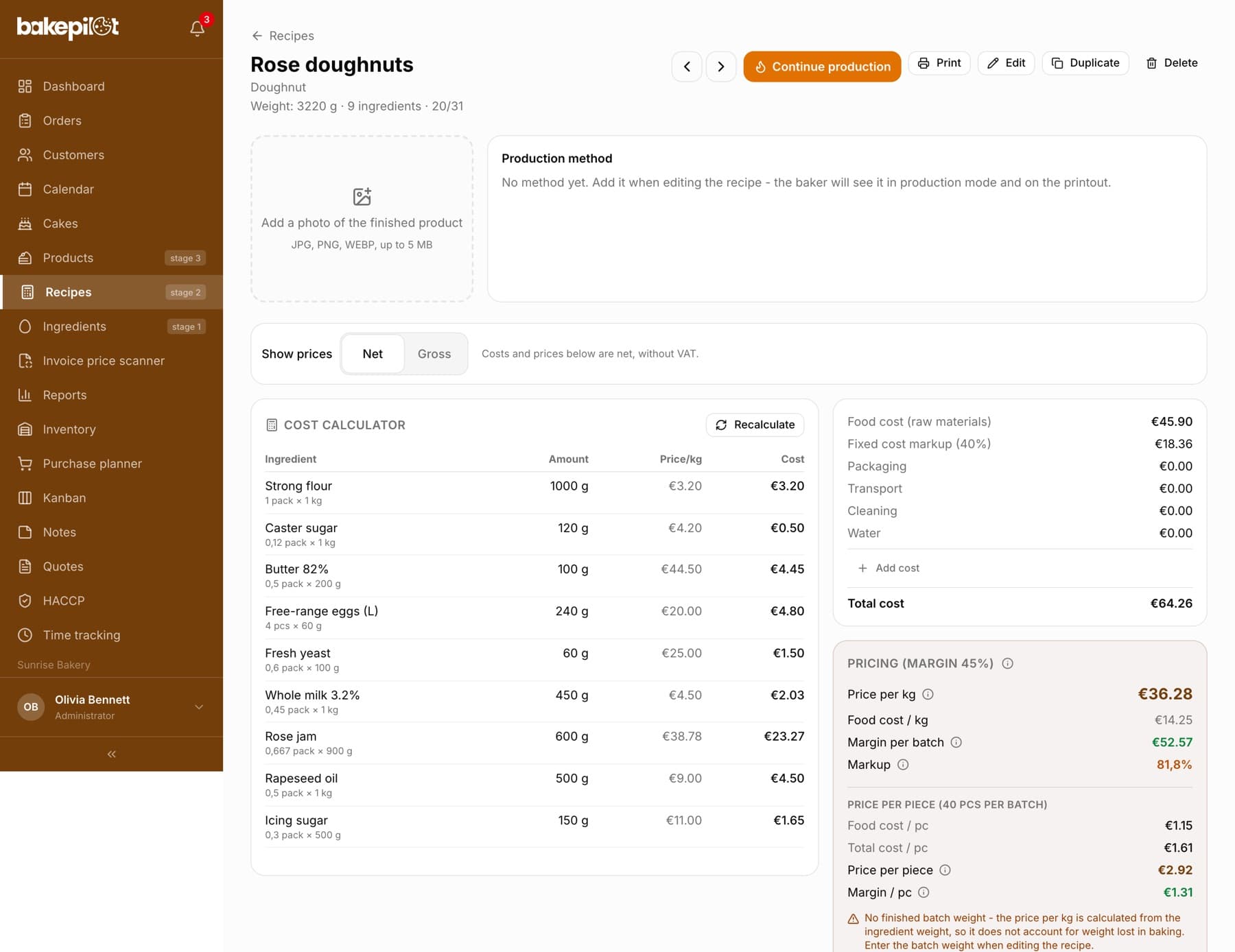
After saving the recipe, you land on its card. On the left is the ingredient table with the cost of each ingredient. On the right there are two blocks. The top one is costs: “Food cost (raw materials)” is the sum of ingredients, below it the fixed cost markup from the organization settings and the additional costs, and at the bottom the “Total cost”. The bottom block is the pricing calculated from your margin: price per kg, margin per batch, and for pieces and trays also the price and margin per piece.
- Food cost (raw materials) - what the ingredients alone cost
- Total cost - ingredients + fixed cost markup + oven and mixer energy + packaging, transport, cleaning, water
- Price per kg - the selling price calculated from the total cost and the target margin
- Margin per batch - how much you keep from the whole batch after deducting the total cost
- Price per piece and Margin / pc - the same per piece (for Pieces and Trays)
- The “Show prices: Net / Gross” switch above the calculator - everything is net by default; in the “Gross” view VAT is added to raw materials, but margin and profit are always net
Tip: Has an ingredient price changed? Open the ingredient, correct the price and click “Recalculate all” on the recipe list. Clicking an ingredient row on the recipe card also opens quick price editing - the recipe card shows the new cost right away, but the recipe list and the product card only after recalculation. Prices approved from the invoice price scanner recalculate recipes automatically.
Step 4: the product on your menu
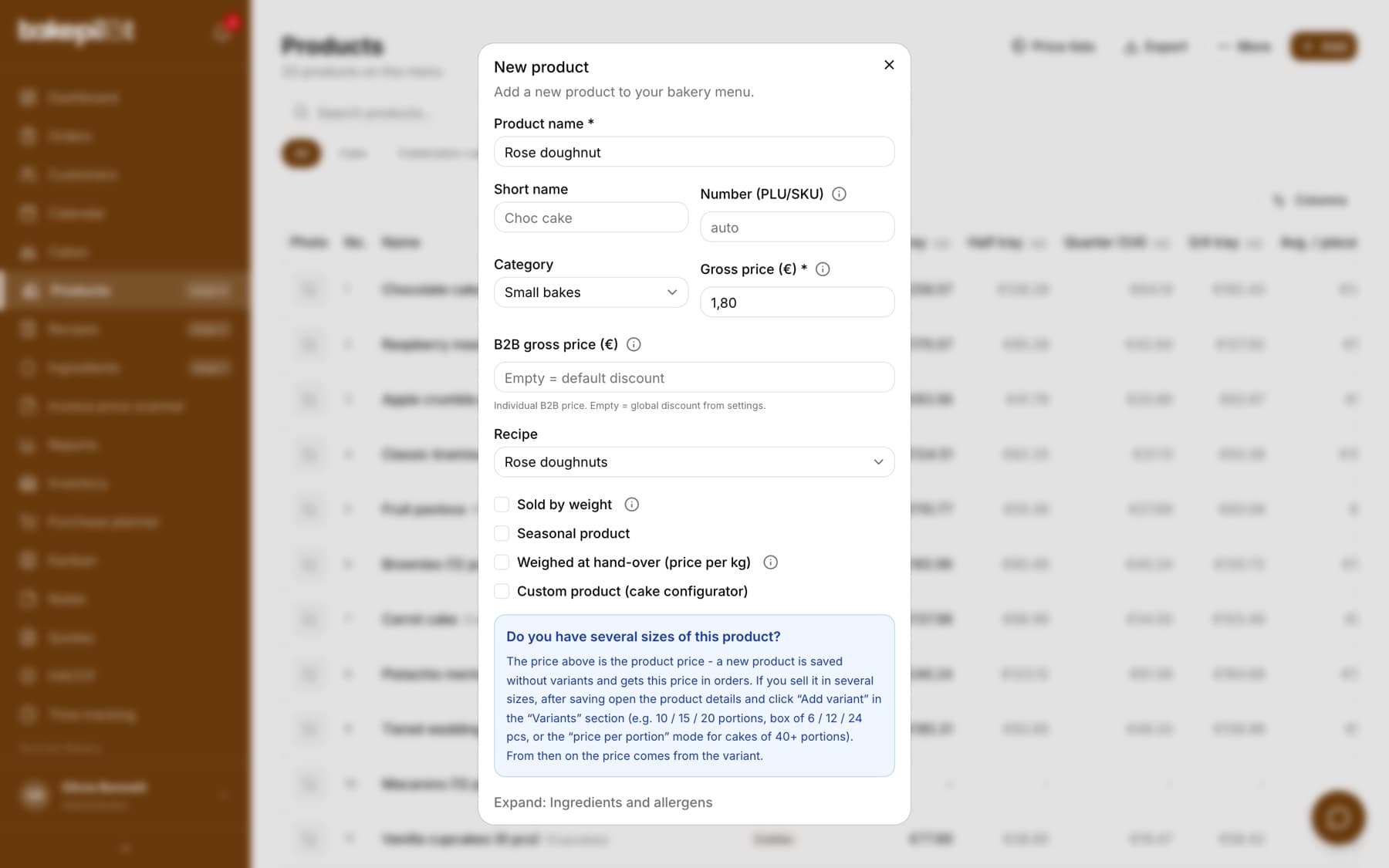
Go to Products and click Add. A product is an item from your menu: it has a name, category, price and a linked recipe. Choosing the recipe is key - without it, the product card will not show a cost breakdown or margin.
- Enter the name and choose a category: one of the defaults (Cake, Celebration cake, Small bakes, Bread, Ice cream, Other) or your bakery's own category.
- You can leave the “Number (PLU/SKU)” field empty - the app assigns the next free number.
- Enter the selling price in the “Gross price” field. You can also enter a “B2B gross price” - a fixed price for businesses; an empty field means the price minus the customer's B2B discount or the default discount from Settings > Organization.
- In the “Recipe” field, choose the recipe you make this product from.
- Check “Sold by weight” - in a new product this field is ticked by default (unticked if “By the piece” was chosen in the “Business profile”), and the price then means the price per 1 kg and the weight is entered in the order. Leave it ticked if you sell by the kilogram. For doughnuts, cakes and slices, untick this checkbox so the price is per piece.
- Click “Add product”. Then click the product on the list and “See more” to go to its card.
Step 5: the variant, meaning what the customer actually orders
A new product does not have any variants yet - on the card you will see the message “No variants. Every product needs at least 1 variant”. A variant is a specific thing to order: “1 pc”, “box of 6”, “whole tray”, “cake for 12 servings”. Each variant has its own price, VAT and recipes. With one variant the product goes into the order automatically, with several the salesperson picks from a list.
- On the product card, click “Add variant”.
- Enter a label (for example “1 pc”) and the number of portions (1). Choose “Fixed price” and enter the price. Set the VAT and mark whether the price is gross or net - the system shows the other value below.
- Choose the unit: pcs, portion, kg, g or pack.
- Click “Add recipe” and choose the recipe. In the “use … of 40” field, enter how many pieces of the batch this variant uses: 1 for one doughnut, 6 for a box.
- Check the variant cost at the bottom of the window - this is the cost of exactly what you sell. Tick “Set as the product's default variant” and save.
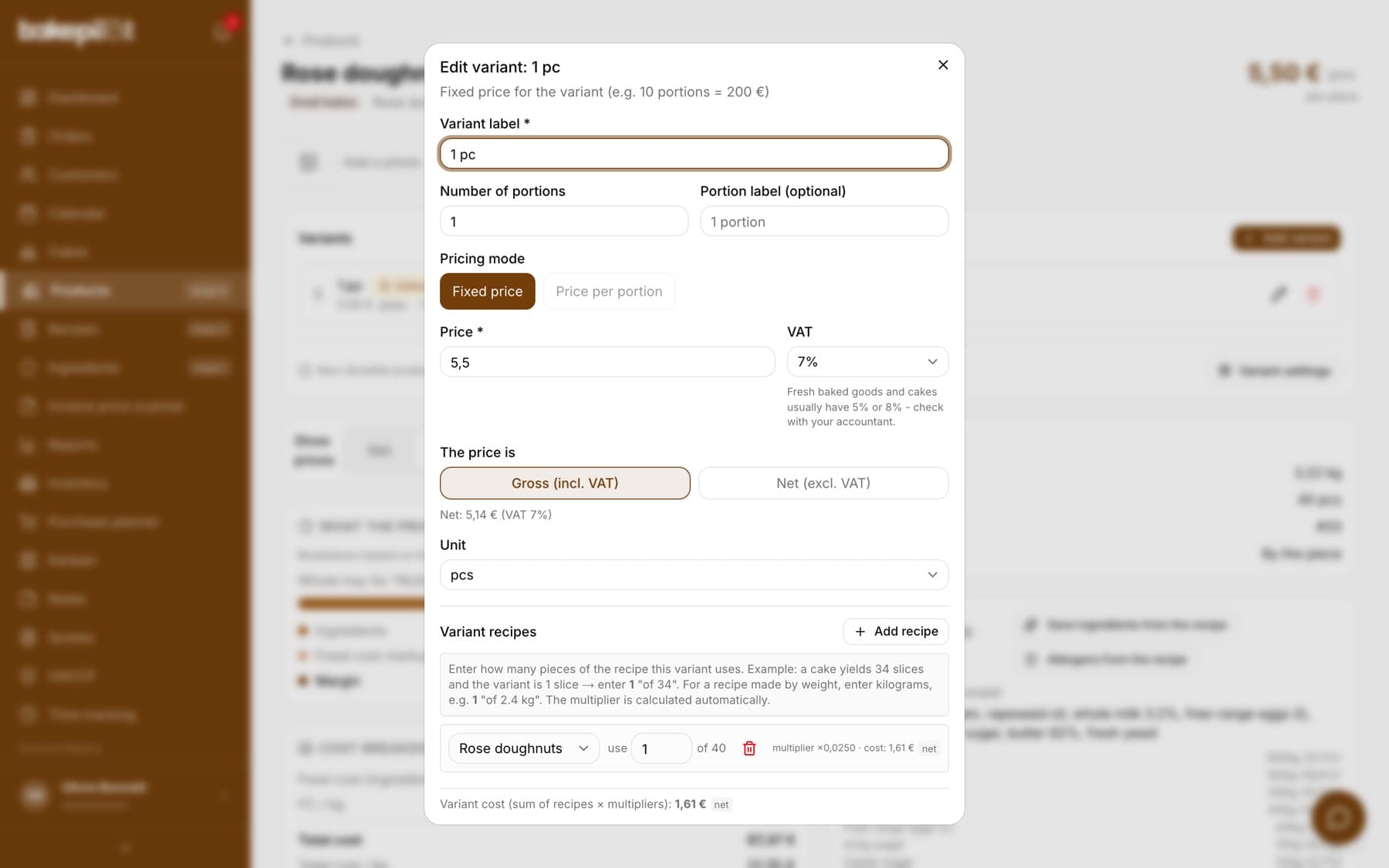
Tip: The variant cost (1.79 PLN) and the variant price (5.09 PLN net) are two numbers that tell you directly how much you earn per piece. The difference is the profit before VAT and fixed costs outside the recipe.
Where you see food cost and how much you earn
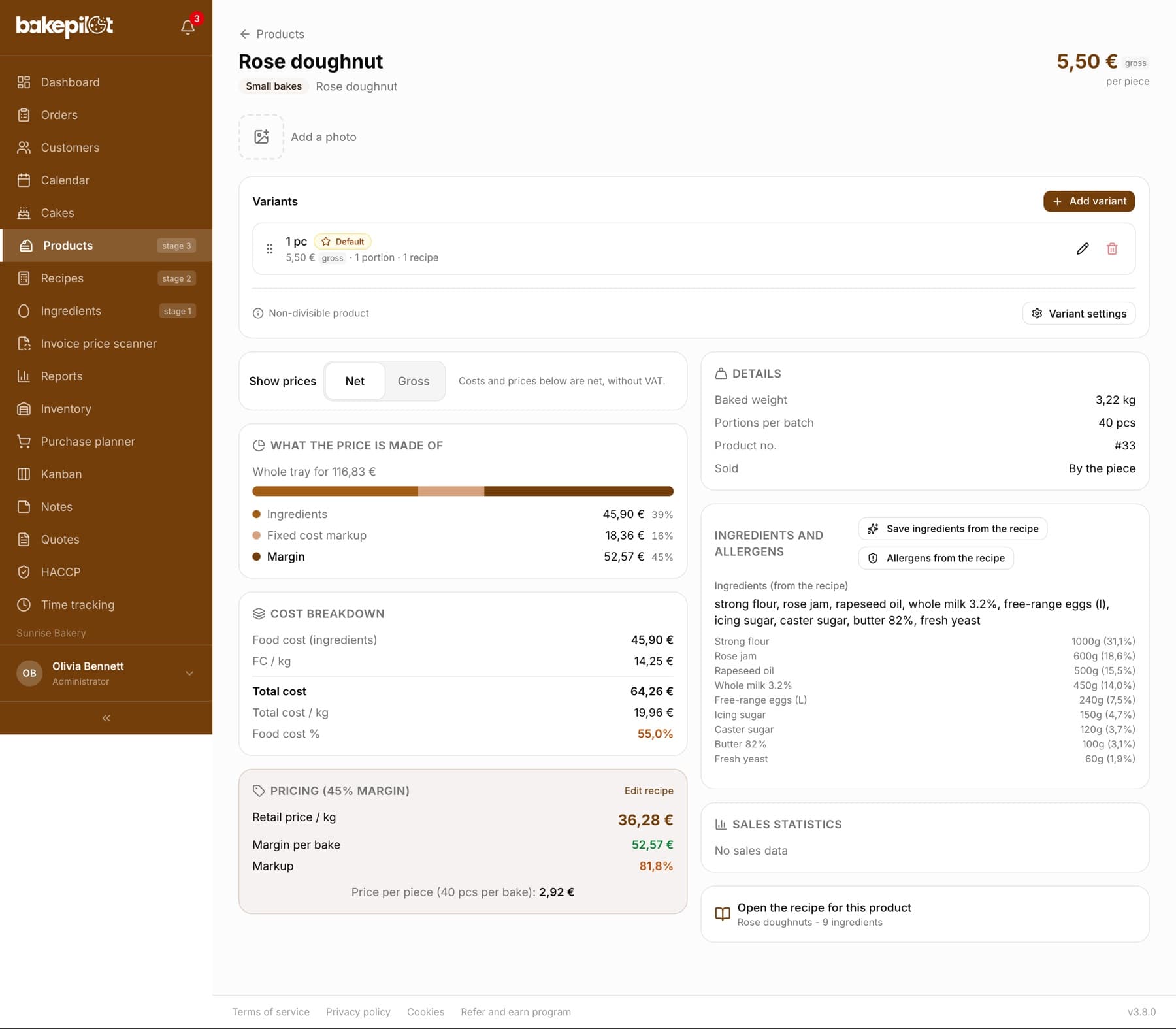
The same numbers appear in three places, at different levels of detail. On the recipe card you see the whole batch and the conversion per piece or per kilogram. On the product card you see the cost breakdown, the food cost percentage and the profit. In the variant window you see the cost of exactly the item you sell.
- Recipe card: food cost (raw materials), fixed cost markup, oven and mixer energy, additional costs, total cost, price per kg, margin per batch, price and margin per piece
- Product card, “Cost breakdown” block: food cost, FC / kg, total cost, total cost / kg, food cost % (the share of cost in the price)
- Product card, “Pricing” block: retail price / kg, margin per batch or per tray, markup as a percentage, and for trays the 1/4, 1/2, 3/4 and whole tray tiles with the profit on each of them
- Product card, “What the price is made of” bar: which part of the price is raw materials, packaging, fixed cost markup, “Electricity, water, cleaning”, and what remains as margin
- Product card, “B2B simulator”: profit and margin with different discounts for businesses (for tray recipes)
- Variant window: “Variant cost (sum of recipes × multipliers)” next to the variant price
Frequently asked questions
I added a product, but the card shows “No linked recipe”. What should I do?
Click the product on the list, choose a recipe in the “Recipe” field in the edit window and save. Without a recipe the system has nothing to calculate the cost from.
Do I have to add a variant if there is only one product?
Yes, at least one - it is the variant that goes into the order, and it is the variant that has the price with VAT. With one variant it is added to the order automatically, so nothing gets more complicated for the salesperson.
Where does the “Fixed cost markup” on the recipe card come from?
From the organization settings, the “Cost calculation” section, the “Fixed cost markup (%)” field. It is a flat rate for rent, utilities and wages added to every recipe - typically 30-50%. If you enter 0, the total cost will be close to the food cost alone.
Related articles
Doughnut, eclair, individual dessert - a product sold by the piece
Step-by-step guides
Cookies, spit cake, bread - a product sold by weight
Step-by-step guides
Cheesecake, apple pie, brownies - sheet cakes and slices
Step-by-step guides
Celebration cake - sizes as variants or a custom order configurator
Step-by-step guides
Advanced variants - several recipes, boxes, portions, B2B, allergens
Step-by-step guides
Ingredient database
Products
Creating a recipe
Recipes