
Signing up and logging in
How to create a BakePilot account, activate it from the email and log in for the first time.
Last updated:
Creating an account with a NIP
Sign-up at app.bakepilot.pl/register?lang=en starts with the NIP (the Polish tax identification number). Once it is checked, your company details (name, address, REGON statistical number) fill in automatically, and you only add your contact details, a password and consents. After you click the activation link in the email, you log in to a ready-to-use panel.
- Go to app.bakepilot.pl/register?lang=en, enter the number in the “Company tax ID (NIP)” field and click the magnifying glass button
- Check the company details that were retrieved - if you want to use a different number, click “Change NIP”
- Answer “A few questions about your business” (described below) or click “Skip questions” - you can change the answers later in Settings
- Fill in “Contact phone”, “Email (login)”, “Password” (at least 8 characters, letters and digits; the app rejects a password that has leaked from another service) and “Confirm password”
- Choose the “Sales currency” (PLN by default) and optionally enter a “Referral code”
- Tick “I accept the Terms of Service” (consent to marketing messages is optional), confirm that you are not a robot and click “Create account”
- Open your inbox, click the activation link and log in. No email? Check your spam folder or click “Resend activation link” on the login screen
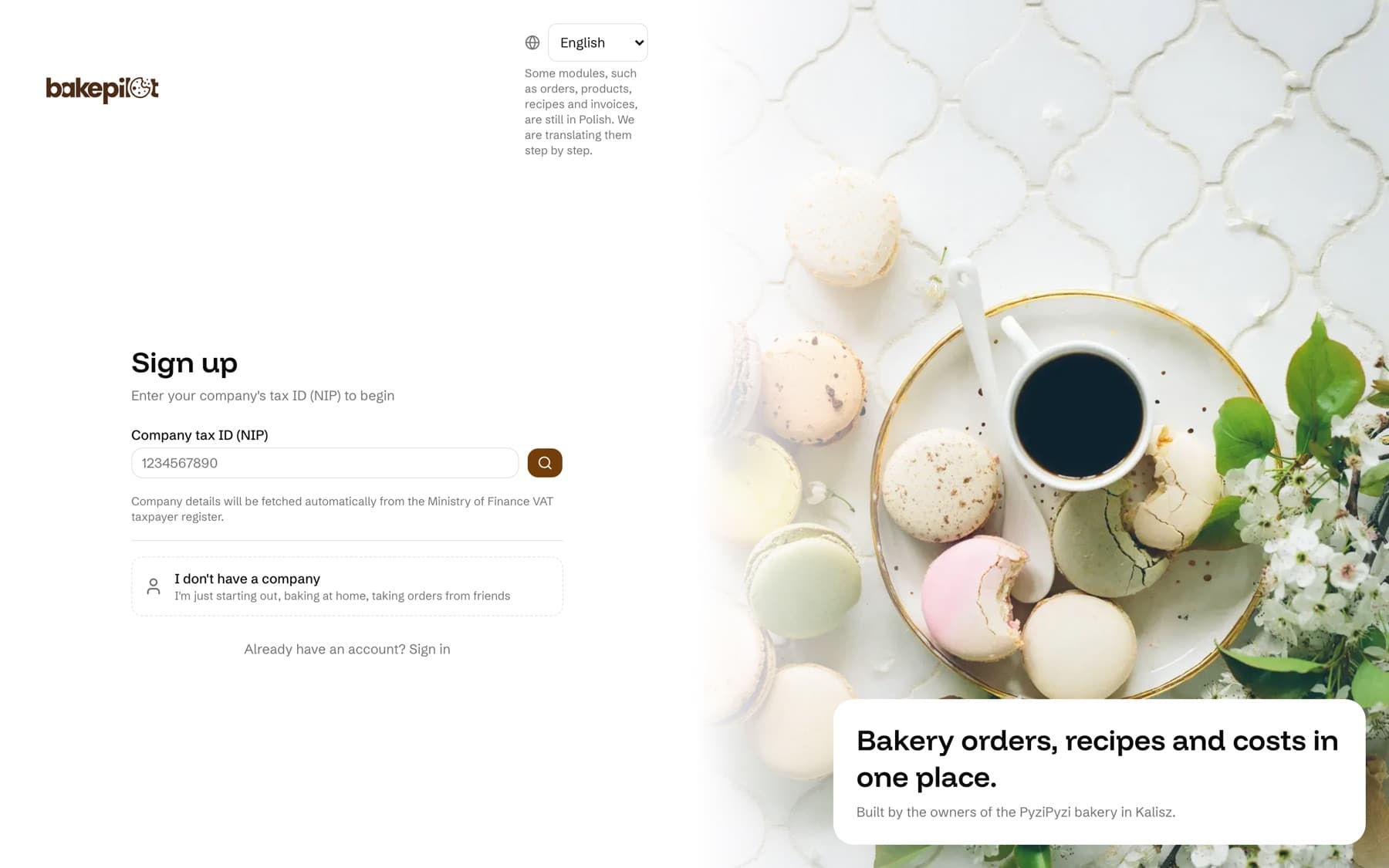
Tip: We check the NIP in the Polish Ministry of Finance register of VAT taxpayers. If your company is not there (for example, it is VAT exempt), the form asks you to enter the name and address manually, and we activate the account after verification - usually within 24 hours.
A few questions about your business
Between the NIP and the account details, the form asks four short questions. The answers set default values in the app - they do not turn anything off and do not change your plan. Every question is optional: you can click “Next” without answering or “Skip questions”.
- “What do you mostly sell?” - “By the piece”, “By weight” or “Both”. With “By the piece”, a new product has “Sold by weight” unticked (price per piece); with the other answers the field is ticked (price per kg)
- “Who do you sell to?” - “Shop customers”, “Wholesale buyers” or “Both”. With “Shop customers”, the empty B2B price field in the product window is collapsed under a single link
- “VAT status” - “Active VAT payer” or “VAT exempt”. When the NIP is in the VAT taxpayer register, the answer is preselected from the register and you can change it. It sets the “Company VAT status” (costs net or gross) and the default VAT payer status in the invoice settings. Accounts created with “I don't have a company” do not get this question
- “How many people work there?” - “1”, “2-5”, “6-15” or “More than 15”
- You can change the answers in Settings, in the “Organization” section → “Business profile”; the VAT status in the “Cost calculation” section
An account without a company
If you are just starting out and do not have a registered business yet, choose “I don't have a company” in the first step. Instead of a NIP, you enter your first name, last name and, optionally, a business name and city. We check these accounts manually - after sign-up you will see the “Your account is awaiting verification” screen, and we will let you know by email when the account is activated.
- The “First name” and “Last name” fields are required
- “Business name” and “City” are optional - without a name we use your first and last name
- After clicking “Create account”, confirm your email address with the link in the message. Then you will see the “Your account is awaiting verification” screen - we usually check the account within 24 hours and email you when it is active
- The “I have a company - go back to signing up with NIP” link switches back to sign-up with a NIP
Logging in
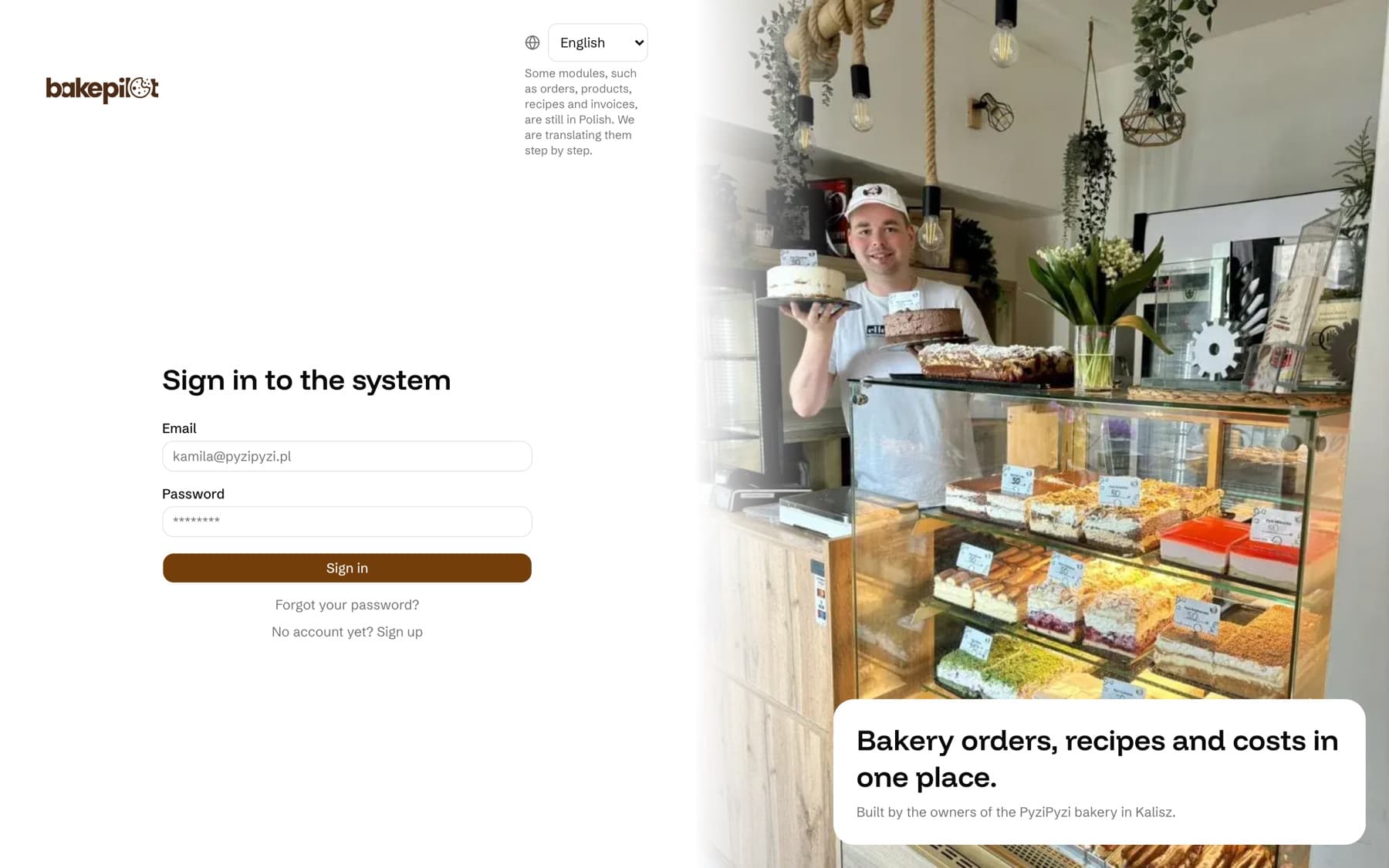
You log in at app.bakepilot.pl/login?lang=en with the email address you used to sign up and your password. After logging in you land on the Dashboard with today's orders (revenue amounts are visible to the Administrator, Salesperson and Accountant). If you forget your password, click “Forgot your password?” - a link to set a new one will be sent to your email.
- “Email” and “Password” fields, “Sign in” button
- “Forgot your password?” - sends a password reset link
- “No account yet? Sign up” - takes you to sign-up
- The same account works in the browser on a computer, on a phone and in the Android app
- In the top right corner of the login and sign-up screens you choose the app language: Polish, English or Ukrainian. You can change it later in the user menu
Finding your way around the app
On a computer, all modules are in the side menu - from the Dashboard, through Orders and Customers, to Invoices. On a phone, there is a bar at the bottom of the screen with the most used items, and the other modules are under “More”. The help chat (speech bubble icon: on a computer in the bottom right corner, on a phone in the top bar next to the circle with your initials) opens help - you can write to us without leaving the app.
- Side menu on a computer - modules in the order you work. Ingredients, Recipes and Products are marked “stage 1”, “stage 2” and “stage 3” - that is the order in which it is worth filling them in
- Bottom bar on a phone: “Calendar”, “Orders”, plus (new order), “Customers”, “More”
- Dashboard - today's orders, revenue from the last 7 days (visible to the Administrator, Salesperson and Accountant), low stock, pinned notes
- Help chat - on a computer a round button in the bottom right corner, on a phone a speech bubble icon in the top bar
The “Getting started with BakePilot” card on the Dashboard
For the first 30 days after the account is created, the owner sees the “Getting started with BakePilot” card on the Dashboard, with the first steps after which the app calculates the cost and margin of your products. The steps tick themselves off when you do what they ask - you do not have to mark them manually. Each step links to the place where you complete it.
- “Company details” - name and address in Settings, “Organization” section (and the NIP, if you have a company); they go onto invoices and documents
- “KSeF connection” - optional, in the Mistrzowski (Master) plan; purchase invoices from wholesalers download automatically from KSeF (Poland's National e-Invoicing System), and you update ingredient prices from the invoices. In a lower plan the step is marked as not available
- “Ingredients with prices” - at least 5 active ingredients with a price: entered manually, imported from Excel or taken from invoices
- “First recipe” - a recipe with ingredients
- “Product with a recipe” - a product linked to a recipe (directly or in a variant)
- The “Done: X of Y” counter shows your progress; the card disappears when all required steps are done or after 30 days
- “Hide list” hides the card on this device
Tip: Only the account owner sees the card - employees do not.
Free trial - 20 days
Every new account gets 20 days of free access to all modules, without entering a card. You can see the end date of the trial in Settings, in the “Organization” section, next to the “Trial until” field. When it ends, the app redirects you to the plan selection page - Settings and plan management stay available, and your data waits in the account.
- 20 days counted from sign-up
- All modules unlocked, regardless of the plan you choose later
- No payment card
- After it ends: choose a plan on the page the app redirects you to, or through “Manage plan” in Settings; your data stays in the account
Frequently asked questions
Can I sign up from my phone?
Yes. Sign-up, activation from the email and logging in work in a phone browser just like on a computer.
What happens when the free trial ends?
The app redirects you to the plan selection page. Your data stays in the account, and you get the modules back once you pay for a subscription. Until then you have access to Settings and the “Manage plan” page.
Can I change my email address after signing up?
Not by yourself - the “Email” field in the “Profile” section in Settings is locked, because it is your login. Write to us through the help chat (speech bubble icon: on a computer in the bottom right corner, on a phone in the top bar next to the circle with your initials), and we will change the address after verification.
Related articles
Setting up your company details
Getting started
Adding employees
Getting started
Demo mode
Getting started
Help and support tickets
Getting started
Changing the app language
Settings
Roles and permissions
Settings
Managing your subscription
Settings
From ingredient to product - how BakePilot calculates cost and profit
Step-by-step guides