
Help and support tickets
How to write to us from the app, report a bug or a suggestion, and check whether we have read your message.
Last updated:
Where the help chat is
You write to BakePilot support straight from the app - you do not have to look for an email address or leave the panel. Every user has the chat, including employees.
- On a computer: a round button with a speech bubble in the bottom right corner of the screen
- On a phone: a speech bubble icon in the top bar, next to the circle with your initials
- The red number on the button (on a computer) is the number of your open tickets
How to write to us
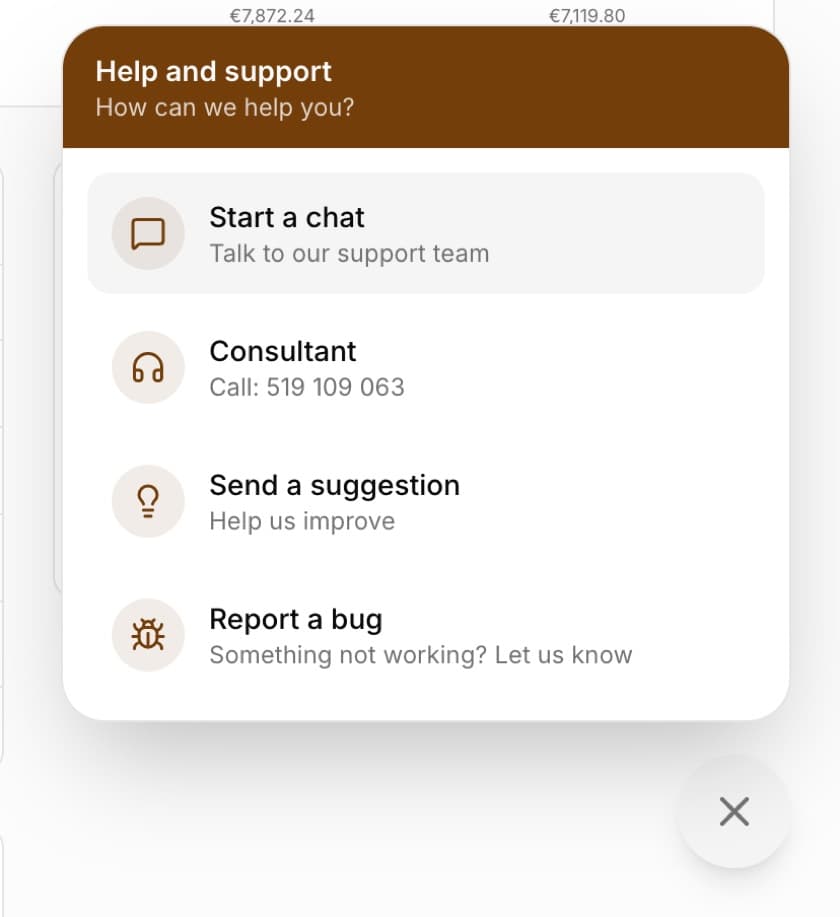
When you open the chat, you see the “Help and support” window with the question “How can we help you?”. Choose what you need - every ticket reaches us and we reply in the same window.
- Open the help chat
- Choose “Start a chat” (a question or a problem), “Report a bug” (something does not work) or “Send a suggestion” (an idea for a change)
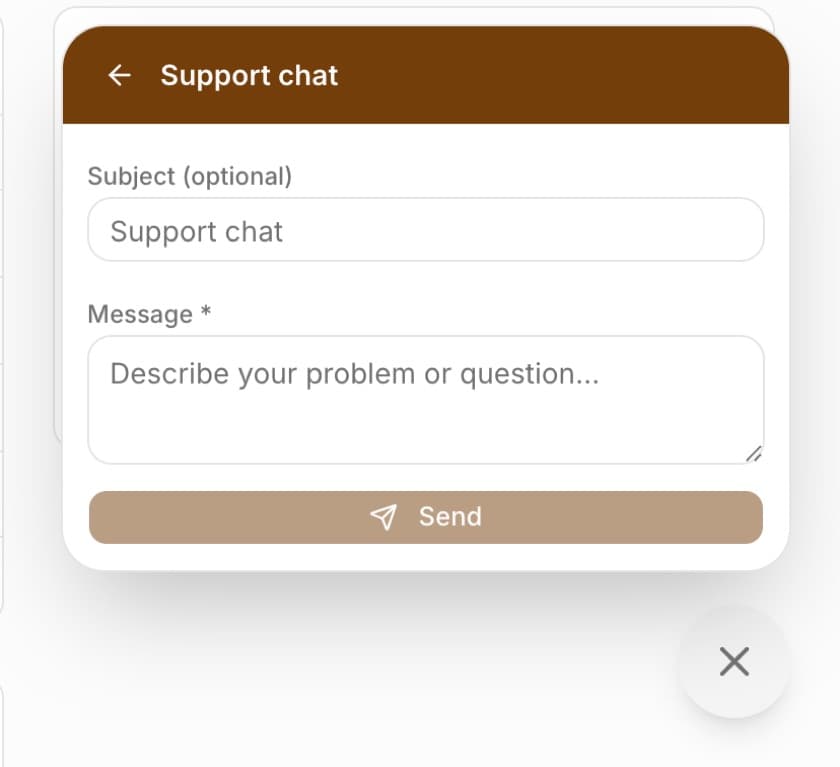
- Optionally enter a “Subject (optional)”, describe the matter in the “Message *” field and click “Send”
- The conversation opens in the same window - the reply arrives here and here you add further messages
Tip: When reporting a bug, write which module you were in, what you clicked and what happened. A screenshot speeds up help a lot.
Live conversation
The chat works in real time: the reply appears without refreshing the page, and you can see whether someone from support is currently in the conversation.
- “A consultant is in the chat” or a note that a consultant was here 5 minutes ago - above the conversation you can see when support was last there
- “A consultant is typing...” - a reply is being written right now
- “Read 14:32” under your last message - we read it at that time
- “Sending...” - the message is on its way
- “Not sent” with a “Retry” button - the message did not get through (for example because there was no internet); click “Retry” to send it again without retyping
Attachments
You can add a screenshot, a photo or a PDF file to a message. The paperclip icon in the “Write a message...” field opens the file picker, and you can also simply paste a screenshot into the field.
- Formats: JPG, PNG, WEBP, GIF, PDF
- Up to 5 MB per file
- Clicking an image in the conversation opens it enlarged
Your tickets
All conversations are saved. When you have an open ticket, “Your tickets (N)” appears in the chat menu below the list of options - choose it to return to the matter and add a message. A finished ticket disappears from this list, and you get the conversation history by email; for a new matter, simply start a new chat. Each ticket has a status.
- “Open” - the ticket is waiting for us
- “In progress” - we are working on it
- “Resolved” and “Closed” - the matter is finished; after it is closed you will get an email with the conversation history
Calling a consultant
Prefer to talk? In the chat menu choose “Consultant” - on a phone the number +48 519 109 063 is dialed right away, on a computer you will see it in the item description.
Consent to account access
Sometimes we can help fastest when we see the problem in your account. In the conversation there is an “I consent to account access” button. Without your consent we do not look at your bakery's data.
- Only the account owner can give or withdraw consent
- Access lasts up to 24 hours and is tied to one ticket
- The “Revoke” button ends access at any time
- Everything we do in the account is logged
Frequently asked questions
What language can I write in?
Polish or English. The chat also has an English and a Ukrainian version - matching the language you chose in the user menu.
A message says “Not sent”. What should I do?
Check your internet connection and click “Retry” under the message. You do not have to retype it.
Can employees write to support too?
Yes. Every user of the account has the chat, regardless of role. However, only the owner can give consent to account access.