
Calendar views
Monthly, weekly and daily views of orders by pickup date.
Last updated:
Three calendar views
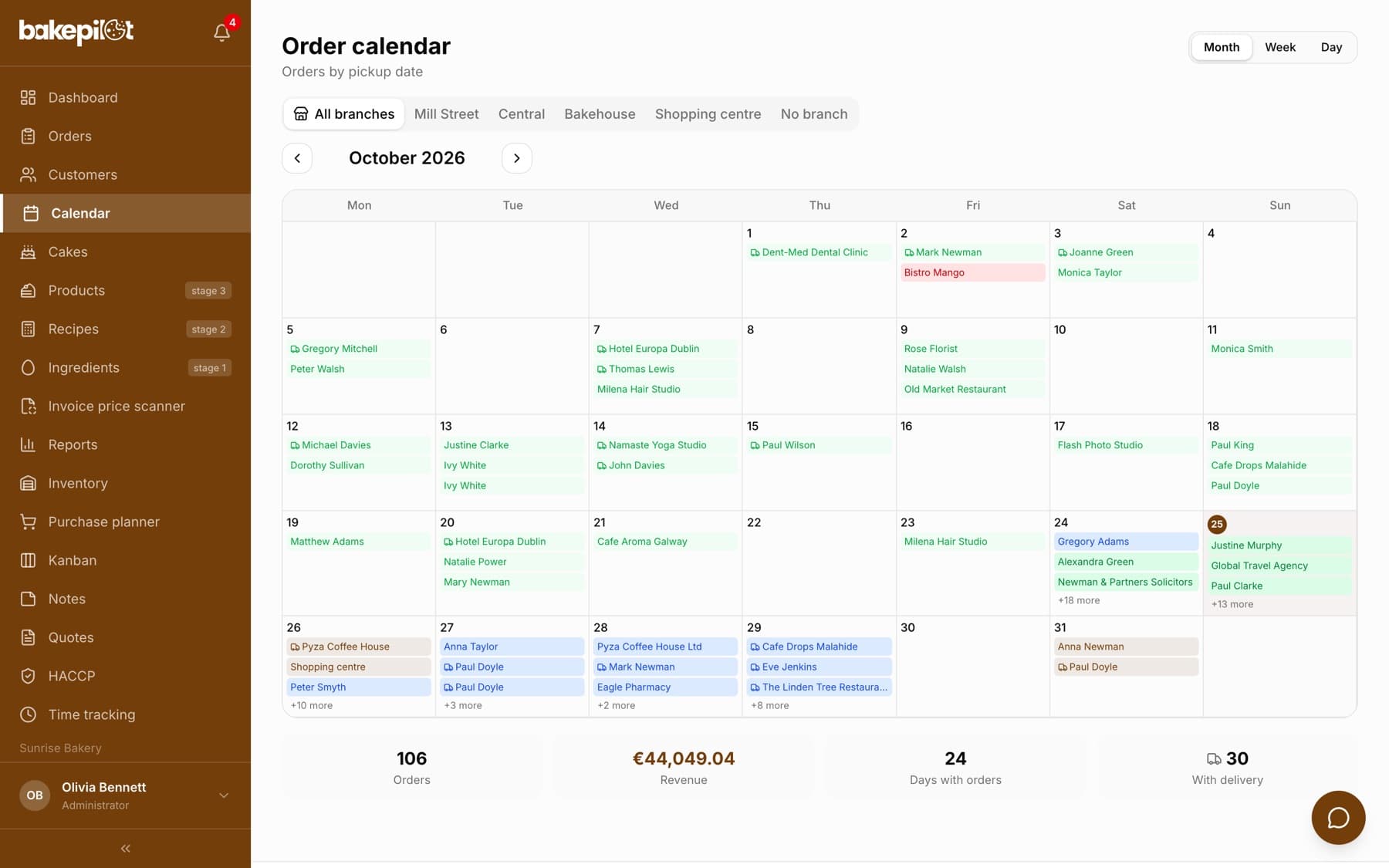
The “Order calendar” shows orders by pickup date and has three views that you switch with the buttons in the top right corner: “Month”, “Week” and “Day”. The month view is for planning ahead, the week view shows the workload of each day side by side, and the day view is the hourly schedule of a specific date. Use the arrows to go to the previous and next period, and the “Today” button to return to the current one.
- “Month” - up to three customer names per day and “+N more”, on a phone only the number of orders and the amount
- “Week” - order cards with time and amount, below each day “N ord. / amount”
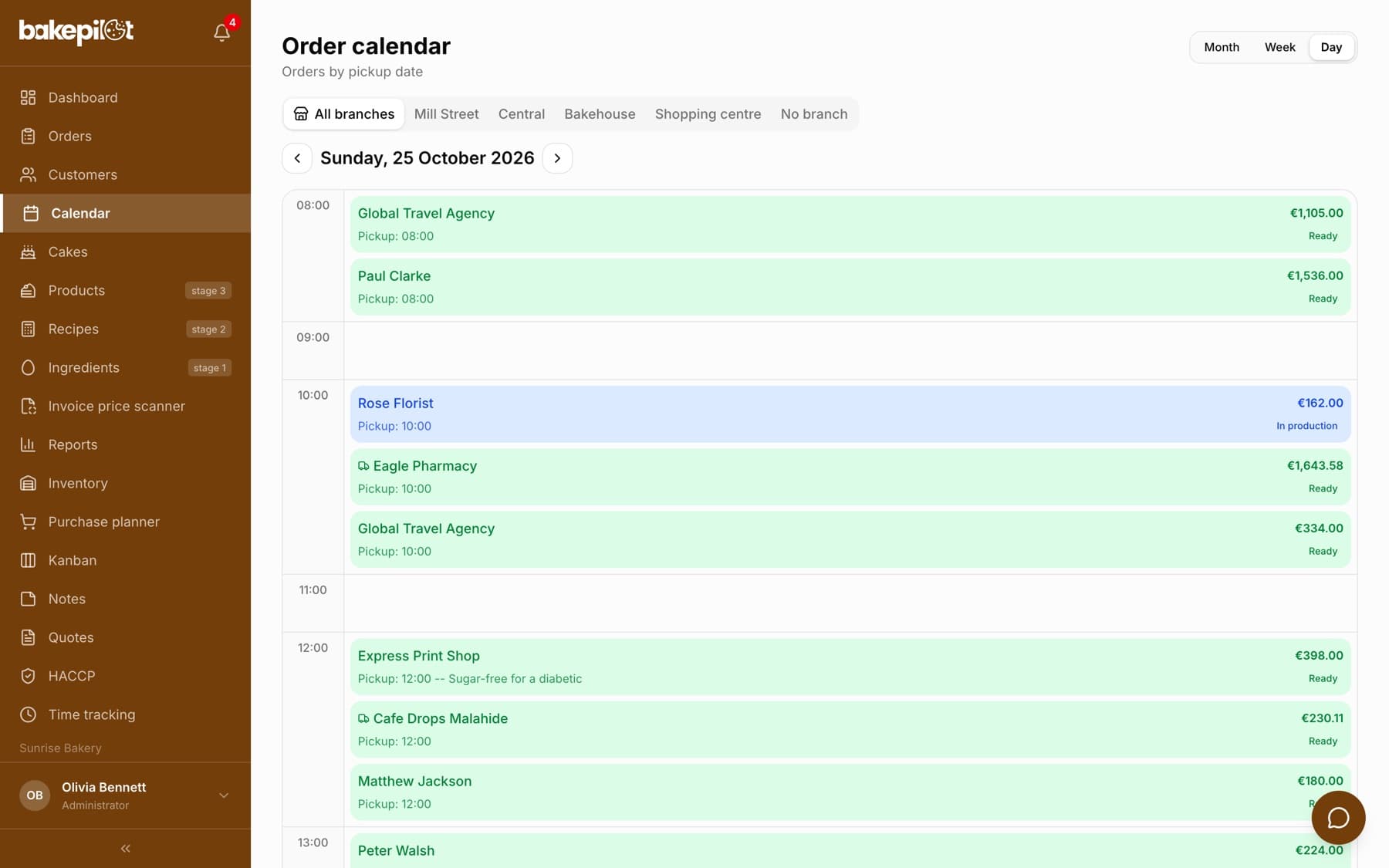
- “Day” - an hourly grid with “Pickup: time” cards and the status
- The card color matches the order status, a truck icon marks a delivery
Workload per day and period
In the weekly view you see the number of orders and their total value below each day, and on a phone the monthly view shows the same pair in every cell. Below the calendar, in both views, there are four summary tiles: “Orders”, “Revenue”, “Days with orders” and “With delivery”. This way you can tell at a glance whether a given Saturday is already full before you accept another order.
- Number of orders and amount per day in the weekly view
- Period summary: “Orders”, “Revenue”, “Days with orders”, “With delivery”
- The daily view totals the day's revenue below the hourly grid
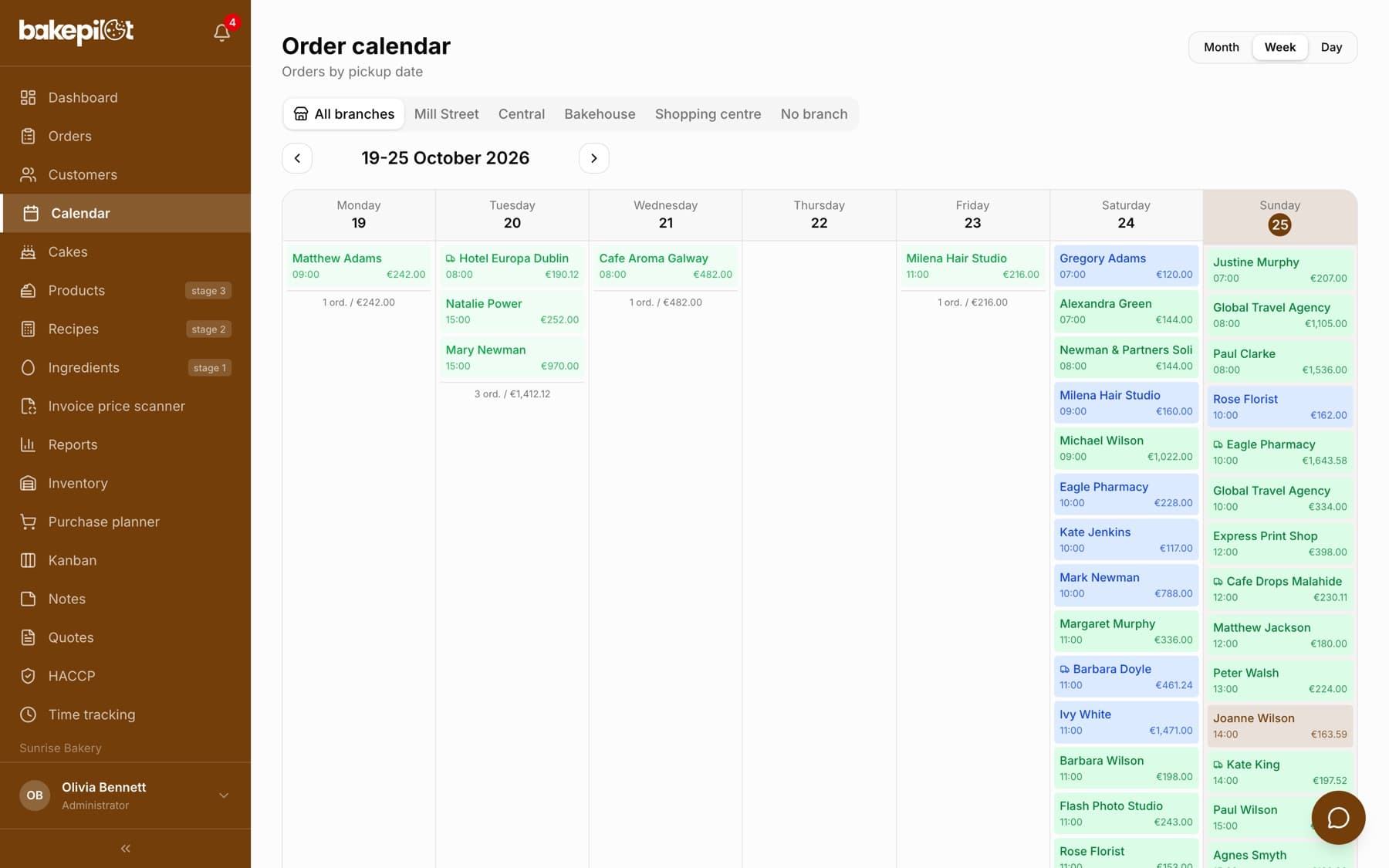
Tip: Check the weekly view on Sunday - you will know how many orders fall in the coming week and can plan the schedule around it.
Going to orders
Clicking an order or a day in the calendar opens the order list filtered to that date - from there you open the details, change the status or issue an invoice. In the monthly view, clicking an empty day (or the plus icon that appears when you hover over a day) opens the new order form with that pickup date. You change the pickup date by editing the order - the calendar does not support dragging between days.
- Clicking a day with orders - the order list with that pickup date
- Clicking an empty day or the “New order” plus - the form with the date set
- Changing the date with “Edit” in the order, no dragging
Frequently asked questions
Does the calendar show cancelled and handed-over orders?
Yes - the calendar shows all orders for a given day, including handed-over and cancelled ones, each in the color of its status. You will recognize cancelled ones by the red card.