
Printing recipes
How to print one recipe, selected recipes or all of them. A printout scaled to a different size is made from production mode.
Last updated:
Printing one recipe
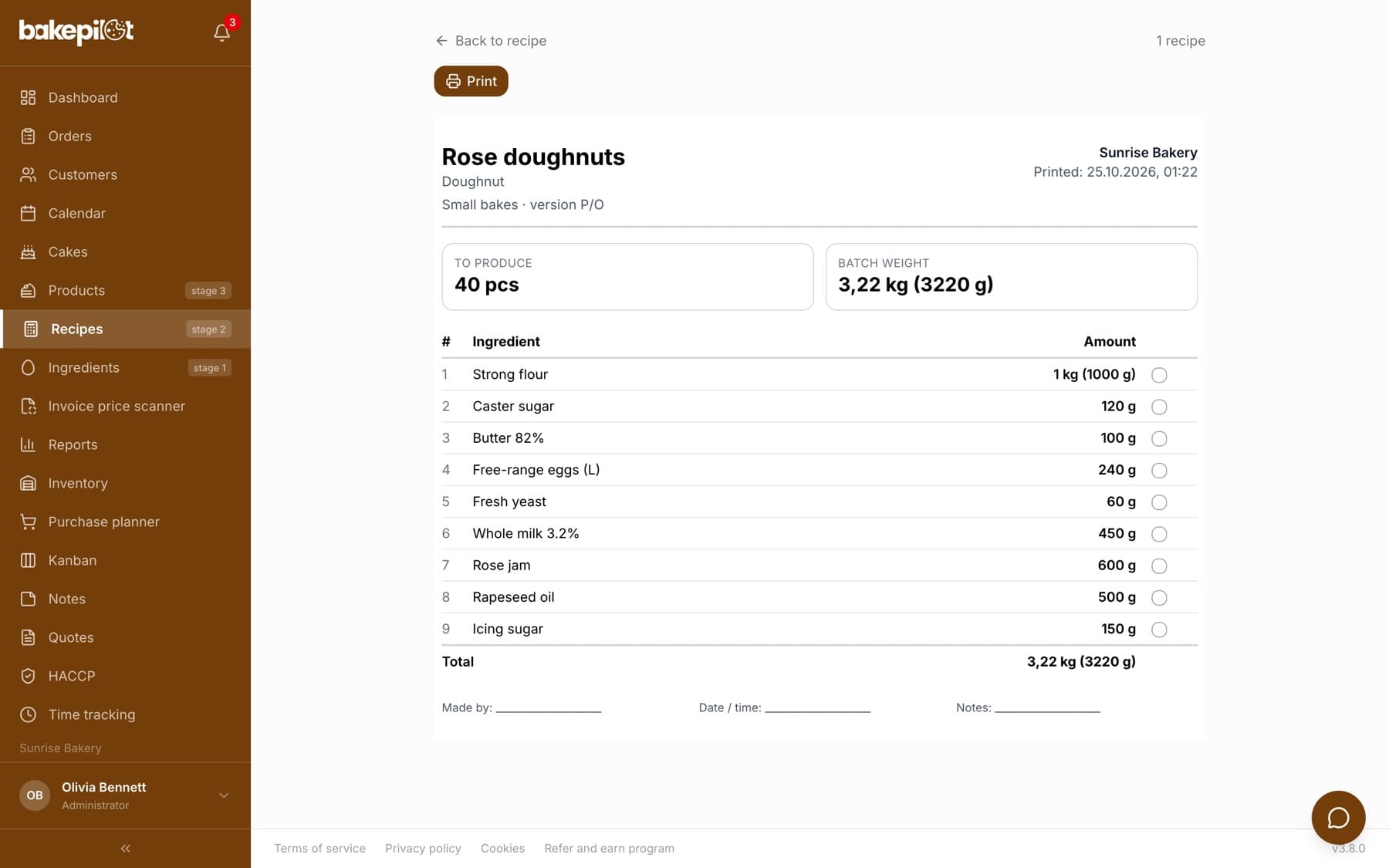
On the recipe card, next to “Edit” and “Duplicate”, there is a “Print” button. It opens a print page with the ingredient table in grams (above one kilogram also in kilograms), sub-recipes marked “(sub-recipe)”, the batch weight and space for the signature of the person who made it. The printout has no prices or costs - it is a sheet for production.
- Recipe card → “Print”
- On the recipe list, every item has a printer icon on the right
- The “Print” button on the print page opens the browser's print dialog
- On the sheet: “To produce”, “Batch weight”, the ingredient table with circles to tick off, “Total” and the “Made by / Date / Notes” fields
Printing in a size other than the base recipe
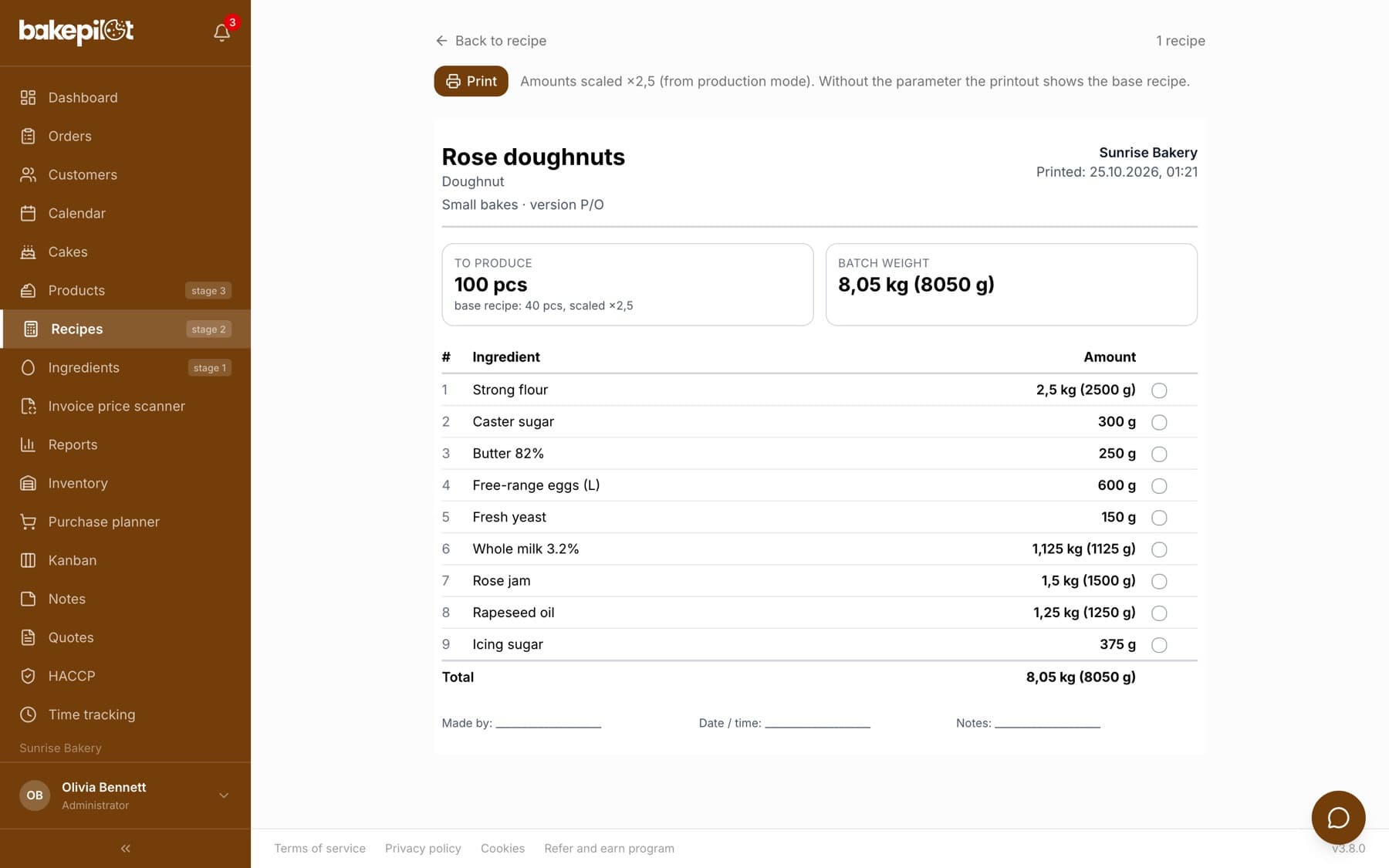
The “Print” button prints the recipe as it is saved (e.g. for 40 pieces). If you need a sheet for 100 pieces or for 10 kg, open “Start production” on the recipe card, enter the size and click “Print production sheet” - the printout shows the scaled quantities, the production yield and the multiplier (e.g. “base recipe: 40 pcs, scaled ×2.5”). The printout also includes the “Production method” if the recipe has one.
- “Print” = the base recipe, without asking for a quantity
- The scaled printout is part of production from a recipe, i.e. the Mistrzowski (Master) plan; on the Profesjonalny (Professional) plan you print the base recipe
- “Start production” → size → “Print production sheet” = scaled quantities
- During a running production: the “Print production sheet” button in the top right corner of weighing mode
Printing selected or all recipes
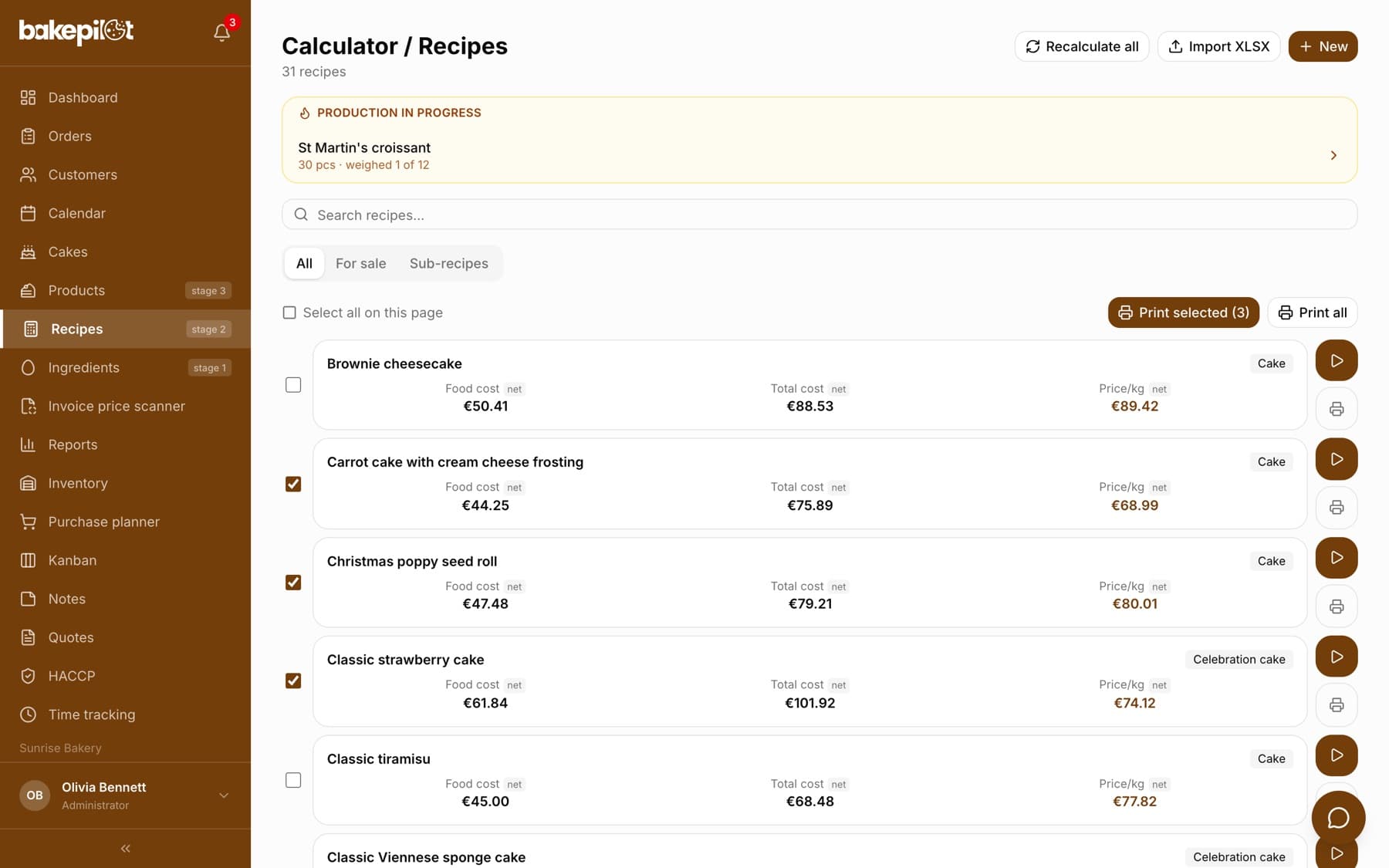
On the recipe list (on a computer) every card has a checkbox. Select a few and click “Print selected (n)”. “Print all” prints all recipes that match the search and the category filter. Each recipe goes on a separate page, in base quantities.
- “Select all on this page” selects the cards visible on the current page of the list
- “Print all” covers all pages of the list with the current filters
- On a phone: the printer icon next to “New” prints all recipes
Frequently asked questions
Does the printout include prices and costs?
No. A recipe printout is a sheet for production: ingredients, quantities, weight and space for a signature. Costs are shown on the recipe card in the app.
Does the printout include the ingredients inside a sub-recipe?
A sub-recipe is a line on the list with the amount you add to the recipe (e.g. 300 g of cream). You print its own ingredients from that sub-recipe's card.