
Importing ingredients from Excel (XLSX) with supplier grouping
Upload ingredients from an Excel sheet - identical ingredients merge into one with several suppliers and an average price.
Last updated:
Why import ingredients from Excel
If your ingredients are already listed in your company calculator, stocktake sheet or a spreadsheet of supplier price lists, you do not have to retype them into BakePilot. The import reads the whole sheet at once and builds your ingredient database with prices and suppliers straight away. It is the fastest way to start recipe costing when your data is already collected in Excel.
- The whole ingredient database uploaded in one file
- Works with a ready-made sheet, e.g. the SKLADNIKI tab of your calculator
- No retyping line by line
Tip: You will find the import on the Ingredients page - the “More” menu → “Import Excel”.
One ingredient, many suppliers, an average price
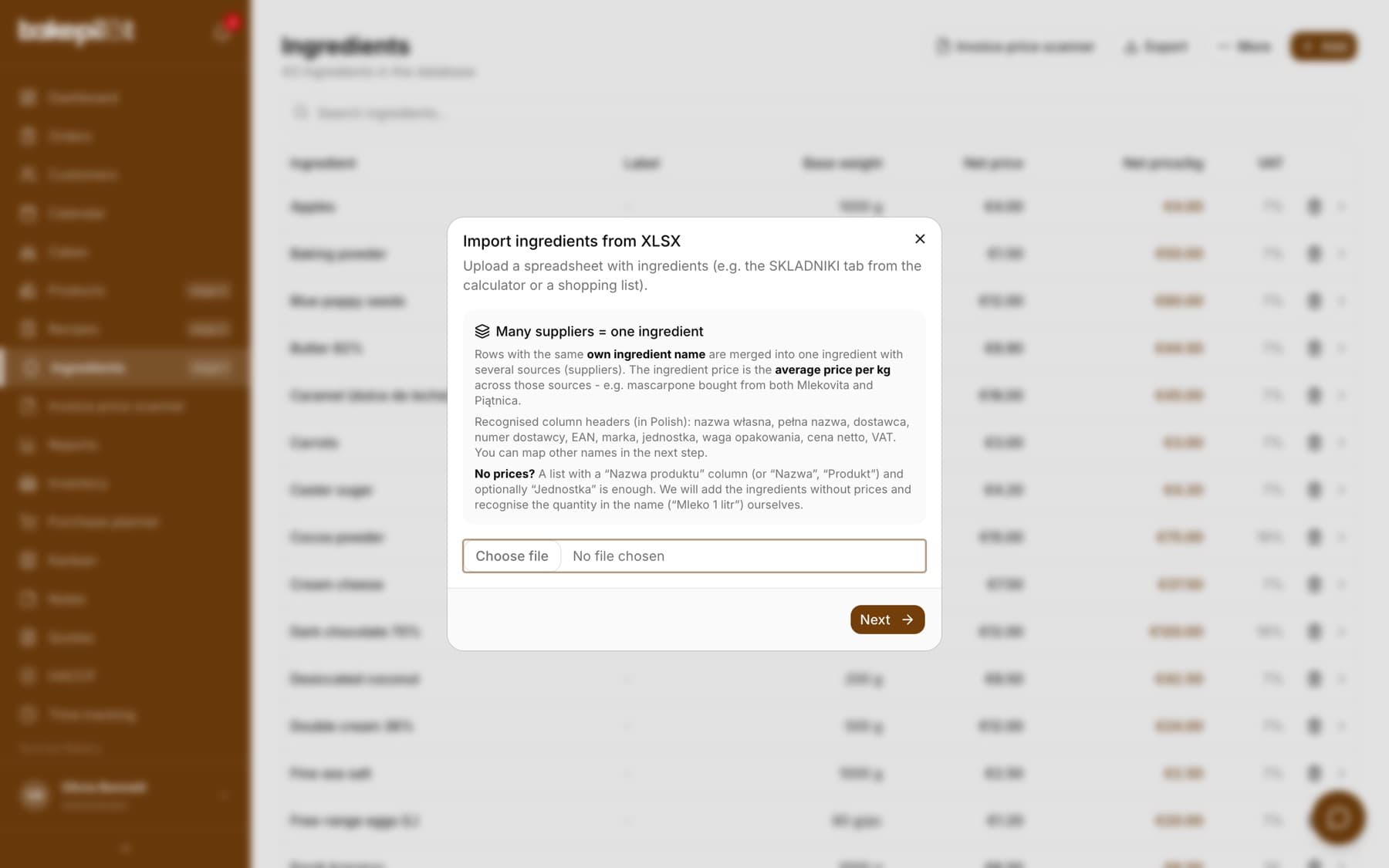
This is the most important feature of the import. Several rows with the same ingredient name merge into one ingredient with several suppliers (purchase sources). The price of such an ingredient is the average price per kg calculated from all suppliers. Example: if you buy mascarpone from Mlekovita, Piątnica and Auricchio and have it in five rows of the sheet, the import creates one “Mascarpone” ingredient with five suppliers and an averaged price.
- Grouping by the ingredient's own name
- Each row is a separate supplier (source) with its own price and package size
- Ingredient price = average price per kg across all suppliers
- The average feeds the automatic recipe costing
Tip: Want two rows to end up in one ingredient? Give them exactly the same ingredient name - that is what decides the grouping.
How the import works - 3 steps
The import takes you through three simple steps. First you upload the file, then you check the preview together with the column mapping and the grouping summary, and finally you confirm the import. At every stage you see exactly what will go into the database.
- Step 1 - upload an XLSX file from your computer
- Step 2 - preview: choose the sheet, map the columns by hand and see the grouping summary (how many ingredients, how many with several suppliers, examples)
- Step 3 - import: you confirm and the ingredients go into the database
A sheet without prices, i.e. just a list of names
You do not need prices to get started. If the file has no price column, the import switches to names-only mode and says so directly: “Names only - you will fill in prices from invoices with the Price scanner”. The ingredients are created without a price and without suppliers, and the app takes the unit from the unit column or from the name itself - “Mleko 1 litr” (milk 1 liter) gives liters with a 1 l package, and “Maslo 200g” (butter 200 g) gives grams with a 200 g package.
- Only the “Ingredient name” column is required
- In the “Unit” field you can point to a column from the file or leave “- from the name -”
- The preview shows “New: N of M rows” and a “Sample rows” list with the recognized unit
- Ingredients you already have go to “Skipped (already exist)”, and repeats within the file to “Repeated in the file” - with the names listed
- A percentage in the name (e.g. cream 30%) is not treated as a quantity
Tip: It is the fastest route when you have a list of raw materials from a stocktake or from your previous software. You can add prices later by hand, or let them fill in on their own after the first invoice in the price scanner.
Recognized columns
BakePilot recognizes the columns in your sheet by their names - you do not have to arrange it in any particular way. If the columns have unusual names, in the preview step you can point by hand to which column in the file matches which field in BakePilot.
- The ingredient's own name - grouping is based on it
- Full name (at the supplier) and producer / brand
- Supplier and supplier number
- EAN
- Billing unit: kg, liter, g, pcs, ml
- Package weight / volume
- Net price per package
- VAT
Tip: The required minimum in the file is a column with the ingredient's own name - the rest is optional and fills in the ingredient card. Without a price column the import switches to the names-only mode described above.
How to enter VAT
You can write VAT in two ways - the import recognizes both. Either as a price multiplier or as a plain percentage. Choose whichever is more convenient, depending on how you keep your sheet.
- As a multiplier: 1,05 = 5%, 1,08 = 8%, 1,23 = 23%
- Or as a percentage entered directly
Re-importing and overwriting prices
When a supplier sends a new price list, you do not have to edit ingredients by hand. Turn on the overwrite option and upload the updated sheet - BakePilot refreshes the prices and units and replaces the list of suppliers for ingredients with the same name.
- The “Overwrite ingredients with an existing name” option
- Updates the price and the billing unit
- Replaces the ingredient's suppliers (sources)
- Ideal for re-importing after a price list update
What you will see after the import
After the import, each ingredient's card has a “Suppliers (N)” section - the list of suppliers you buy it from, with the price per kg calculated automatically. When an ingredient has several suppliers, the averaged price per kg is shown - that is the price that goes into your recipe costing.
- The “Suppliers (N)” section on the ingredient card, where N is the number of suppliers
- Average price per kg for ingredients with several suppliers
- Price per kg calculated automatically from the package size and the net price
- Ready for recipe costing - click “Recalculate all” on the recipe list, because the import does not recalculate recipes itself
Tip: After the import, open the card of a chosen ingredient and check that all suppliers and prices match your price list.
Frequently asked questions
What format should the import file be in?
An Excel file in XLSX format, e.g. the SKLADNIKI tab of your company calculator or stocktake sheet. In the preview step you choose the right sheet and, if needed, map the columns by hand.
How can one ingredient have several suppliers?
The import groups rows by the ingredient's own name. If several rows have the same name (e.g. “Mascarpone” from three different suppliers), one ingredient is created with several suppliers in the “Suppliers (N)” section, and its price is the average price per kg across all those suppliers.
Where does the price of an ingredient with several suppliers come from?
It is the average price per kg calculated from all suppliers (sources) of the ingredient. Each supplier's price per kg is calculated automatically from the net price per package and the size of that package. The average then feeds the recipe costing.
Which columns are required in the file?
The minimum is a column with the ingredient's own name. Without a price column the import switches to names-only mode (ingredients without prices and suppliers). The other columns (net price per package, supplier, EAN, producer, unit, package weight, VAT) are optional and enrich the ingredient card.
How do I enter VAT in the sheet?
In two ways - as a multiplier (1,05 = 5%, 1,08 = 8%, 1,23 = 23%) or as a plain percentage. The import recognizes both.
A supplier sent a new price list - how do I update the prices?
Turn on the “Overwrite ingredients with an existing name” option and upload the updated sheet. BakePilot refreshes the prices and units and replaces the suppliers for ingredients with the same name.