
Cost categories
Splitting costs into ingredients, utilities, services and more - with automatic assignment by supplier.
Last updated:
Why split costs into categories
A category tells you what the money went on: ingredients for baking, an electricity bill or a new oven. This way you can see where the money actually goes, instead of looking at one big “costs” amount. Categories work both for invoices downloaded from KSeF and scanned, and for costs added manually, and the category type feeds the break-even point.
- You know how much goes on ingredients each month and how much on utilities
- It is easier to compare periods and spot an unusual expense
- The same split covers all costs, no matter how they got into the system
Ready-made categories for bakeries
The set is prepared for bakeries and pastry shops, so you usually do not need to add anything. Categories are grouped by cost type - the type determines how a category counts in the break-even point.
- “Direct cost” (grows with sales): Ingredients and goods, Packaging
- “Fixed cost” (you pay it regardless of sales): Utilities, Rent and premises, External services, Transport and fuel, Marketing and advertising, Service and repairs, Taxes and fees
- “Investment” (a one-off expense): Equipment and furnishings
- “Other”: Other - for anything that does not fit the above
Tip: The split into direct and fixed costs is not decoration - fixed costs go into the break-even point, direct costs lower the margin, and investments stay outside the break-even point.
Automatic assignment by supplier
You set the category of a single invoice on its details page in the “Cost category” field. By default the choice is remembered for the supplier - under the field you see “Future invoices from this supplier will go to this category.” Every following invoice from that company, including ones downloaded automatically from KSeF, will go to the same category. If you want to change just one document, tick “This invoice only”.
- You assign a wholesaler to “Ingredients and goods” once, and the rest happens by itself
- You can always change the category on a single invoice
- “This invoice only” - a change without touching the supplier rule
- “No category” - removes the assignment
Tip: If you buy both ingredients and equipment from the same wholesaler, tick “This invoice only” on the unusual invoice - the supplier rule stays unchanged.
Assigning many invoices at once
On the invoice list in the “Purchase” tab, each row has a checkbox. Once you select some, a “N invoices selected” bar with buttons appears above the table. This is the fastest way to sort out a backlog of documents after the first download from KSeF.
- Open “Invoices” and go to the “Purchase” tab
- Select invoices with the checkboxes - a click with the Shift key selects the whole range from the previously clicked one, and the checkbox in the header selects all on the page
- If future invoices from these suppliers should go to the same category, tick “Remember for these suppliers”
- Click “Assign category” and choose a category from the list
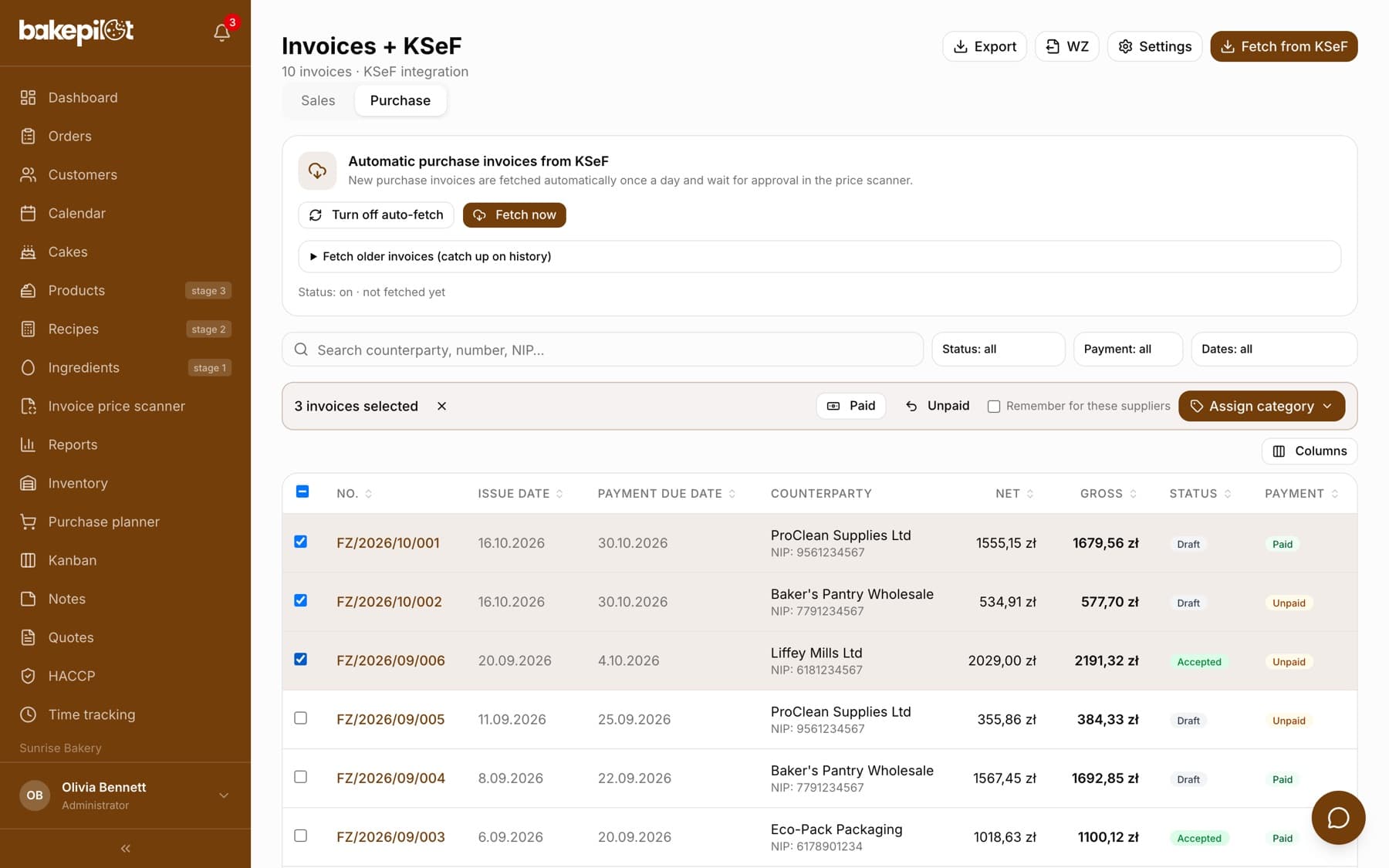
Tip: With bulk assignment, supplier rules are NOT saved automatically - unlike on a single invoice. Tick “Remember for these suppliers” if you want that.
Marking invoices as paid in bulk
The same bar has the “Paid” and “Unpaid” buttons - you mark the selected invoices as paid or undo that mark. It works for sales and purchase invoices, and comes in handy when you tick off a dozen documents at once after checking your bank statement.
Your own categories
If the ready-made categories do not reflect how your business works, you can add your own in the expandable “Cost categories” section at the very bottom of the Finance tab. Ready-made categories are marked as “System” and cannot be deleted, so as not to break existing assignments.
- In the “Finance” tab, expand the “Cost categories” section at the bottom of the page
- In the “Add your own category” part, enter the “Category name”, for example Car leasing
- Choose the “Cost type”: “Direct cost”, “Fixed cost”, “Investment” or “Other”
- Click “Add”
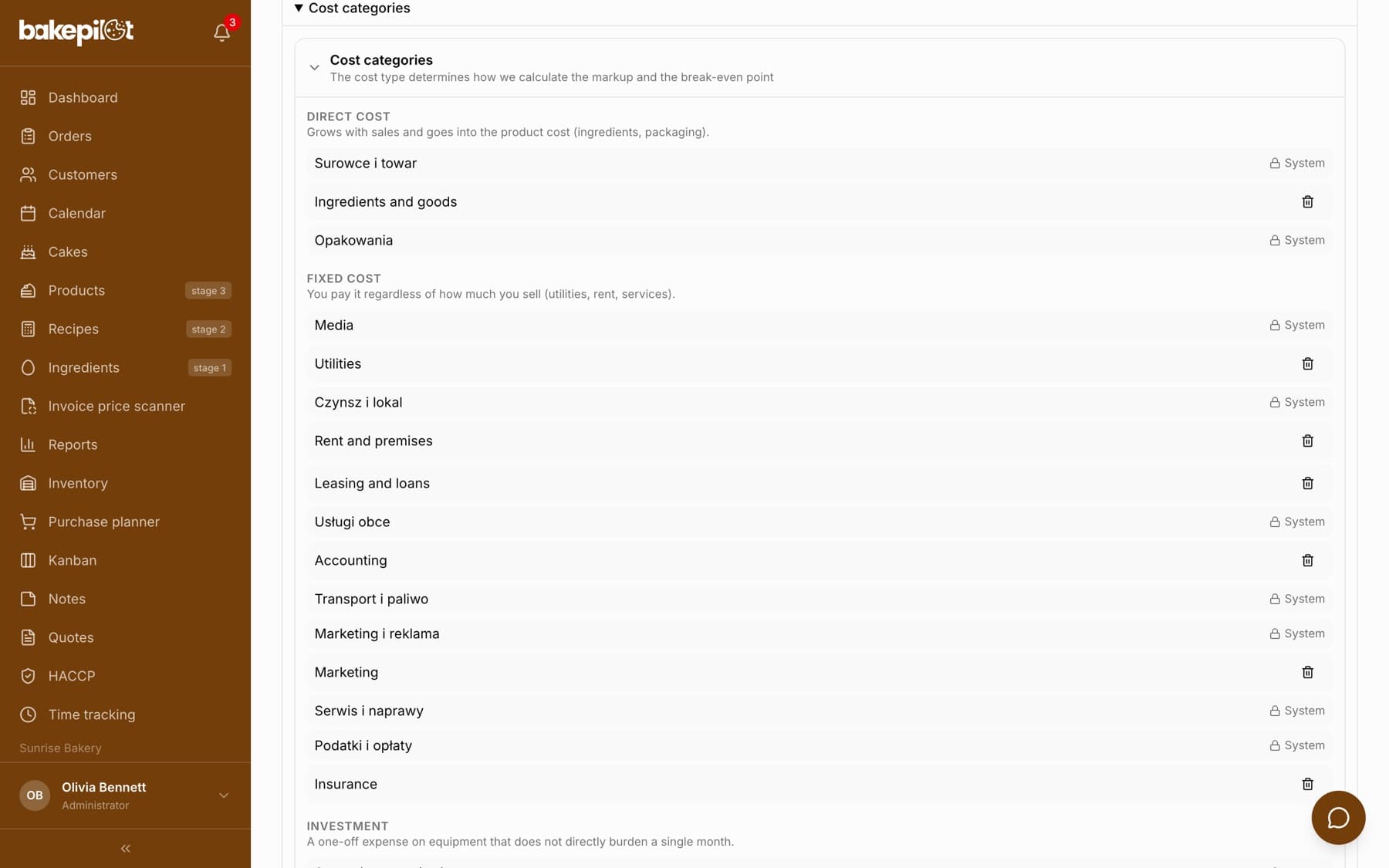
Tip: You delete your own category with the trash icon and confirm with a second click on “Confirm”. Invoices from that category stay, just without an assignment.
Where you will see the category
You set the category on the purchase invoice details page (“Cost category”) and in the table of costs added manually (the “Category” list). On the invoice list you can turn on the “Category” column with the “Columns” button - it is hidden by default so as not to clutter the view.
Cost structure - where the money goes
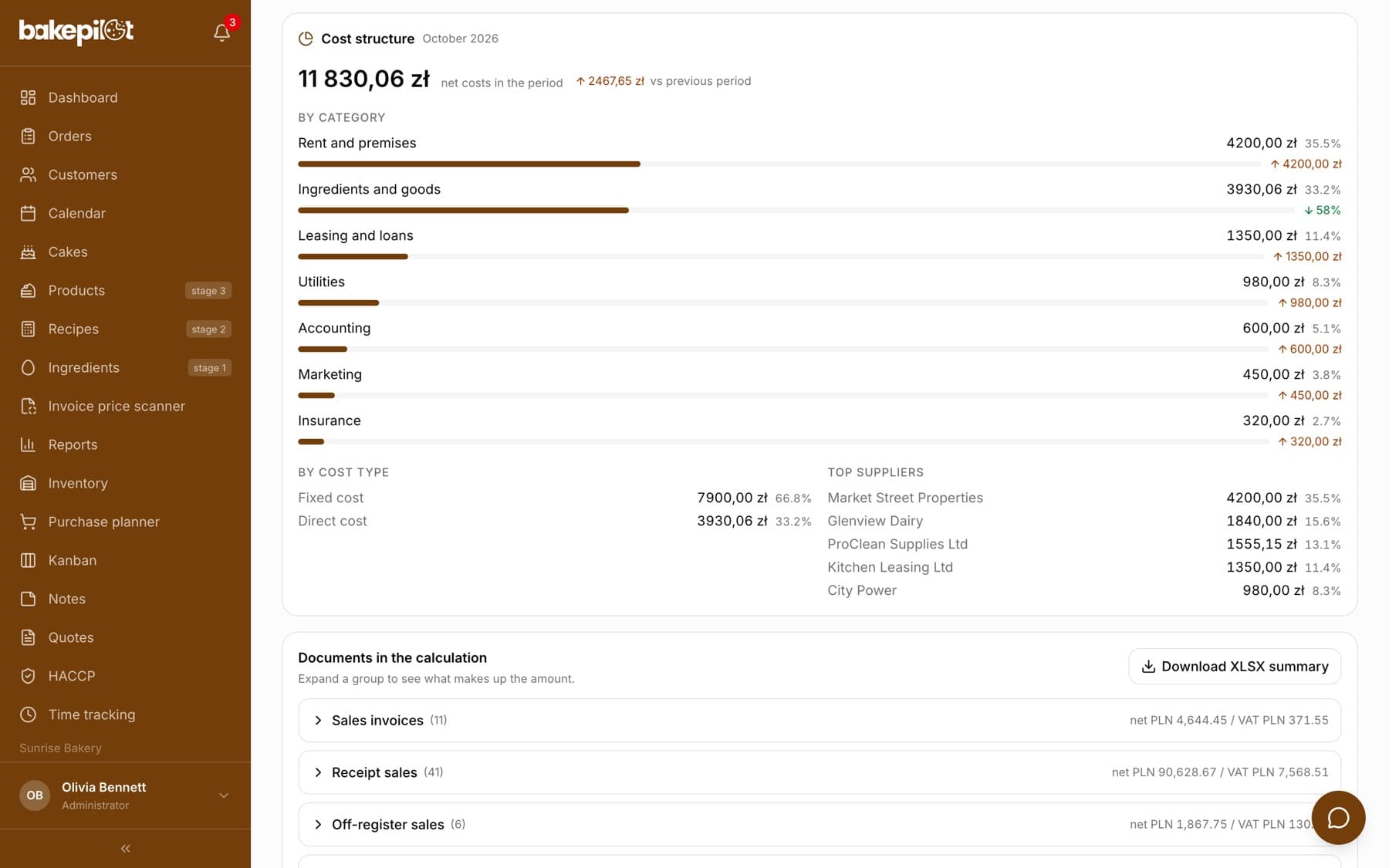
In the Finance tab, under the break-even point, there is the “Cost structure” section. It shows the total “net costs in the period” with the change “vs previous period”, the split “By category” with share bars, the split “By cost type” and the “Top suppliers” list (the five largest). We calculate on net amounts, because an active VAT payer deducts VAT - gross amounts would overstate the real cost of running the business.
- The percentage share of each category in the period's costs
- The change in each category against the previous period
- The split into direct costs, fixed costs and investments
- The five largest suppliers with amounts and shares
- The note “N documents without a category” when some documents are not assigned yet
Tip: Cost analysis is in Finance, not in Analytics, because it is owner-level information - it shows supplier prices and the structure of your spending.
Frequently asked questions
Do I have to categorize all invoices?
No. Invoices without a category work normally - they simply do not go into the cost structure or the break-even point. It is worth assigning categories to your main suppliers, though, because then the rest happens automatically.
I changed the category, but old invoices stayed in the previous one. Why?
Changing a supplier rule applies to future invoices. Earlier documents keep what they had assigned - this way summaries for closed periods do not change after the fact.
Do categories affect the VAT calculation?
No. The VAT estimate is calculated from the amounts on the documents regardless of the category. Categories serve the cost structure and the break-even point.