
Dashboard - your bakery's day on one screen
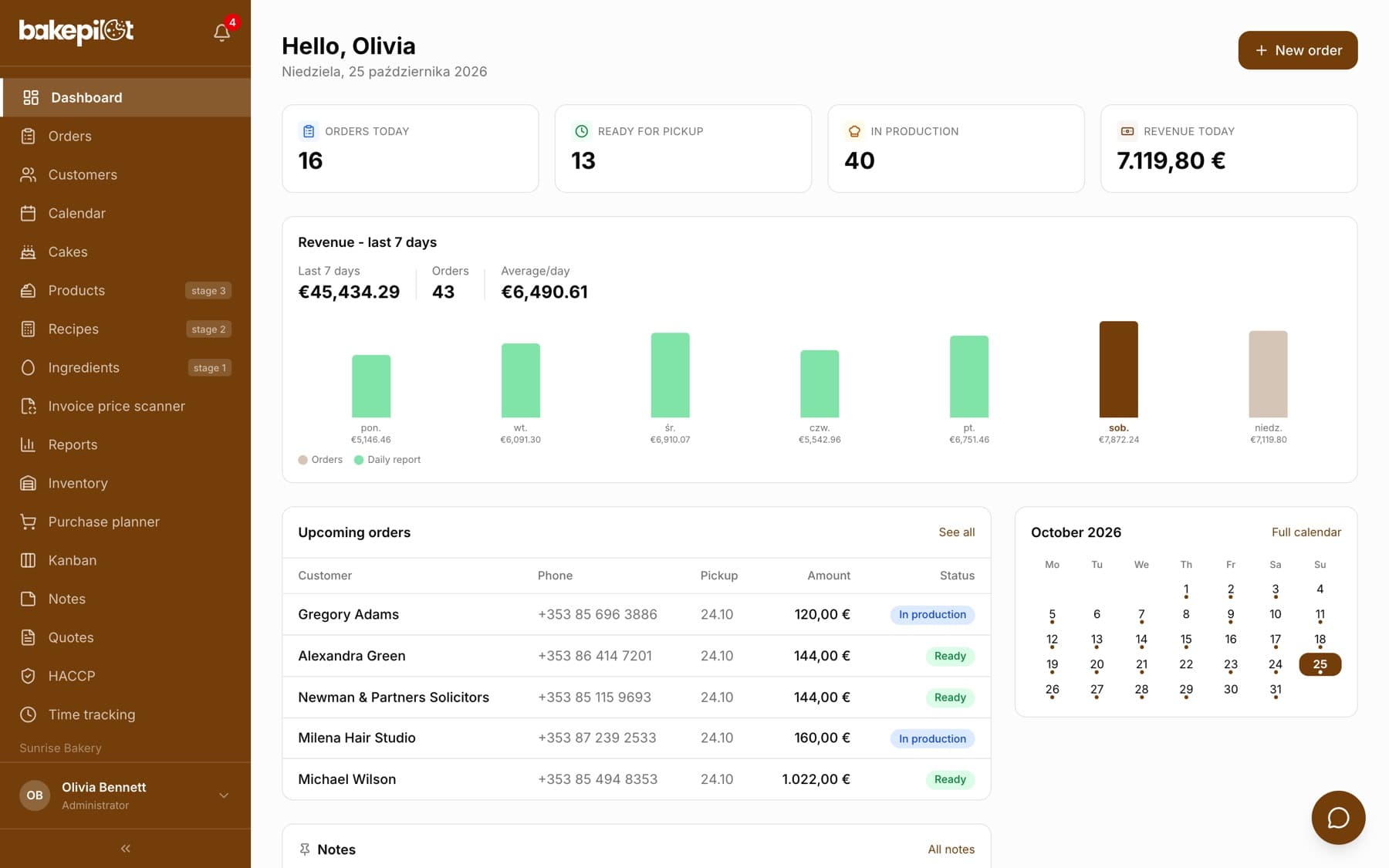
What the Dashboard shows: today's order counters, revenue from the last 7 days, low stock, upcoming orders, pinned notes and the month calendar.
Last updated:
What is on the Dashboard
The Dashboard is the first screen you see after logging in. At the top you are greeted with “Hello” and the first name from your profile, together with today's date, and next to it is the “New order” button (shortened to “New” on a phone). Below, in order: the day's counters, the revenue chart, a low stock warning, upcoming orders, pinned notes and the current month's calendar. Every element takes you further - clicking a counter, an order or a day in the calendar opens the matching module.
- All roles can see the Dashboard
- Revenue amounts are visible only to roles with the “Revenue” permission - details at the end of this article
- The low stock warning appears only when something has dropped below its minimum
The day's counters
The four tiles at the top show today in numbers. Clicking a tile opens the order list already filtered.
- “Orders today” - orders for pickup today, excluding drafts and cancelled orders; opens the order list
- “Ready for pickup” - orders with the “Ready” status and pickup today; opens the list of ready orders
- “In production” - orders with the “In production” status and pickup from today onwards; opens the list of orders in production
- “Revenue today” - the total of orders for pickup today (excluding drafts and cancelled orders); once there is a daily report for today, the tile is renamed “Revenue today (report)”, shows the takings from the report (with several points of sale, the total of the reports) and opens Reports
- An employee assigned to branches sees only the orders of their own branches in the order tiles
Revenue from the last 7 days
The “Revenue - last 7 days” chart has a bar for each day. For a day with a daily report, the bar shows the takings from the report, and for a day without a report, the total of orders for pickup that day (excluding drafts and cancelled orders). The color of the bar tells you where the amount comes from: the legend shows “Orders” and “Daily report”. Above the chart are the totals: revenue from 7 days, the number of orders and “Average/day”.
Tip: The daily report is the source of truth about takings, because it also covers in-store sales without an order. If you keep daily reports, the Dashboard shows the takings from the cash register, not just orders - see the article about the daily report.
Low stock
When an ingredient (and, in the plan with finished goods, also a finished product or a sub-recipe) drops below its set minimum, a “Low stock” card appears on the Dashboard with the number of such items. The list shows up to 6 items with the minimum and the missing quantity (“short …”), and the rest as “+N more…”.
- “Plan purchases” opens the Purchase planner
- “Inventory” opens the stock of the warehouse the card is about
- An account assigned to a branch sees the low stock of its branch's warehouse (the card title includes the branch name), other accounts see the main warehouse
- There is no card when nothing has dropped below the minimum; you set the minimum in Inventory, in the “Min.” column
Upcoming orders, notes and the calendar
The “Upcoming orders” card shows the next 5 orders from today, excluding handed-over and cancelled ones, with the columns “Customer”, “Phone”, “Pickup”, “Amount” and “Status” (as a list on a phone). Clicking an order opens its card, and “See all” opens the order list. Below it, the “Notes” card shows up to two pinned notes with an “All notes” link. On the right (lower down on a phone) is the current month's calendar with the number of orders on each day.
- Clicking a day in the calendar opens the Calendar on that day, and “Full calendar” opens the whole module
- A note pinned in the Notes module appears on the Dashboard
- Without orders, the card shows “No upcoming orders”, and without pinned notes, “No pinned notes”
Notifications - the bell
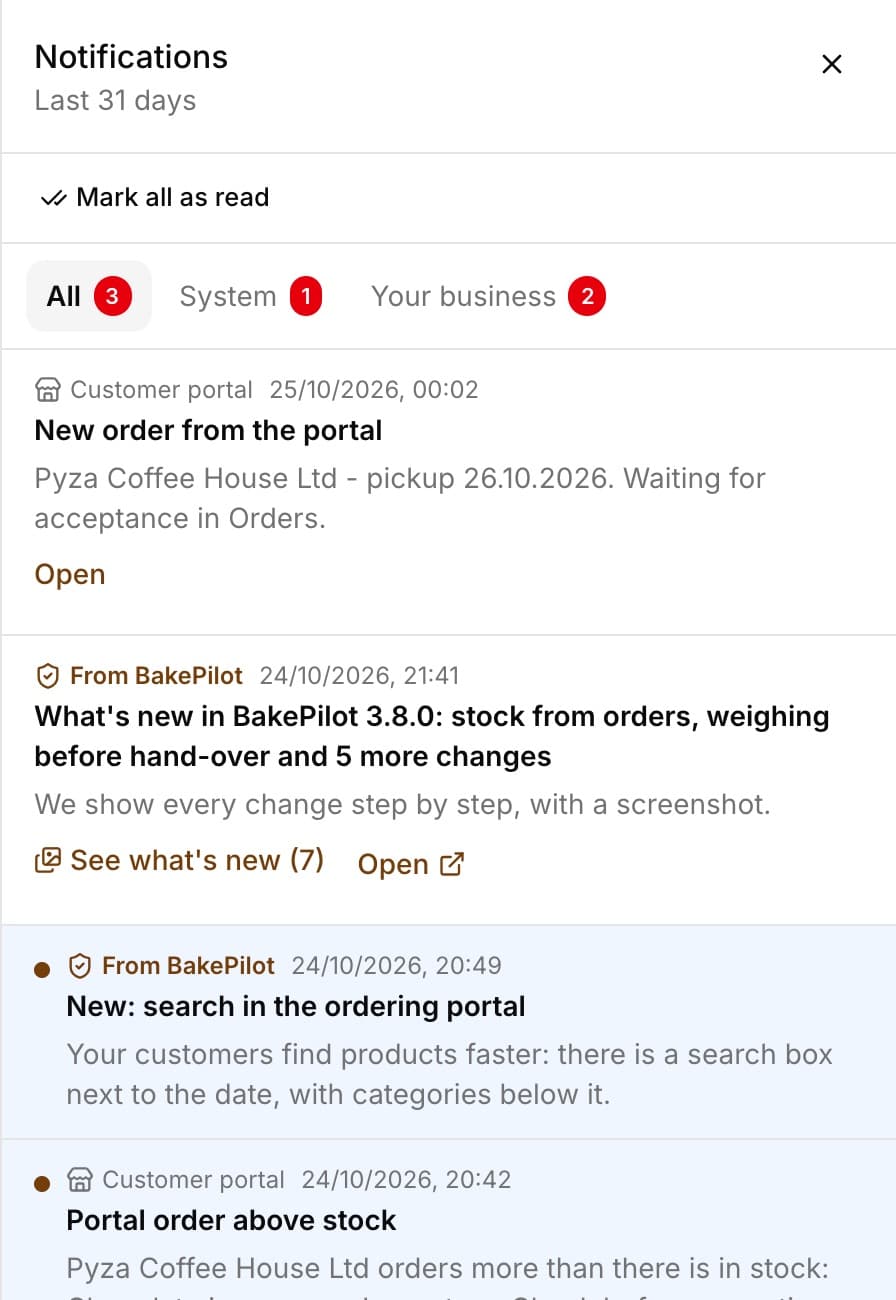
The bell icon collects notifications from the last 31 days: news from us and important events in your account. On a phone the bell is in the top bar, on a computer and tablet it is next to the logo in the side menu. The number on the bell is the count of unread notifications. Clicking it opens the “Notifications” panel with the tabs “All”, “System” and “Your business” (each with its number of unread items), the list, a “Mark all as read” button and an “Older changes in What's new” link, which leads to the full BakePilot version history.
- “System” - from BakePilot, about your plan, KSeF (Poland's National e-Invoicing System) and the system; highlighted in the list with a shield icon and a color
- News from us has a short teaser and a “See what's new” button - it opens a window with each change in turn, with a description and a screenshot (on a phone a screenshot from a phone, on a computer from a computer)
- If you have the BakePilot app on your phone, you also get a push notification about a new message from us
- “Your business” - events from your bakery's work: orders from the portal, including those ordered above the stock in the warehouse
- “From BakePilot” - new features and important information from us
- “Customer portal” - a new order from the portal waiting to be accepted in Orders, and “Portal order above stock” when a business customer orders more than there is in the dispatch warehouse (with a list of products)
- “KSeF” - an error in automatic invoice download, a failed certificate renewal or an invoice rejected by KSeF
- “Plan” - your plan or trial ends in 7 days and in 1 day, and after it ends
- Notifications about the plan, KSeF and the portal are visible to the account administrator
- The most important notifications appear once in a pop-up right after you open the app - “OK, I've read it” or the cross closes them for good, and the content stays under the bell
- New notifications appear on their own, without reloading the page: the bell checks for them when you return to the app tab, when you move to another page and every few minutes
What each role can see
The Dashboard is shared by the whole team, but money amounts are hidden from roles that do not need them. By default the “Revenue today” tile and the revenue chart are visible to the Administrator, Salesperson and Accountant. The Baker, Warehouse worker and Purchaser see the three order tiles, low stock, upcoming orders, notes and the calendar.
- To show or hide revenue for a role, open Settings, the “Permissions matrix” section
- Click the “Dashboard” module name to expand it
- In the “Revenue” row, tick or untick the box in the role's column - the change is saved immediately
Tip: On a shared tablet in the bakery, log in with an account that has the Baker role - the team sees today's orders without the takings.
Frequently asked questions
Why is “Revenue today” different from the total of orders?
When there is a daily report for today, the Dashboard shows the takings from the report (“Revenue today (report)”), not the total of orders. The report also covers in-store sales without an order.
An employee cannot see revenue on the Dashboard. Is that a bug?
No. By default revenue is visible to the Administrator, Salesperson and Accountant. You can turn it on for other roles in Settings, in the permissions matrix (the “Dashboard” module, the “Revenue” action).
How does the Dashboard know that stock is low?
From the minimum set for the item in Inventory (the “Min.” column). An item without a minimum does not appear on the low stock card.