
Team notes
Short reminders and comments for your team, with colors and pinning to the top of the list and to the Dashboard.
Last updated:
What notes are for
Notes are a board of short comments for the whole team: “The supplier raised the price of flour”, “Mixer service next week”, “Mrs. Kowalczyk asks for a less sweet cream”. Each note has content, an optional title and a color, and you can pin the most important ones to the top of the list. All roles can see the module and write in it.
- Content (required) and title (optional)
- One of six colors to tell notes apart at a glance
- Pinning - the note stays at the top of the list and on the Dashboard
- Visible to the whole team
Tip: Keep comments about a specific customer (allergies, preferences) in the “Notes” field on the customer card - see the “Customer database” article. The Notes module is for general team comments.
Adding a note
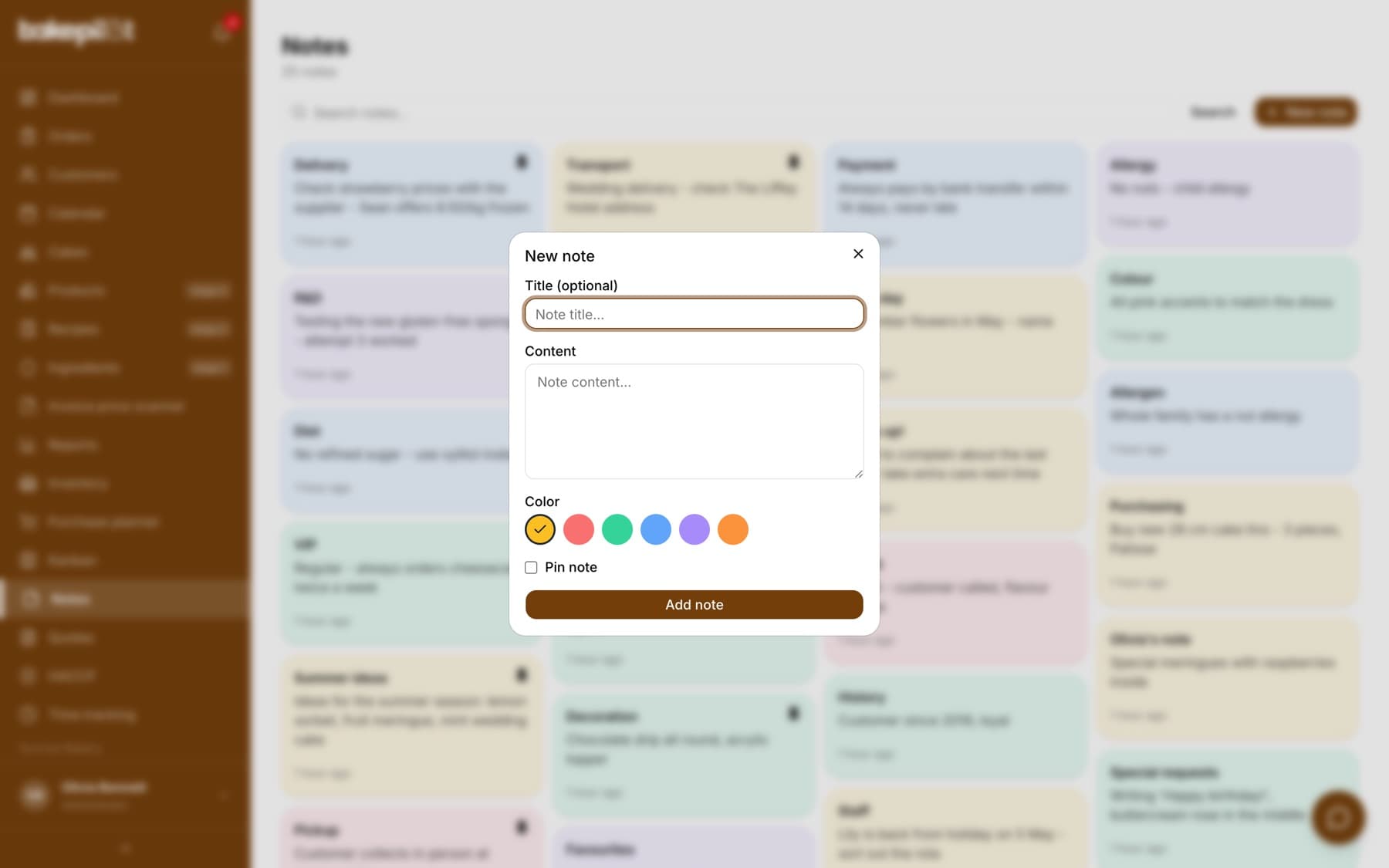
Add a new note with the “New note” button above the list. Pick a color by clicking a circle - yellow is the default. Ticking “Pin note” moves it to the top right away.
- In the Notes module, click “New note”
- Enter the “Title (optional)” and the “Content”
- In the “Color” field, click one of the circles: yellow, red, green, blue, purple or orange
- Tick “Pin note” if it should always stay at the top
- Click “Add note”
List, search and pinning
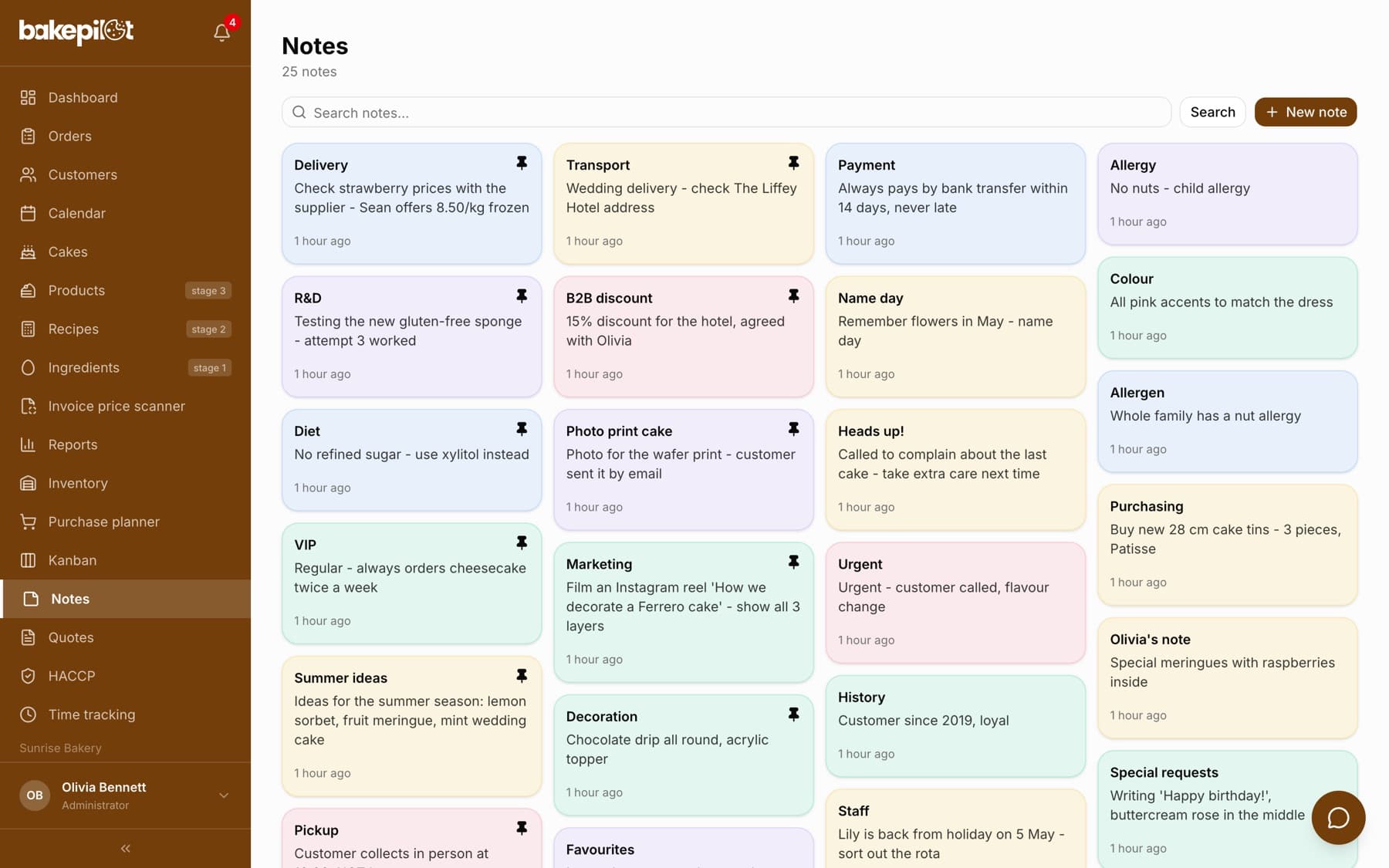
Notes are shown as colored tiles - pinned ones first, then the rest starting from the most recently edited. A tile shows the title, the beginning of the content and the time since the last change. The “Search notes...” field with the “Search” button searches titles and content. The two most recent pinned notes also appear on the Dashboard in the “Notes” section.
- Pinned notes always at the top of the list
- Pin icon on the tile: “Pin” or “Unpin” without opening the note
- Search by title and content
- The Dashboard shows up to two pinned notes
Editing and deleting
Clicking a tile opens the “Edit note” window with the same fields as when adding; save your changes with the “Save changes” button. The trash icon in the corner of the tile deletes the note - to avoid mistakes, you have to click it twice within three seconds.
- Click the tile - “Edit note”, then “Save changes”
- Trash icon “Delete” - the second click confirms (“Click again to delete”)