
Purchase planner and a shopping list to tick off
How to calculate which ingredients to buy for planned production, save a shopping list and tick it off on your phone in the shop.
Last updated:
What the planner is for
The purchase planner answers the question “what do I need to buy to bake what has been ordered”. You enter how many pieces of each product you want to make (or load them from orders), and the app breaks the products down into ingredients according to their recipes, compares them with your inventory and shows the shortages with an estimated cost. You save the result as a shopping list that you tick off on your phone in the shop.
- You open the planner from the “Purchase planner” menu item or with the “Plan purchases” button on the low stock card on the Dashboard
- Profesjonalny (Professional) and Mistrzowski (Master) plans
- By default the planner is visible to the Administrator, Warehouse worker, Baker and Purchaser
- The planner uses the recipe linked to the product in the “Recipe” field on its card; a product without one creates no ingredient requirements and is marked “no recipe” (recipes assigned only to variants are skipped by the planner for now)
Production plan: from orders or manual
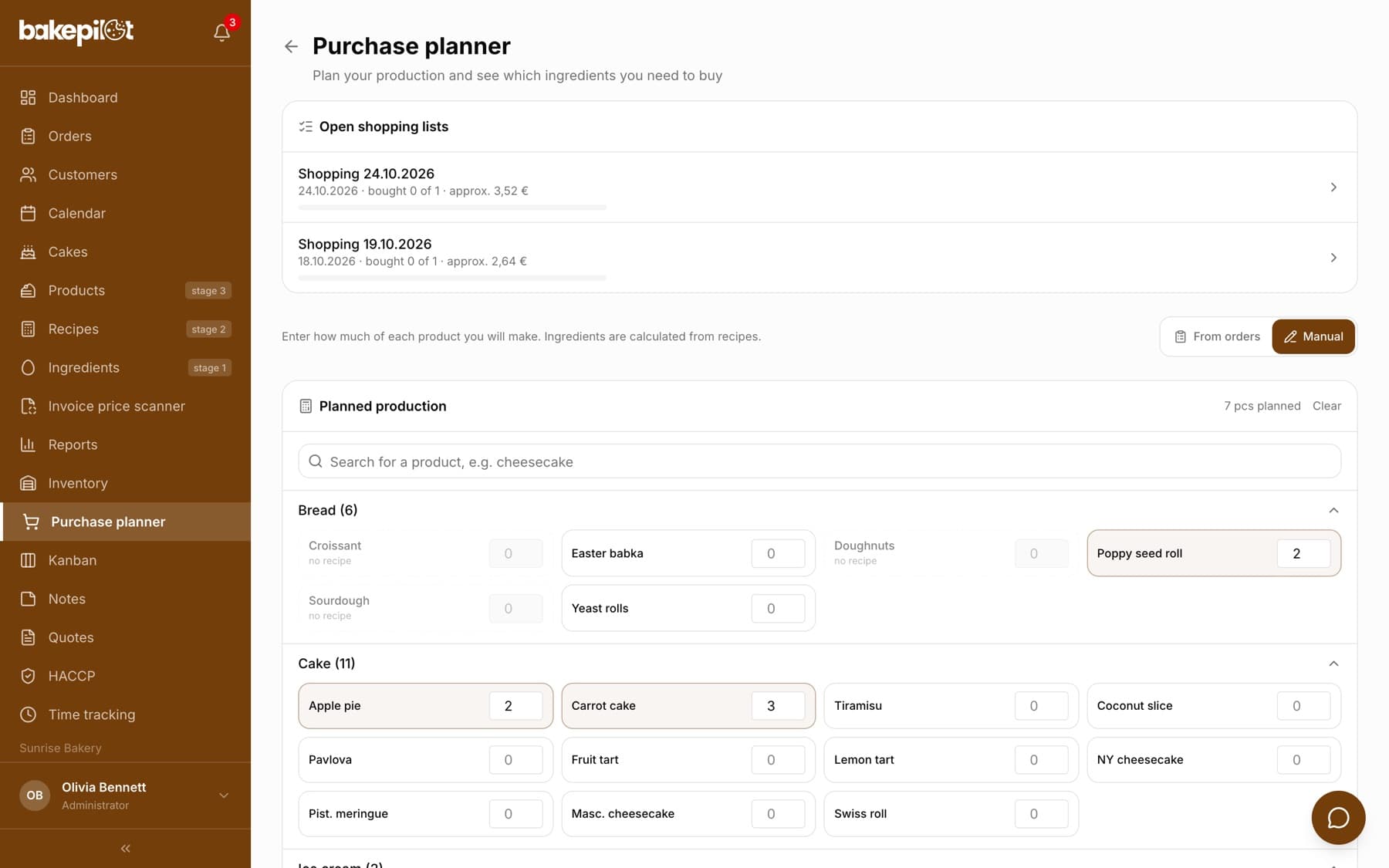
At the top of the planner you choose where the quantities come from: “From orders” or “Manual”. In “From orders” mode the “Load from orders” box fills in quantities based on active orders (confirmed and in production); you choose the period with a button (“Today”, “Tomorrow”, “Week”, “Month”) or with two dates. In “Manual” mode there is no orders box - you enter how much of each product you will make yourself, e.g. when you plan production for the shop or for stock. In both modes, below that is “Planned production” - active products grouped by category, with a search box and a quantity field next to each one.
- Open the Purchase planner
- In the “Load from orders” box, choose a period, e.g. “Tomorrow”, or enter a from-to date range
- Click “Load” - quantities from orders appear next to the products, and the box shows the number of pieces loaded
- Adjust the quantities or add products that are not in the orders (e.g. for the shop)
- Click “Calculate requirements”
- Manual mode: click “Manual” in the top right corner, find a product in the “Search for a product” field and enter a quantity; then “Calculate requirements”
- Switching modes clears the quantities you entered - a plan from orders is never mixed with one entered manually
- Ingredients are always calculated from product recipes. When no product has a recipe, the planner shows the message “No product has a recipe” with an “Add a recipe” link, and the quantity fields are disabled
- “Clear” in the period box clears the dates, and “Clear” next to planned production resets the quantities
- A staff member assigned to branches loads only the orders of their own branches
The result: a shopping list with shortages and cost
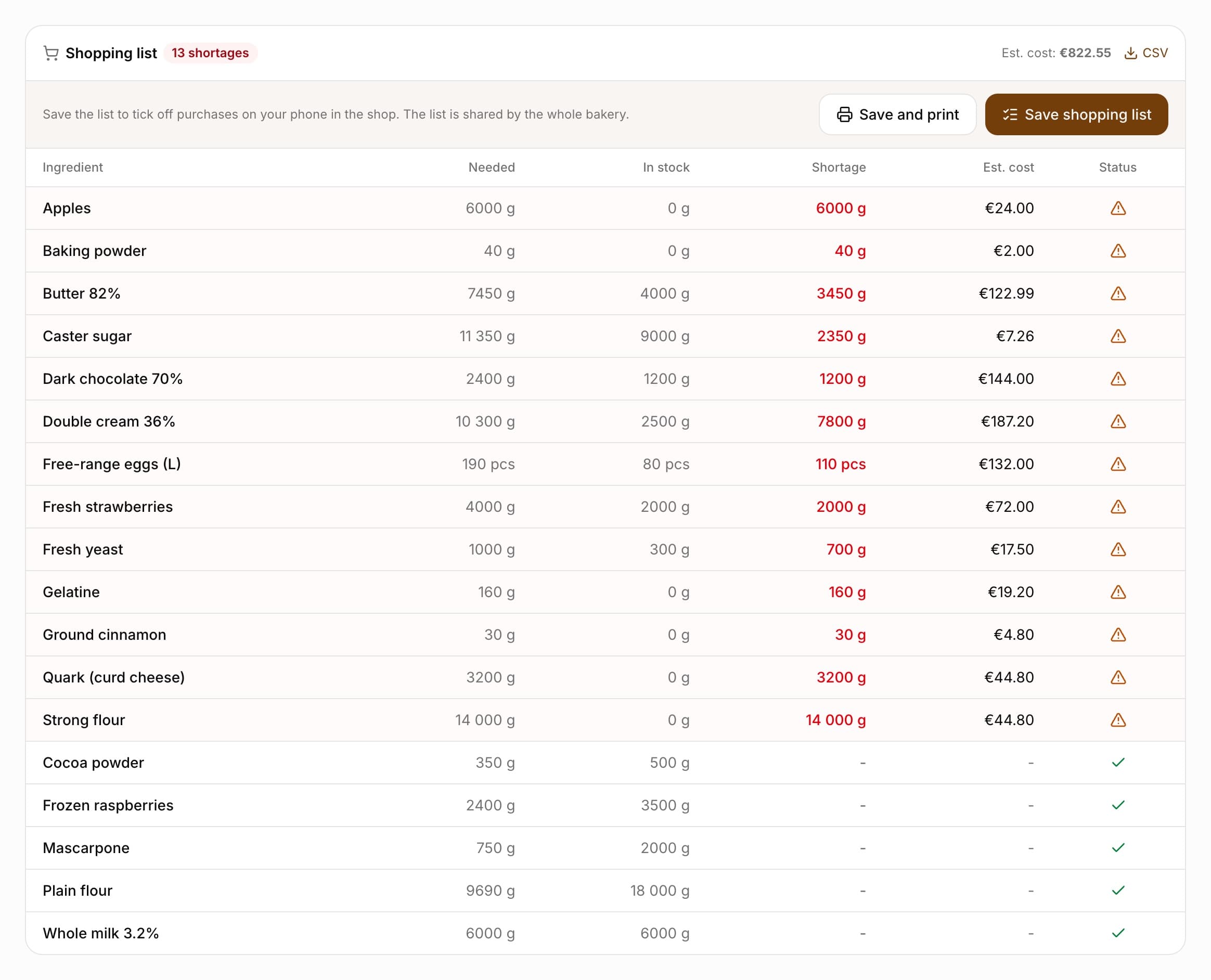
After the calculation, a “Shopping list” table appears with the columns “Ingredient”, “Needed”, “In stock”, “Shortage”, “Est. cost” and “Status” (“short …” or “OK”). Above the table you see the number of shortages and the estimated cost of the purchases. Requirements are calculated from recipes, including sub-recipes used in recipes.
- “CSV” downloads the list of shortages to a file (e.g. to send to a wholesaler)
- A recipe with no yield set (“The batch yields”) is skipped - the planner shows a warning with its name
- When sub-recipes from this plan are in stock, the planner reminds you about them: requirements count their ingredients in full, so if you use the stock, buy less accordingly
- Stock levels come from Inventory - if you do not track stock, every ingredient is a shortage in full
- For an ingredient tracked in pieces in Inventory (e.g. eggs), the planner converts recipe grams to pieces using the weight of one piece from the ingredient card and shows the shortage in whole pieces; without a piece weight the stock is shown in its own unit and the shortage is counted in grams
Saving the list and ticking it off in the shop
The “Save shopping list” button saves the result as a list shared by the whole bakery. The list opens straight away, and later you will find it at the top of the planner in the “Open shopping lists” section (with the date, progress “bought X of Y” and cost). On the list, clicking an item ticks it off - this works conveniently on a phone at the shelf.
- After calculating requirements, click “Save shopping list” (or “Save and print” if you take the list on paper)
- On the list, click an item once it is in your basket - it moves to the “Bought” section
- After shopping, click “Finish shopping” - the list gets the status “List closed” and disappears from the open lists
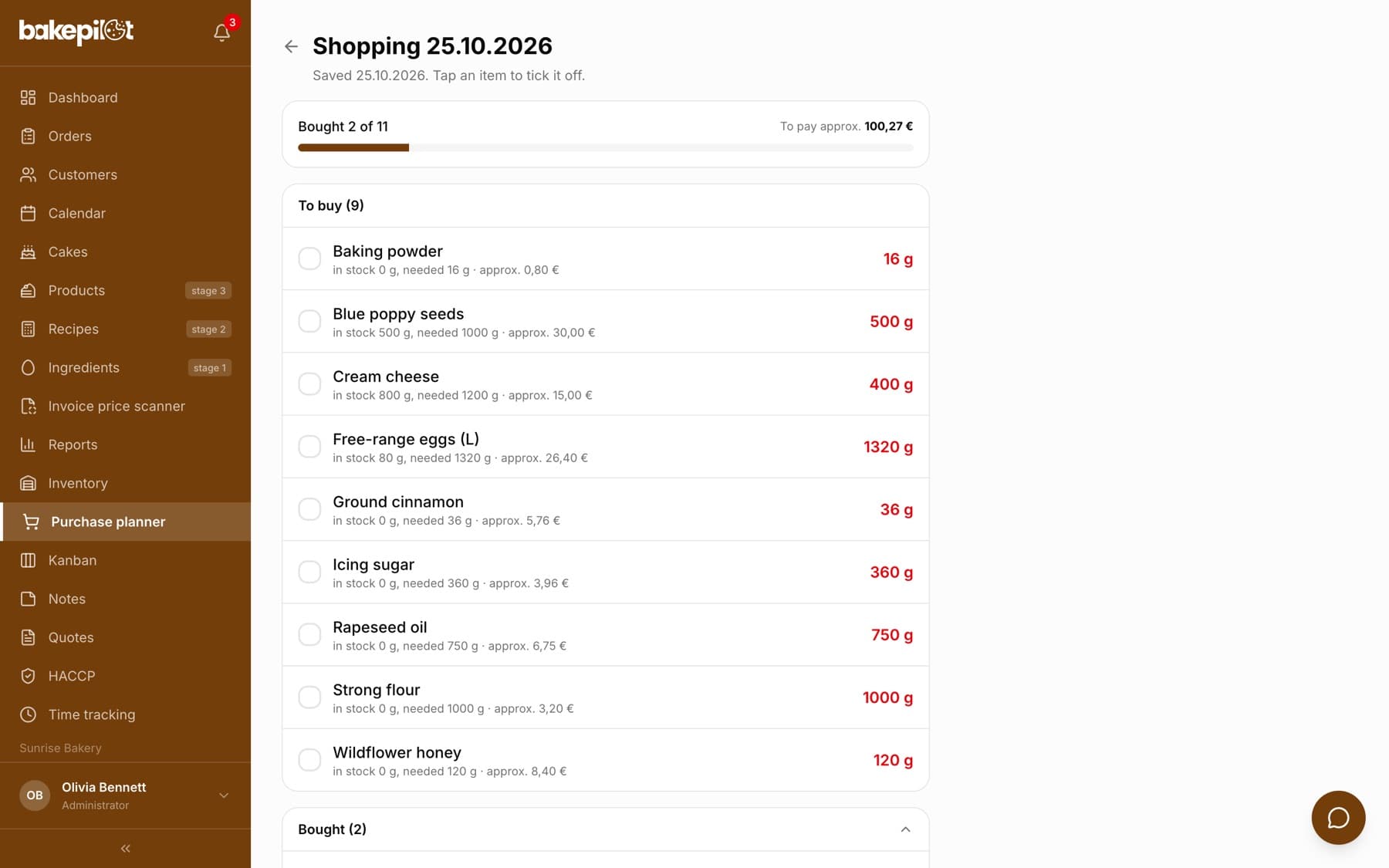
- The list has the sections “To buy”, “Bought” and “In stock”, plus a “Bought X of Y” bar and a “To pay approx.” amount
- When an ingredient has a package weight in Inventory, the item shows how many packs to buy (e.g. “3 packs”)
- The list name is created automatically from the date or period, e.g. “Zakupy 19.10.2026” (Purchases 19.10.2026)
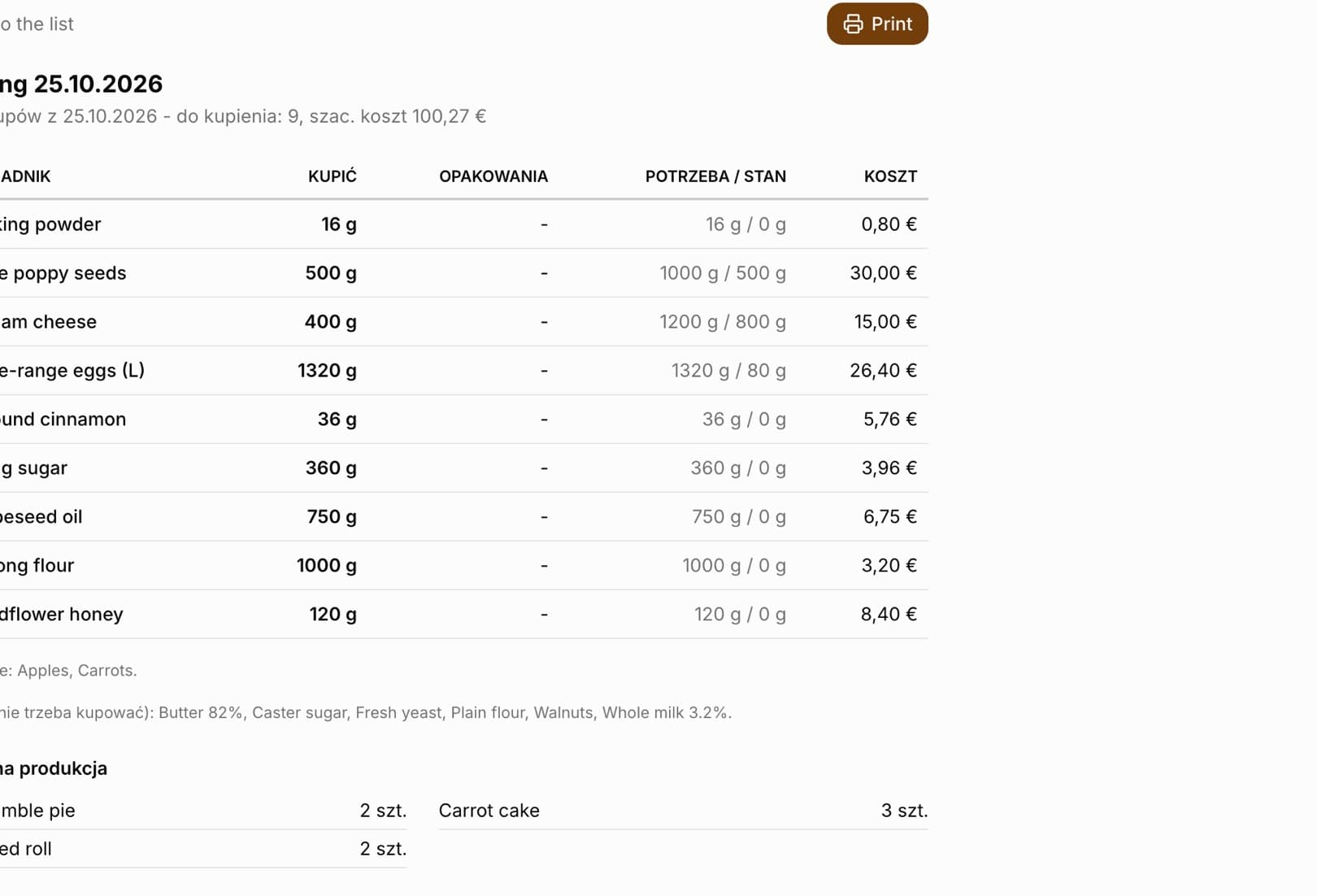
- “Print” on the list opens a printout: a table of ingredients with a box to tick off with a pen, the quantity to buy, packs and cost, with planned production below
- Ticking items off and “Finish shopping” do not change your inventory - you receive the delivery in Inventory (e.g. from a purchase invoice or with an adjustment)
- Saving, ticking off and closing lists are available by default to the Administrator, Warehouse worker and Purchaser
Printing the shopping list
When someone without a phone goes to the wholesaler, or you prefer paper, print the list. “Save and print” below the result saves the list and opens its printout straight away, and on a saved list the same printout opens with the “Print” button. The printout has a table with a box to tick off with a pen and the columns Ingredient, To buy, Packs, Needed / in stock and Cost, and below it Planned production, i.e. the products and quantities the list was created from (like other documents, the printout itself is in Polish).
- Only what is left to buy goes on paper - items ticked off in the app are listed below as already bought
- Ingredients you have enough of in stock are listed below the table
- The printout is always light, even with the app's dark mode
Deleting a list
You can delete a list you no longer need - open or closed - on its page with the “Delete list” button. The app asks “Delete this shopping list?”, and after you confirm it returns to the planner. Deleting a list does not change your inventory or orders.
- By default only the Administrator can delete lists - you can change this in the permissions matrix
- Deleting cannot be undone; you can calculate a new list in the planner at any time
Frequently asked questions
Does ticking off purchases add ingredients to inventory?
No. The shopping list is a cheat sheet for the shop. You receive goods into stock in Inventory - most conveniently from a purchase invoice or with a stock adjustment.
Why does a product not create any ingredients?
The product has no recipe in the “Recipe” field on the product card (the planner shows “no recipe” next to it), or the recipe has no yield set in “The batch yields”. Link a recipe to the product and calculate requirements again.
Is the shopping list visible to the whole team?
Yes. A saved list is shared by the whole bakery - everyone with access to the planner sees it under “Open shopping lists”, so one person can calculate it and another can tick it off in the shop.
Can I plan production without orders?
Yes. Switch the planner to “Manual” and enter the quantities of the products you want to make. Ingredients are calculated from recipes just like with orders, so the products must have a linked recipe.
How do I print the shopping list?
After the calculation, click “Save and print”, or open a saved list and click “Print”. The printout has a tick box next to each ingredient and the planned production at the bottom.
Which orders does “Load from orders” load?
Active orders, i.e. confirmed and in production, with pickup in the selected period. Drafts and ready, handed over and cancelled orders are not taken into account.